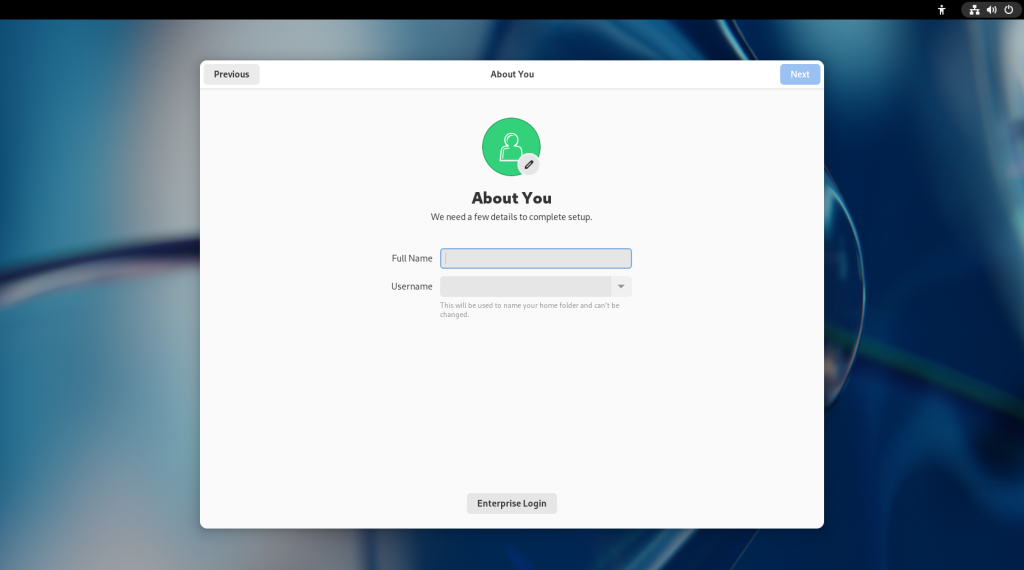
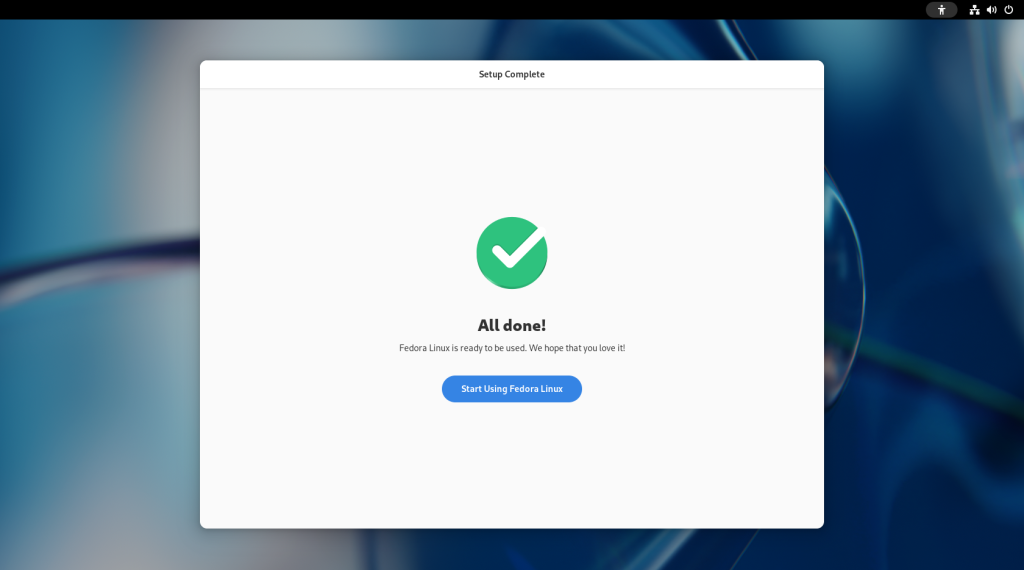
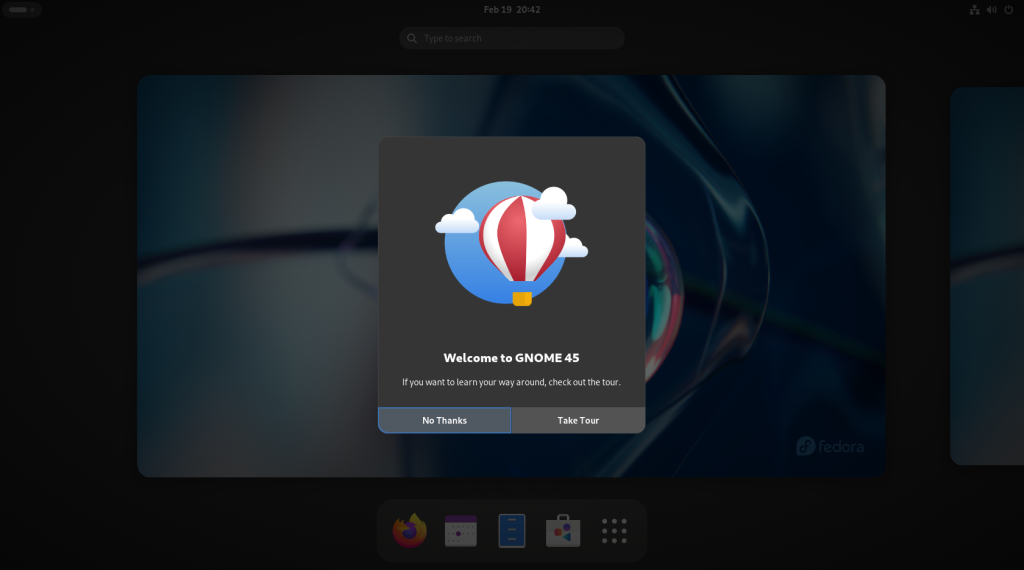
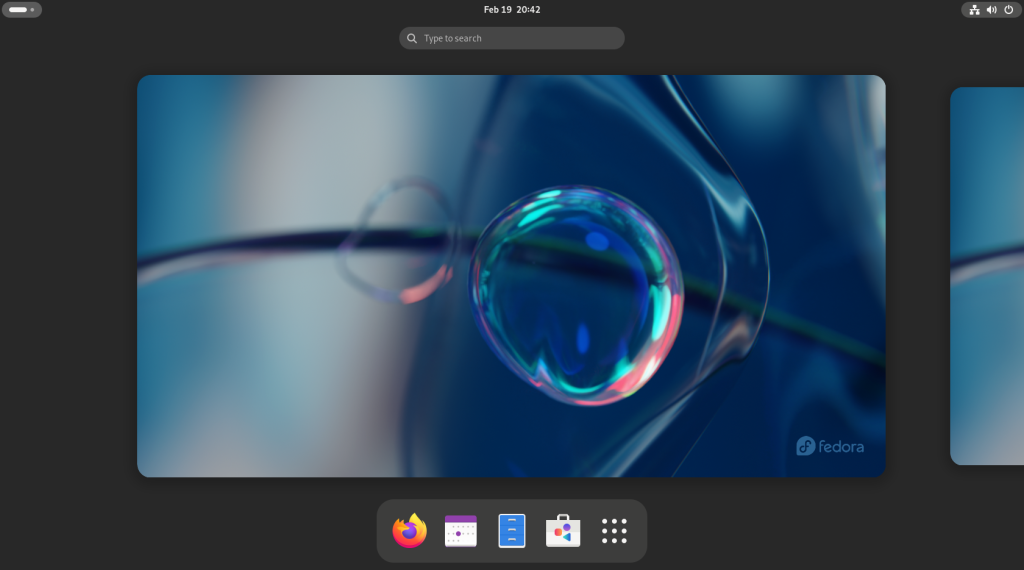
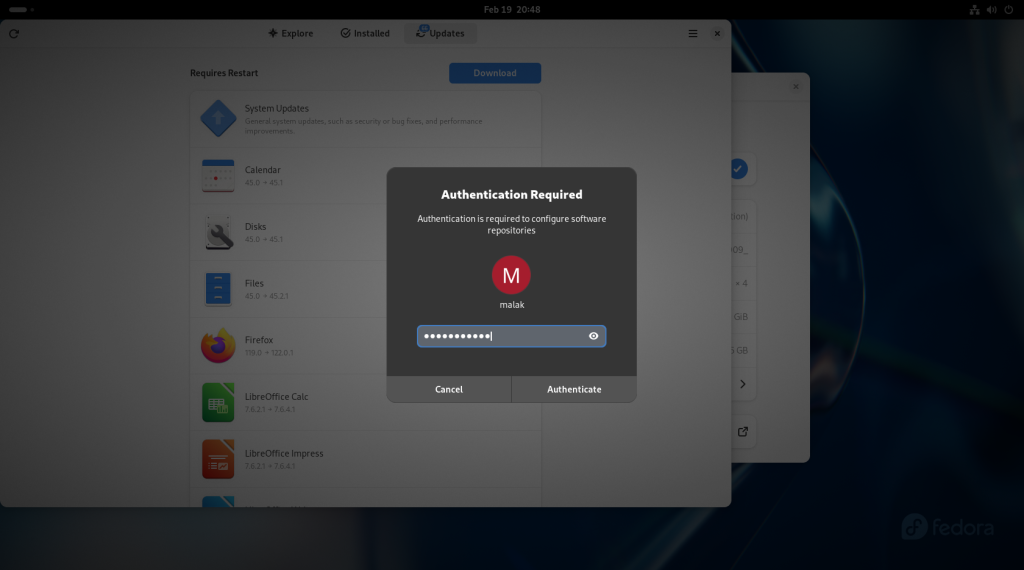
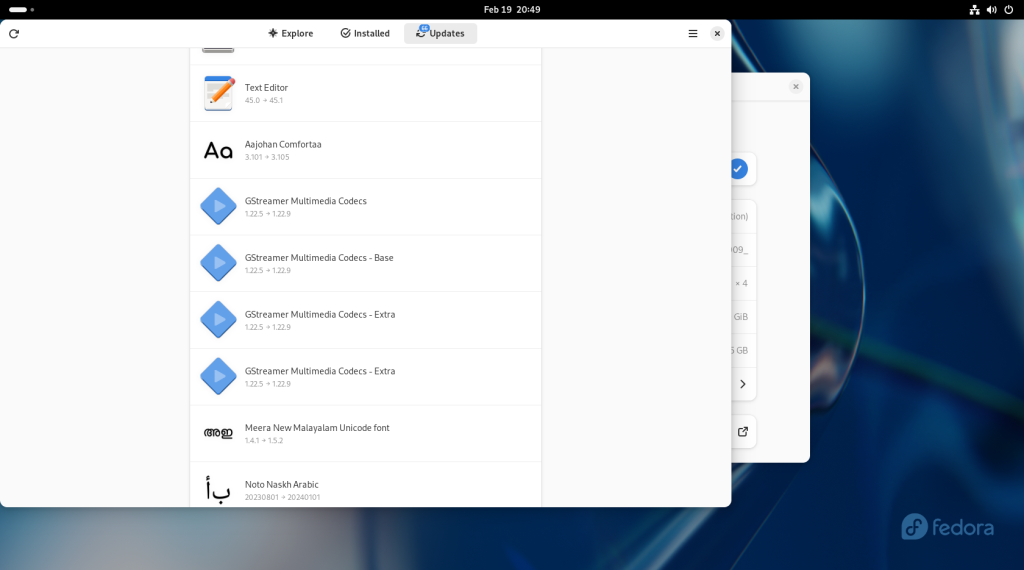
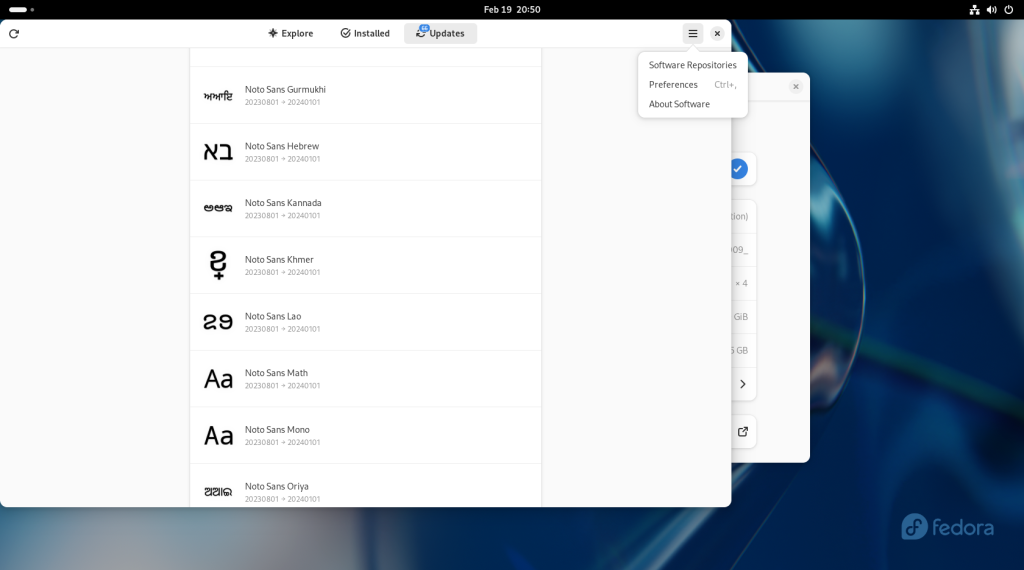
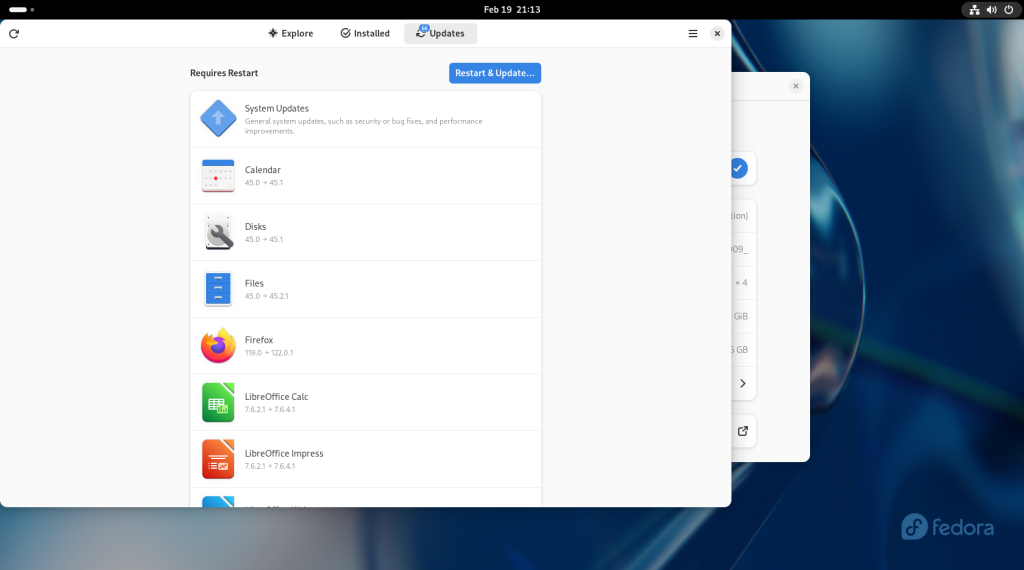
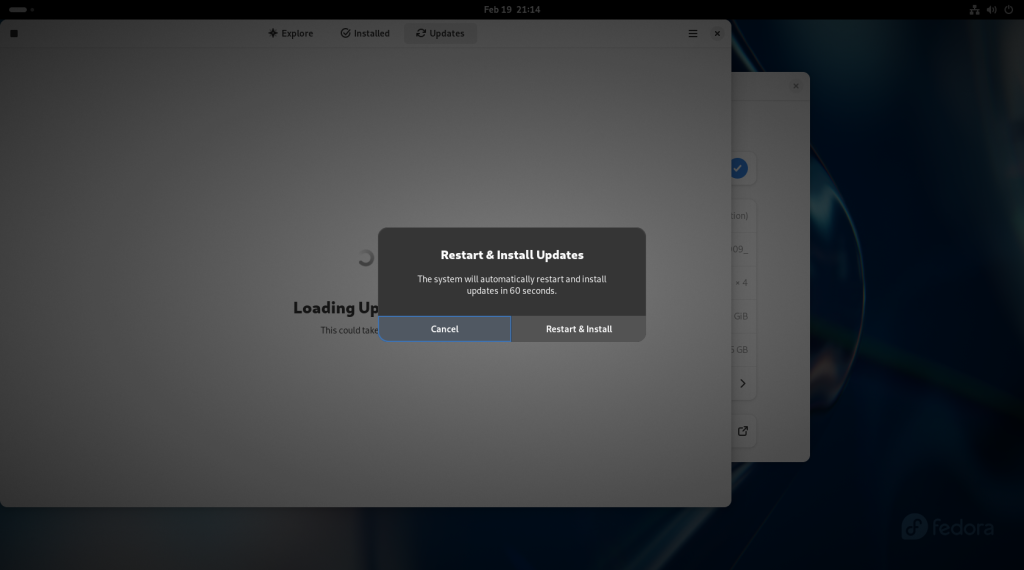
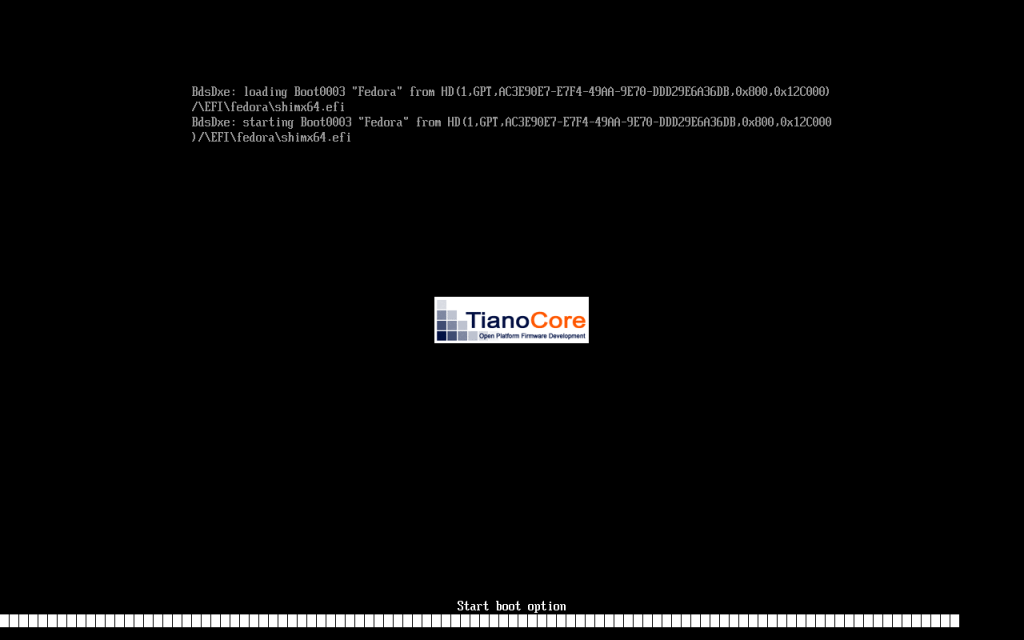
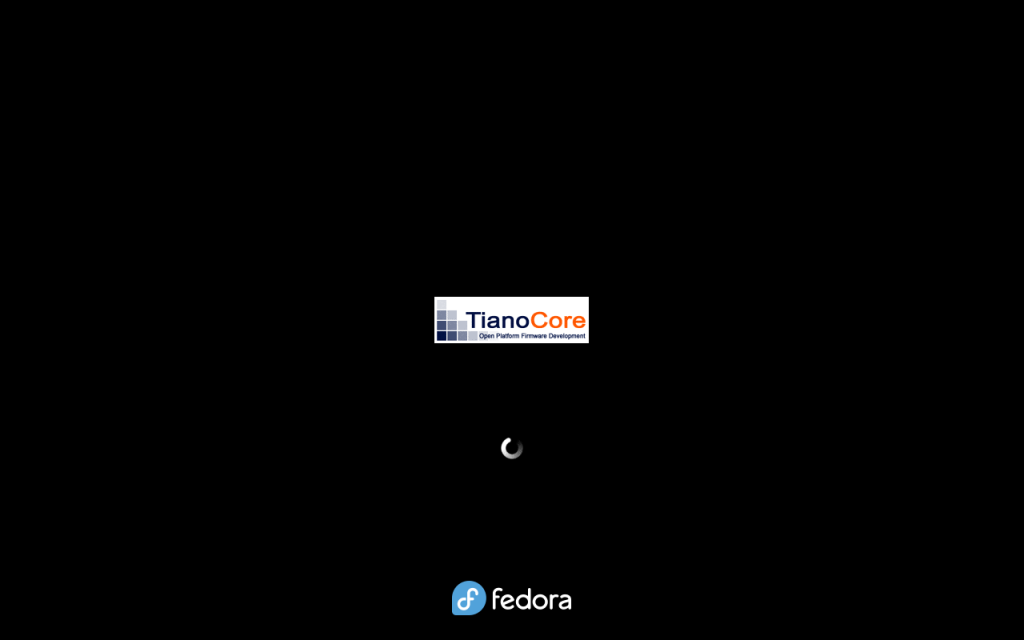
Note: Although it has been a while between posts and I had planned on another subject for what would have been this post, given the time lapse I decided to take advantage of a new version of Fedora that had been released to show how to easily upgrade the OS version, in this case, from version 39 to version 40. Note that many different versions of linux (Ubuntu, Mint, Debian, etc.) have similar functions and upgrade paths; since I began using the automatic upgrade tool in Fedora in about 2018, I have had good experiences.
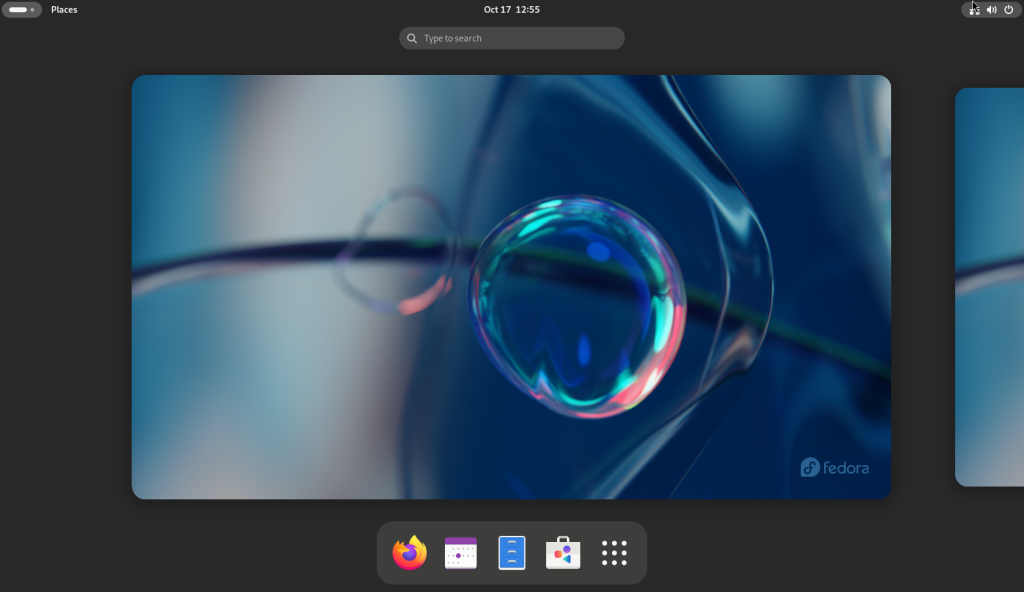
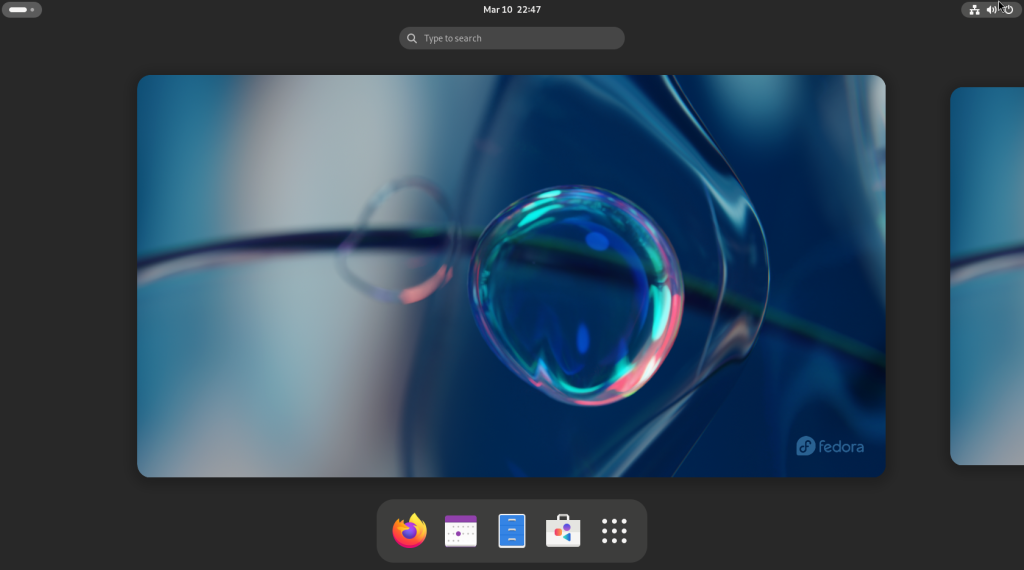
Firstly, the “Activities” screen happened to open when I logged into the system, and I chose the software icon in the dock on the bottom (the white “shopping bag” with the red, black, and blue symbols):
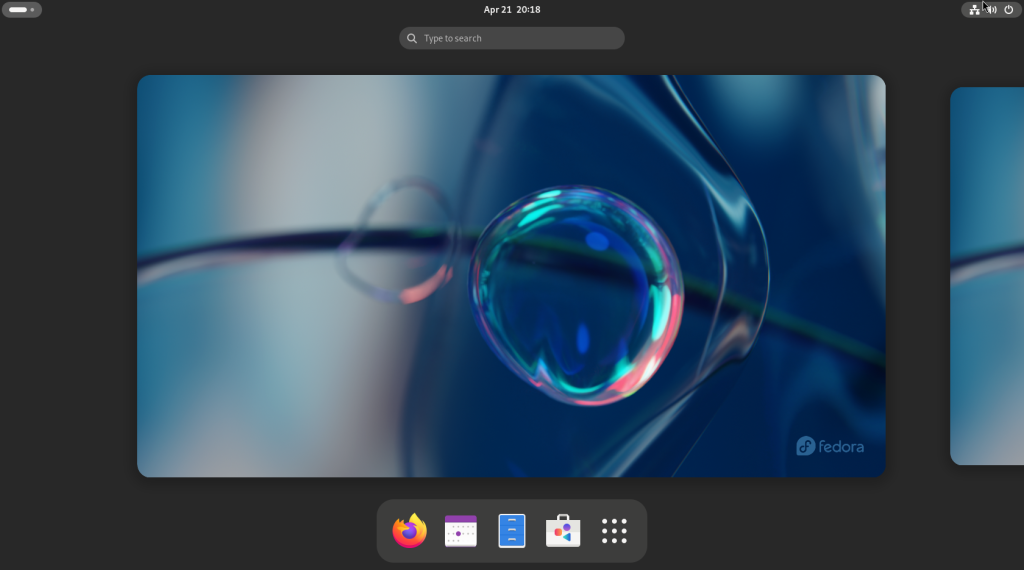
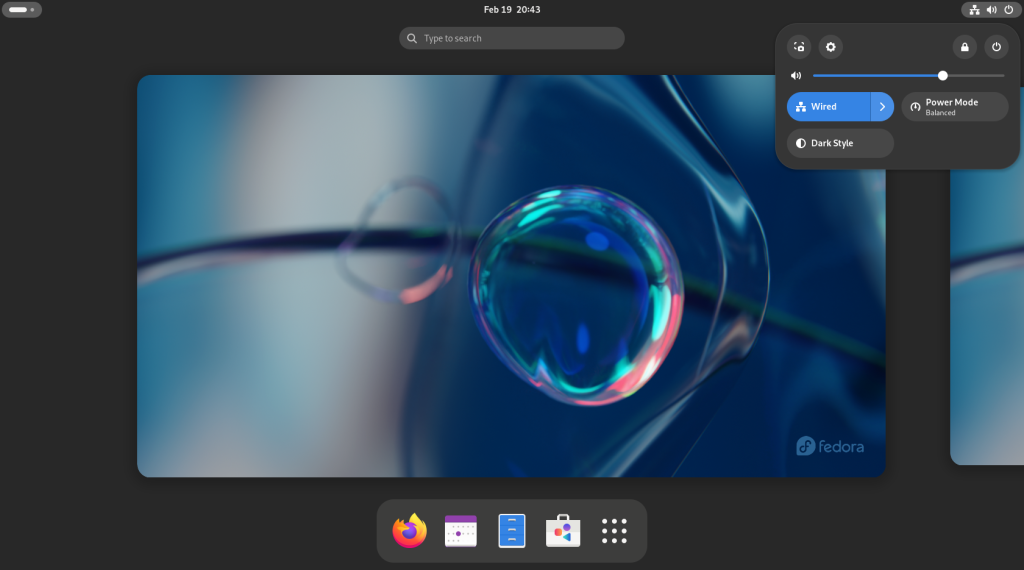
Activities screen with dock on bottom
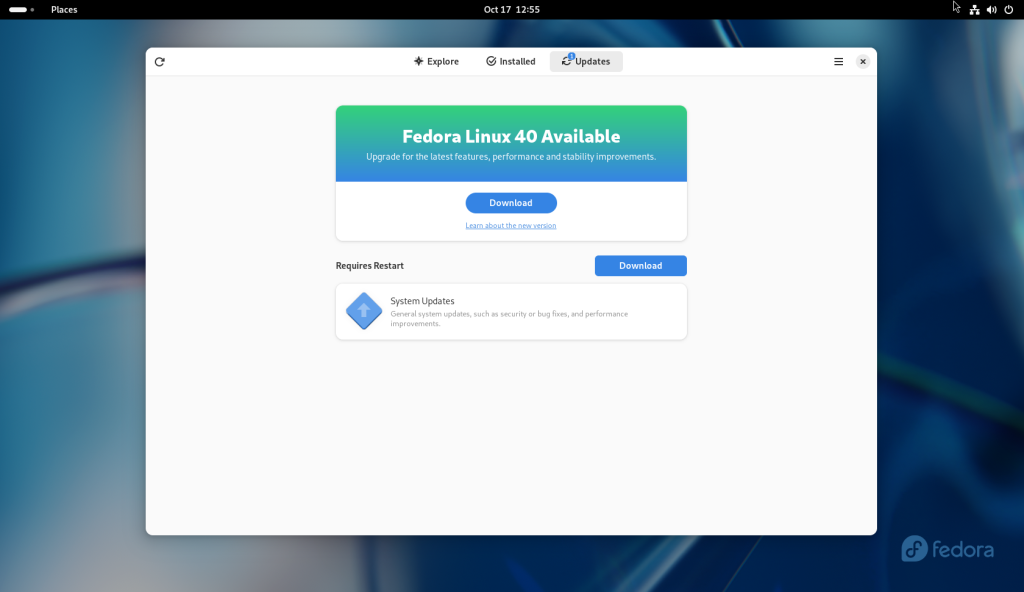
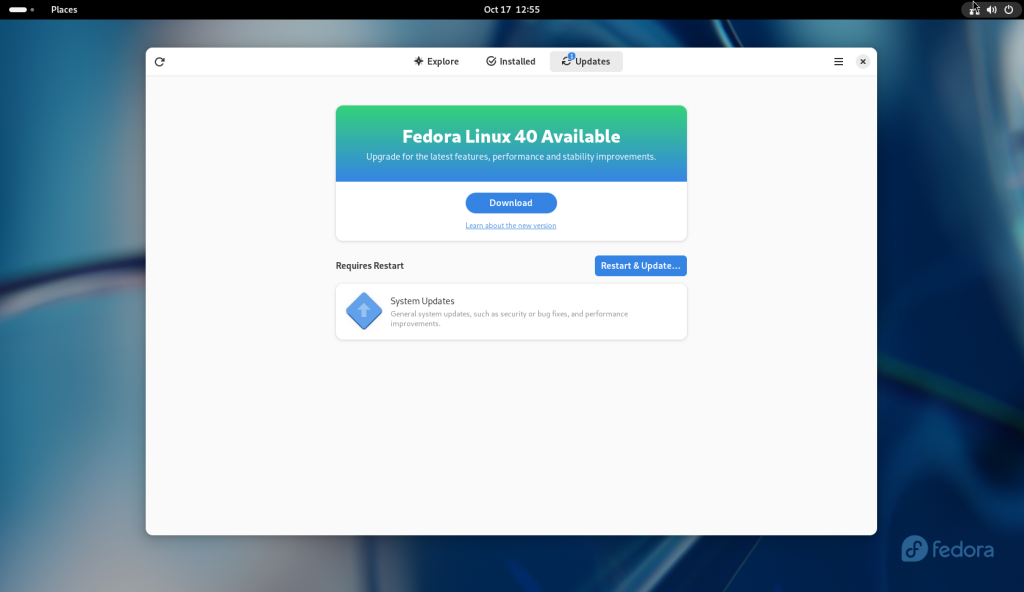
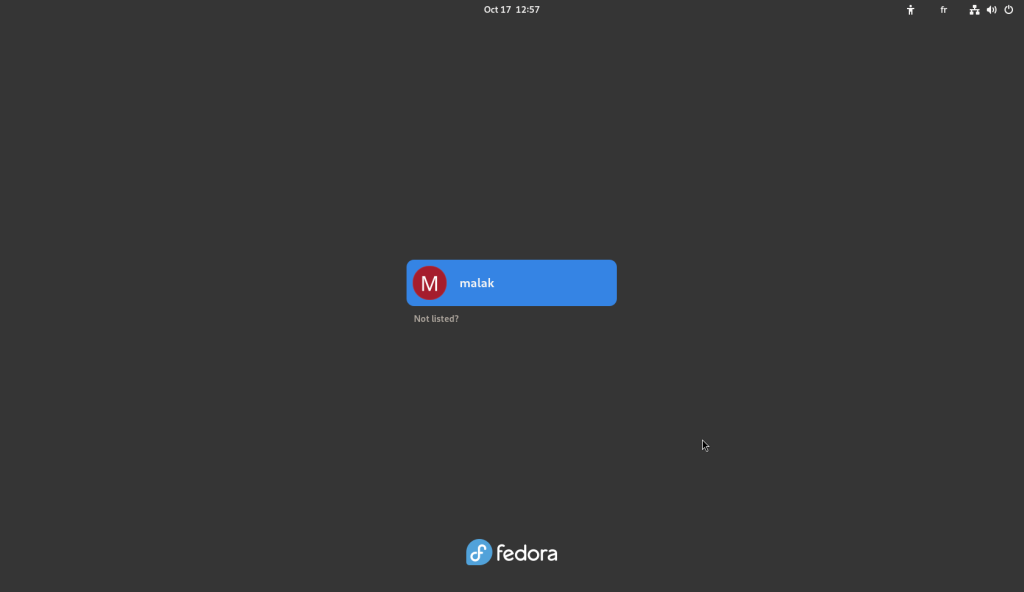
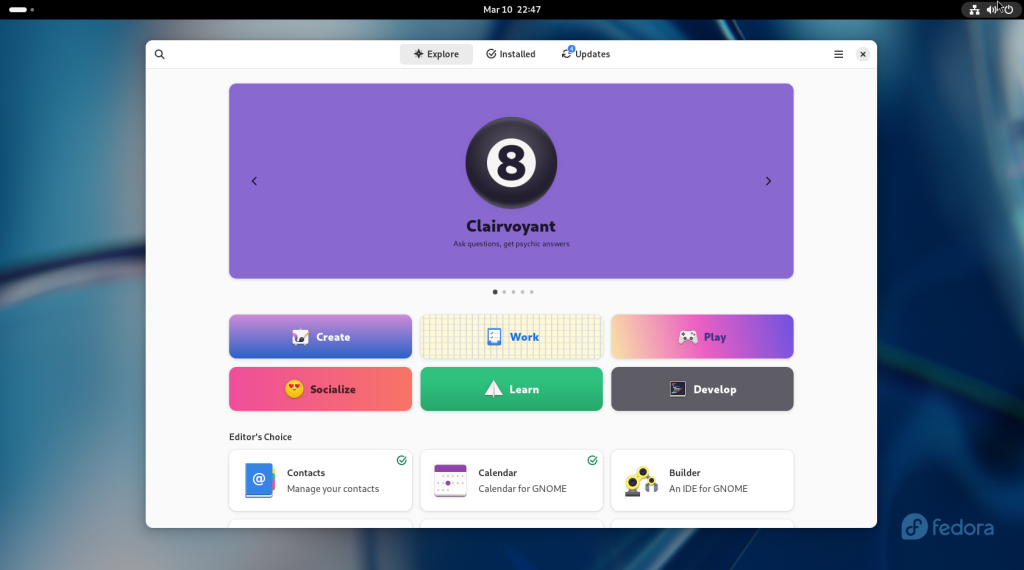
Which brought up the following screen, telling me that there were general updates, and that a new version of Fedora was available:
Software icon chosen
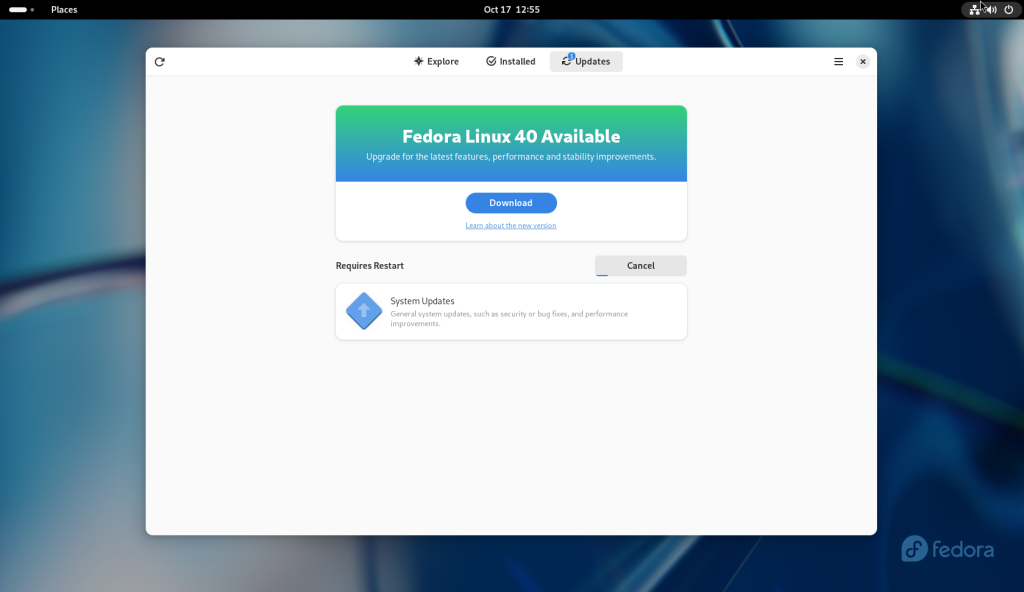
The system updates were first chosen and downloaded:
Updates downloaded
Once the updates were downloaded, the system was ready to be rebooted for installation:
Updates ready to be installed
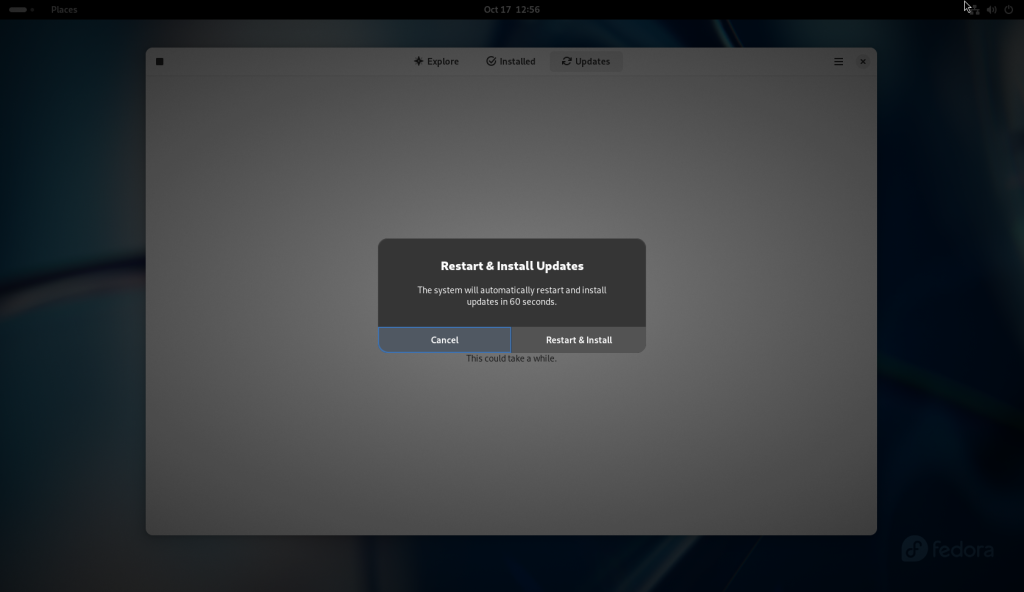
The “Restart & Install” button was chosen to confirm the reboot:
Restart and install updates dialog box opened
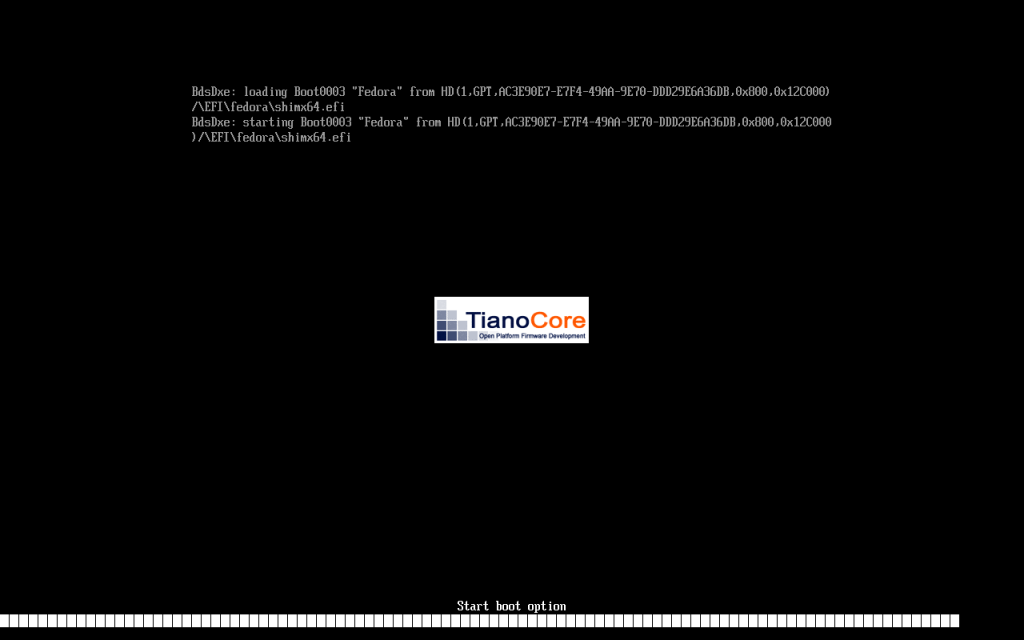
The system rebooted:
System rebooted
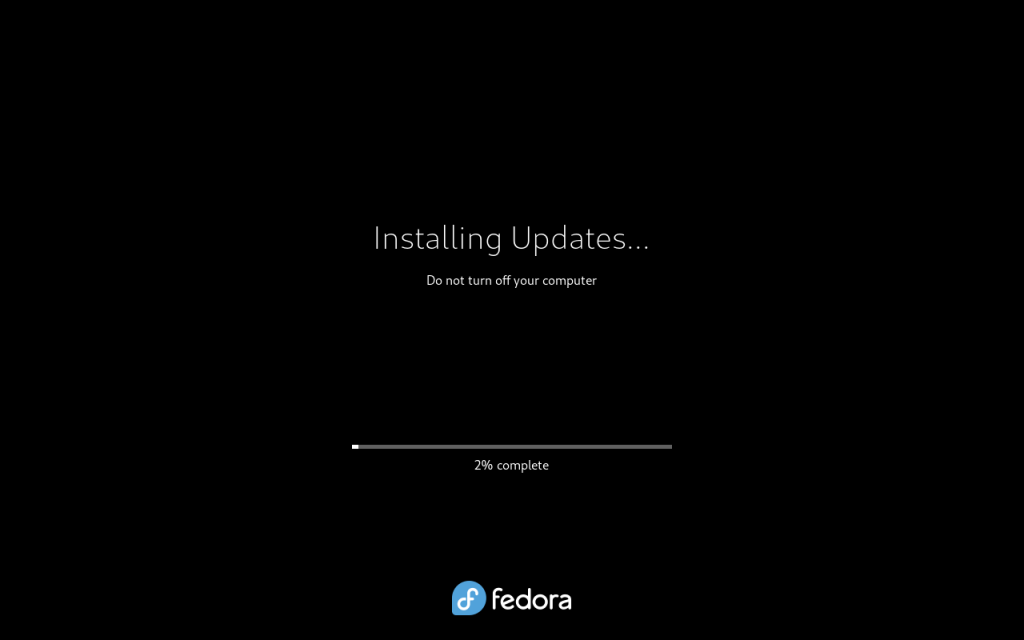
… and updates were installed:
Upddates installing
Once the updates were installed, the system rebooted:
System rebooted after installation of updates
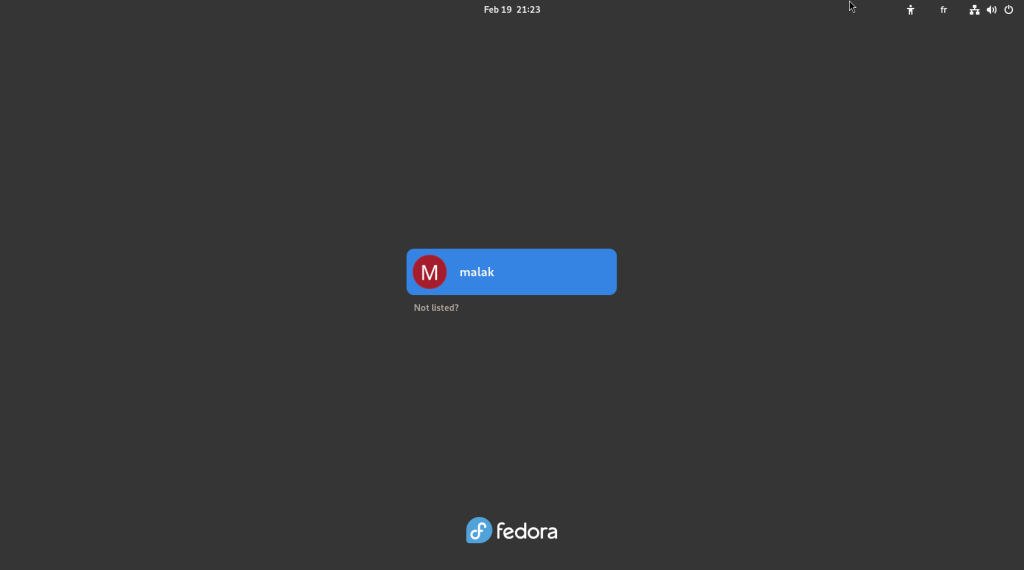
… leading to the login screen:
System login screen
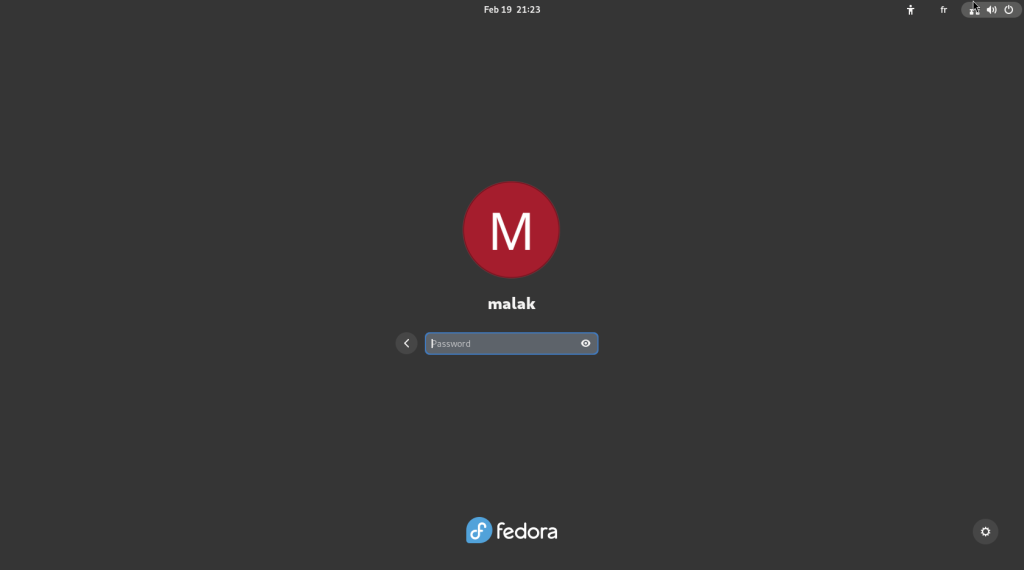
… where I entered my password:
Password challenge
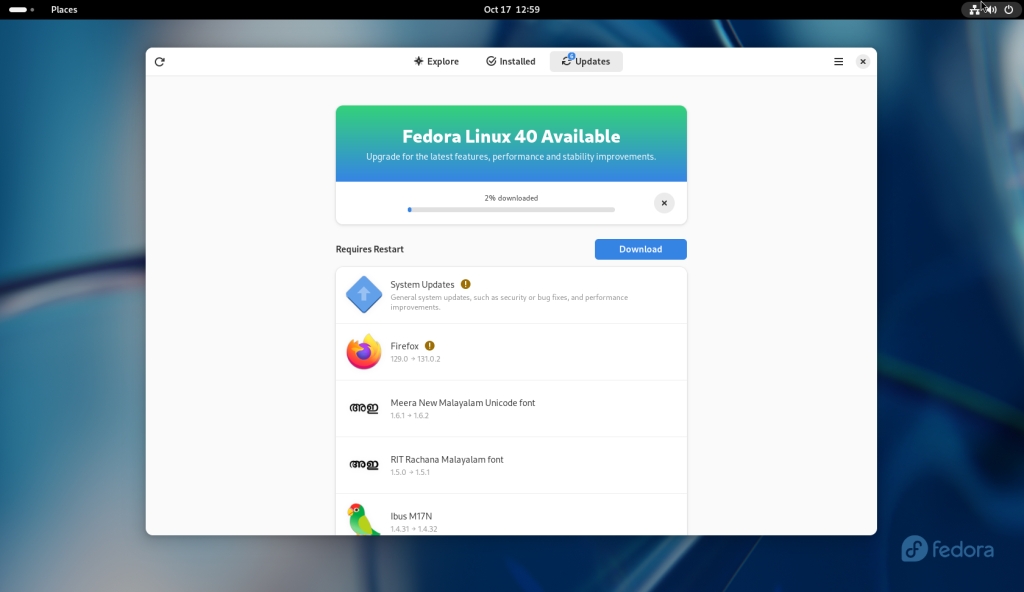
Once logged in, I clicked on the software icon again in the dock, and chose to download the upgrades for Fedora 40:
Software store opened again, and upgrade packages downloaded (2%)
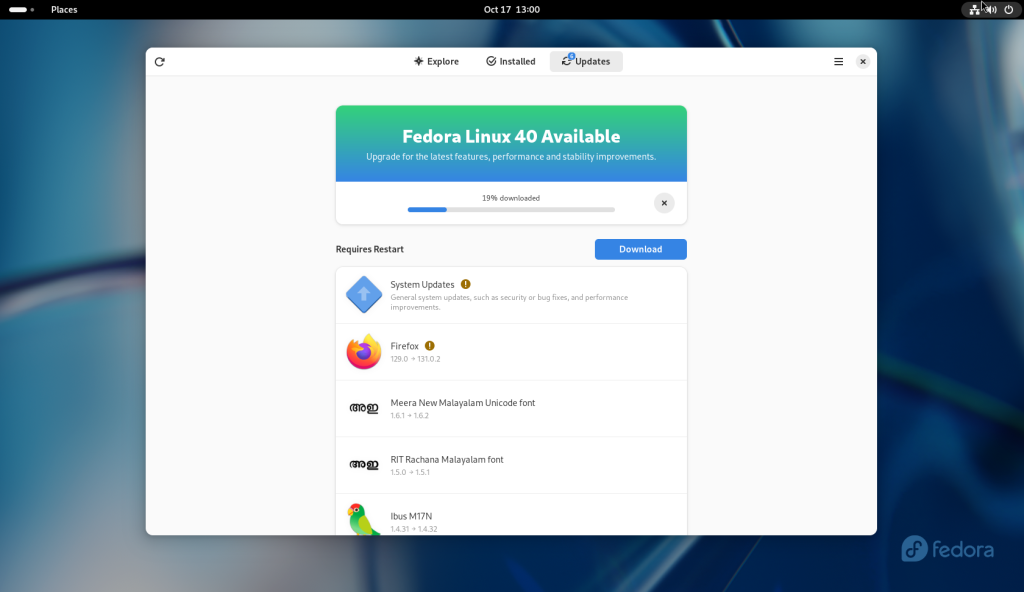
Upgrade packages downloading (19%)
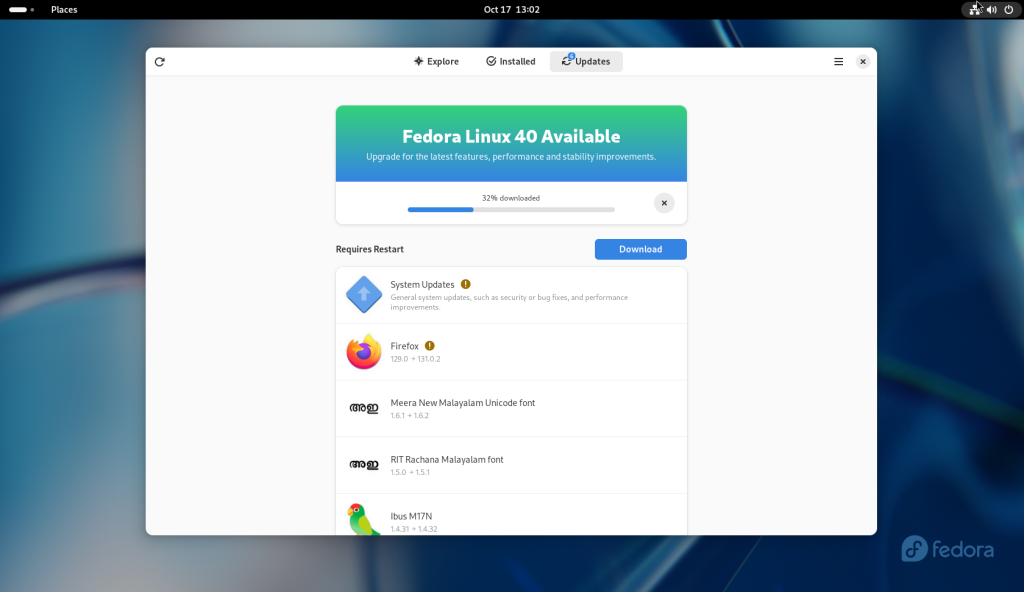
Upgrade packages downloading (32%)
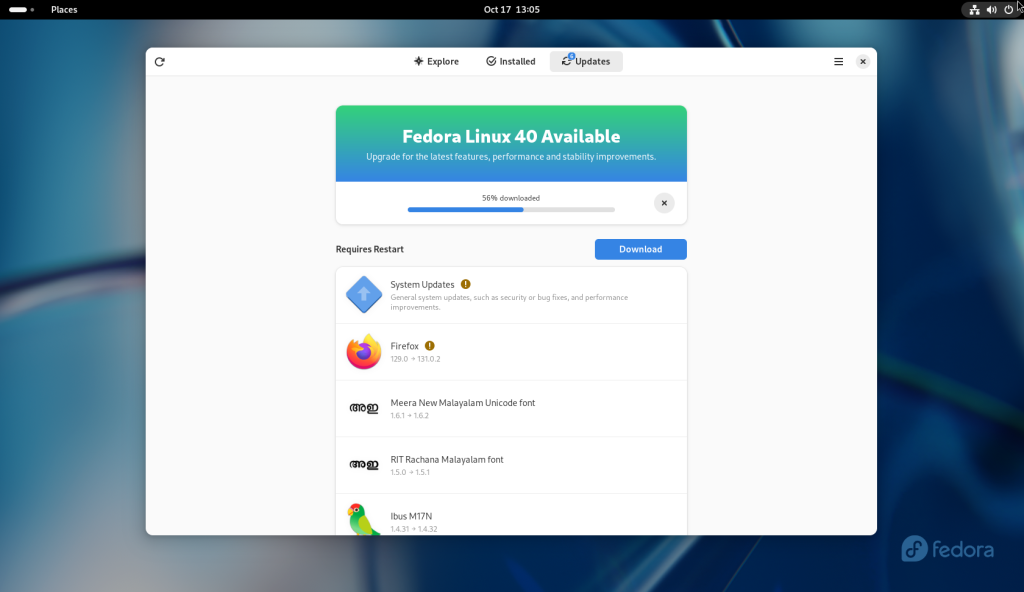
Upgrade packages downloading (56%)
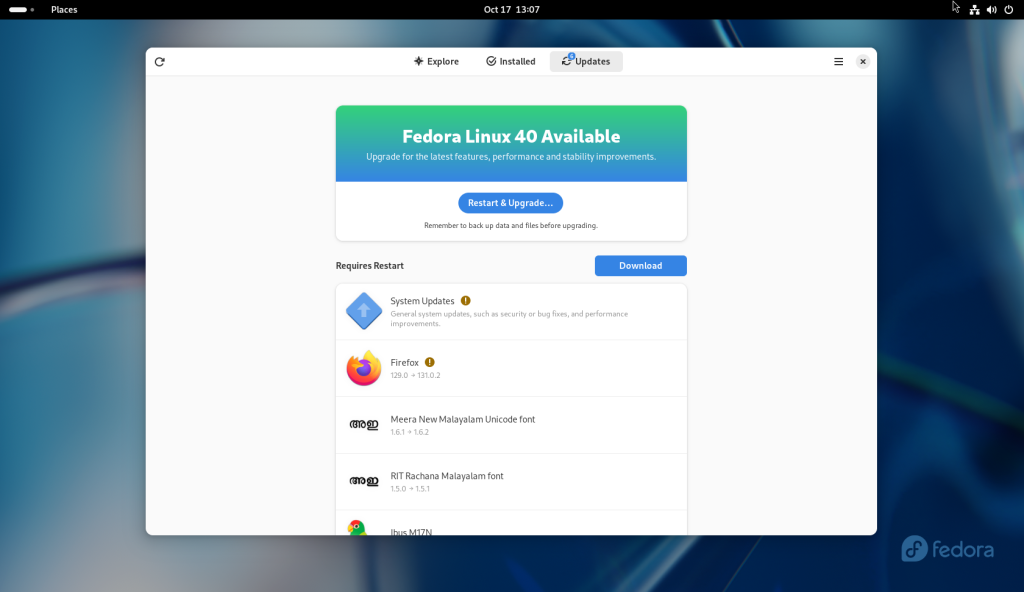
Once the upgrade packages were downloaded, the “Restart & Upgrade” button was pressed:
All packages downloaded, and Restart and Upgrade button pressed
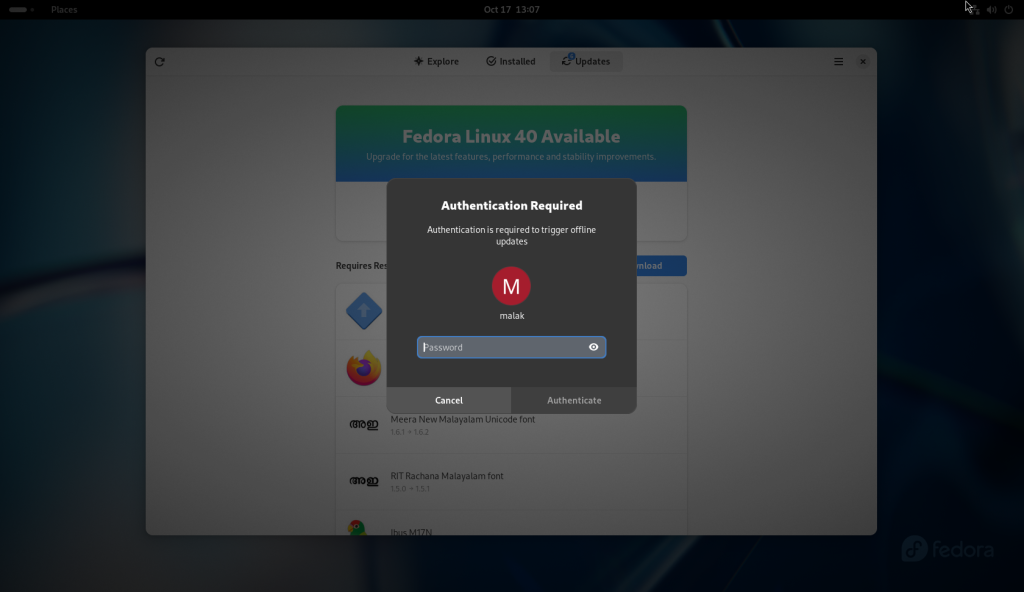
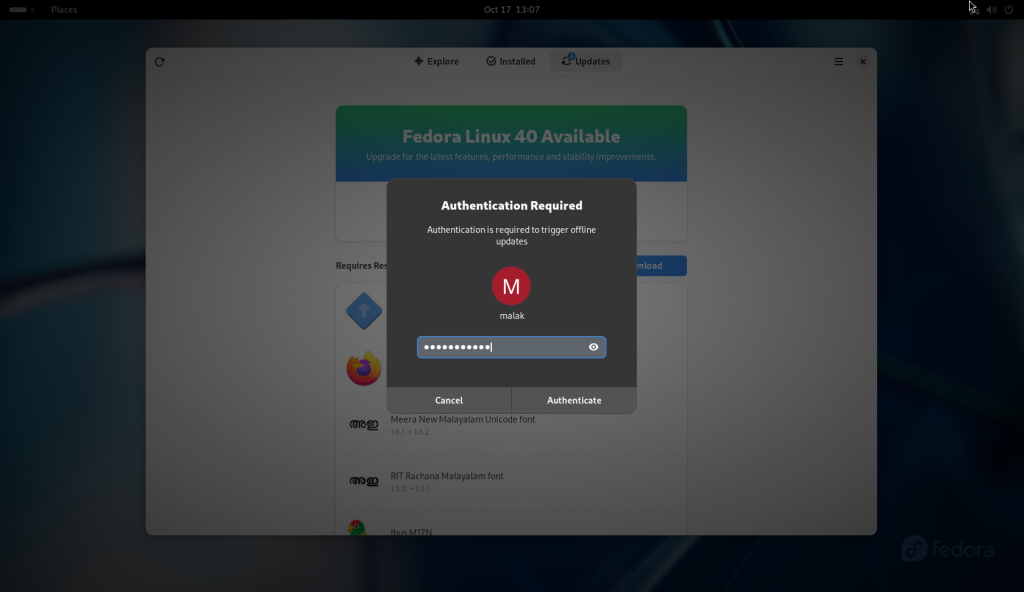
… which required authentication, so my password was entered:
Authentication required for the major changes
Password entered
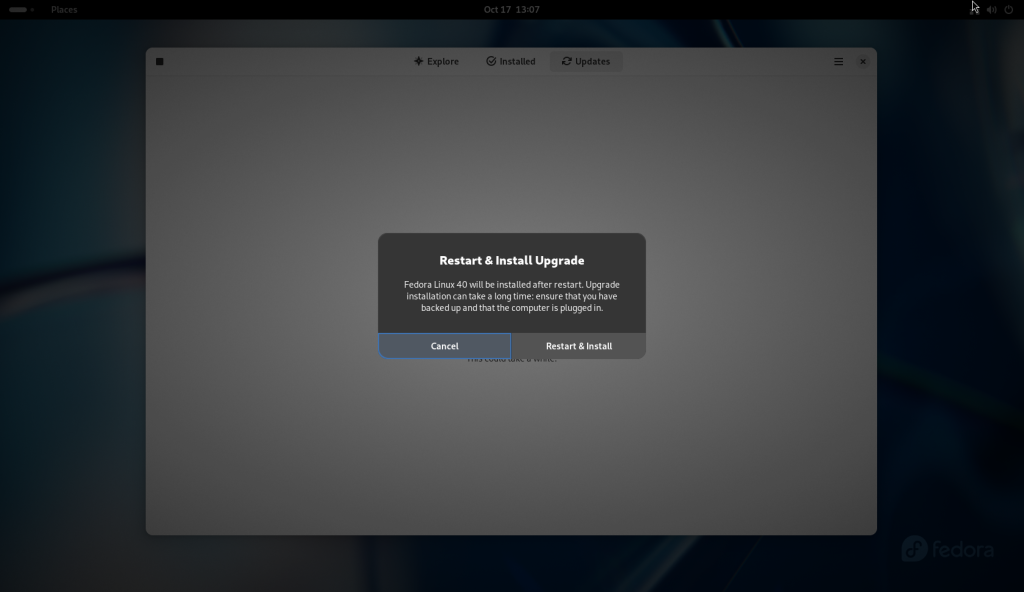
The system asked again if I wanted to restart and Install the upgrade:
Confirmation requested to restart and upgrade the system
The “Restart & Install Upgrade” button was pressed:
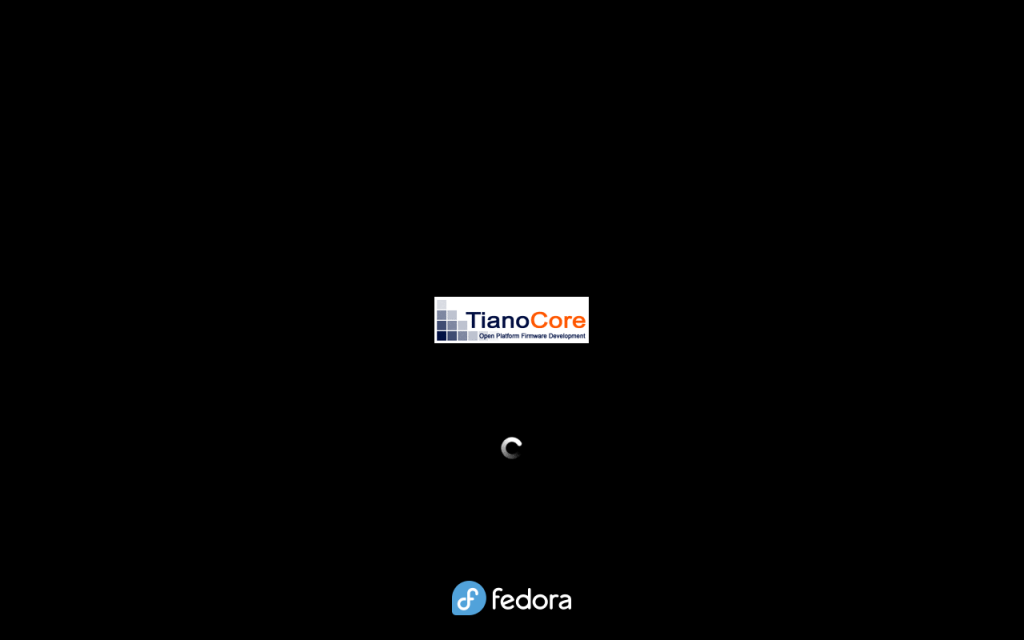
System rebooted
System rebooted
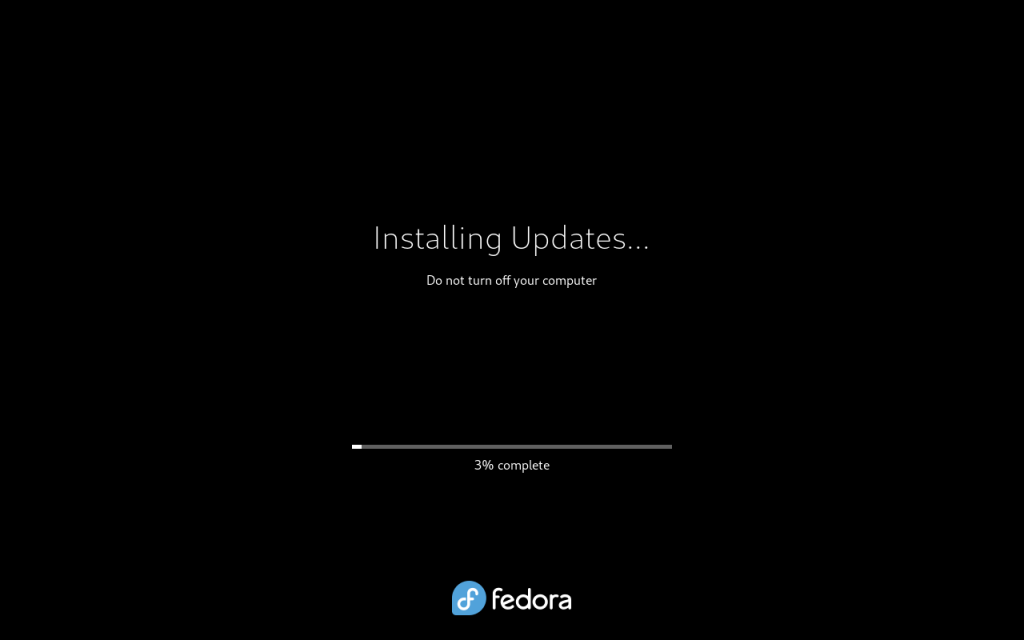
Updates installing (3%)
Updates installing (14%)
Updates installing (39%)
Updates installing (52%)
Updates installing (59%)
Updates installing (77%)
Updates installing (93%)
Updates installing (97%)
Once the upgrade was complete, the computer rebooted:
System rebooted after upgrades applied
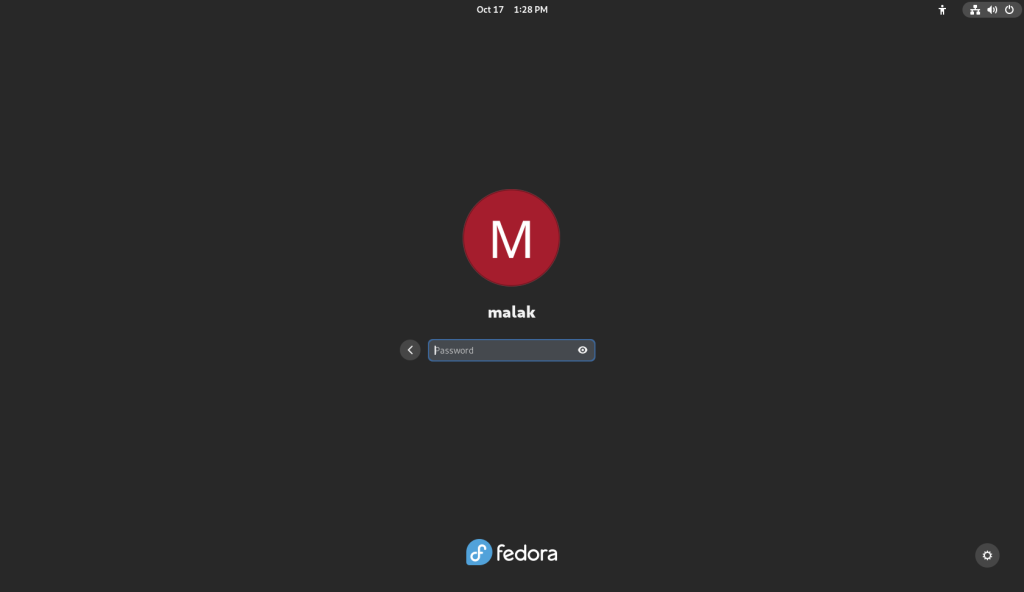
The login screen came up again:
Login screen
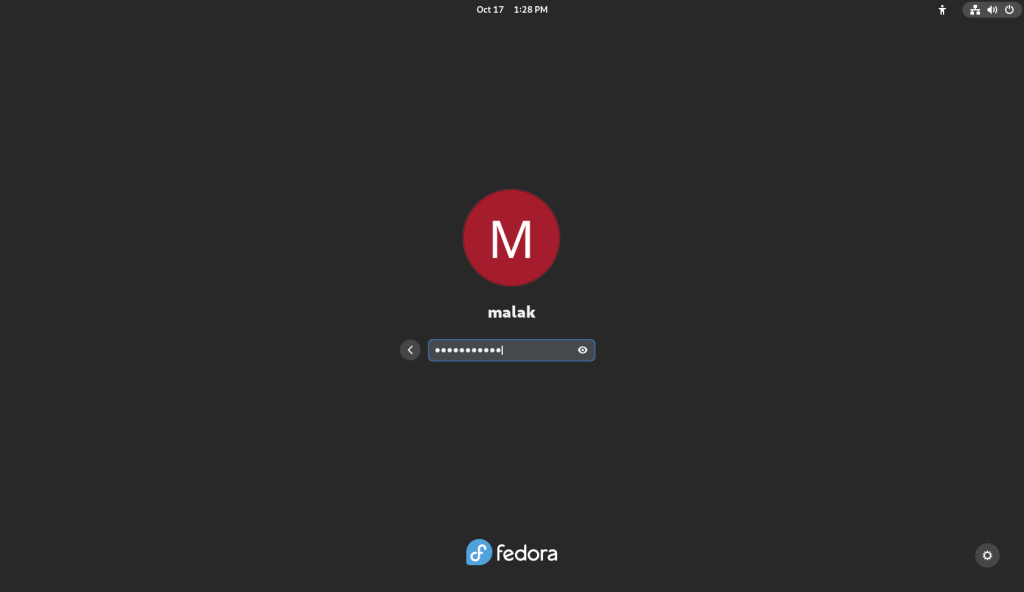
And again I provided my password:
Password challenge
Password entered
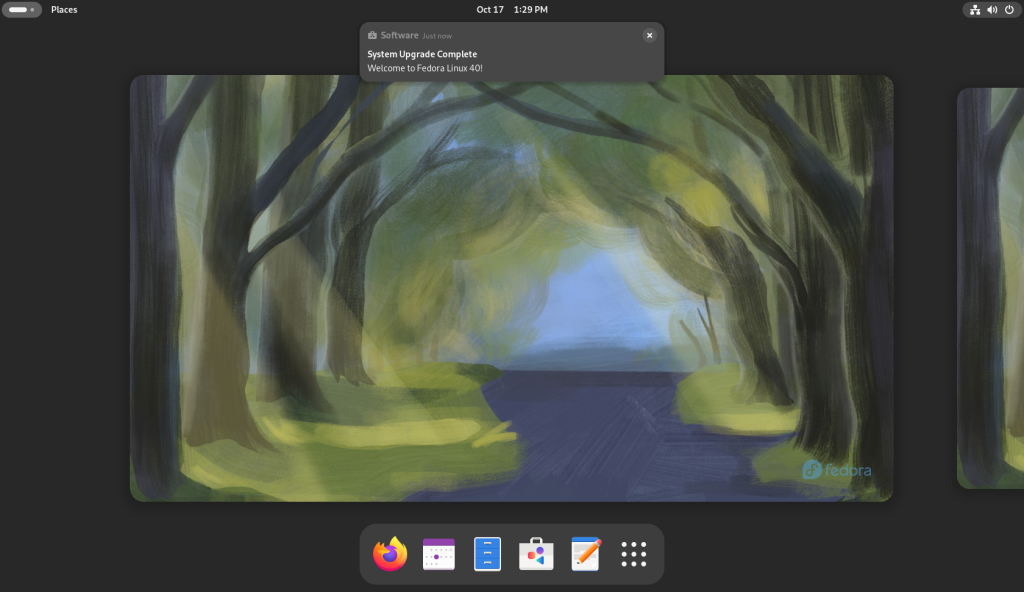
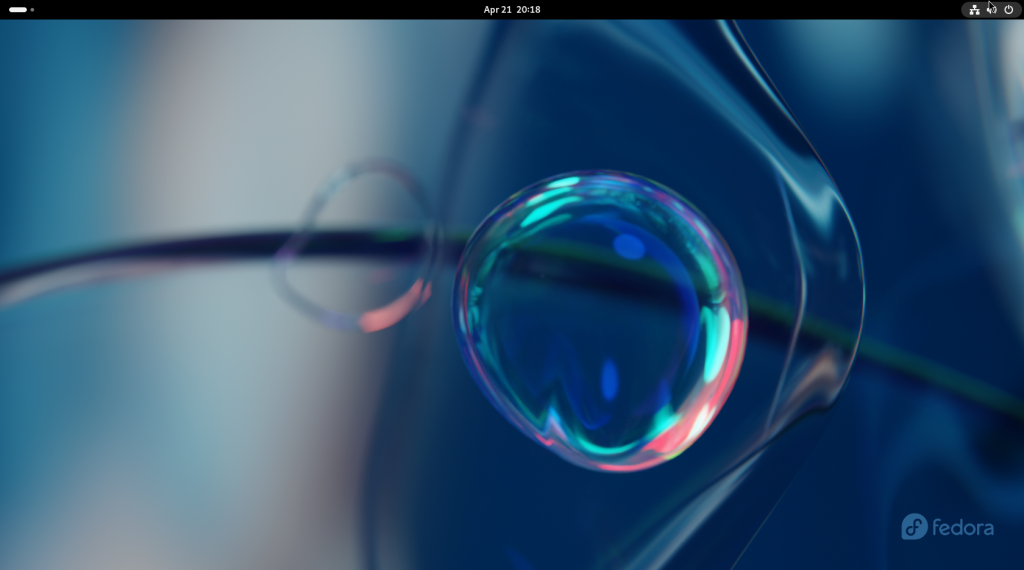
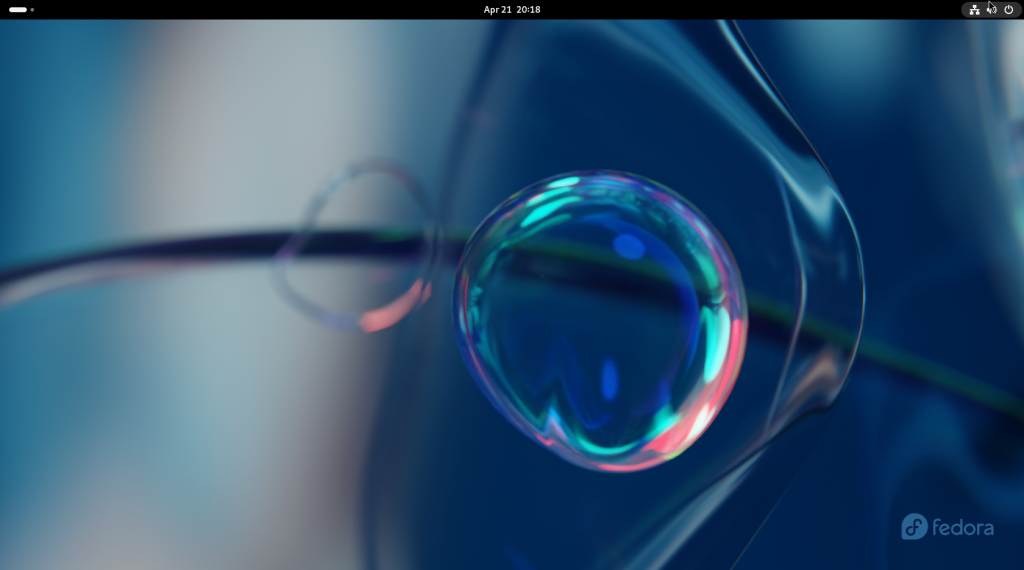
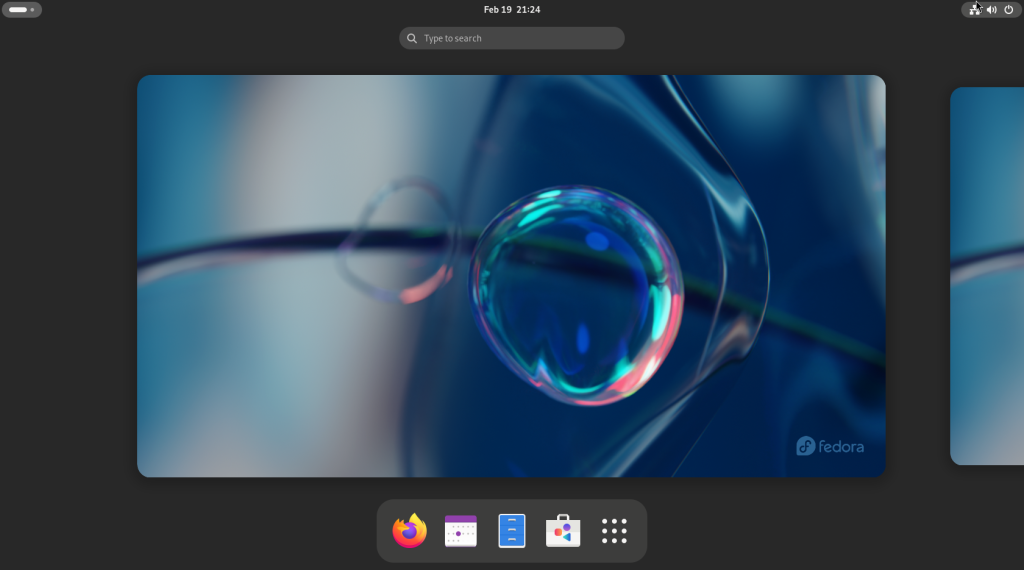
Once logged in, new artwork for the new version came up, as well as a notification that the system had been upgraded to the new version (in this case, Fedora v.40):
New artwork for Fedora 40
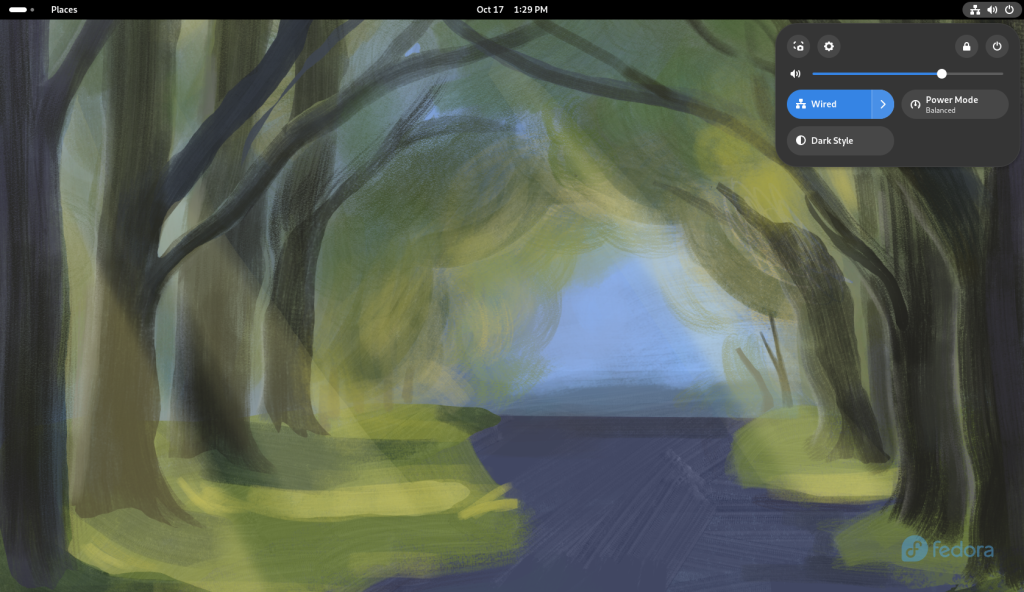
Just to finish off some checks, the menu at the power button was opened, in order to open the settings screen, accessible from the little gear second from the left on top:
Menu for settings opened
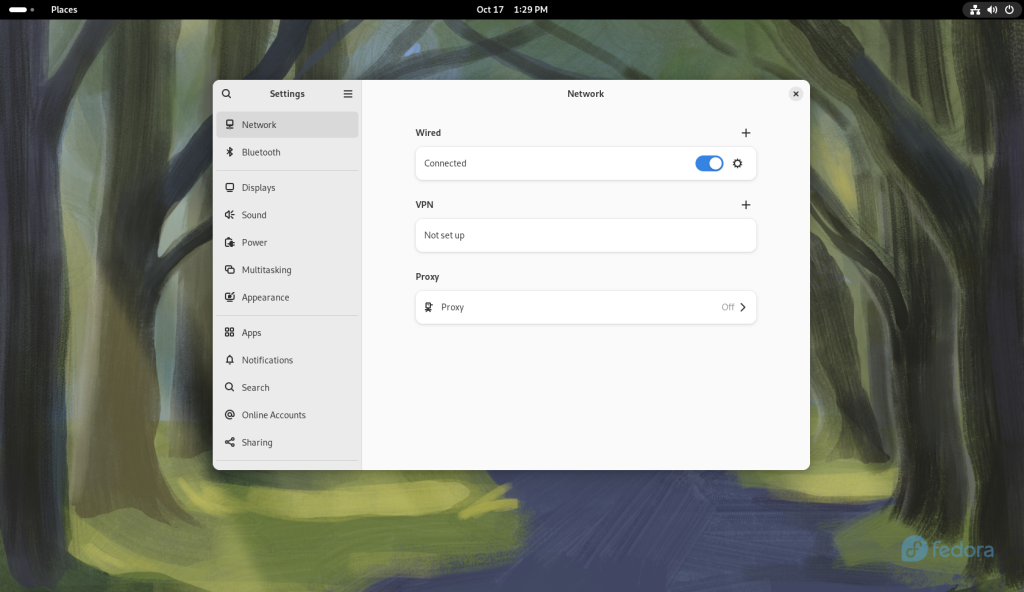
The settings were opened:
Settings opened
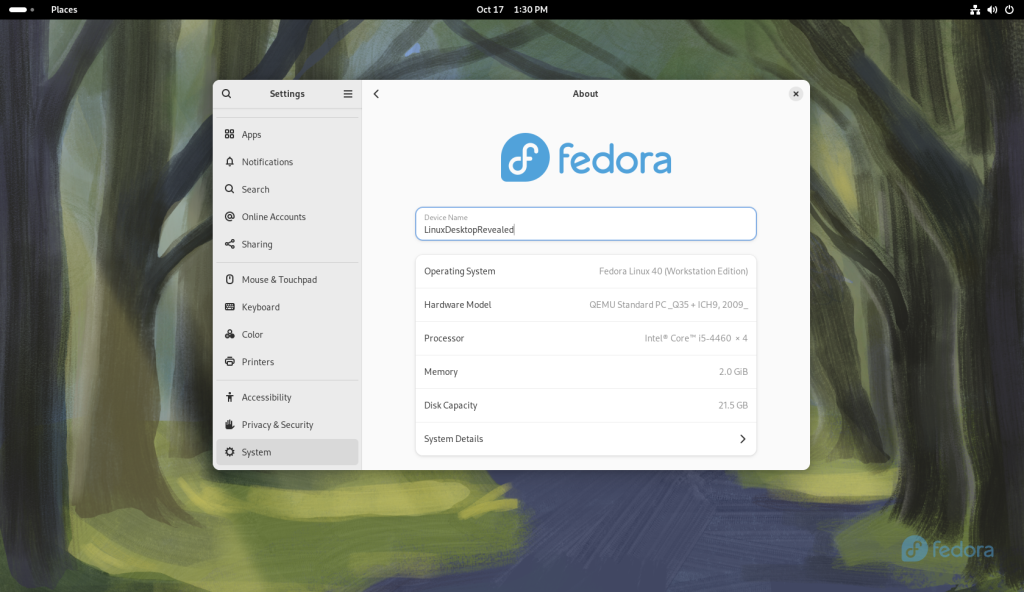
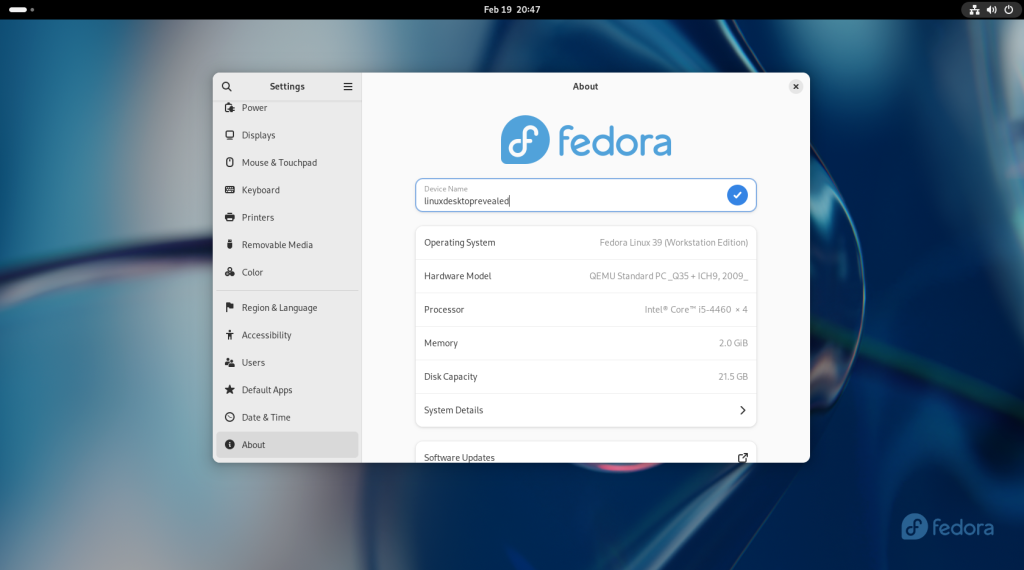
I noticed that the name of my computer was curiously changed back to “Fedora” in the upgrade:
System renamed after curious change by upgrade
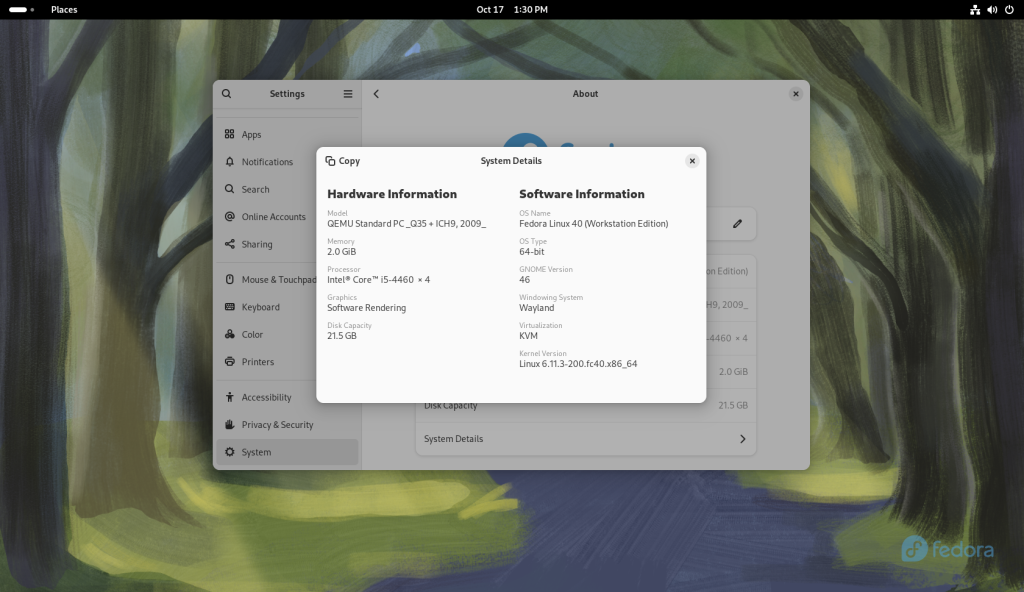
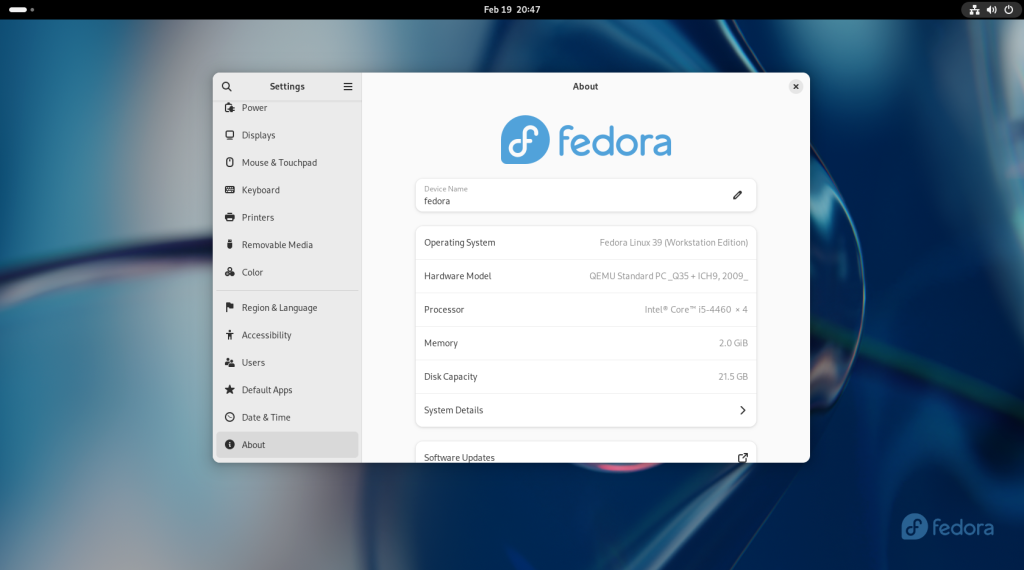
Then I chose the “System Details”, showing that the system had indeed been updated to version 40:
Confirmation that the system had been upgraded to Fedora 40
Next chapter: Using common pieces of desktop software
This past weekend, my brother decided to play around with the Google NotebookLM podcast generator, using my recent post about making yoghurt muffins as the podcast topic source material.
Here are the results: “Podcast 1“, the first one I listened to and chuckled at throughout (see below), and “Podcast 2“, which is longer than the first, and a slightly different approach (again, see below).
As a reference, according to Wikipedia (here’s my archive), NotebookLM is a tool by Google that has an “audio summary” feature has the “ability to condense complex documents into engaging podcasts”. As referenced in the article, some of the generated podcasts have indeed been making the rounds on at least the media local to me; the samples played on the radio had the “voices” of two artificial “hosts”, one male and one female, and appeared to greatly impress the real radio host. The real human host on the radio then proceeded to create their own samples with the tool using local news items as source material, resulting in stunningly … seemingly accurate (or at least faithful to the source material) content and banter between the two artificial “hosts”. The voices — and banter — of the artificial “hosts” that were created sounded so real that the “hosts” did not sound obviously artificial in almost any, let alone many, of the usual ways that usually betray the artificiality or synthetic nature of the voices. “They” seemed to bypass the Uncanny Valley (here’s my archive) as well, if only because they weren’t associated with artificially-created “speaking” faces or other cues that might suggest that “they” were artificial.
To wit: My brother came up with two podcasts: Podcast1, and Podcast2, based on the blog page about the yoghurt muffins: The first podcast was roughly what I would have expected, based on the samples I’d heard on the radio, in the form of “entertaining” banter from the artificial “hosts” about the overall post and subject, while the second podcast followed a play-by-play style review of the post and its pictures.
Especially while listening to the first, I was often incredulously guffawing at how “seriously” they seemed to be taking the subject, to the point of “their” calling me a perfectionist; despite, uhm, seriously having approached mounting the post with its pictures and processing the photos for presentation, as well as of course maintaining my recipe archive, and again of course being fairly serious on a hobby level about my cooking, for the overall cooking project I have always had a certain laid back, “enjoying the fun” pleasure to mounting the posts. Which, I must admit, intentionally include a lot of photos detailing usually every last step and even micro-step. I would estimate that the “hosts” got it better in the second podcast by calling me meticulous.
The end result of the two podcasts is so good that except for the knowledge that it’s totally AI generated, I would actually believe that the podcast was hosted by real people and put together by real people providing real feedback. As such, I have a few responses to some of the “comments” that the “hosts” made:
I am flattered in a giggly kind of way that the “hosts” underlined the dirty oven window, which I myself had somewhat sheepishly admitted was the case in the original post;
The “hosts” seem to enthusiastically say it’s like a scientific document with no room for error; I would challenge anyone to compare the blog post against the recipe and say that the two are identical. 🙂
For the record: I did not lick the spoon. 🙂
The “hosts” spoke of how much care I took by freezing them … well, I will go into the “easy” column and say both that baking a half batch or a double batch is roughly as easy as a standard batch, and, that I often try to make recipes that are good for the freezer!
And finally … the “hosts”, in a tongue-in-cheek fashion, pretty much suggested that I make a blog post on making the morning coffee, which I may just do sometimes in the futurewhich I actually have done. 🙂
The “hosts” asked what does “easy” mean in my claim that the muffins are easy to make, such as is it the number of ingredients, the technique, or the cleanup? “They” initially conclude “Let’s find out!” “They” then go on to point out the use of the paper liners, and the reuse of the measuring cup used to measure out the yoghurt to then measure out the oil without cleaning it in between, as examples of the “easy” part.
The “hosts” seem to insinuate at a couple of points that the amounts of sugar and oil used are “generous”, while of course continuing to state that the muffins’ crumb would no doubt be rather moist as a result; yet, when discussing the presence of the yoghurt, the “hosts” wondered whether the yoghurt muffins were just an alternative to the bran muffins I make for my mom, but ultimately seemed to decide that it was obviously a “health angle”. I perceived this as a lack of continuity in the “creation” of the podcast. And to be clear, having adopted this recipe was simply meant to be an alternative to the bran muffins I give to my mom, which is clearly stated at the beginning of the post; further, I am not trying to “match” the sweetness of bran muffins.
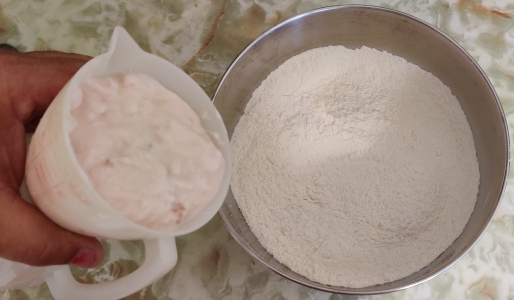
The “hosts” say that the kind of yoghurt I use is not identified, ie. firm yoghurt, stirred yoghurt, or greek yoghurt, etc.; “they” are correct that the tub does not say so, at least in the view in the picture. However, “they” do read into it by saying that this lack of information is part of the “easy” claim by letting people trying the recipe to use what they have on hand. Also, “they” did not pick up on the strawberry on the tub as an example of how the “relatively plain” was intentionally a loose interpretation.
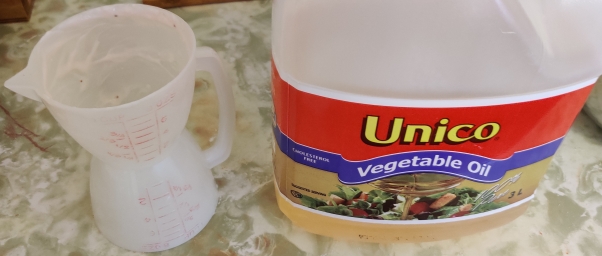
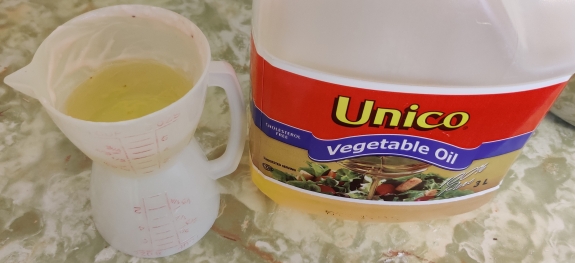
The “hosts” say that the kind of oil I used was not identified; again, the photo of the jug plainly says “vegetable oil”, which should tell all bakers that it’s generic vegetable-based cooking oil.
Is this a fun tool? Sure. My brother and I have bandied about ideas — purely in the hypothetical — about using the tool to create large numbers of podcasts that could then be syndicated to AM radio stations for the overnight slot during which a lot of content is often recycled or of what we consider to be of dubious interest.
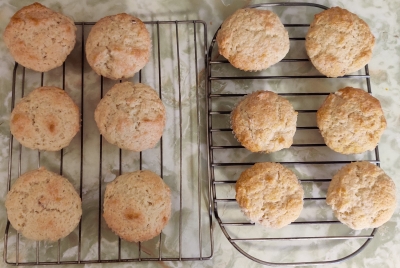
These easy to make muffins are fairly straightforward, tasty, and, despite being labeled as “plain”, the term is used somewhat loosely since the yoghurt used may be any kind of flavoured yoghurt, which will come across lightly but distinctly in the final product. As well, small amounts of fruits or other flavouring agents could be added without substantial changes.
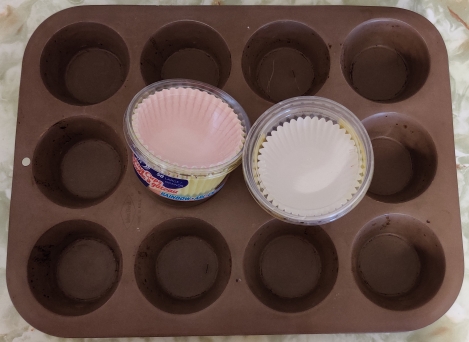
A tray of muffin moulds, and correspondingly sized paper liners, were taken out:
Muffin moulds and paper liners taken out
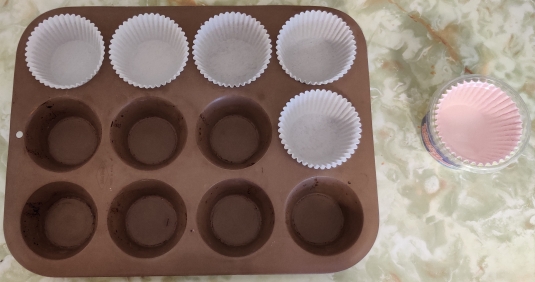
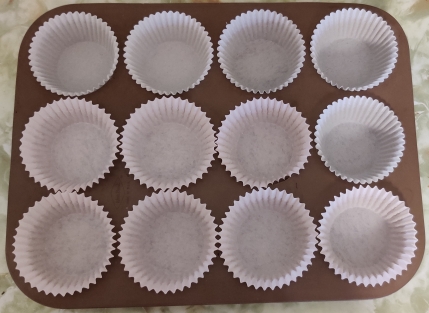
The moulds were each lined with paper muffin liners:
Lining moulds with paper muffin liners
Lining moulds with paper muffin liners
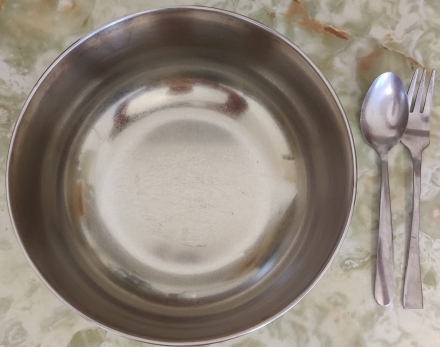
The lined baking tray was put aside, and a mixing bowl, a spoon, and a fork were taken out:
Mixing bowl, spoon, and fork taken out
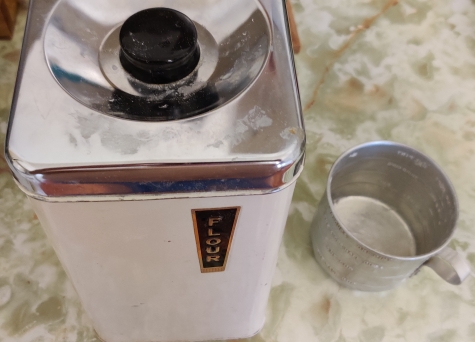
Flour and a measuring cup were taken out:
Flour and measuring cup taken out
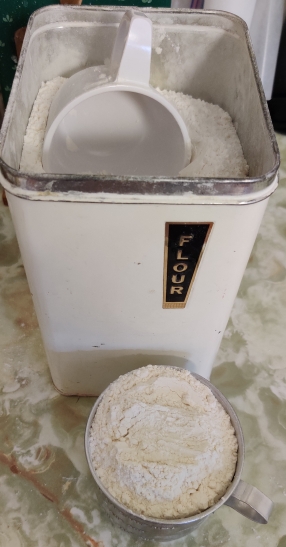
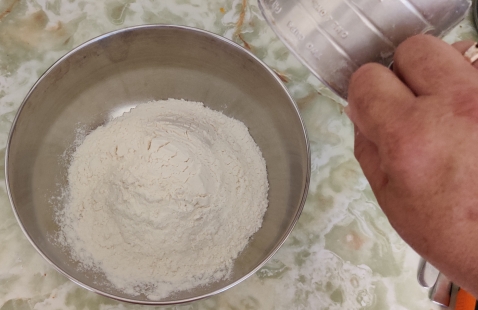
The measuring cup was filled with flour:
Measuring cup filled with flour
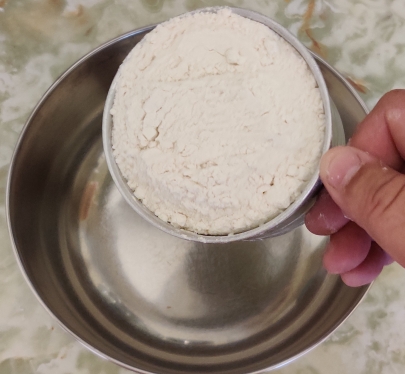
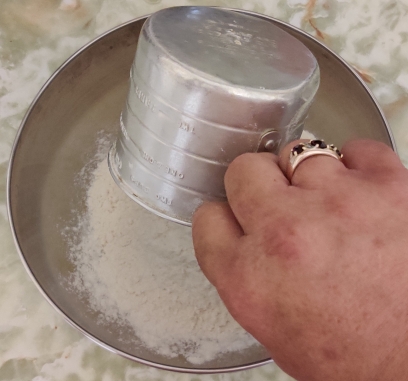
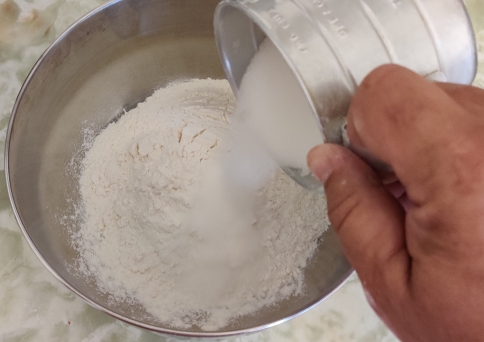
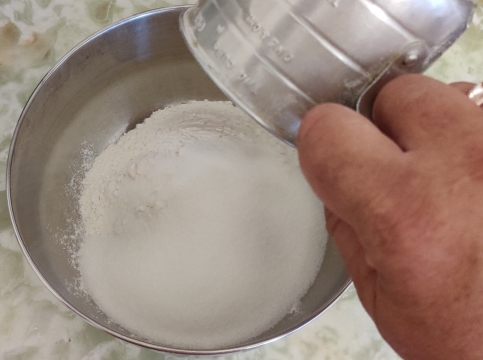
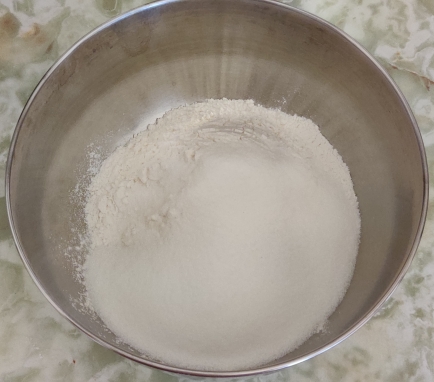
The flour was transferred to the mixing bowl:
Flour transferred to mixing bowl
Flour transferred to mixing bowl
Flour transferred to mixing bowl
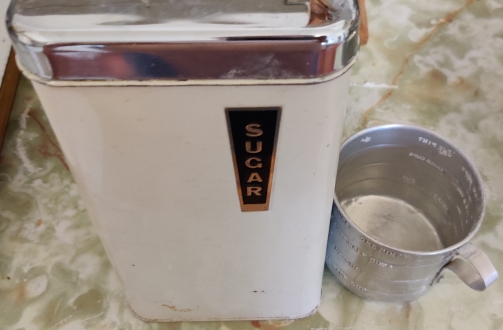
Sugar was taken out, and the measuring cup was taken out again:
Sugar and measuring cup taken out
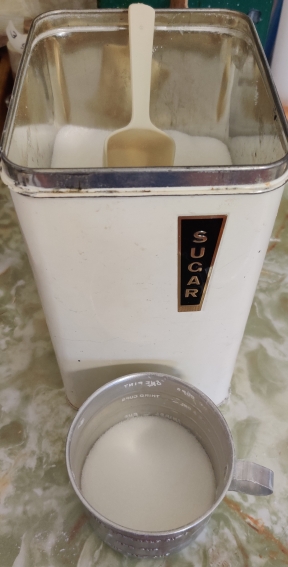
Sugar was measured out:
Sugar measured out
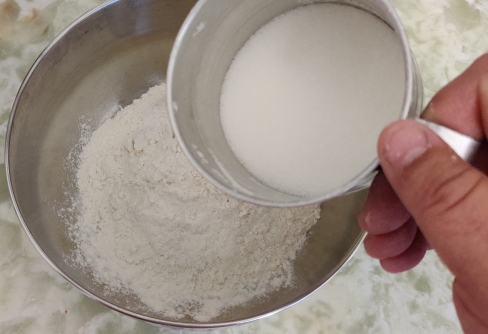
The sugar was transferred to the mixing bowl with the flour:
Sugar transferred to mixing bowl with flour
Sugar transferred to mixing bowl with flour
Sugar transferred to mixing bowl with flour
Sugar transferred to mixing bowl with flour
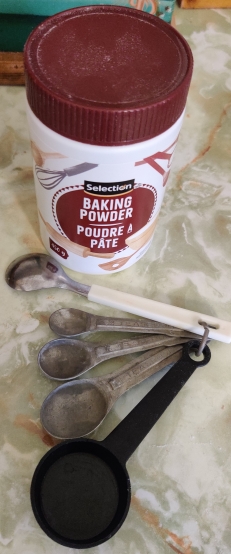
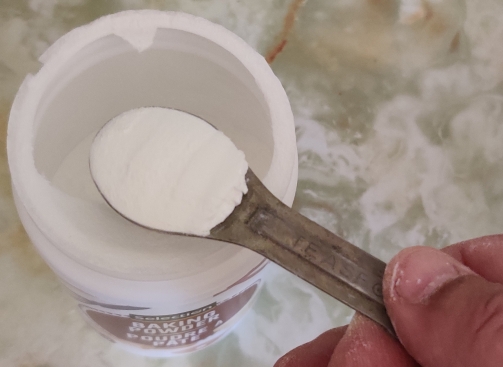
Baking powder and measuring spoons were taken out:
Baking powder and measuring spoons taken out
Baking powder was measured out:
Baking powder measured out
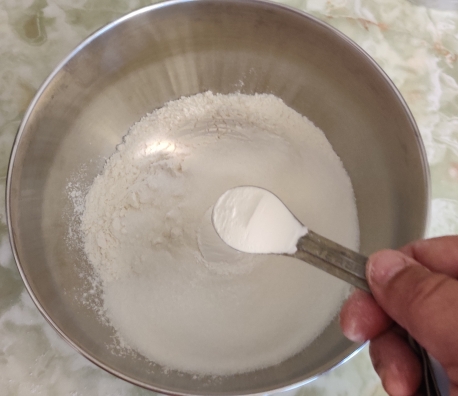
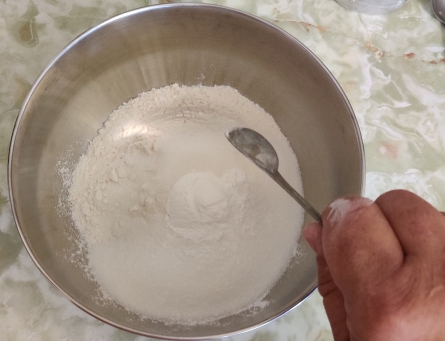
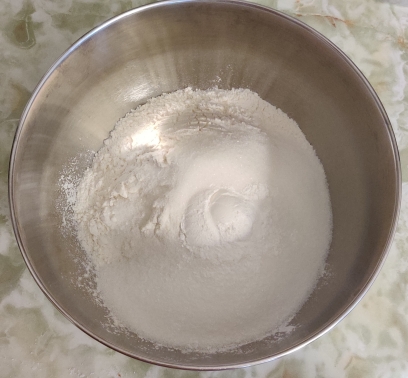
The baking powder was added to the flour and sugar in the mixing bowl:
Baking powder added to flour and sugar
Baking powder added to flour and sugar
Baking powder added to flour and sugar
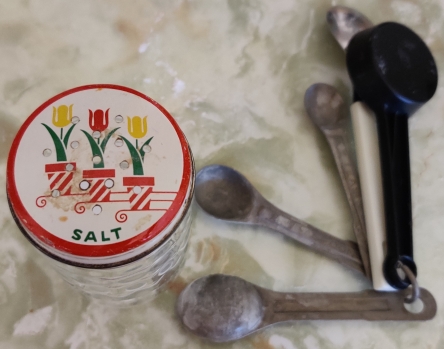
Salt and measuring spoons were taken out:
Salt and measuring spoons taken out
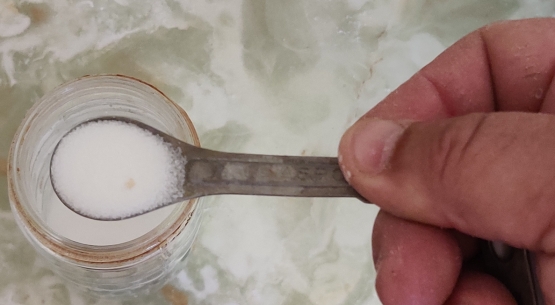
Salt was measured out:
Salt measured out
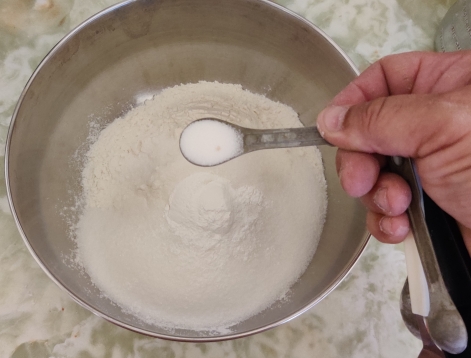
The salt added to the flour, sugar, and baking powder:
Salt added to the flour, sugar, and baking powder
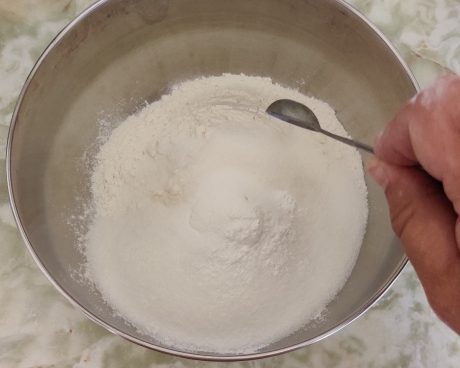
Salt added to the flour, sugar, and baking powder
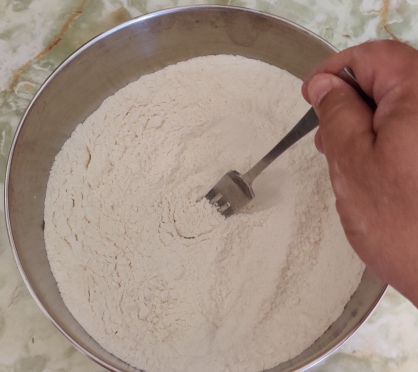
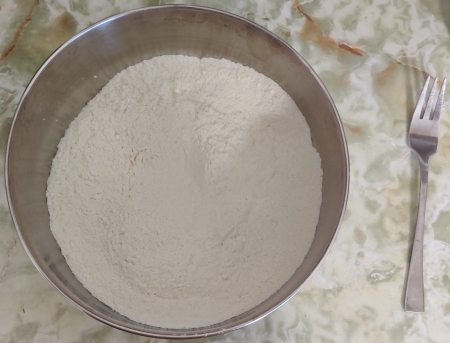
Using the fork, the flour, sugar, baking powder, and salt were thoroughly mixed:
Flour, sugar, baking powder, and salt thoroughly mixed with fork
Flour, sugar, baking powder, and salt thoroughly mixed with fork
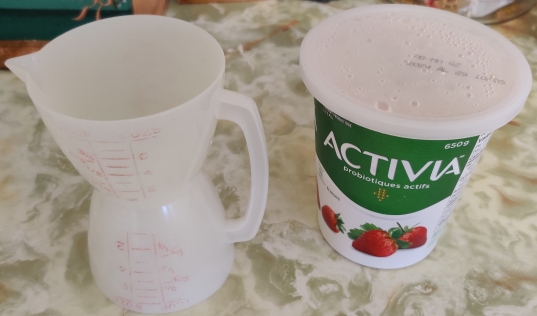
A tub of yoghurt and a measuring cup were taken out:
Yoghurt and measuring cup taken out
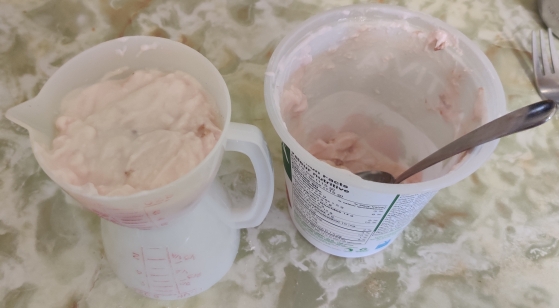
Yoghurt was measured out:
Yoghurt measured out
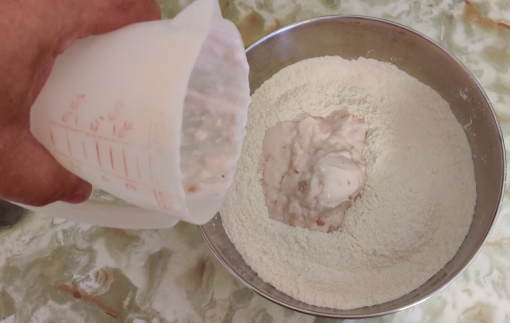
The yoghurt was transferred to the bowl with the flour, sugar, baking powder, and salt:
Yoghurt transferred to bowl of flour, sugar, baking powder, and salt
Yoghurt transferred to bowl of flour, sugar, baking powder, and salt
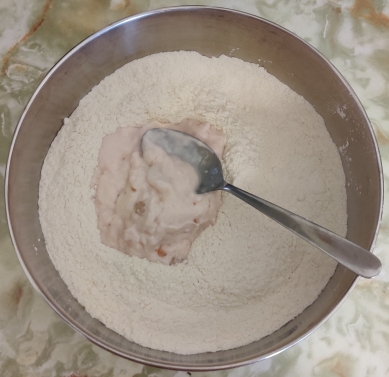
Yoghurt transferred to bowl of flour, sugar, baking powder, and salt, with spoon added
Vegetable oil was taken out, and the measuring cup used for the yoghurt was reused, without needing to clean it since I’d only just used it moments before for the yoghurt :
Vegetable oil and measuring cup taken out
The vegetable oil was measured out:
Vegetable oil measured out
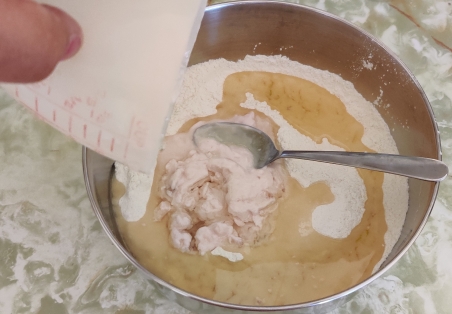
The vegetable oil was transferred to the bowl with the flour, sugar, baking powder, salt, and yoghurt:
Vegetable oil transferred to bowl
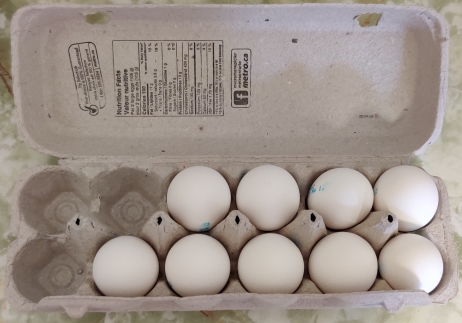
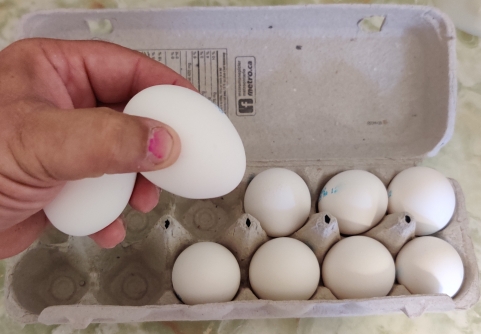
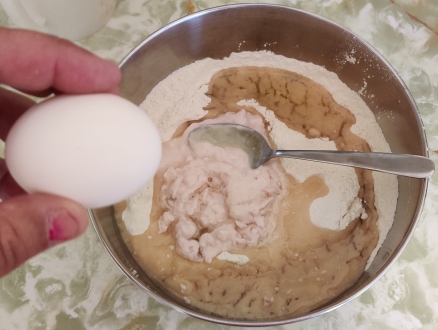
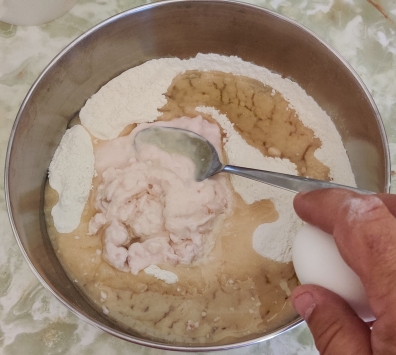
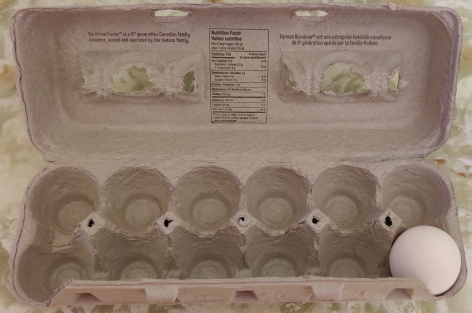
Eggs were taken out:
Eggs taken out
Eggs taken out
Eggs taken out
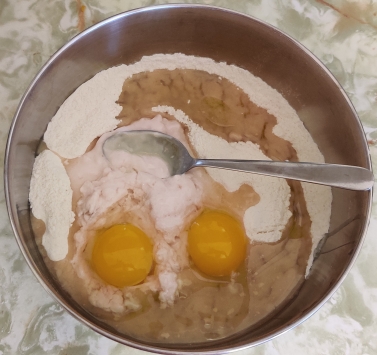
The eggs were cracked into the bowl with the flour, sugar, baking powder, salt, yoghurt, and vegetable oil:
Eggs cracked into bowl
Eggs cracked into bowl
Eggs cracked into bowl
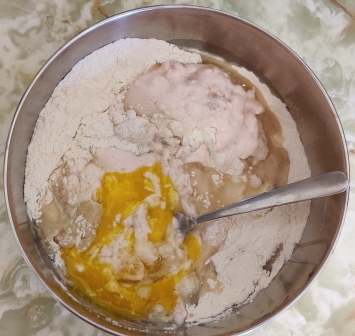
All the ingredients were mixed together with a spoon:
Ingredients mixed with spoon
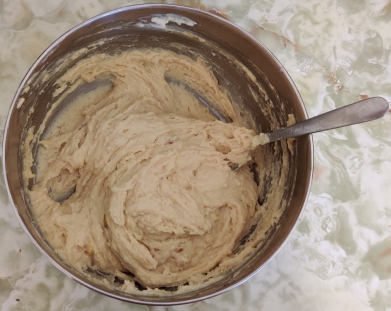
… creating a thick paste dough:
Ingredients mixed with spoon
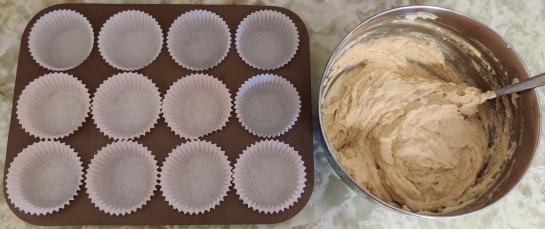
The muffin mould tray prepared earlier was taken out:
Prepared muffin mould tray taken out
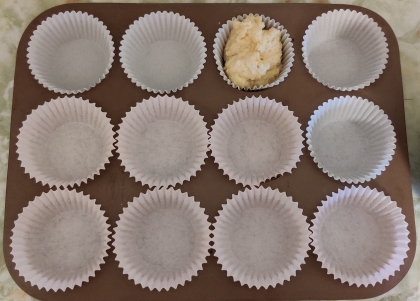
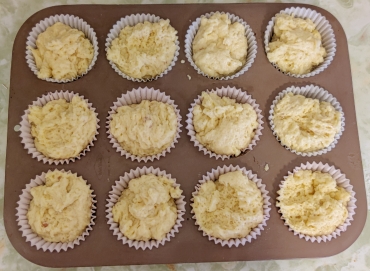
The dough was spooned into the paper muffin moulds:
Muffin moulds filled with muffin dough
Muffin moulds filled with muffin dough
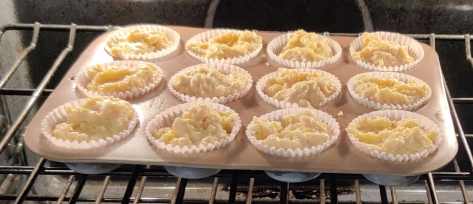
The filled muffin tray was placed in the preheated oven:
Filled muffin tray placed in oven
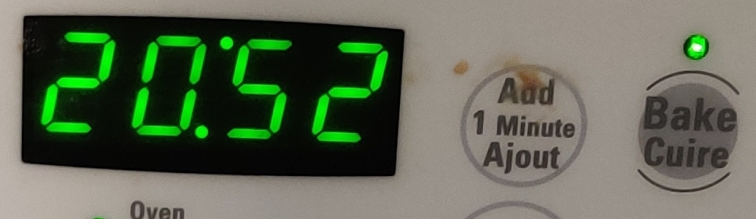
A timer was set to 21 minutes:
Timer set to 21 minutes
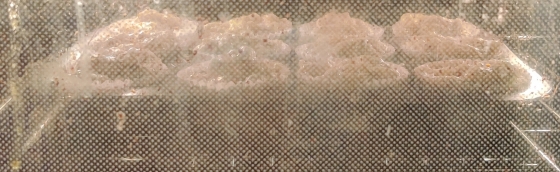
Looking through the oven window (which admittedly could use a cleaning!), the muffins began to rise:
Muffins baking and rising
Muffins baking and tops beginning to brown
Muffins baking and tops browning
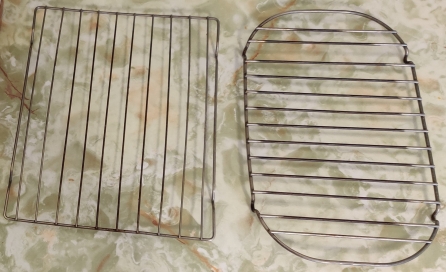
While the muffins were baking, cooling racks were taken out:
Cooling racks taken out
After the timer ran out and the muffins had baked, the muffins were taken out of the oven, and the tray placed on a cutting board:
Baked muffins taken out of oven
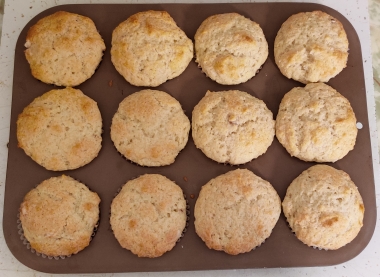
The muffins were transferred from the muffin tray moulds to the cooling racks to cool down:
Freshly baked muffins transferred to the cooling racks
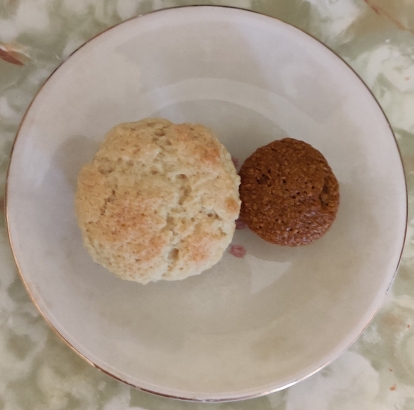
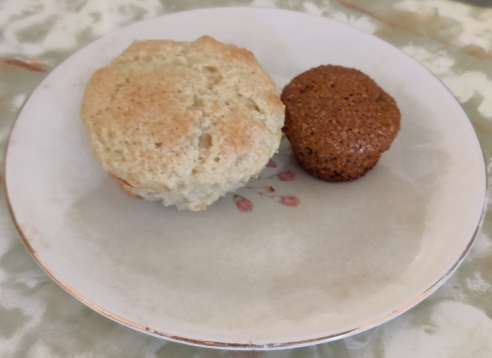
A yummy fresh muffin was served to my mom with another mini-muffin, with the paper linings removed:
Muffins served
Muffins served
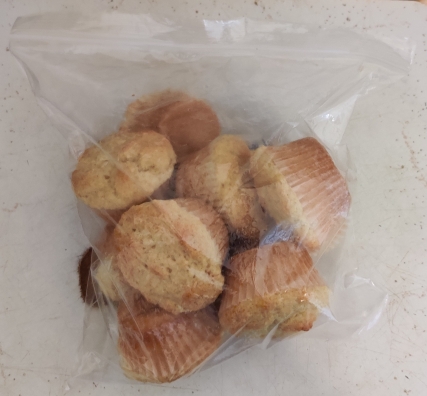
… and the rest of the cooled muffins were placed in a sealable freezer bag, to be placed in the freezer:
In this chapter, Gnome Extensions will be briefly discussed, and basic file transfers and manipulation will be highlighted.
Gnome Extensions
Gnome was designed to be extensible, or have its behaviour be changed with extensions. There are hundreds of extensions, most produced by volunteer programmers.
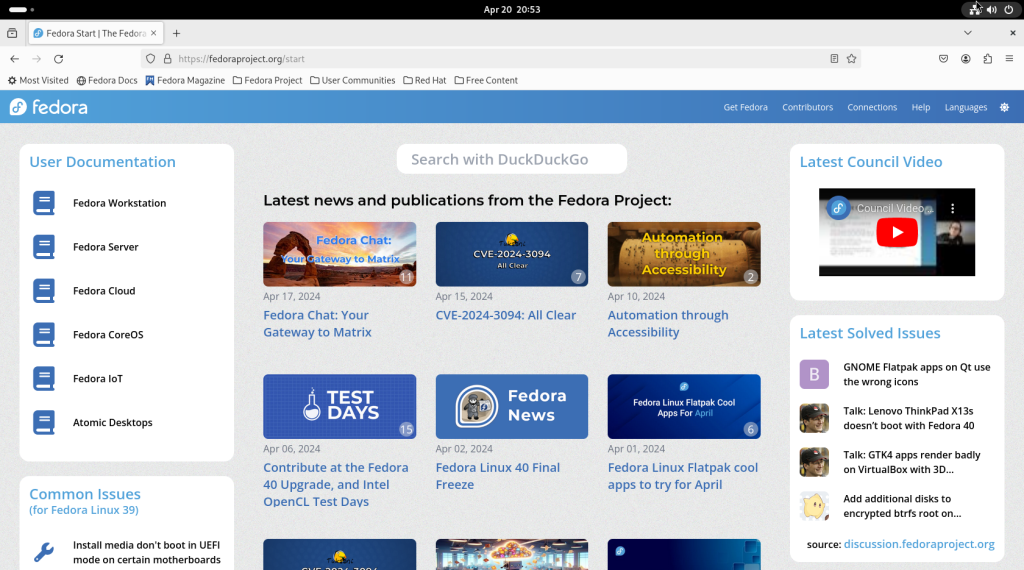
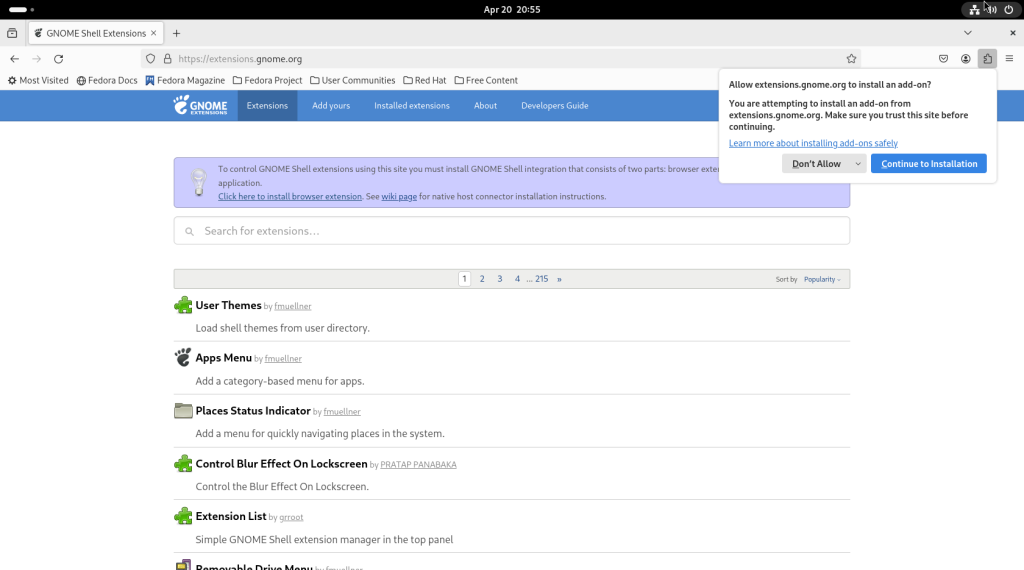
Launch Firefox from the dock at the bottom of the screen (the icon at the left). Firefox will launch, leading to the Fedora Project main page (a setting you may wish to keep, or change at a later time.)
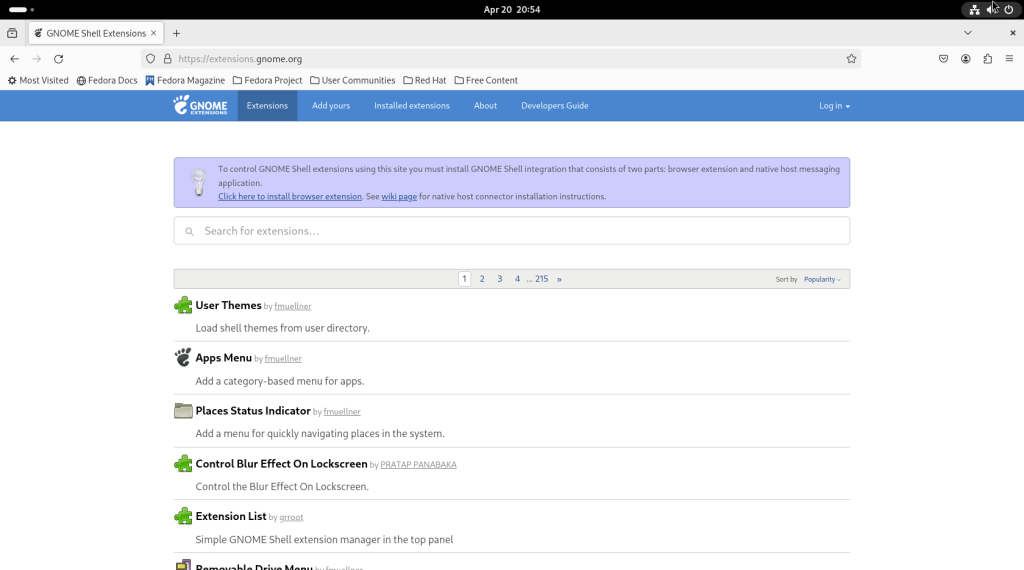
In the navigation bar, enter the site https://extensions.gnome.org. (Some distributions may manage extensions locally; Fedora has opted to only do so partially.)
Click on the link “Click here to install browser extensions”, which will eventually allow for the installation of the Gnome Shell integration tool.
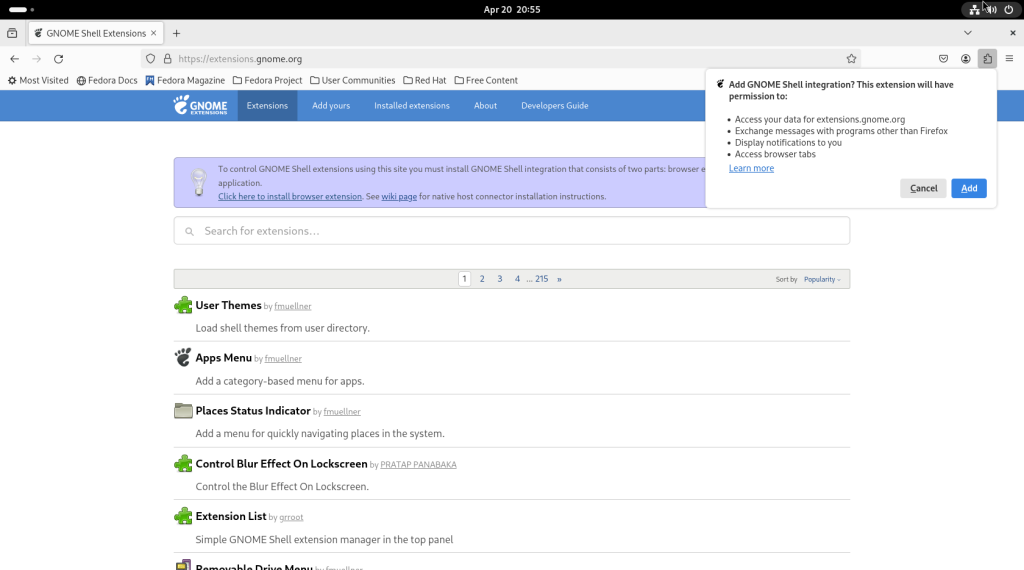
Click on “Add”:
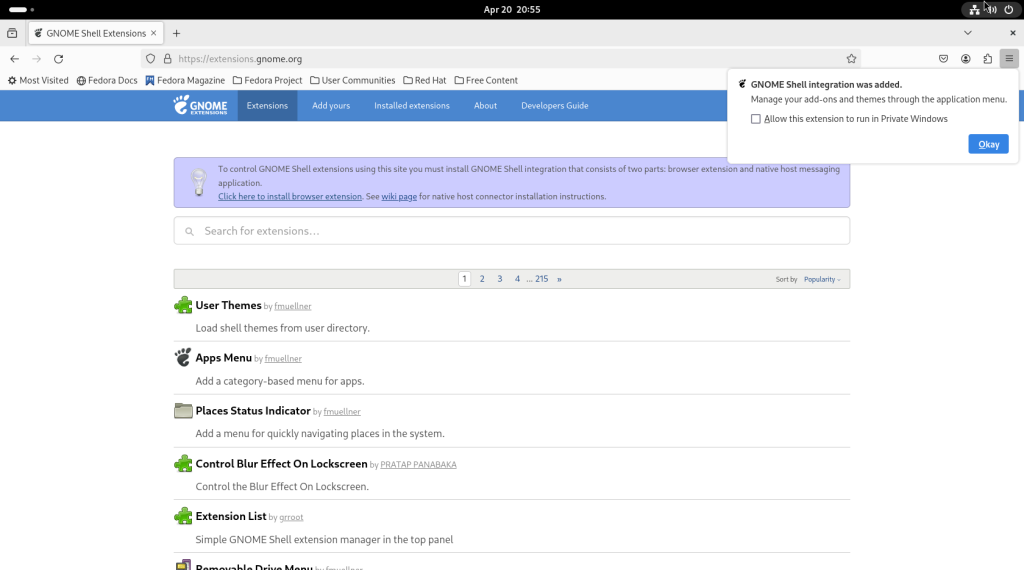
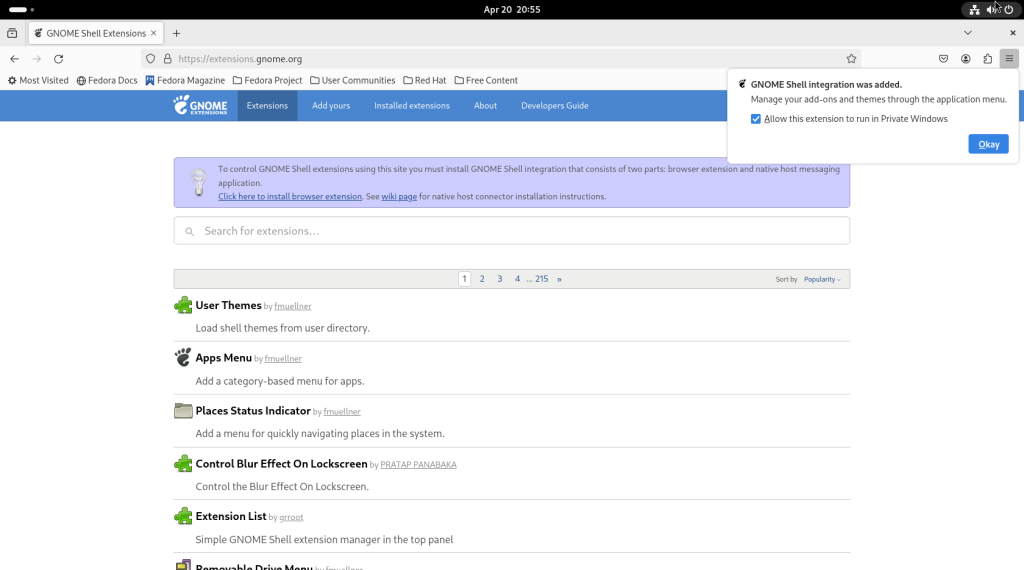
I recommend that you click on “Allow this extension to run in Private Windows” and press “okay”.
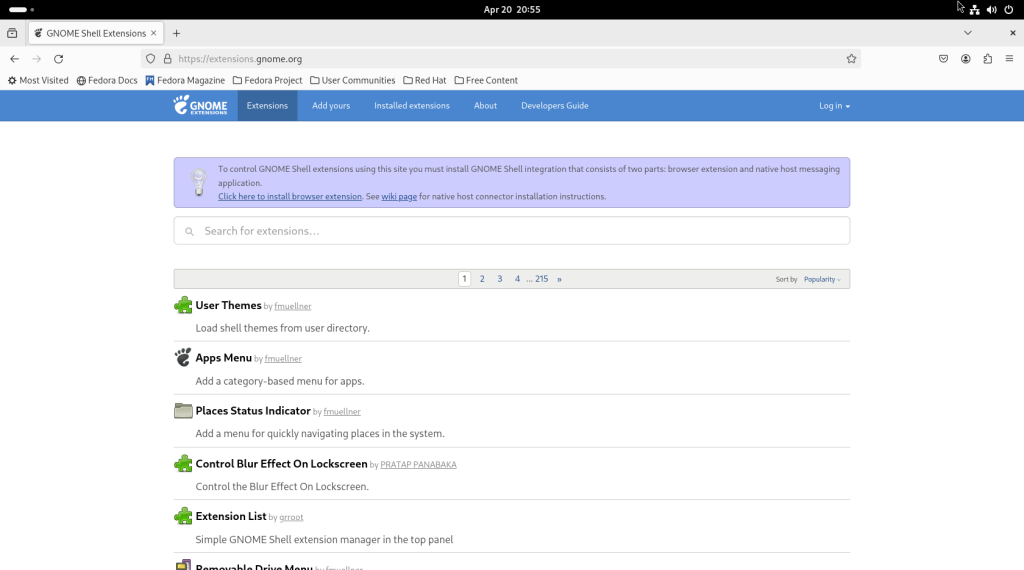
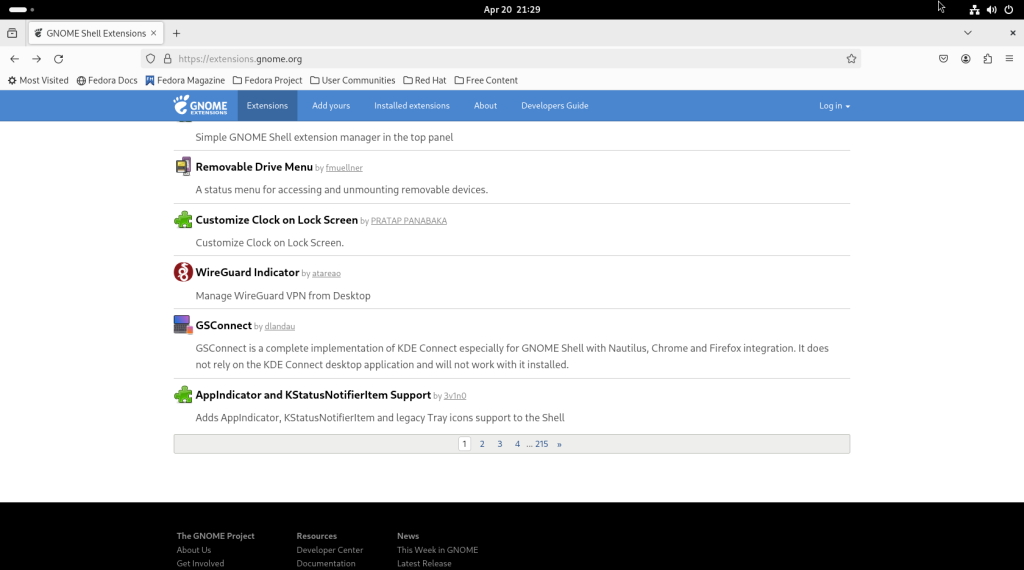
As of when the following screenshot was taken, here is page one of the available extensions, along with a brief description:
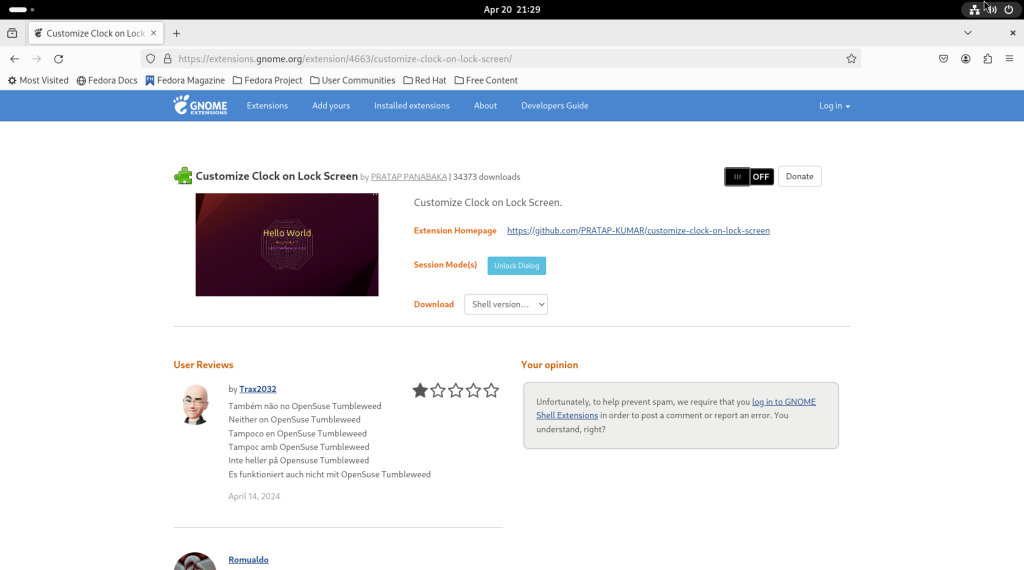
To install an extension that interests you, click on the black switch that will be set to “Off”.
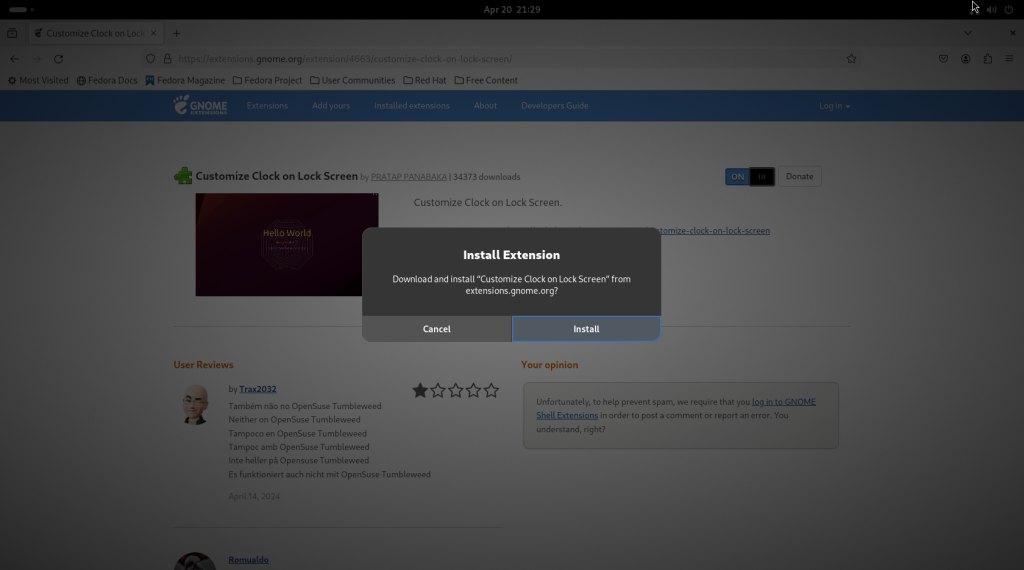
Click on “Install”:
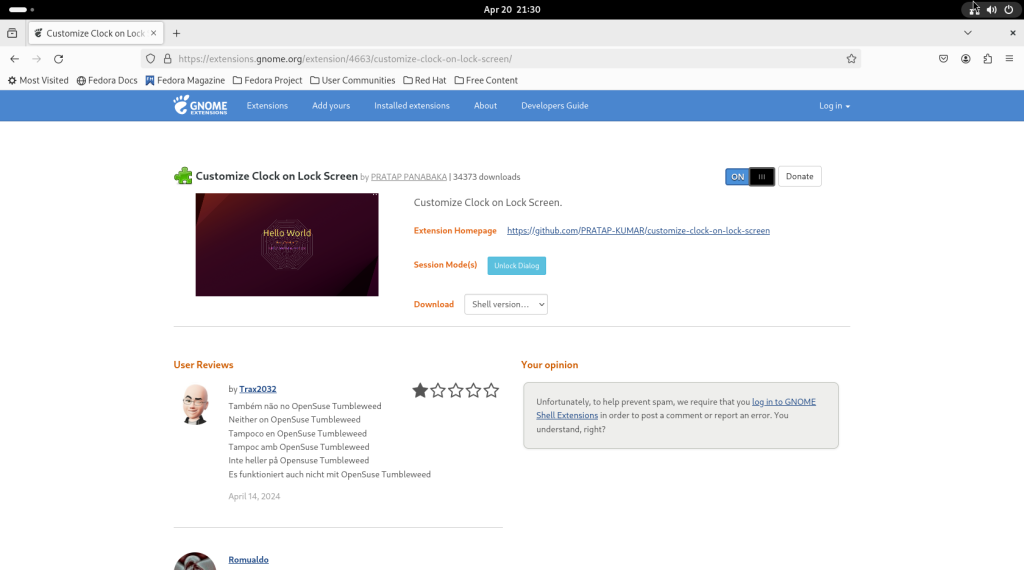
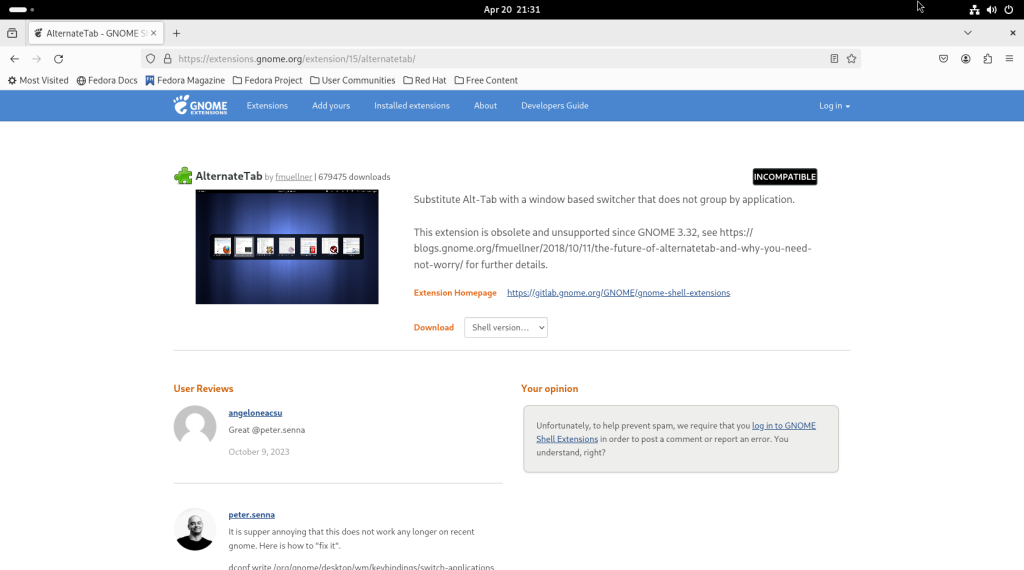
Sometimes, an extension will be incompatible with the current version of Gnome, and the page will say as much:
When you have selected all the extensions which interest you, close Firefox:
Basic file manipulation:
Starting from the main screen, click on the activities bar in the upper left hand corner:
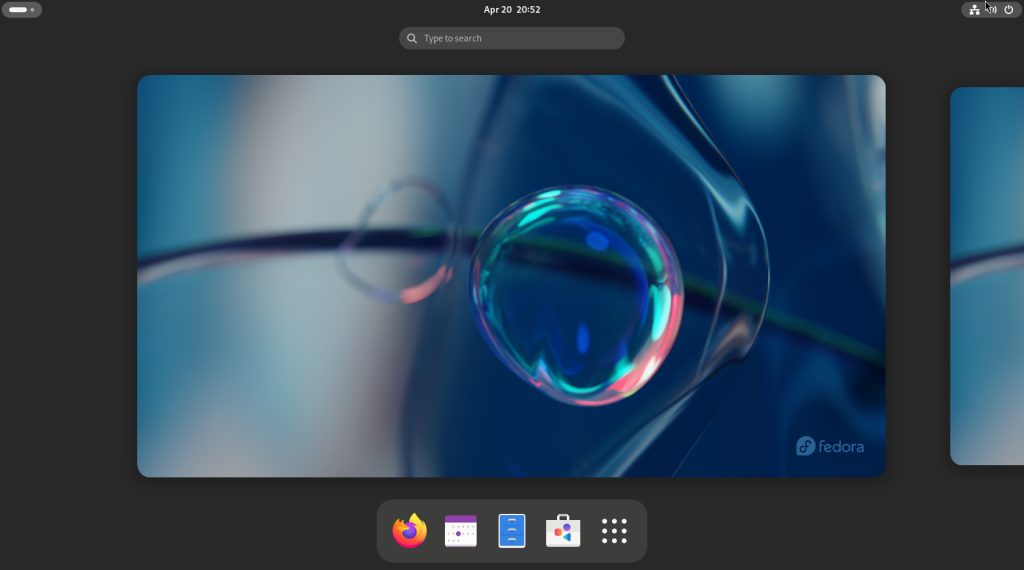
… leading to the activities screen, with the dock:
Click on the blue rectangle meant to resemble a filing cabinet, in the centre.
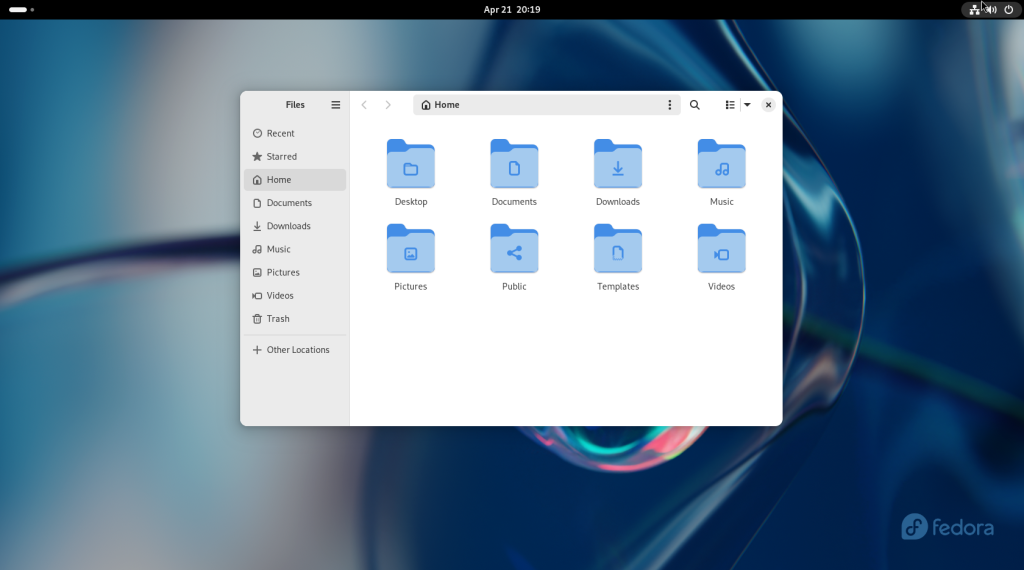
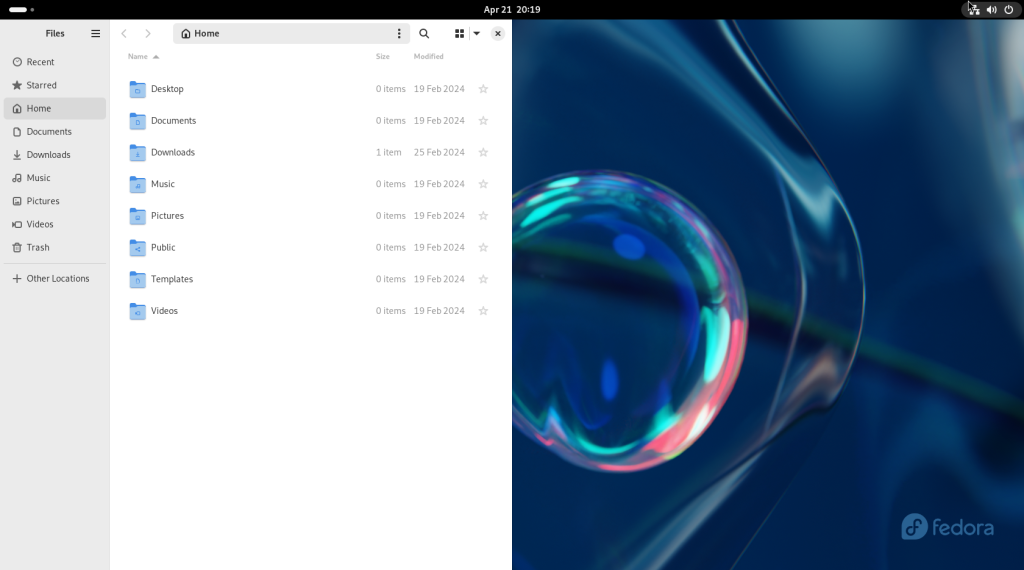
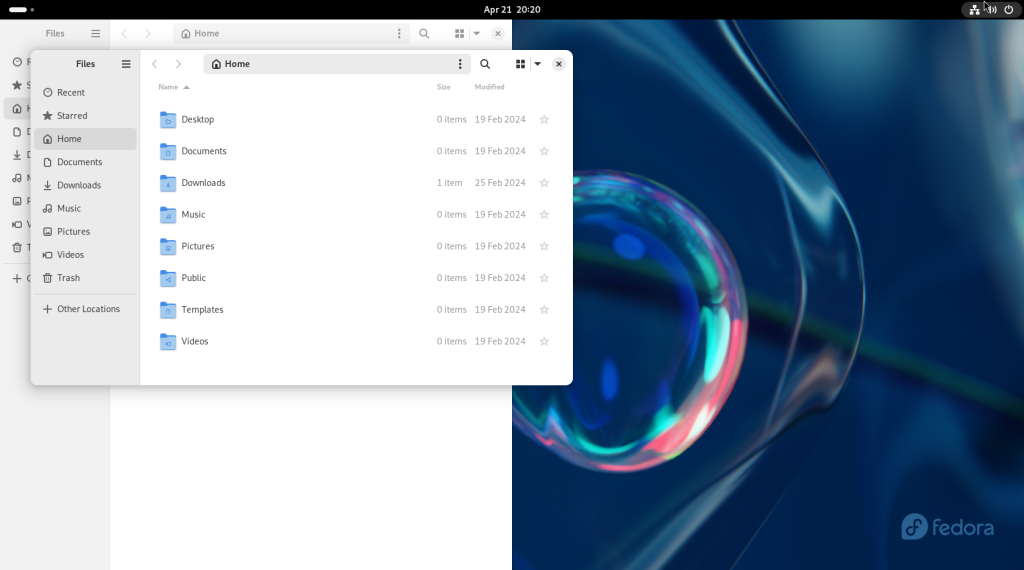
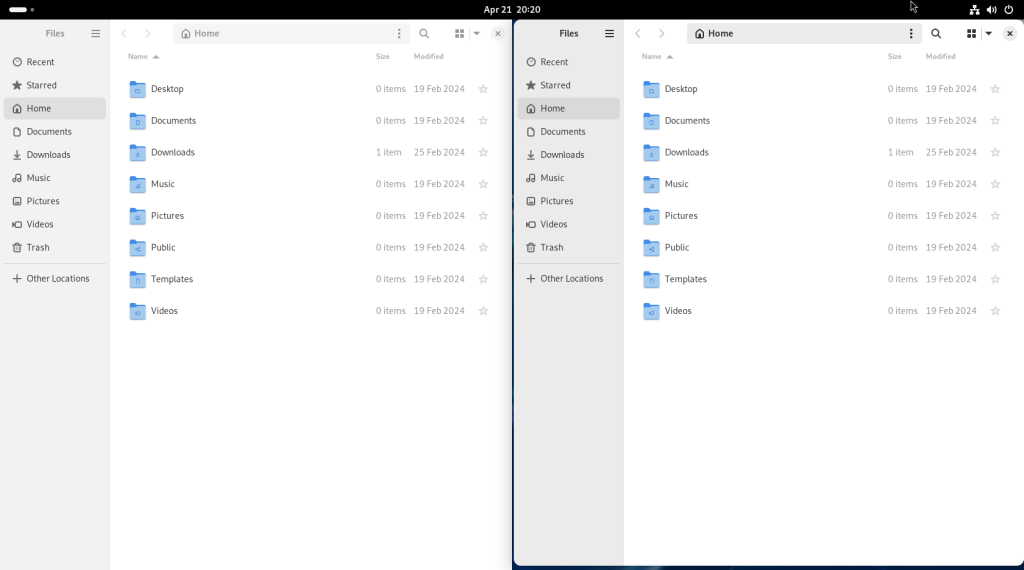
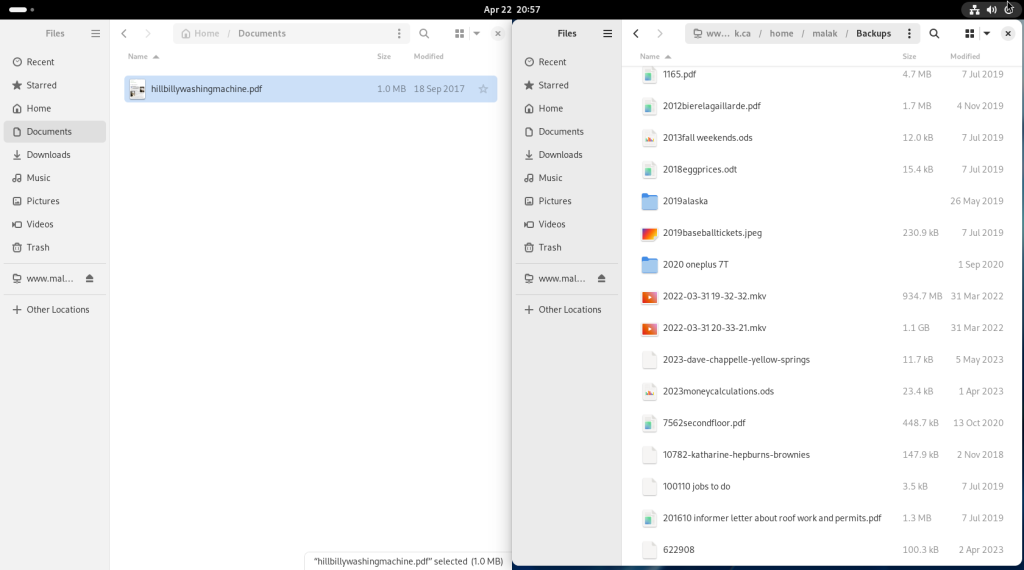
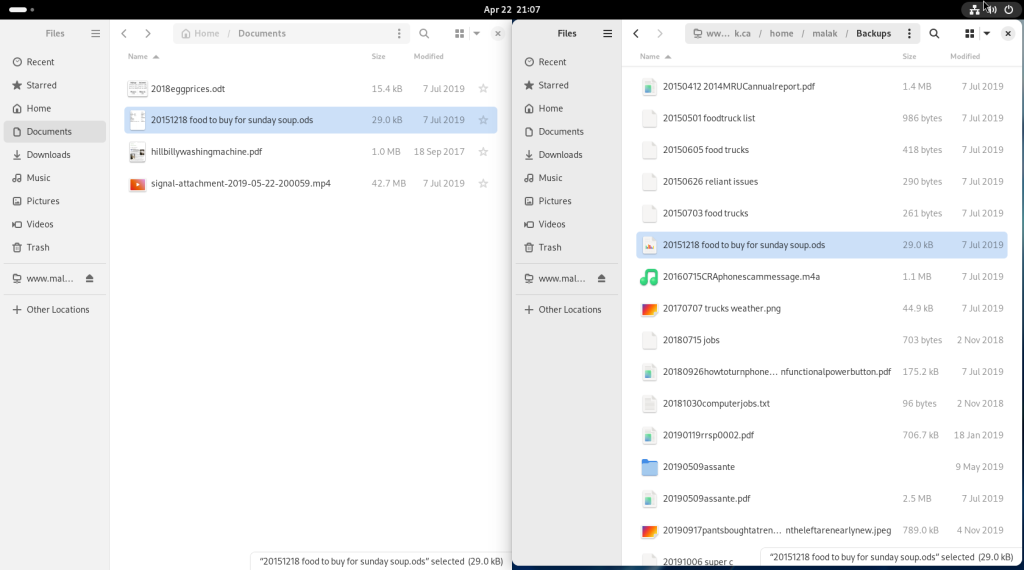
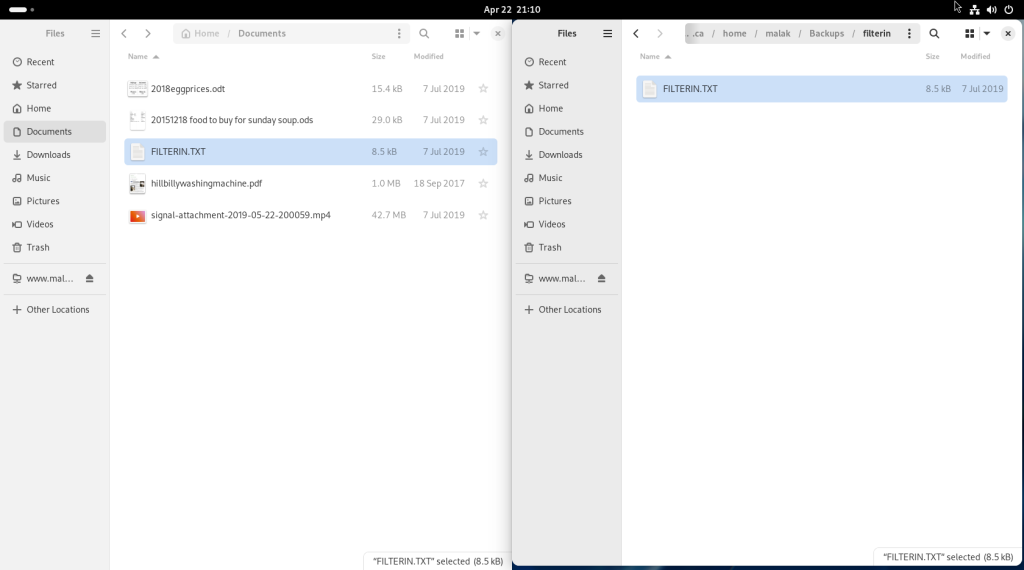
For convenience, I moved the window to the left, and it “snapped” to take up half the screen:
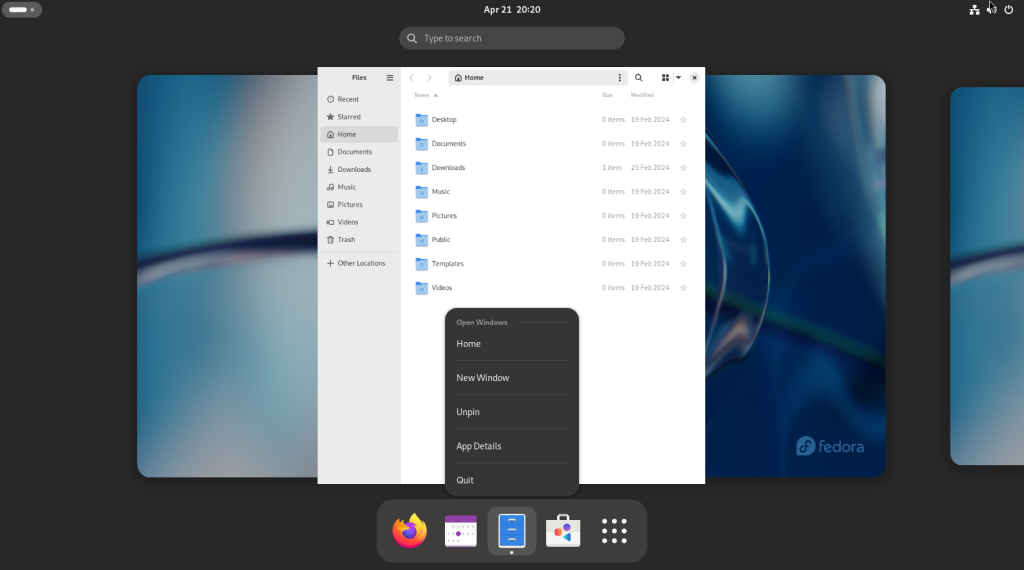
The activities screen was accessed again, to access the dock, and right-clicking on the file manager icon:
Choose “New Window”, in order to launch a second file manager window:
The size and location of the second window were adjusted in order to have a second window on the right:
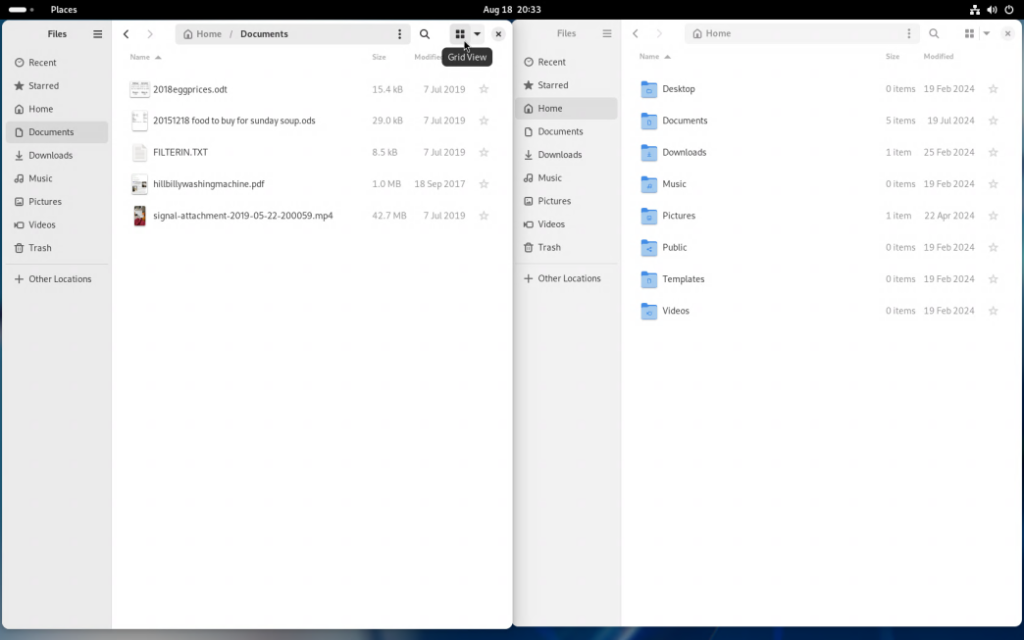
Before moving on, I am going to point out that I personally like file listings with full information; however, files can be displayed with previews (the following shots were taken after the following operations were completed):
By hovering the pointer over a button with four blocks in it, you can toggle between lists and icons:
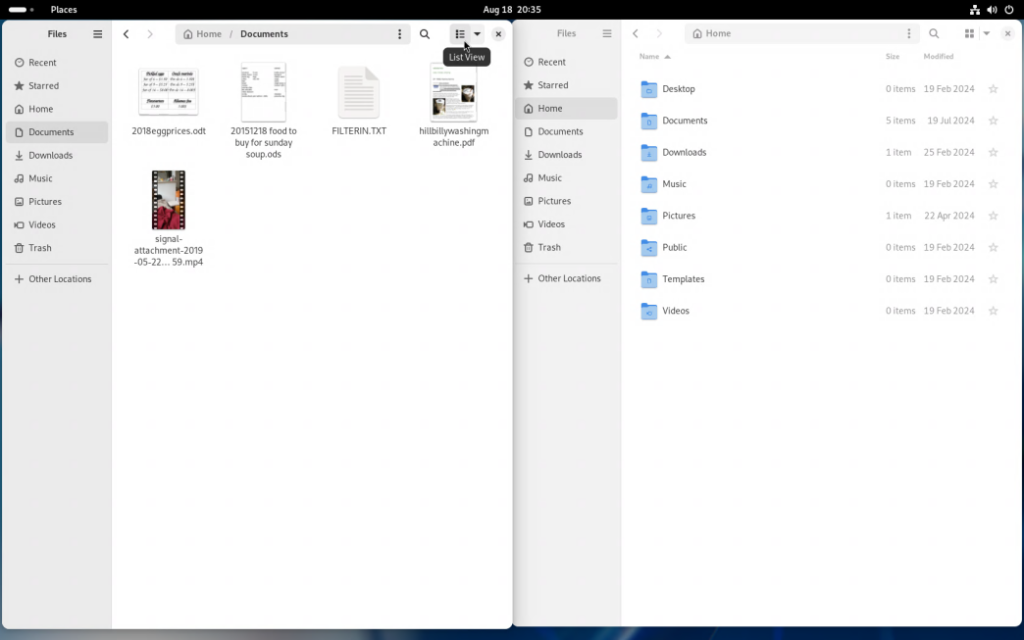
Clicking on the icon will change the filenames to icon size:
Hovering over the same square icon can revert to a list view.
At this point, you can insert a USB key with some files or a backup, or a CD/DVD drive, or a portable USB hard drive.
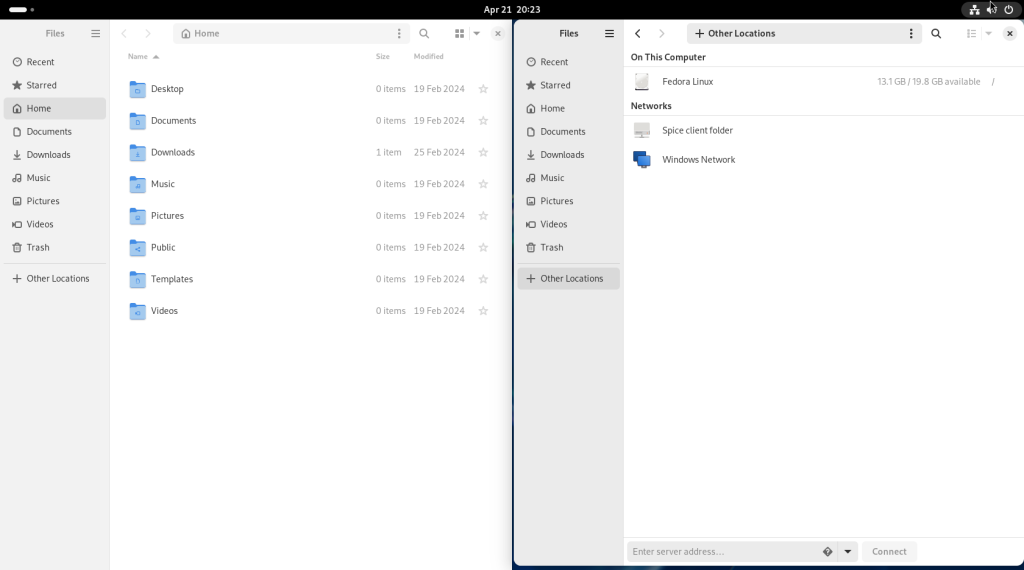
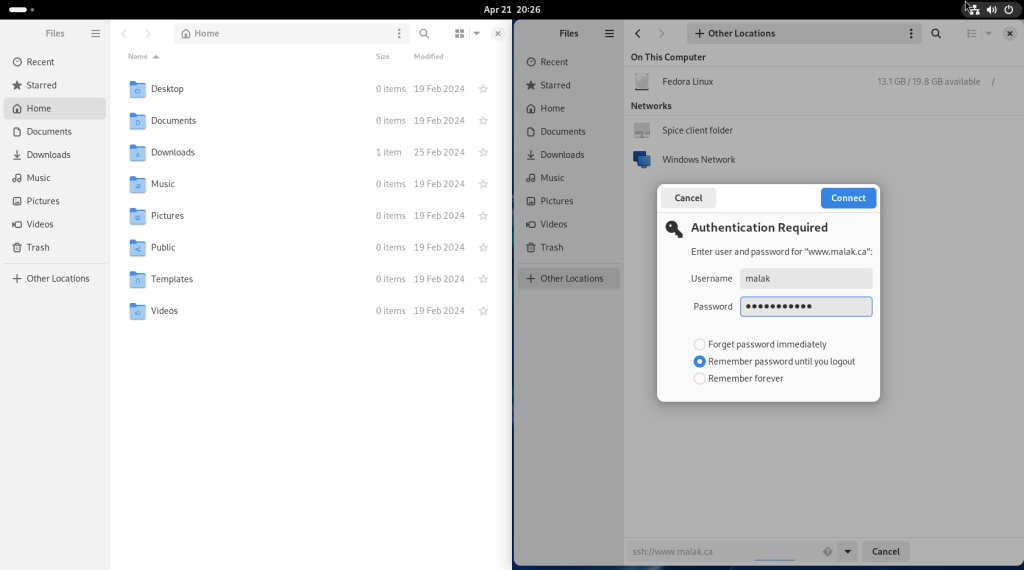
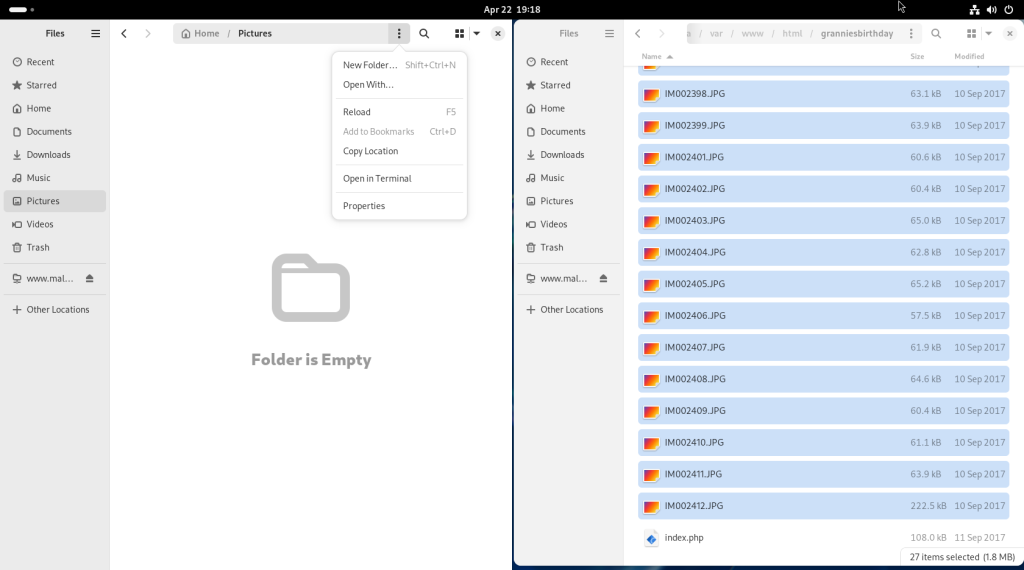
In this case, I decided to copy some files from the computer hosting my website, and some file backups. Clicking on “+ Other Locations” reveals, as per the window on the right, access to other computers accessible to your computer:
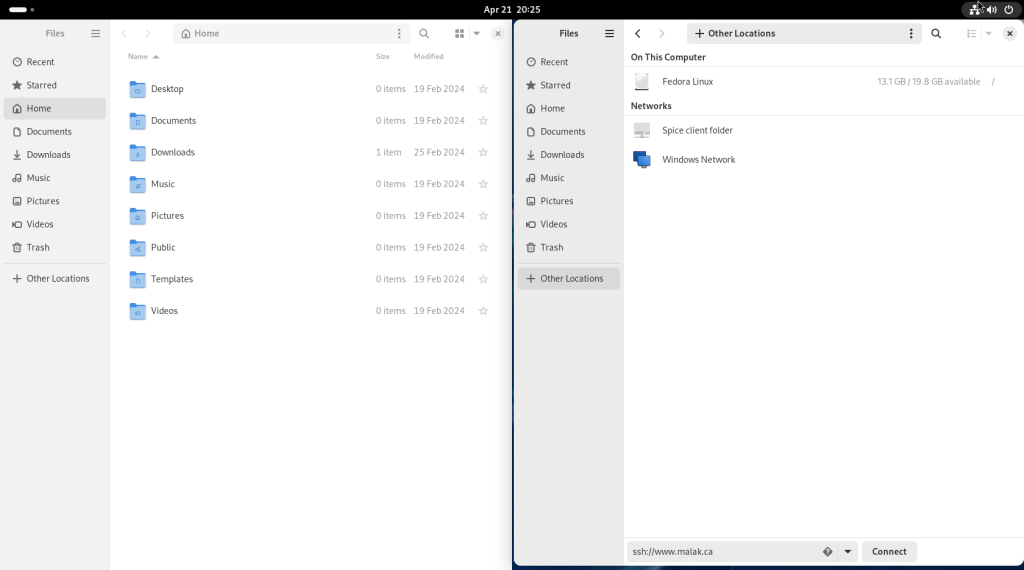
I entered into the address bar at the bottom of the window the address of my website, and telling the file manager to use the ssh protocol to securely access the location:
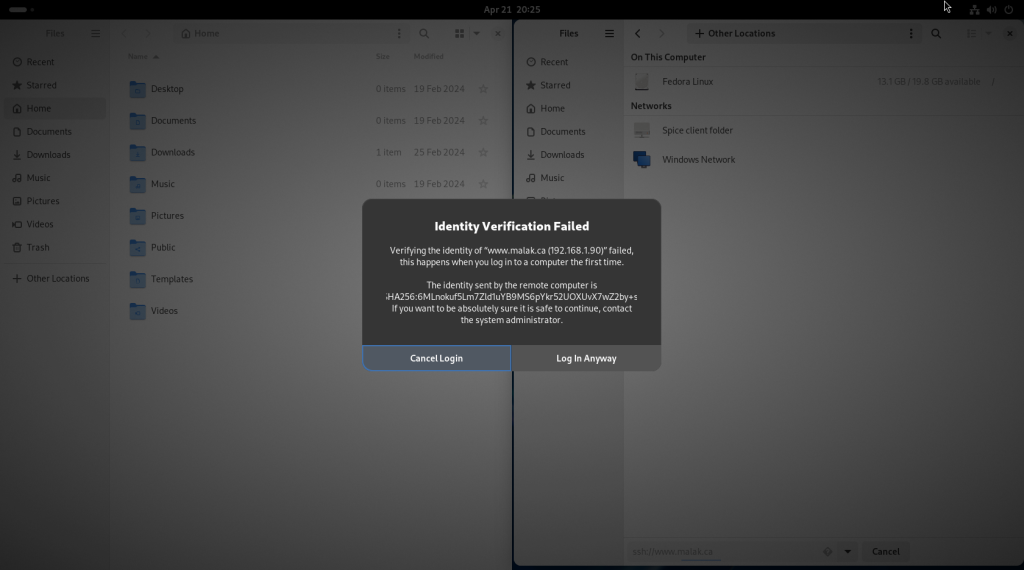
As part of the initial connection, my computer asked me to confirm if I wanted the connection, since it was the first time this instance was connecting to my website. Should you get such a challenge, click on “Log In Anyway”:
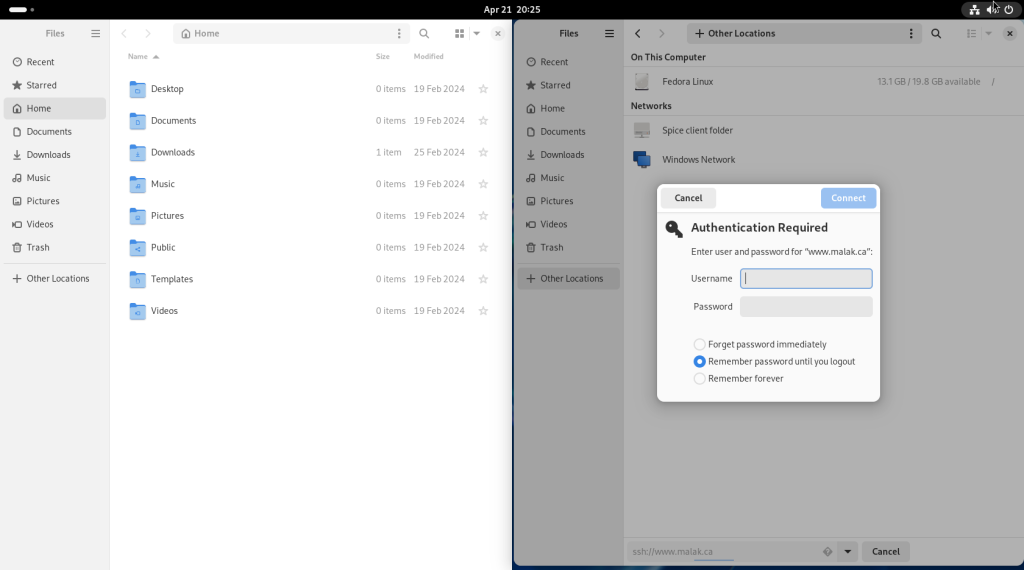
My website server presented an authentication challenge:
I entered my username and password, chose “Remember password until you logout”, and clicked on “Connect” (you may choose either of the two other options, at your discretion):
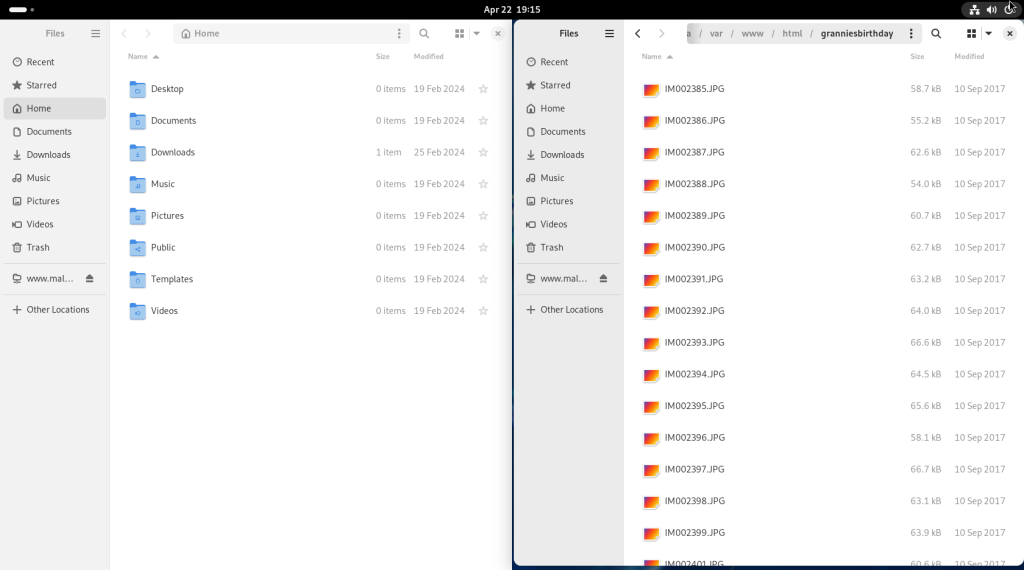
Once there, I navigated to a directory with some photos from a past birthday celebration for my grandmother:
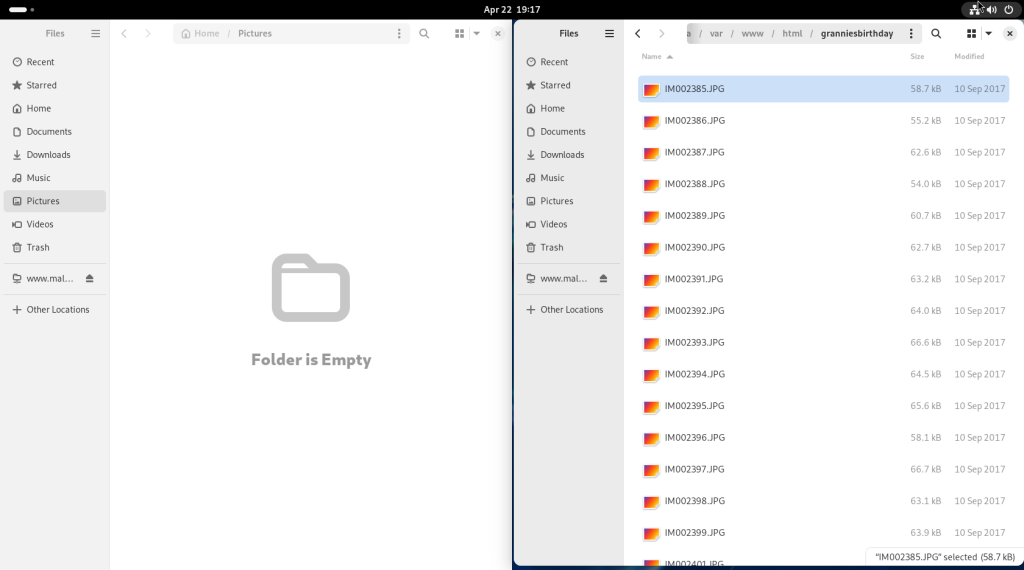
Wishing to copy all the files on my server (on the right) over to the computer (on the left), the first file was selected by clicking on it …
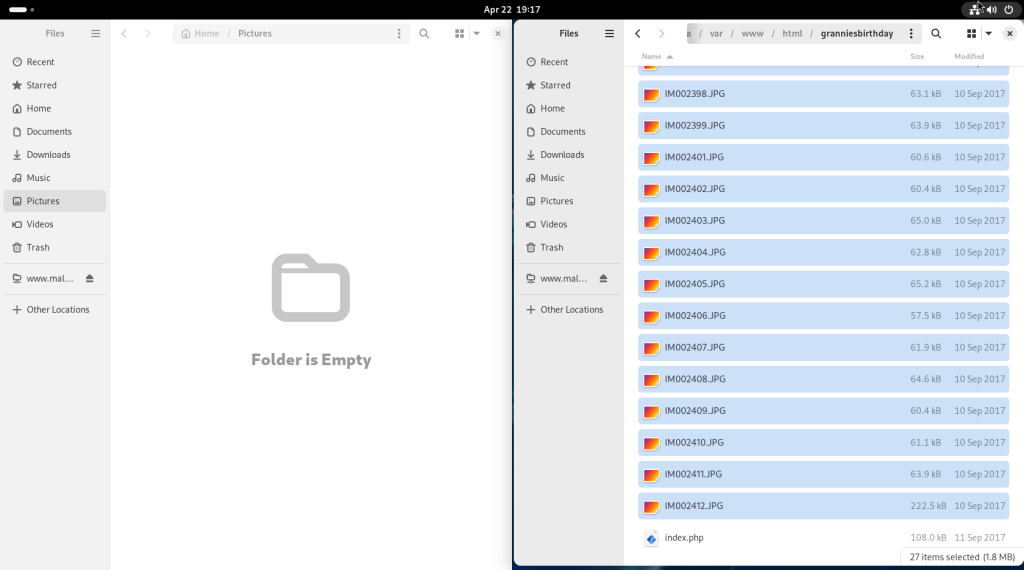
… and then scrolling down to the bottom of the file list, and while pressing on the CTRL key, clicking on the last:
Instead of drag and drop, I right clicked my mouse over the right …
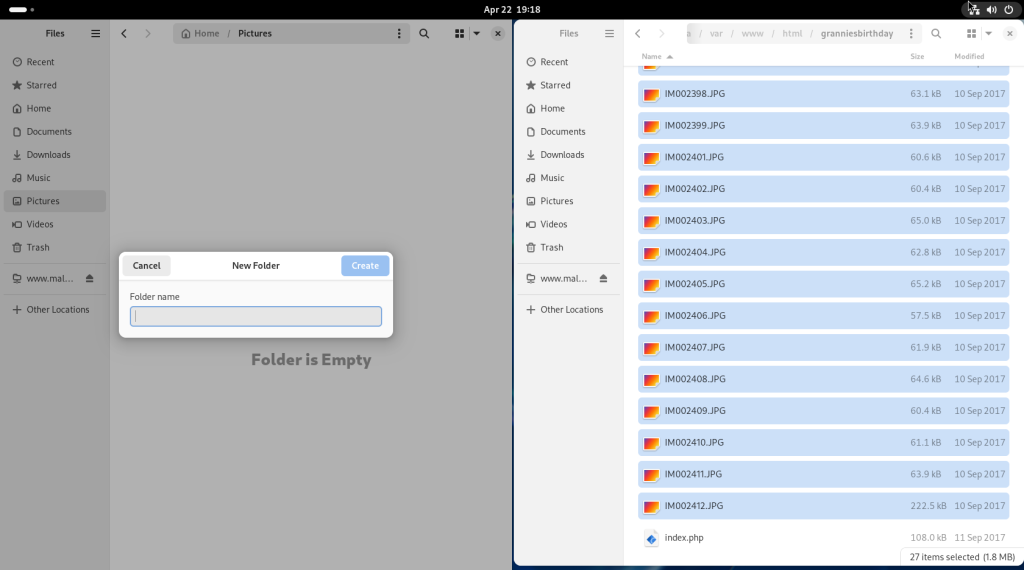
… which opened a contextual menu, in which I chose to create a folder, leading to the opening of a dialog:
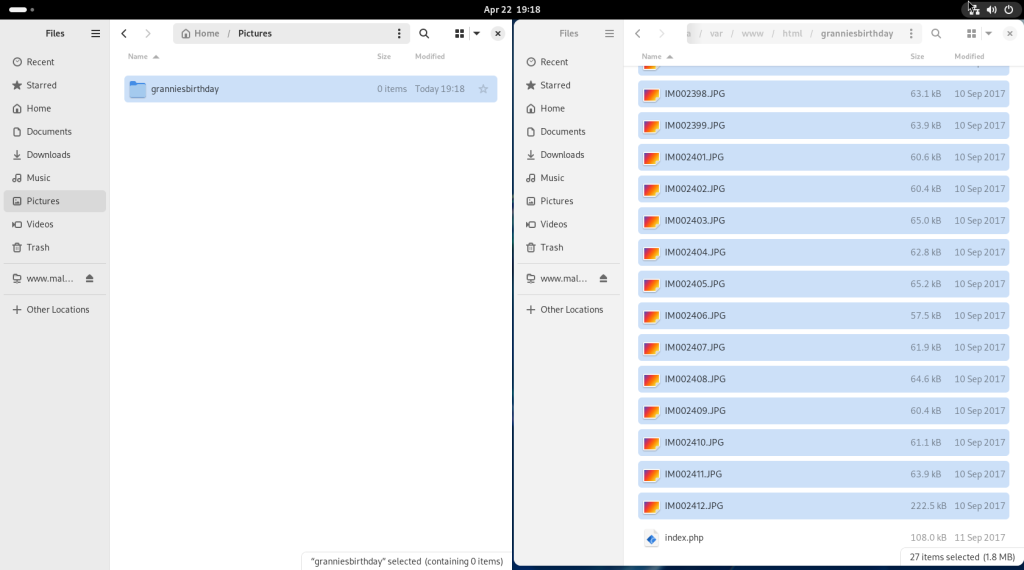
A name for a new directory, in this case reflecting that it was from my grandmother’s birthday one year, was entered into the dialogue, and the directory was created:
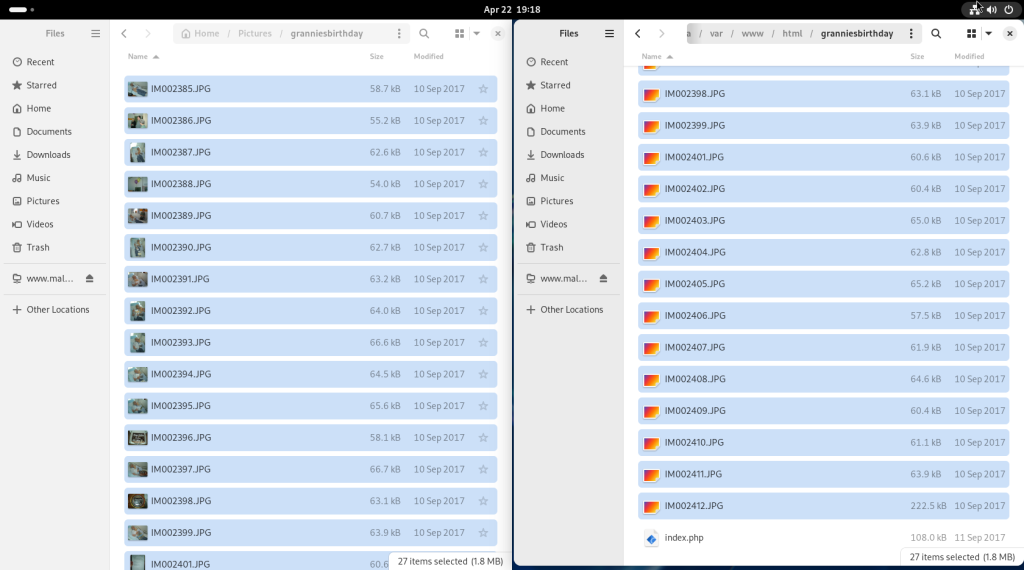
The previously selected files on my server were transferred via “drag and drop” to the newly created directory:
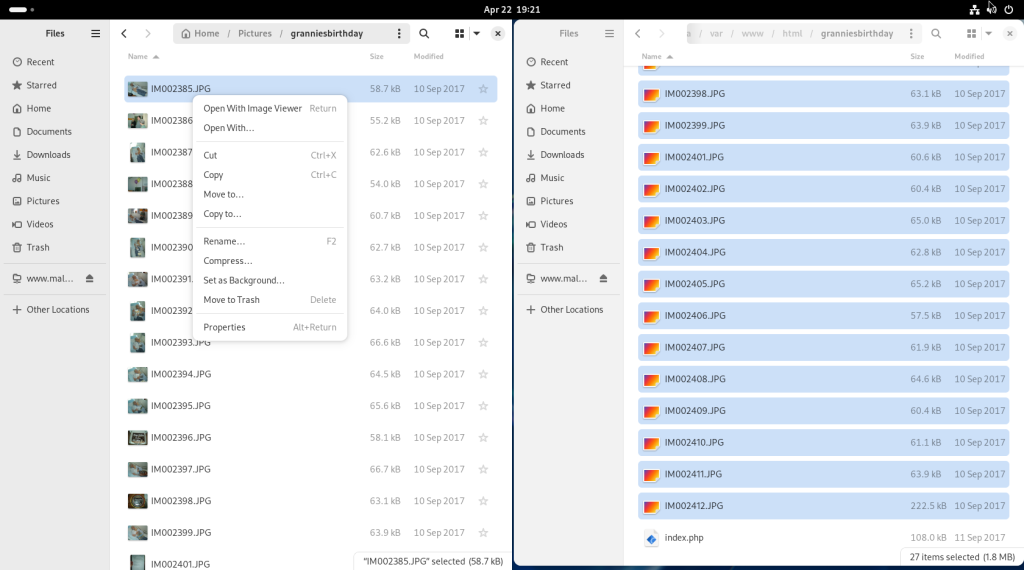
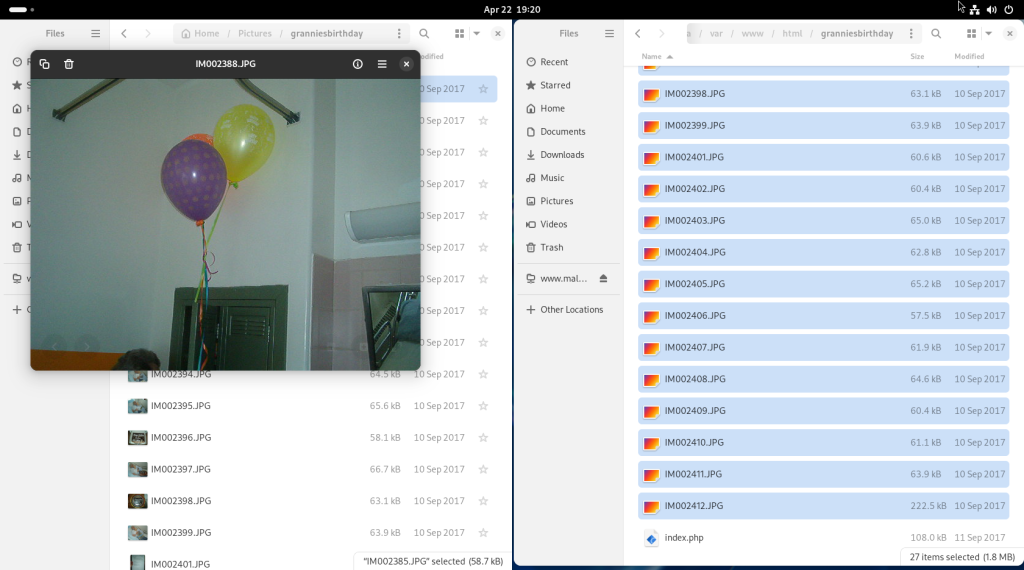
A photo was selected, and a right click opened a contextual menu, offering a number of options. The first, “Open With Image Viewer”, was selected …
… opening the selected photo.
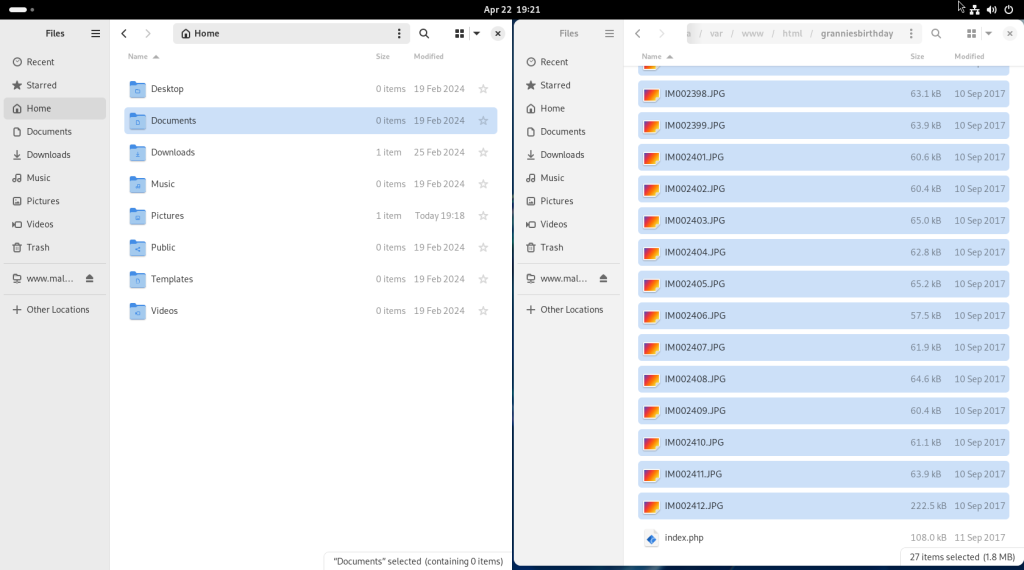
On the local machine, I clicked on “Home” …
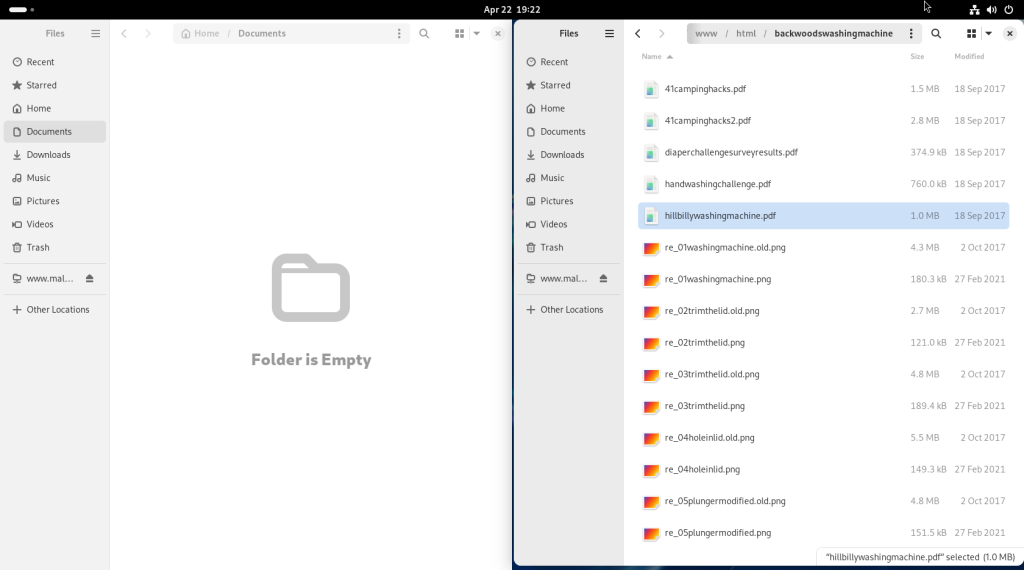
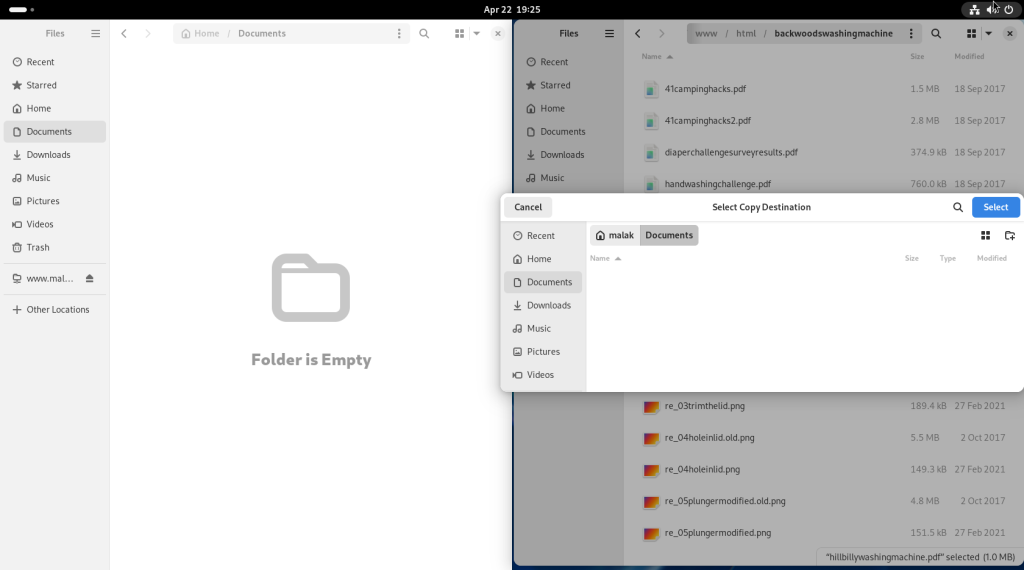
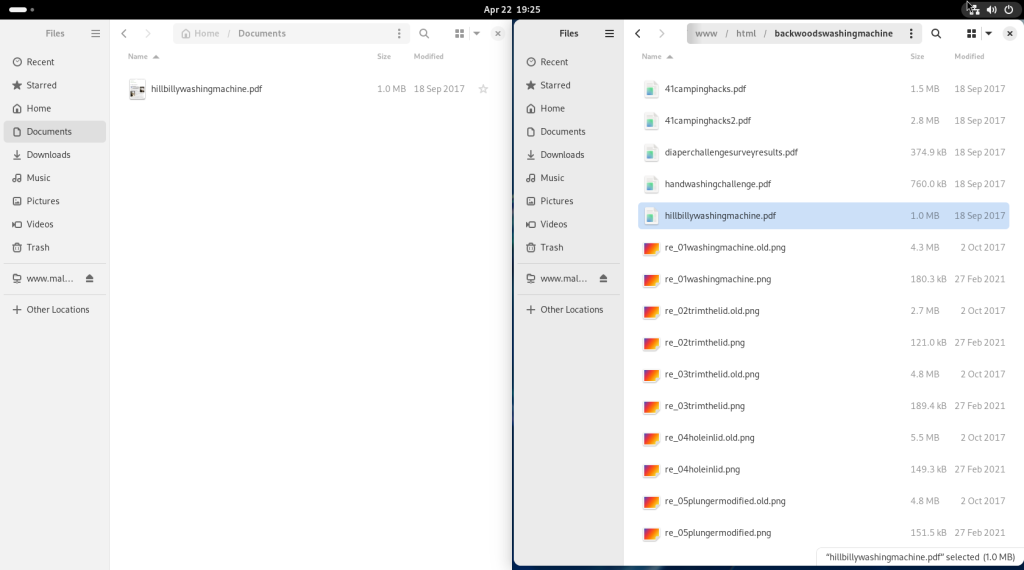
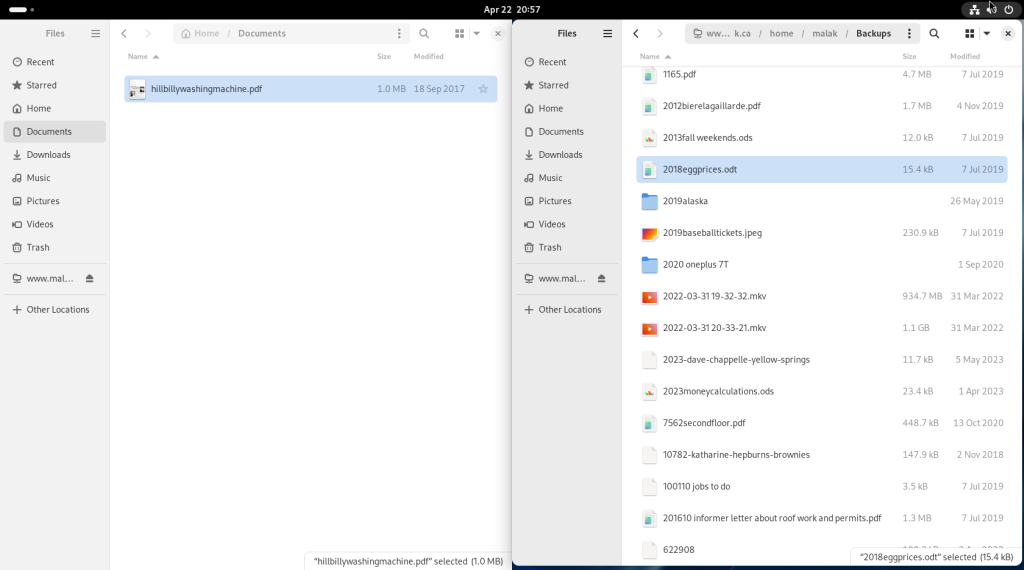
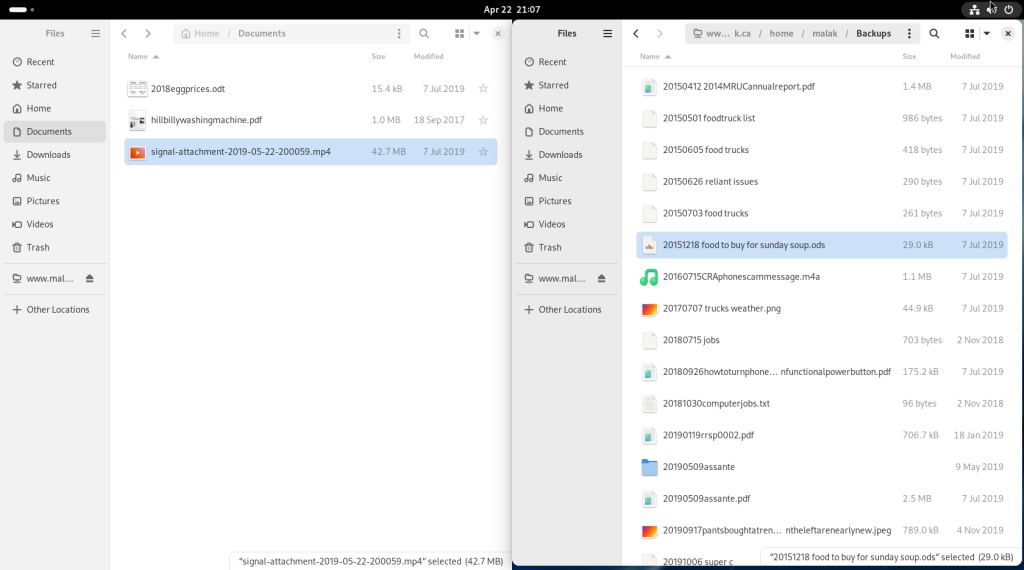
… then on “Documents”, while on my server, I navigated to another directory where I chose a PDF document:
This time, I used a right-clicked contextual menu on my server side to chose “Copy To” to copy the document over to my local machine.
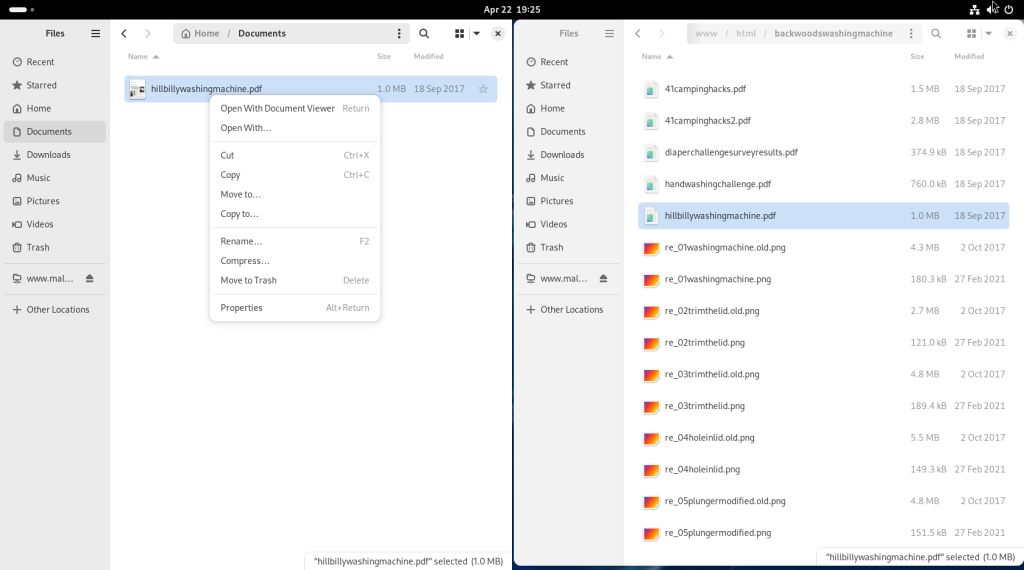
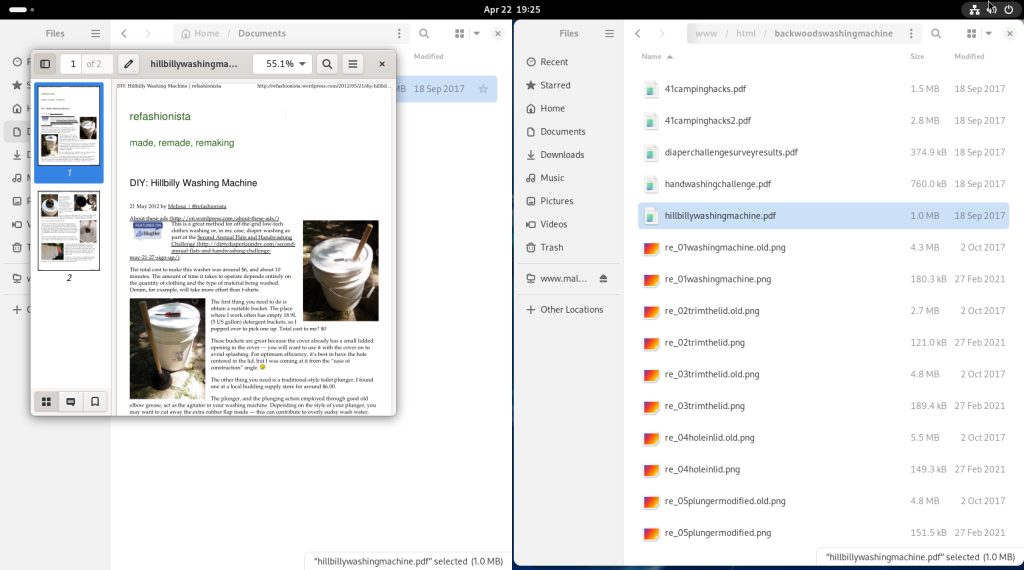
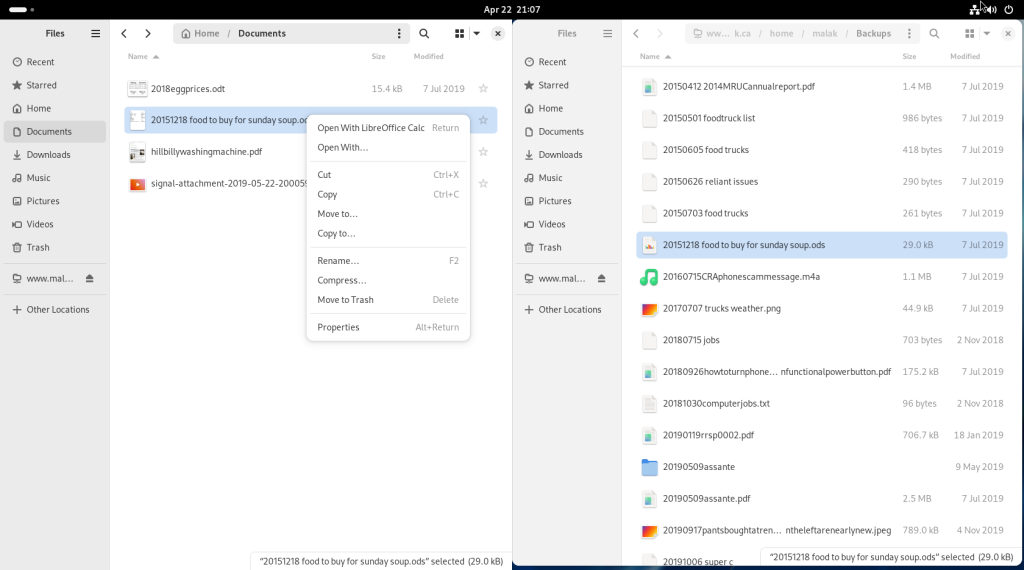
The file was then selected, and a contextual menu (right click) was opened, which offered “Open with Document Viewer”:
… opening up the document, in this case about how to make a backwoods washing machine:
Again on my server, I navigated to another directory, this time in my backups:
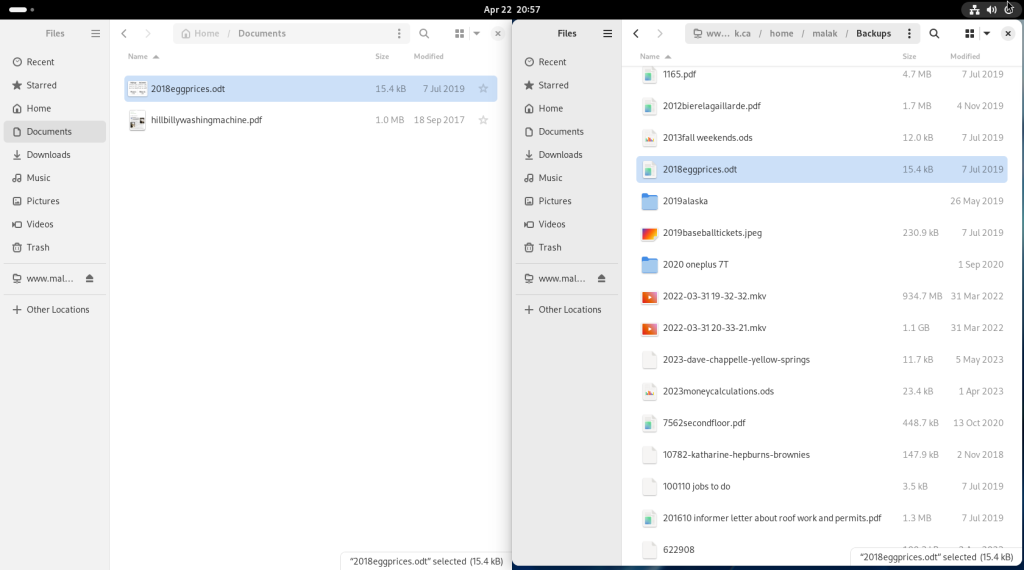
… and selected another file to transfer, in this case, a spreadsheet:
The spreadsheet was dragged and dropped onto the local machine:
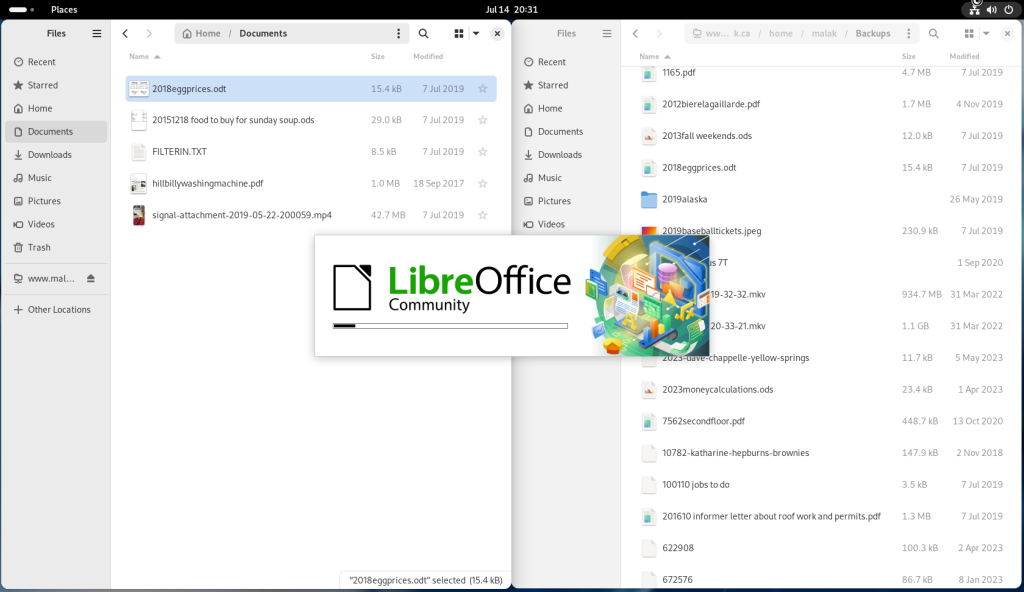
Recognizing the file extension as that of an OpenDocument spreadsheet file, LibreOffice was launched:
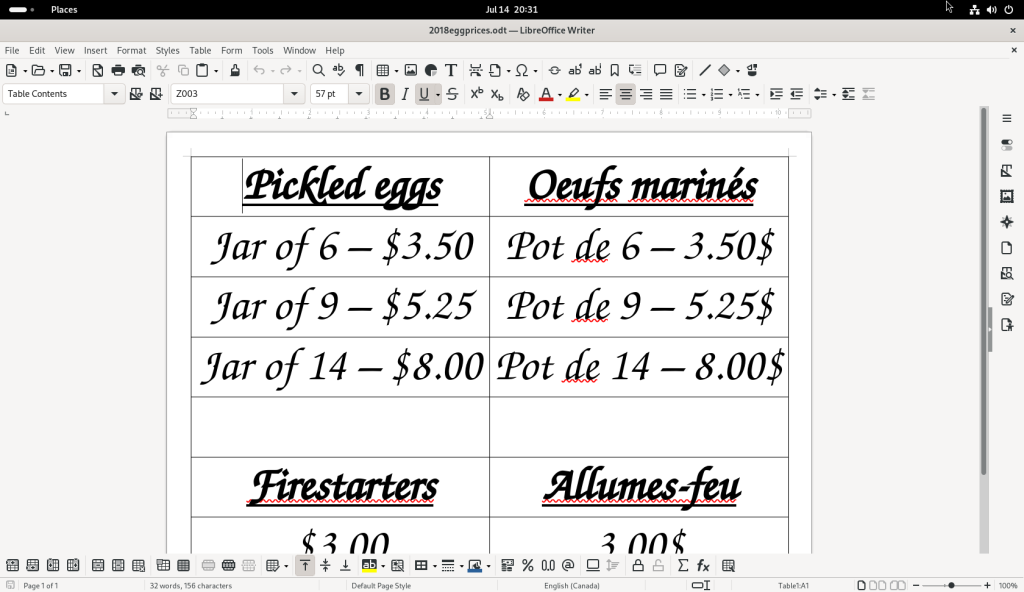
… and the file was opened, in this case, for a table of prices for a number of items I sell at a flea market near my cottage:
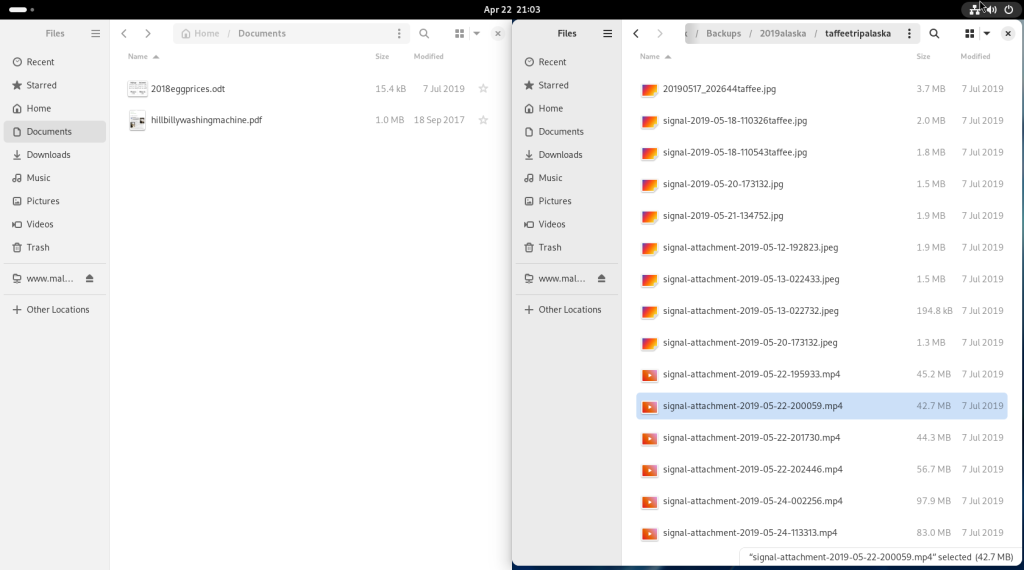
Back to the file transfers, a video file in a directory with pictures and videos of my cat was selected …
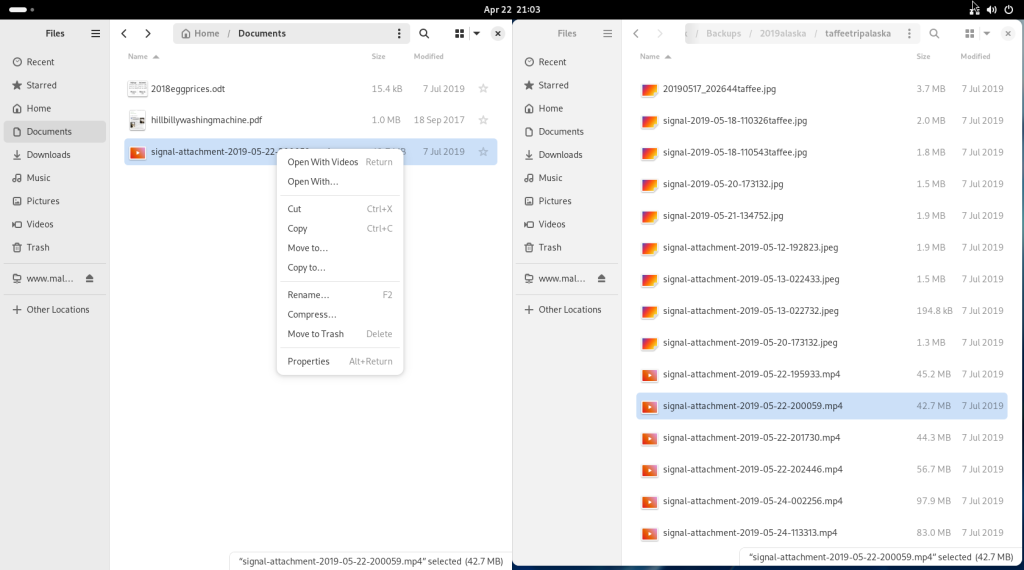
… and dragged and dropped over to the local machine, and the file selected and right clicked, revealing a contextual menu, allowing for the opening of the video file:
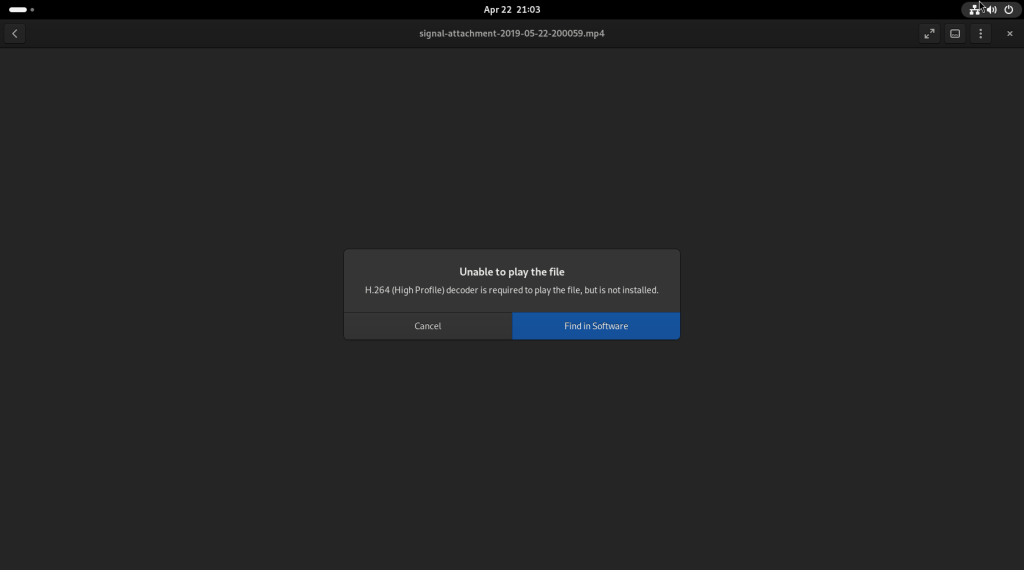
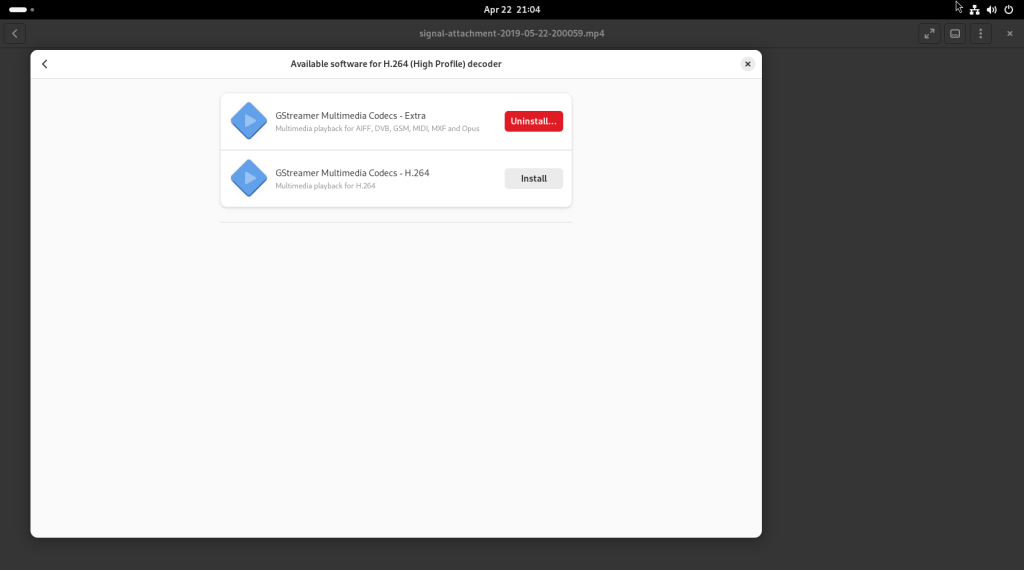
The Gnome Videos player was opened; since the relevant codec had not been installed in the base install, Videos asked if it should attempt to install the codec, which it proposed might be available in the software repositories:
The “Find in Software” button was clicked, leading to the following window:
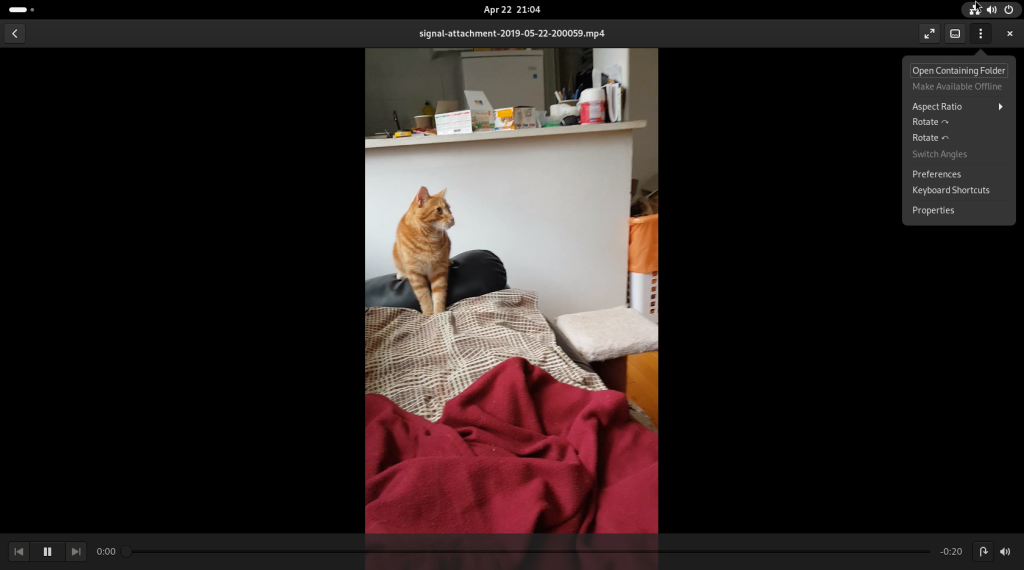
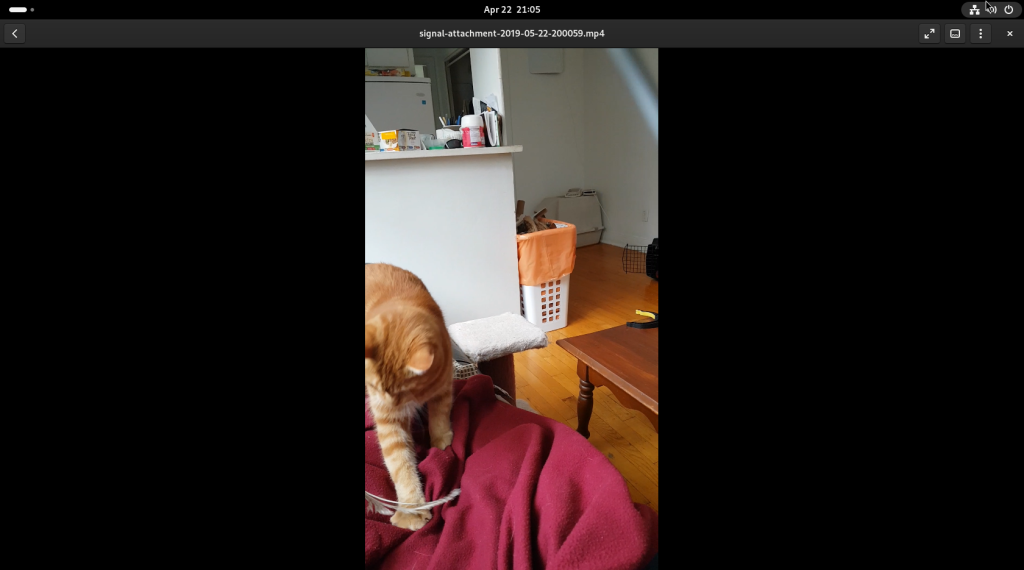
The required codec (“GStreamer Multimedia Codecs – H.264”) was chosen for installation; once installed, a video of my cat, playing with a feather toy, was shown:
Another file, another spreadsheet, was selected on my server …
… and dragged over to the new setup:
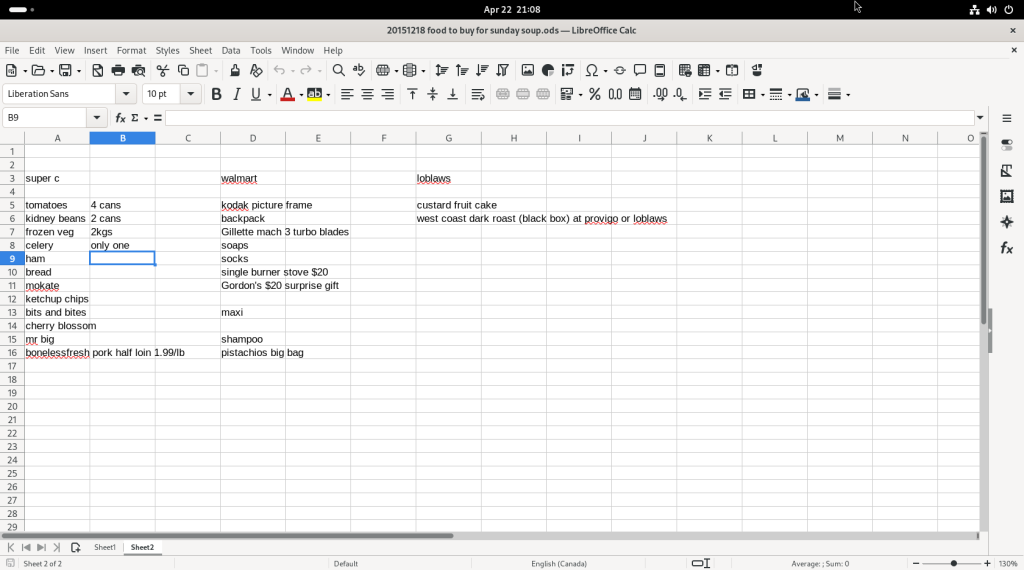
Using a right click contextual menu, the new selected file was opened:
… revealing my shopping plans for a large amount of soup I was going to cook for a community meal:
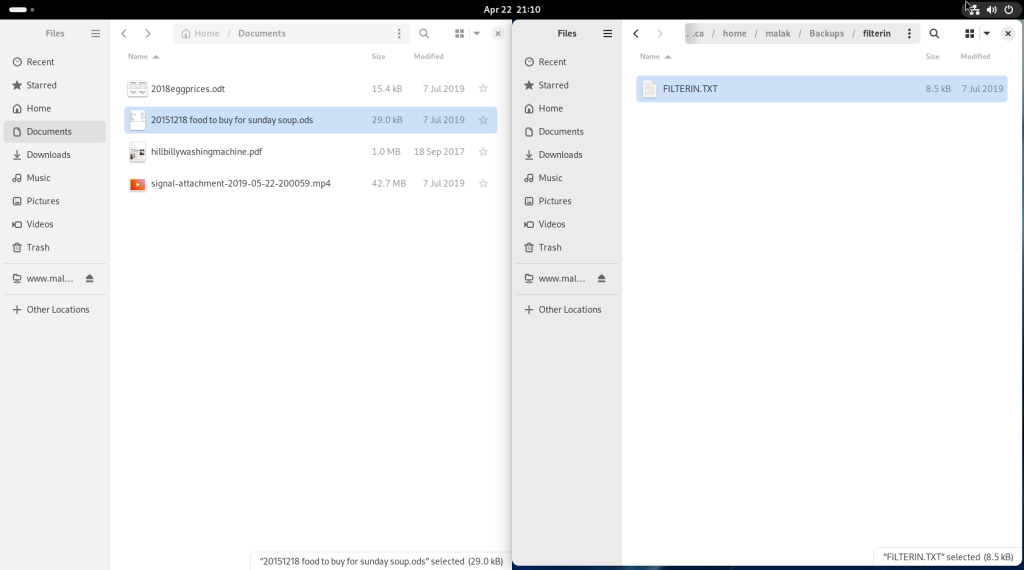
Another file, a text file, was selected on my server …
… and dragged over to the new setup:
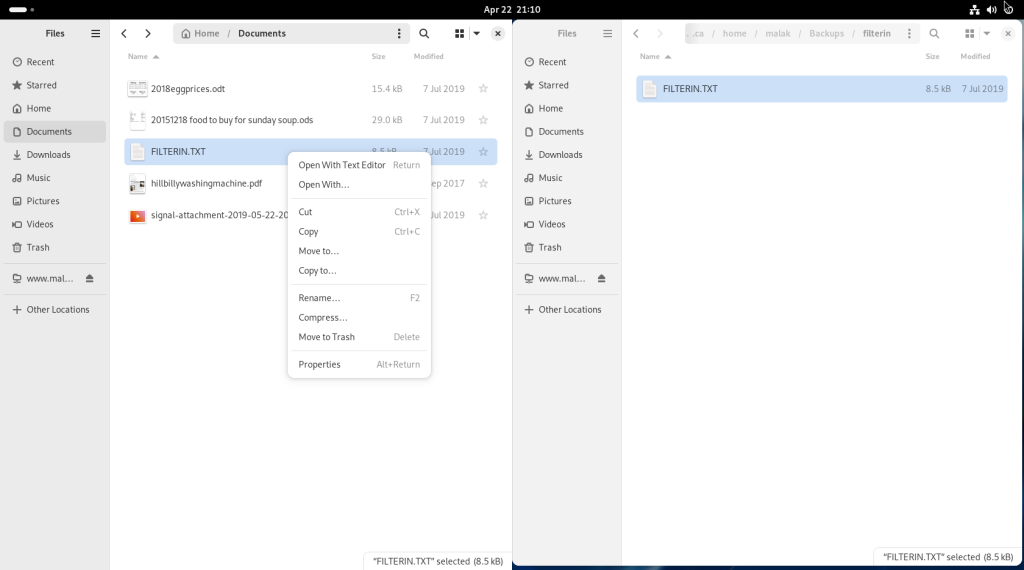
Using a right click contextual menu, the new selected file was opened:
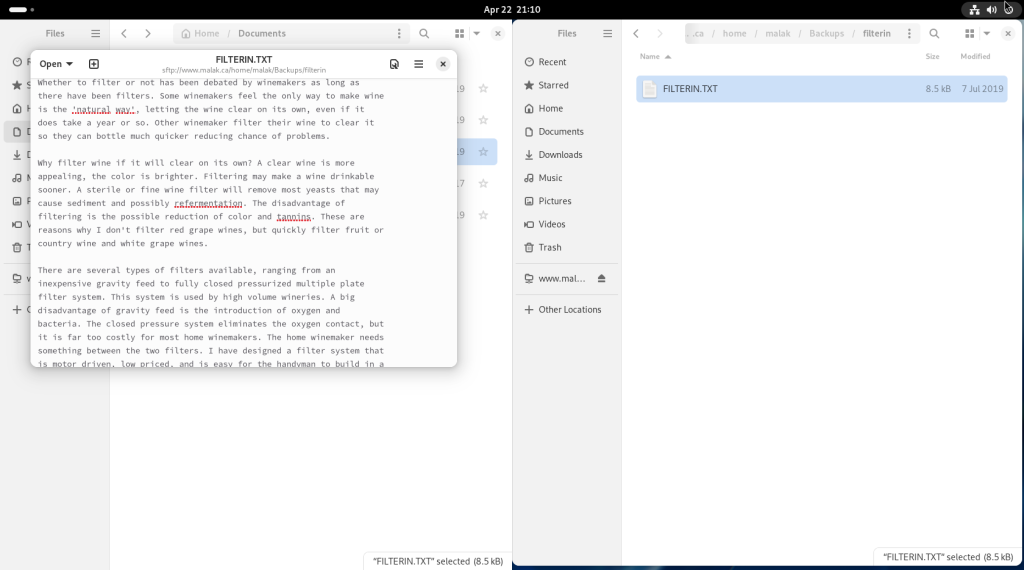
… and a text editor window opened up with the text file:
Many other things can be done with the file manager, including launching template documents in a click if templates have been placed in a templates directory.
This decadently rich and scrumptious dessert is another relatively new addition to my collection of recipes. Mom loves it!
Making the squares:
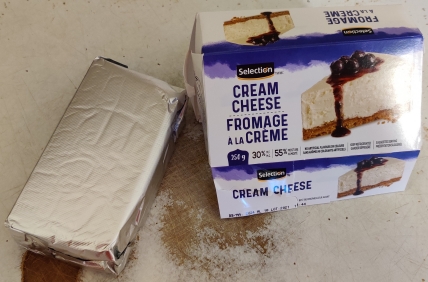
Before beginning, some cream cheese was taken out of the fridge and put on the counter to warm up to room temperature:
Cream cheese taken out before beginning in order to soften it
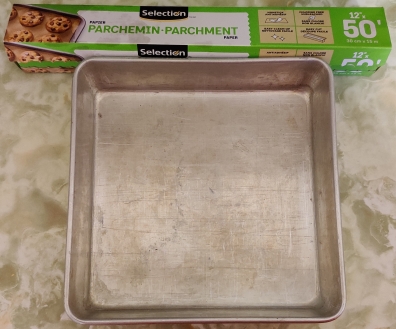
Parchment paper and an 8″ baking pan were taken out:
Parchment paper and baking pan taken out
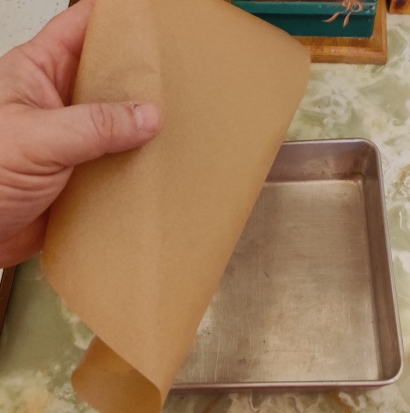
A parchment paper larger than the baking pan was torn off the roll …
Parchment paper cut off of roll
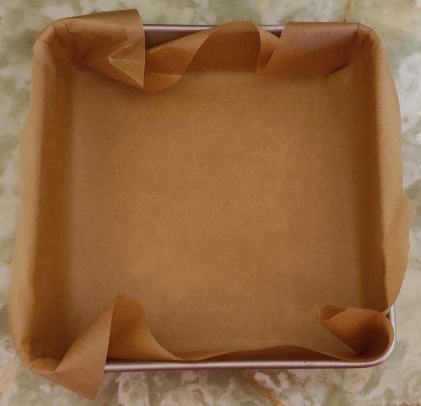
… and the baking pan was lined with the parchment paper, with a little bit left over the edges of the pan:
Baking pan lined with parchment paper
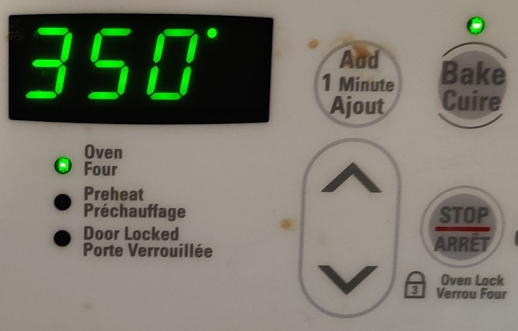
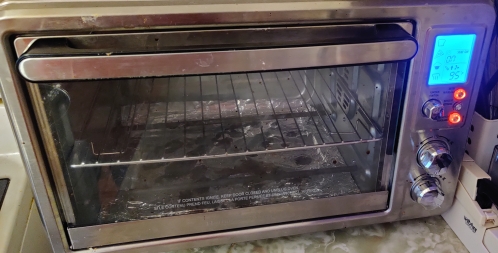
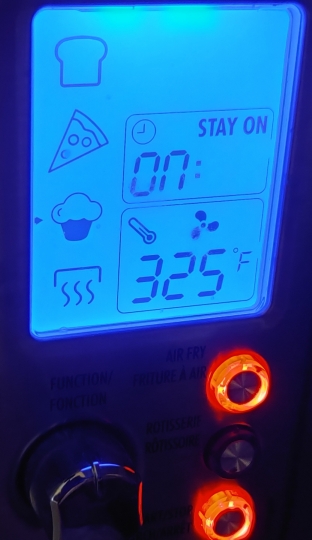
The pan was put aside for a few moments, and a countertop convection oven was set to 325F and turned on:
Countertop convection oven turned on
Oven set to 325F
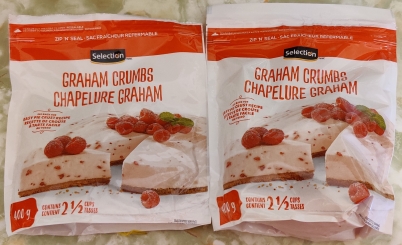
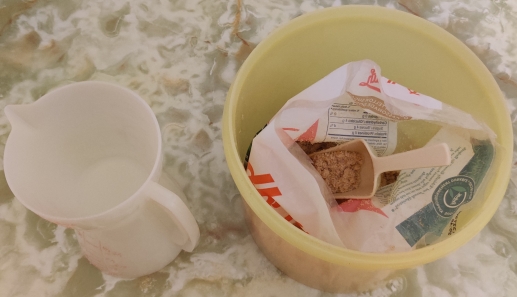
Graham cracker crumbs were taken out:
Graham cracker crumbs taken out
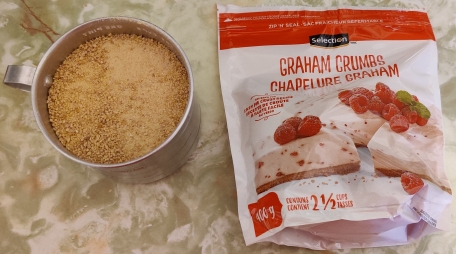
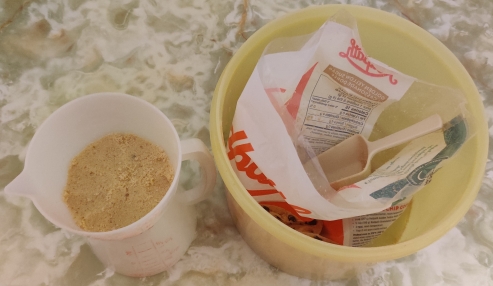
A cup and a half of graham cracker crumbs were measured out:
Graham cracker crumbs measured out
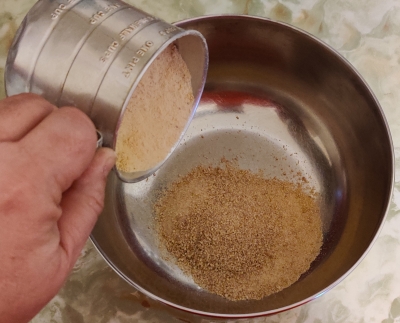
The graham cracker crumbs were transferred to a mixing bowl:
Graham cracker crumbs transferred to mixing bowl
Graham cracker crumbs transferred to mixing bowl
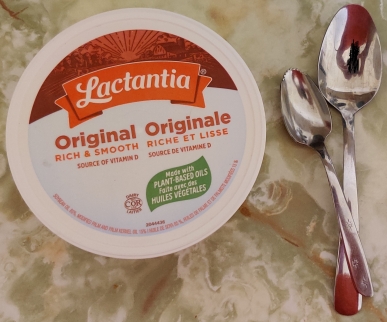
Margarine was taken out:
Margarine taken out
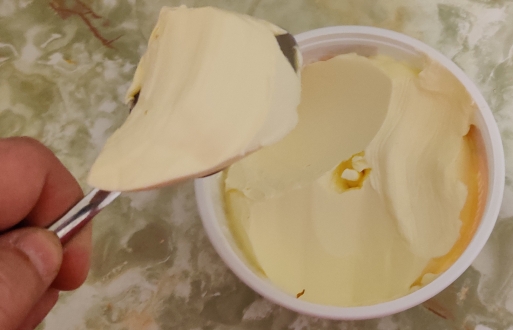
Margarine was scooped out of the tub:
Margarine scooped out of tub
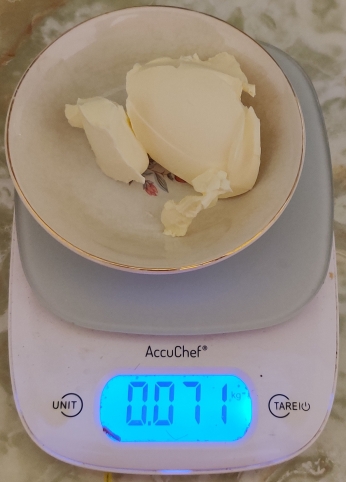
The margarine was placed in a bowl, previously placed on the scale and the tare set to zero:
Margarine measured out
The margarine was melted in the microwave oven, 15 seconds at a time:
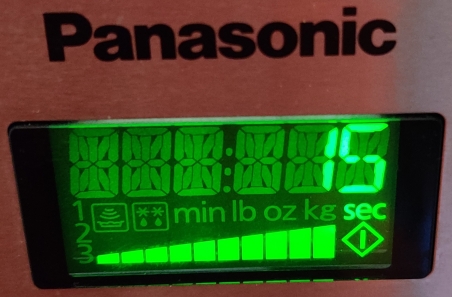
Microwave oven set to 15 seconds
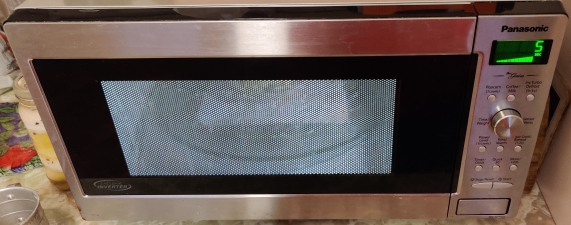
Margarine being melted 15 seconds at a time in microwave oven
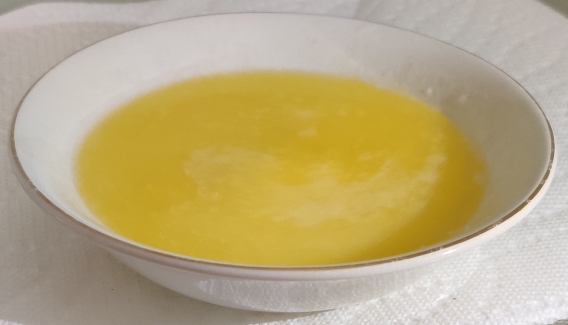
Once fully melted, the margarine was taken out of the microwave oven:
Melted margarine taken out of the microwave oven
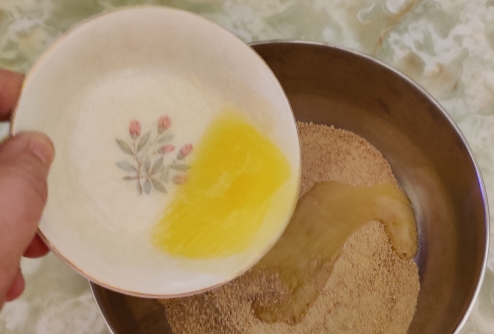
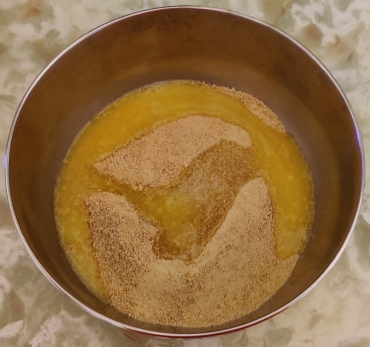
The melted margarine was poured over the graham cracker crumbs in the mixing bowl:
Melted margarine poured over graham cracker crumbs
Melted margarine poured over graham cracker crumbs
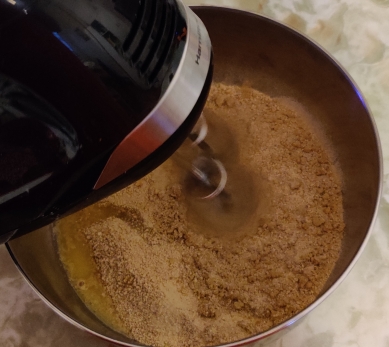
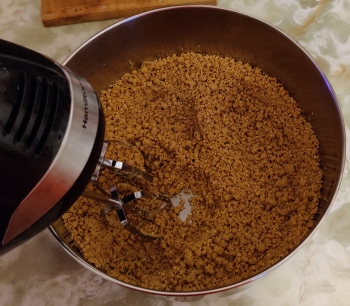
An electric blender was taken out and used to fully mix the graham cracker crumbs and the melted margarine:
Graham cracker crumbs and melted margarine mixed with electric blender
Graham cracker crumbs and melted margarine mixed with electric blender
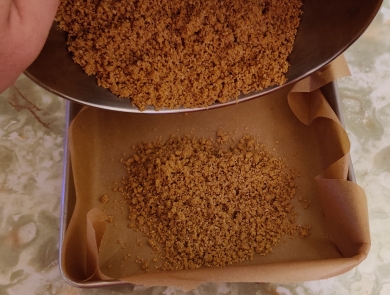
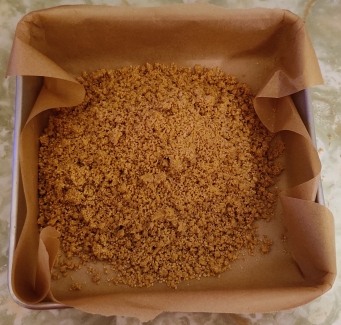
The baking pan with the parchment paper lining was brought back and the fully blended graham cracker crumbs and melted margarine were transferred to the baking pan.
Graham cracker mix transferred to baking pan
Graham cracker mix transferred to baking pan
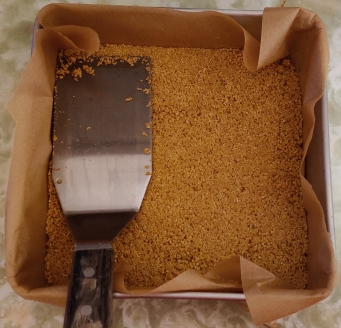
The graham cracker mix was flattened with an egg flipper:
Graham cracker mix flattened with an egg flipper
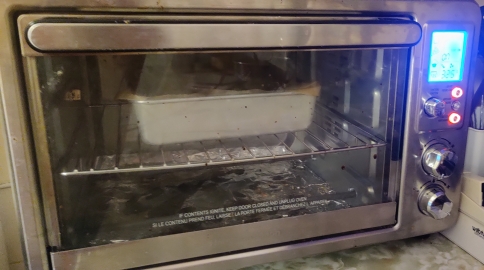
The baking pan with the graham cracker crust was placed in the pre-heated countertop oven:
Graham cracker crust placed in oven
A timer was set for six minutes:
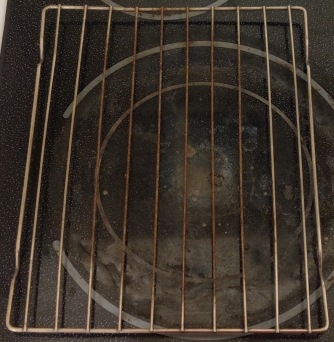
While the graham cracker crust was baking, a cooling rack was taken out (and placed on my stove):
Cooling rack taken out
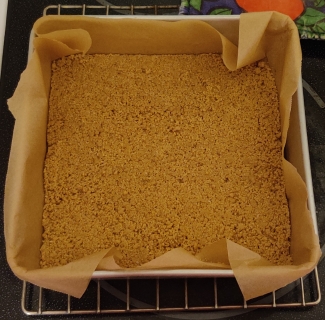
After baking for six minutes, the graham cracker crust was taken out of the oven and placed on the cooling rack:
Graham cracker crust placed on cooling rack
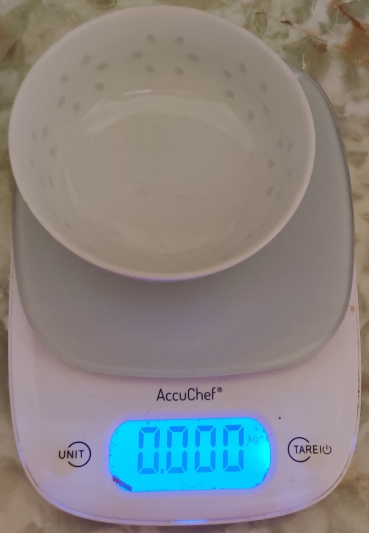
Another bowl was placed in the scale and the tare set to zero:
Small bowl placed on scale and scale set to zero
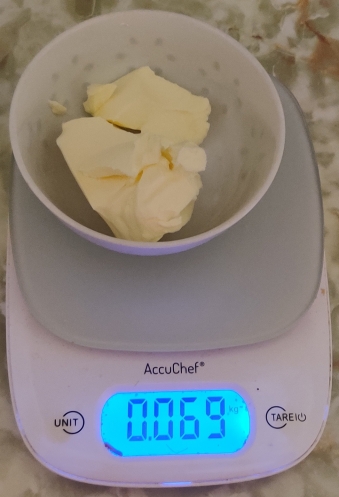
More margarine was taken out and measured out:
Margarine measured out
The mixing bowl had been washed while the graham cracker base was baking, and the margarine was transferred to the mixing bowl:
Margarine transferred to clean mixing bowl
Margarine transferred to clean mixing bowl
Brown sugar and a measuring cup were taken out:
Brown sugar and measuring cup taken out
The brown sugar was measured out:
Brown sugar measured out
The brown sugar was transferred to the mixing bowl with the margarine:
Brown sugar transferred to mixing bowl
Table sugar and a measuring spoon were taken out:
Sugar and measuring spoon taken out
Table sugar was measured out and poured into the mixing bowl with the brown sugar and margarine:
Table sugar added to mixing bowl
Table sugar added to mixing bowl
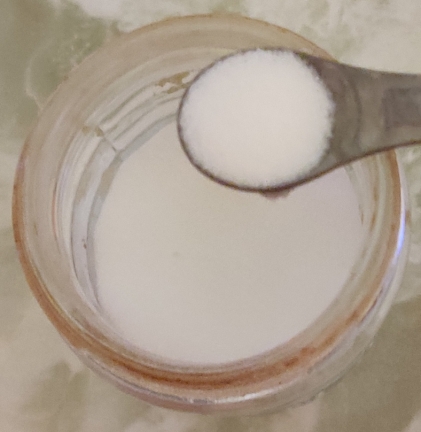
Salt was taken out and measured out:
Salt measured out
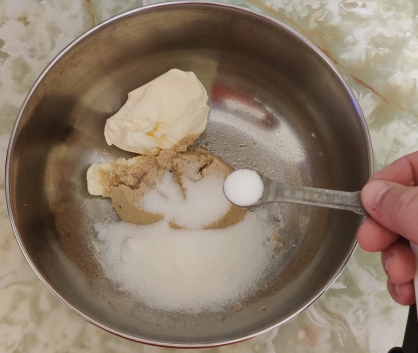
The salt was added to the mixing bowl with the two kinds of sugar and margarine:
Salt added to mixing bowl
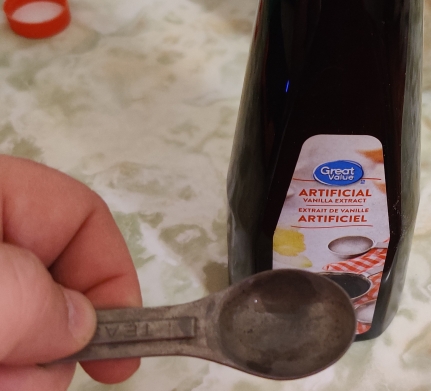
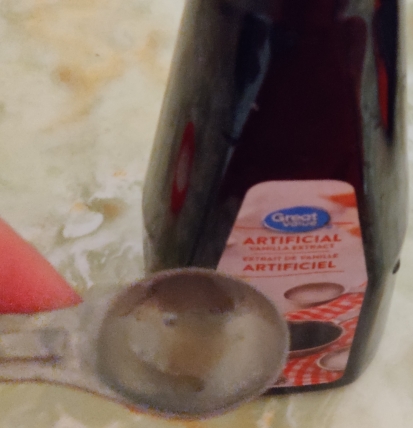
Vanilla extract and a measuring spoon were taken out:
Vanilla extract
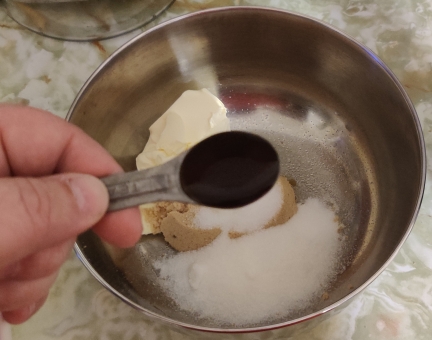
The vanilla extract was measured out and added to the mixing bowl with the two kinds of sugar, margarine, and salt:
Vanilla extract added to mixing bowl
Vanilla extract added to mixing bowl
Flour and a measuring cup were taken out:
Flour taken out
The flour was measured out:
Flour measured out
The flour was transferred to the bowl with the two kinds of sugar, margarine, salt, and vanilla extract:
Flour added to mixing bowl
Flour added to mixing bowl
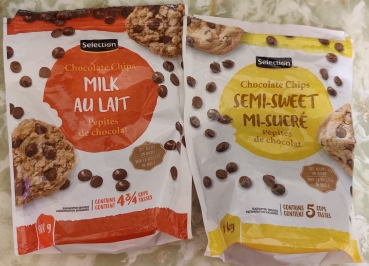
Two kinds of chocolate chips were taken out:
Two kinds of chocolate chips taken out
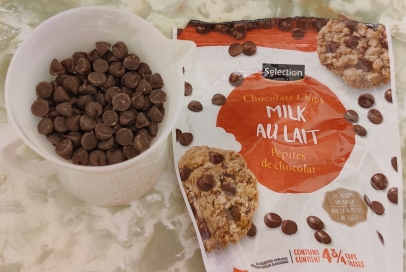
Half a cup of milk chocolate chips were measured out:
Half a cup of milk chocolate chips measured out
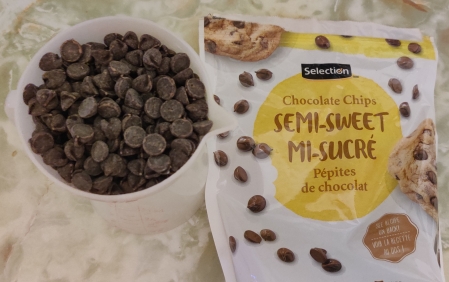
… and half a cup of semi-sweet chocolate chips were measured out:
Half a cup of semi-sweet chocolate chips measured out
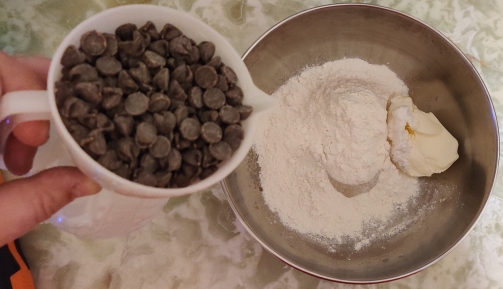
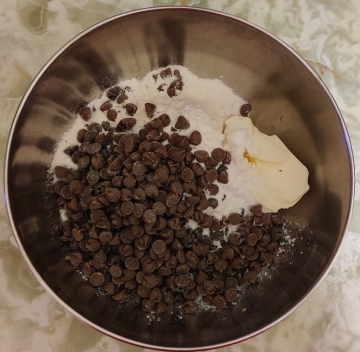
The chocolate chips were added to the mixing bowl with the other ingredients:
Chocolate chips added to mixing bowl
Chocolate chips added to mixing bowl
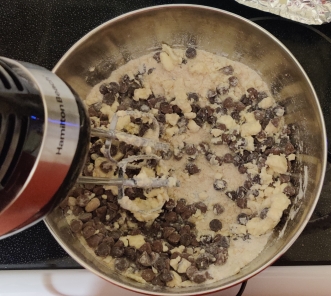
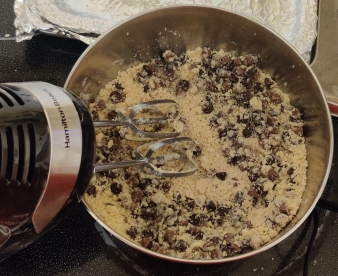
A hand held electric mixer was taken out and the ingredients mixed to make a powdery dough:
Ingredients mixed with electric mixer
Ingredients mixed with electric mixer
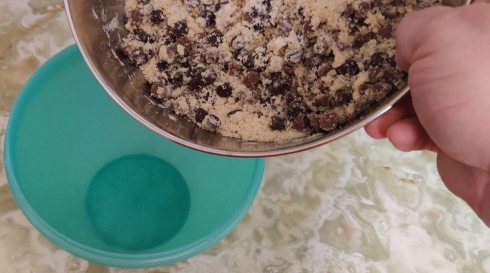
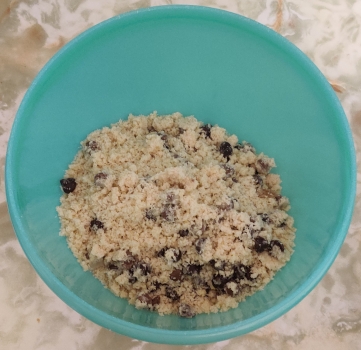
The cookie dough was transferred to another bowl and put aside:
Cookie dough transferred to another bowl
Cookie dough transferred to another bowl and put aside
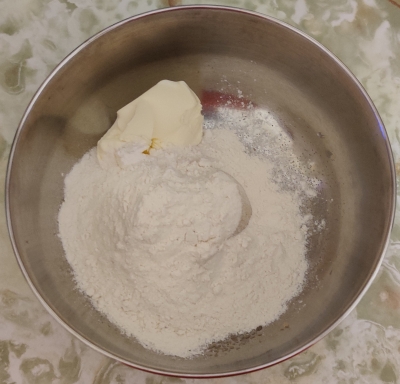
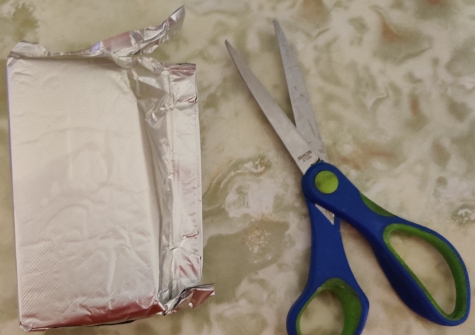
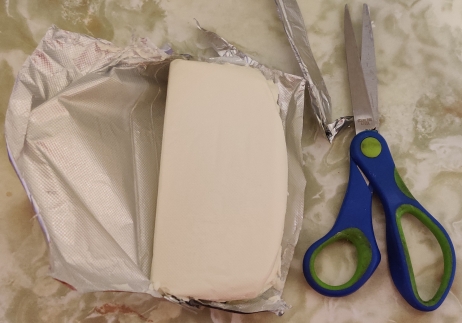
The package of cream cheese placed on the counter earlier to warm up to room temperature was taken out and opened with a pair of scissors:
Package of cream cheese opened
Package of cream cheese opened
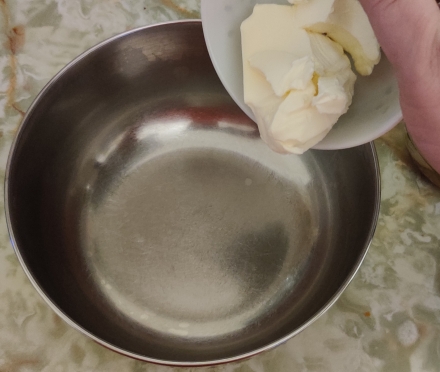
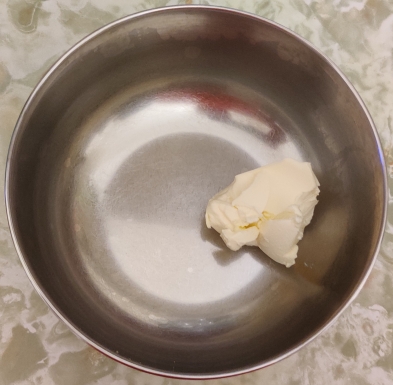
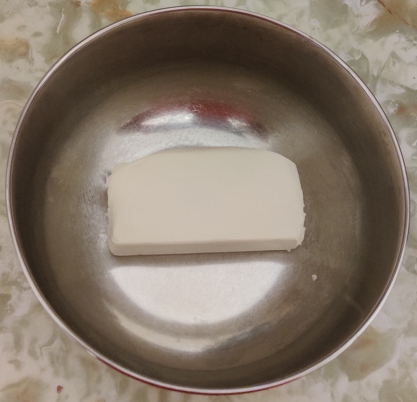
The cream cheese was transferred to the mixing bowl, the latter of which again was washed in between mixing jobs.
Cream cheese placed in mixing bowl
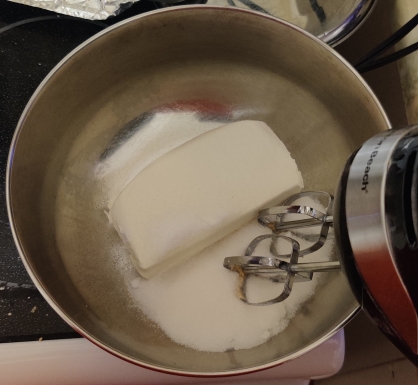
The table sugar was taken out again and measured out:
Sugar measured out
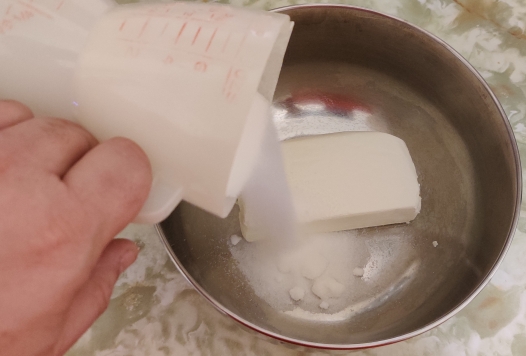
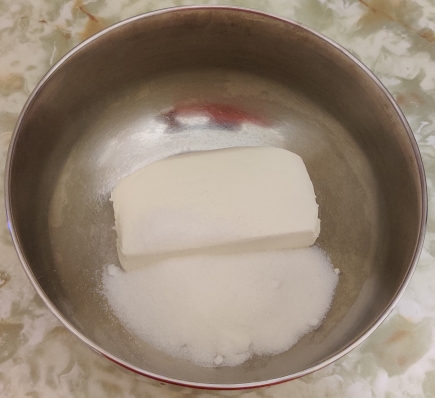
The table sugar was transferred to the mixing bowl with the cream cheese:
Table sugar placed in mixing bowl
Table sugar placed in mixing bowl
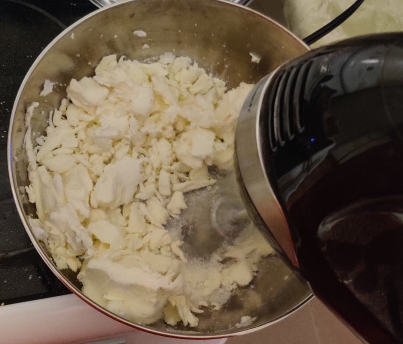
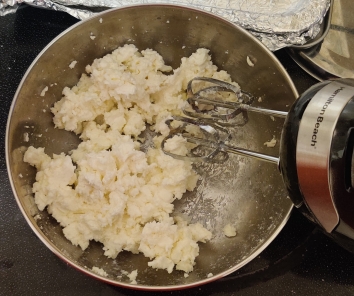
The electric mixer was taken out again to cream the cream cheese and table sugar together:
Creaming cream cheese and sugar
Creaming cream cheese and sugar
Creaming cream cheese and sugar
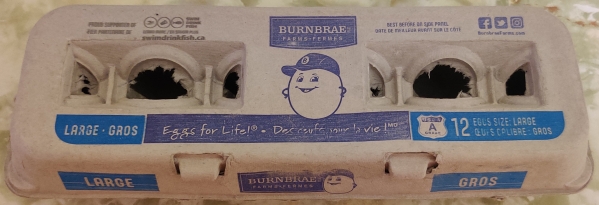
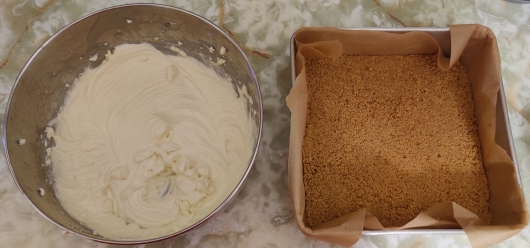
Eggs were taken out:
Eggs taken out
Last egg taken out
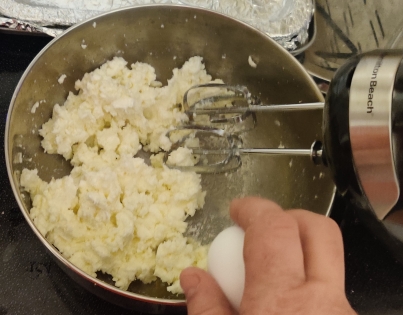
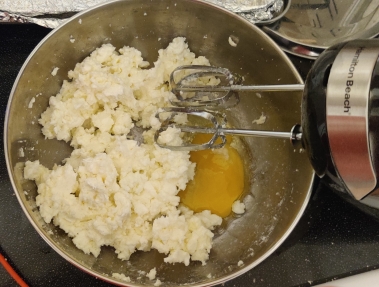
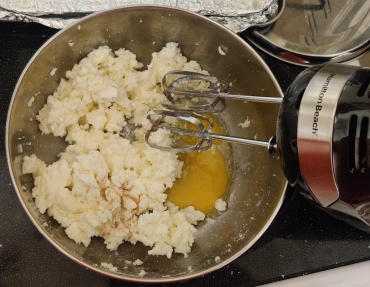
The egg was cracked into the bowl with the cream cheese and sugar:
Egg cracked in bowl with cream cheese and sugar
Egg cracked in bowl with cream cheese and sugar
Vanilla extract was taken out again:
Vanilla extract taken out
The vanilla extract was measured out and was added to the bowl with the cream cheese, sugar, and egg:
Vanilla extract added to bowl
Vanilla extract added to bowl
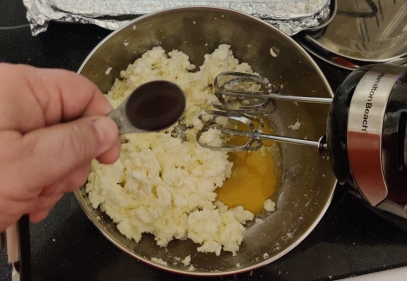
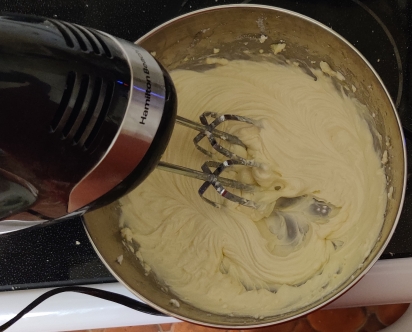
The egg and vanilla extract were mixed into the cream cheese and sugar:
Egg and vanilla extract mixed into cream cheese and sugar
Egg and vanilla extract mixed into cream cheese and sugar
The now-cooled graham cracker crumb base was taken out:
Cooled graham cracker crumb base taken out
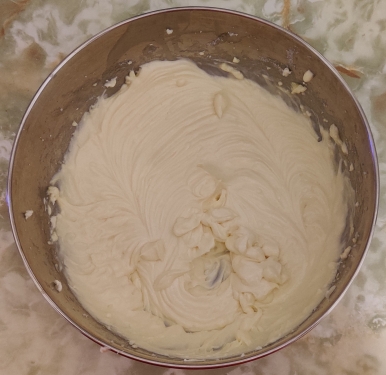
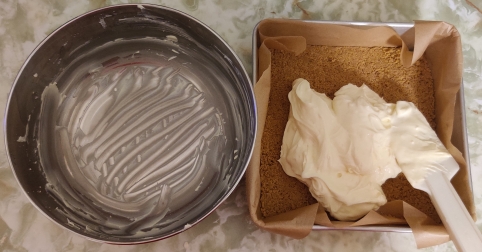
The cream cheese mix was transferred on top of the graham cracker crumb crust:
Cream cheese mix transferred to base
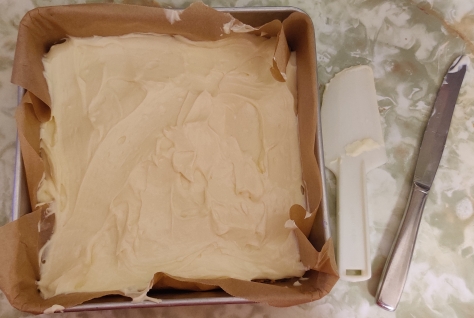
The cream cheese mix was spread evenly over the graham cracker crumb crust:
Cream cheese mix spread evenly over base
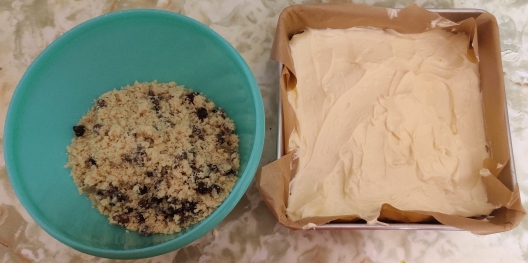
The chocolate chip cookie dough was taken out:
Cookie dough taken out
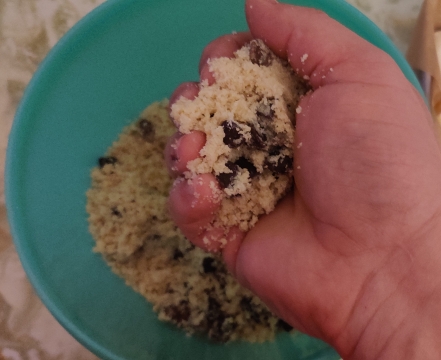
A bit of the cookie dough was picked up in my hand …
Cookie dough picked up
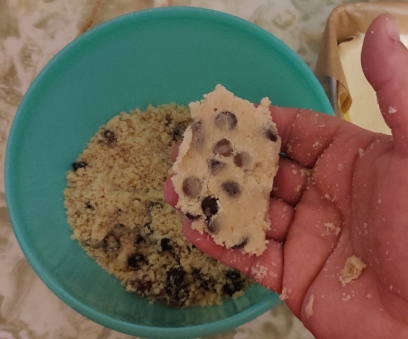
… and the ball of dough was flattened between my two hands:
Cookie dough flattened
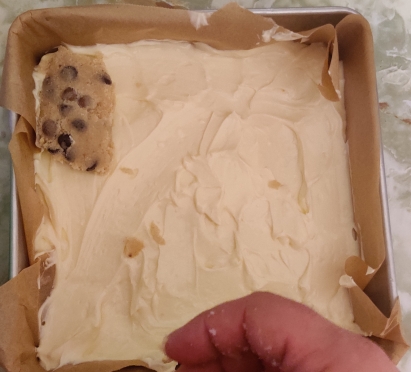
The flattened cookie dough was placed on top of the cream cheese mix:
Flattened cookie dough placed on top of cream cheese mix
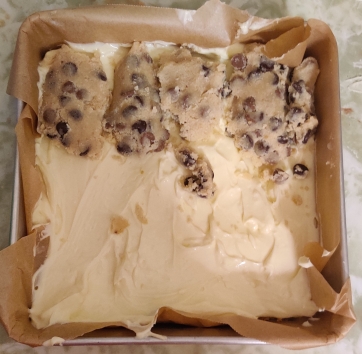
… and repeated with more cookie dough:
Flattened cookie dough pieces placed on top of cream cheese mix
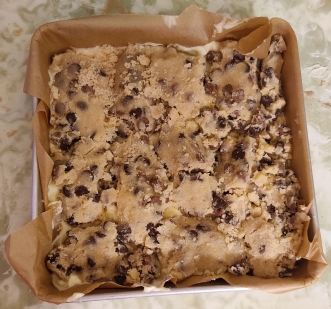
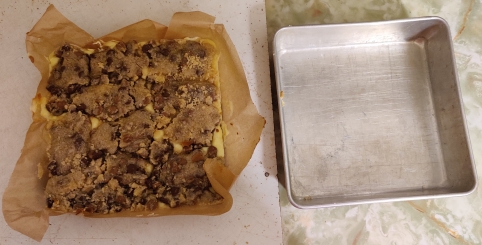
… until all the cookie dough was used and the whole surface of the cream cheese mix was covered:
In this post, the installation of a version of Linux, in this case Fedora Linux, will be demonstrated. The USB key created as a result of the previous chapter, as well as the computer on which you will be installing Linux, will be needed. Note: As per previous recommendations, you should perform the install on a computer that does not have any other active OS installation or data; should you be recycling one of your older computers, back up any data that may be present.
The computer should be physically set up and plugged in, with the various parts connected to each other should it not be a laptop computer, and connected to the internet via an ethernet cable, or later on or as prompted, connected by wifi (not covered in this post.)
Note that some of the following screenshots may have been created somewhat out of order as compared to the narrative.
Once the USB key is plugged into the computer and the computer turned on, you should immediately go into the BIOS (often F2 or F12 at boot up):
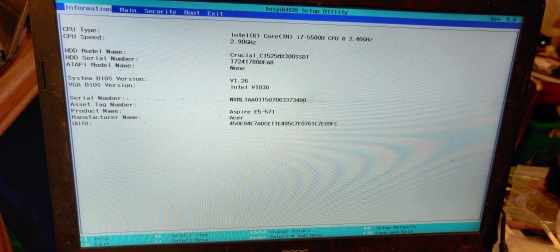
The BIOS screen on one of my laptops
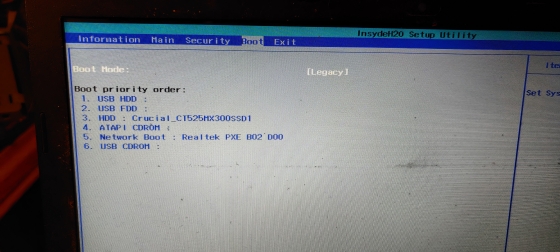
… and adjust the boot order to allow for booting from USB first:
Boot menu setting giving priority USB hard drives and floppy drives
Depending on the age of the computer you use and whether it predates UEFI, you may choose to boot under either régime. If the computer is UEFI enabled, you should install Linux under UEFI, although as explained below, a BIOS setup will be available; should the computer not be UEFI enabled, the point is moot and you will have to install under BIOS, which will be eminently adequate. (Ironically, the laptop shown above is UEFI enabled, but is set up under BIOS mode; since I purchased it new in 2015, I have never been able to properly install a Fedora image on it under UEFI that is functional, hence the unit being set up under “Legacy” — meaning “old fashioned” BIOS.)
Once exiting the BIOS screen, you will see the following screen:
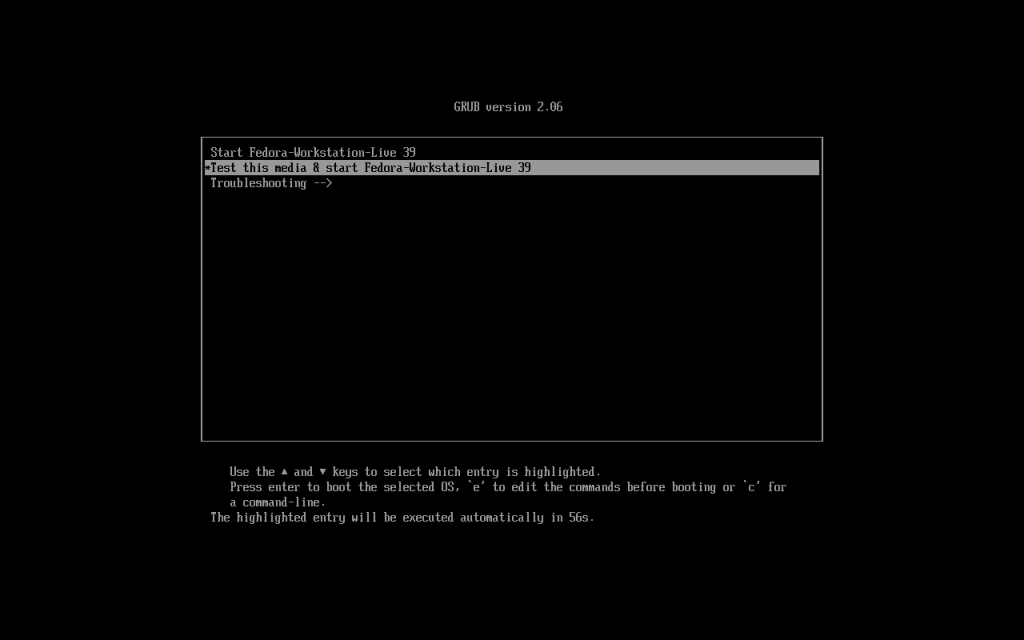
Grub screen offering three options
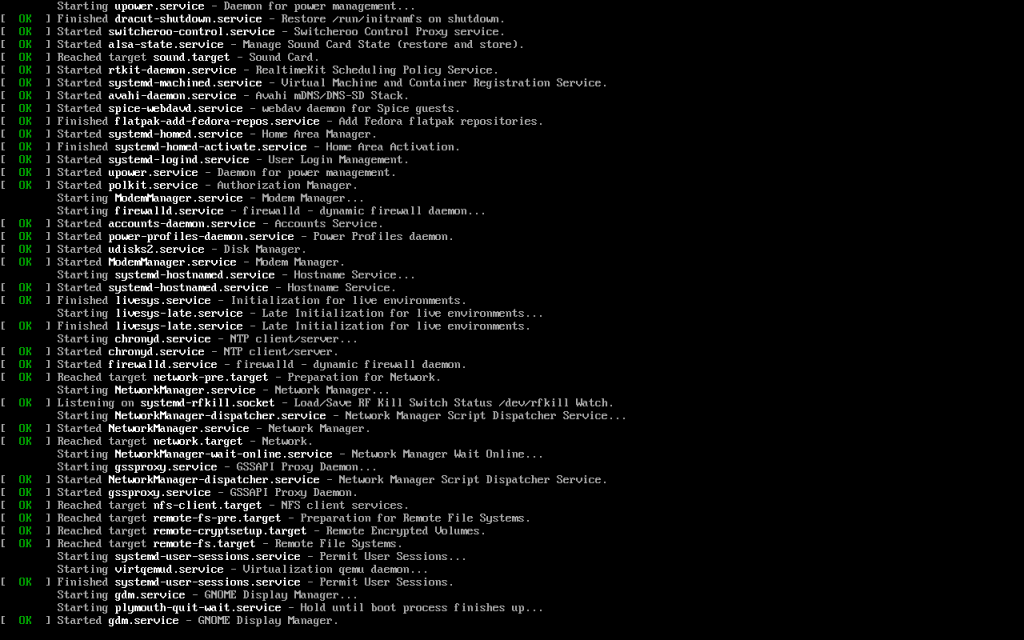
Choose the “Start Fedora-Workstation-Live” option using the up and down keys. You will then see a screen similar to the following:
Live USB booting up
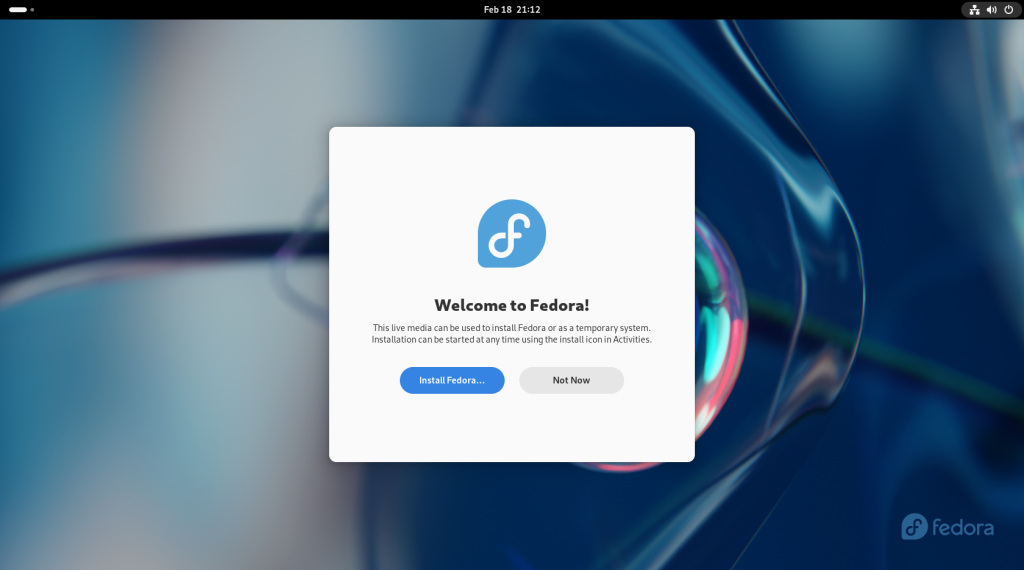
Once the computer has booted up, a welcome screen will appear:
Welcome screen
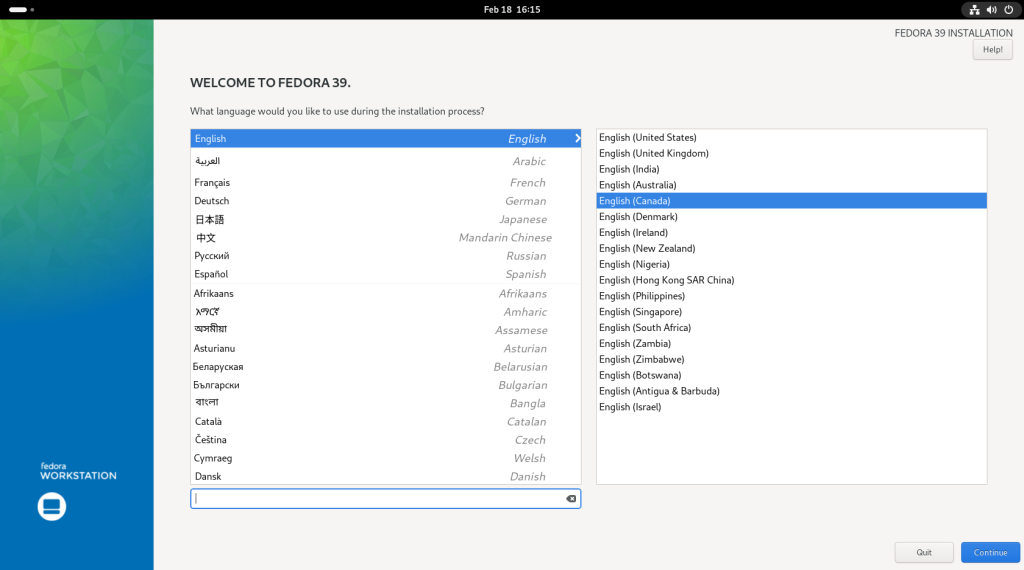
Choose the option to “Install Fedora …”, which will bring you to the following screen in Fedora’s installation utility named Anaconda, and will ask you to choose which language and which regional variant, as per the case, to use during the installation process:
Anaconda screen, with English chosen and Canadian English variant chosen
Once the language has been chosen, click on “Continue”.
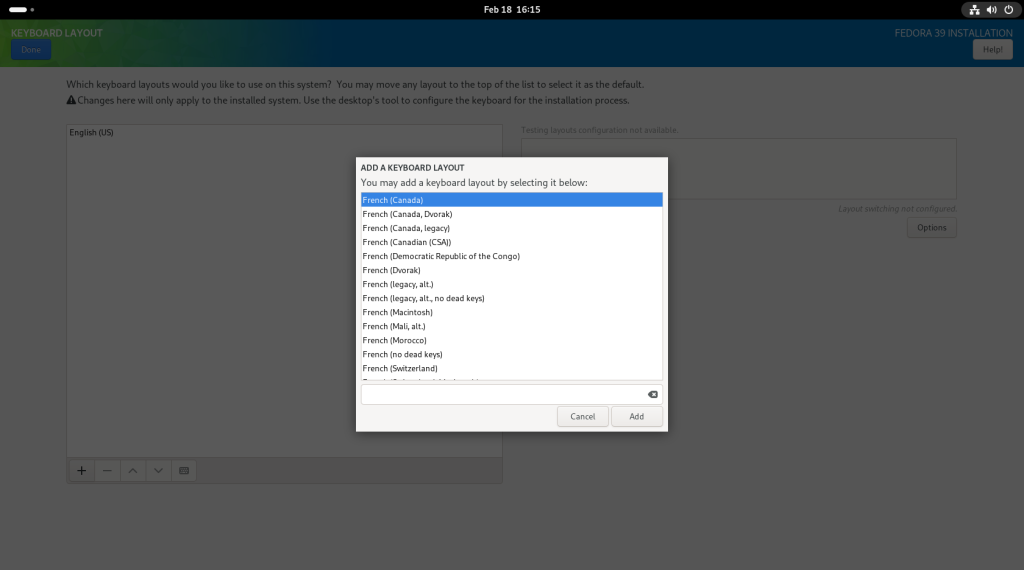
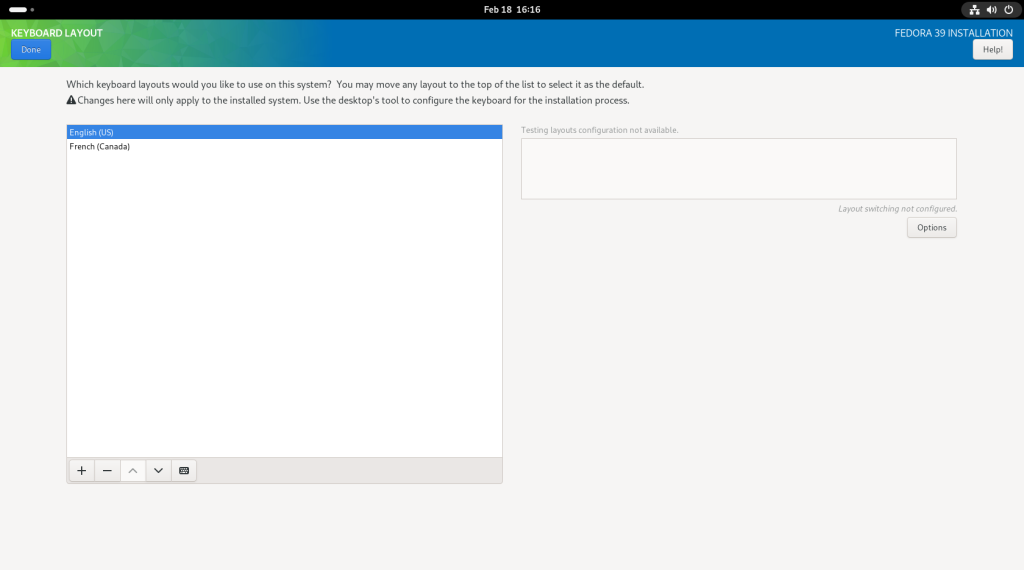
The following screen will be for the choice of the keyboard layout. The plus “+” button at the lower left corner of the left box was clicked, and a window popped up. In this case, I have chosen a French Canadian keyboard layout for reasons beyond the scope of this post; you should choose the layout that suits you.
Keyboard layout chosen
You may continue to add keyboard layouts, should you choose to do so or have multiple users of the machine with multiple preferences, by clicking again on the plus “+” sign.
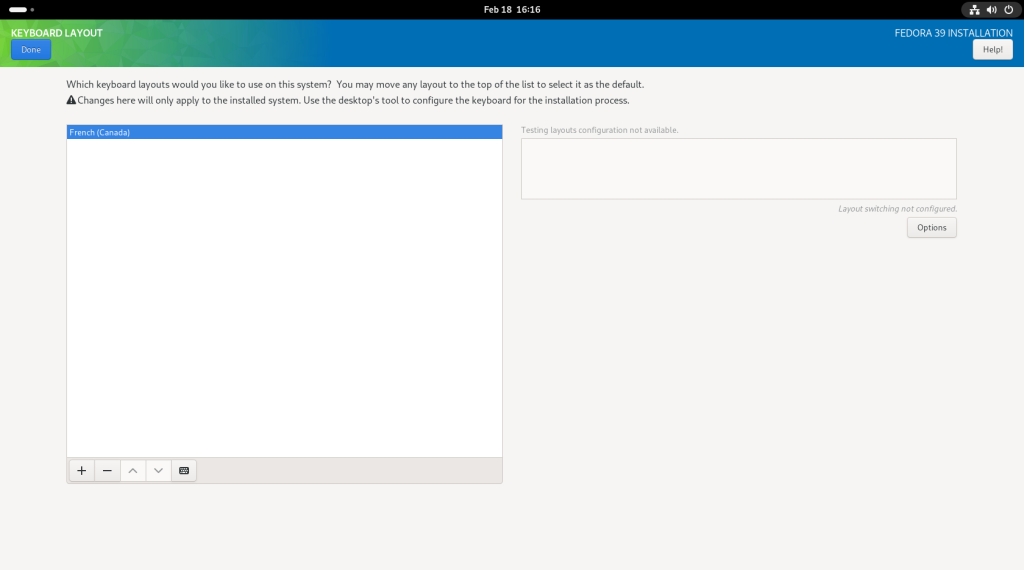
In this case, again for purposes beyond the scope of this post, I removed the “English (US)” keyboard layout by clicking on the minus sign “-” on the lower left corner of the left box, once the “English (US)” option was highlighted:
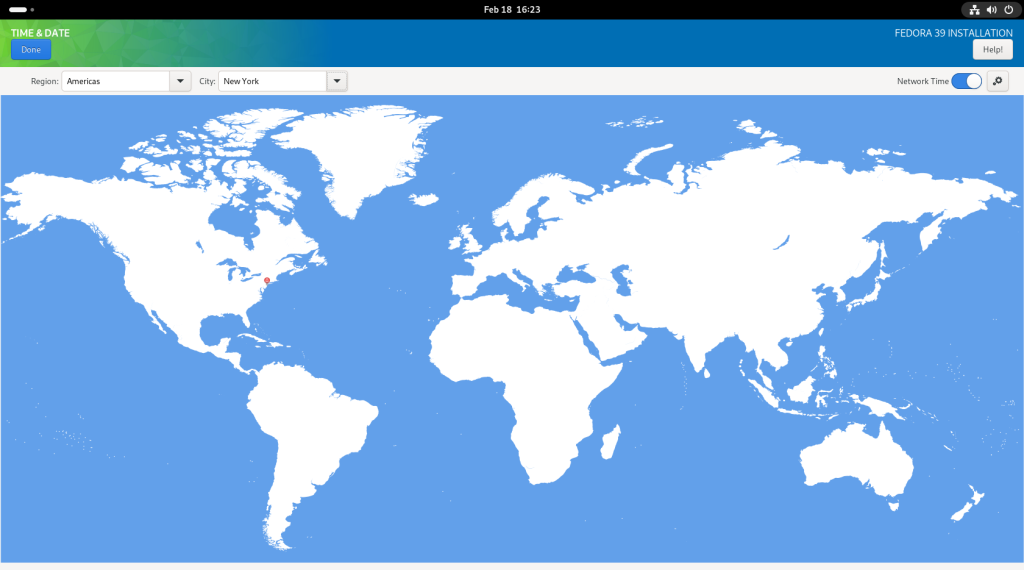
Next, the timezone was chosen, in this case, that for New York City, which is the same as for where I live:
Timezone chosen
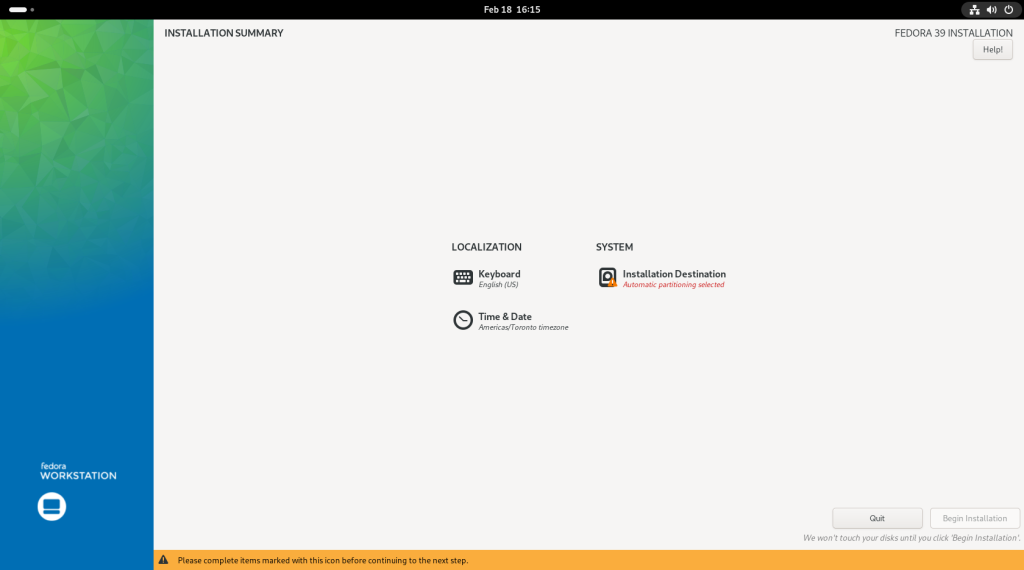
The next thing to arrange is where to install on the hard drive, by clicking on “Installation Destination”:
Choose “Installation Destination”
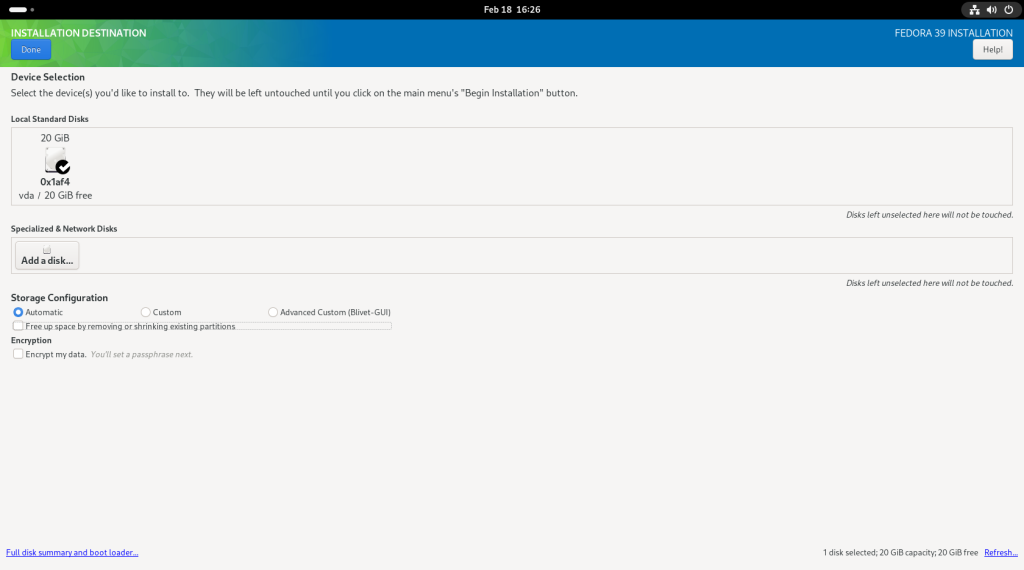
This screen will show details about your hard drive. Note that despite having previously recommended a minimum of 40GB, a 20GB only drive is in place since my screenshots are using a virtual machine, whose setup started with 20GB drives:
Hard drive details
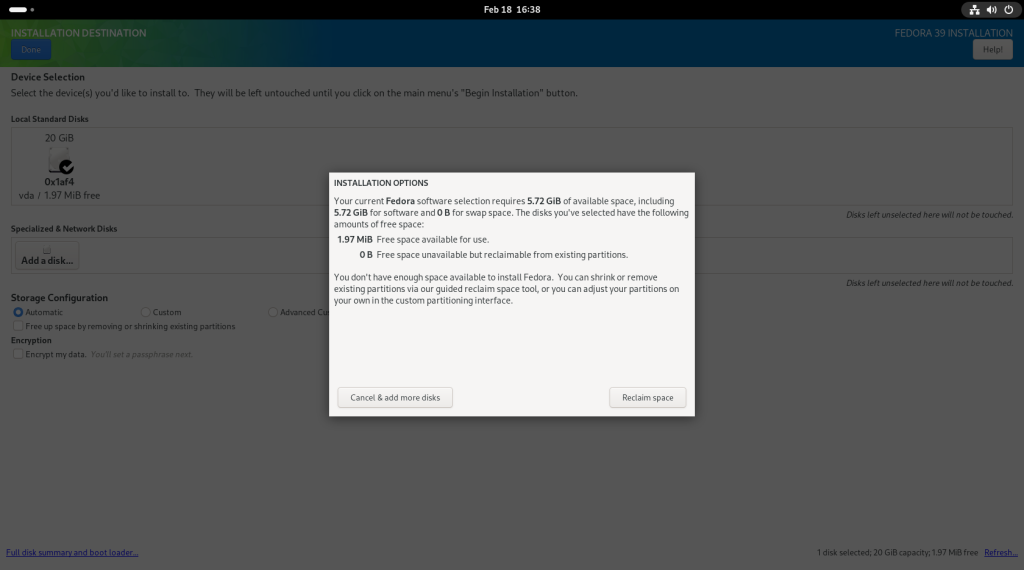
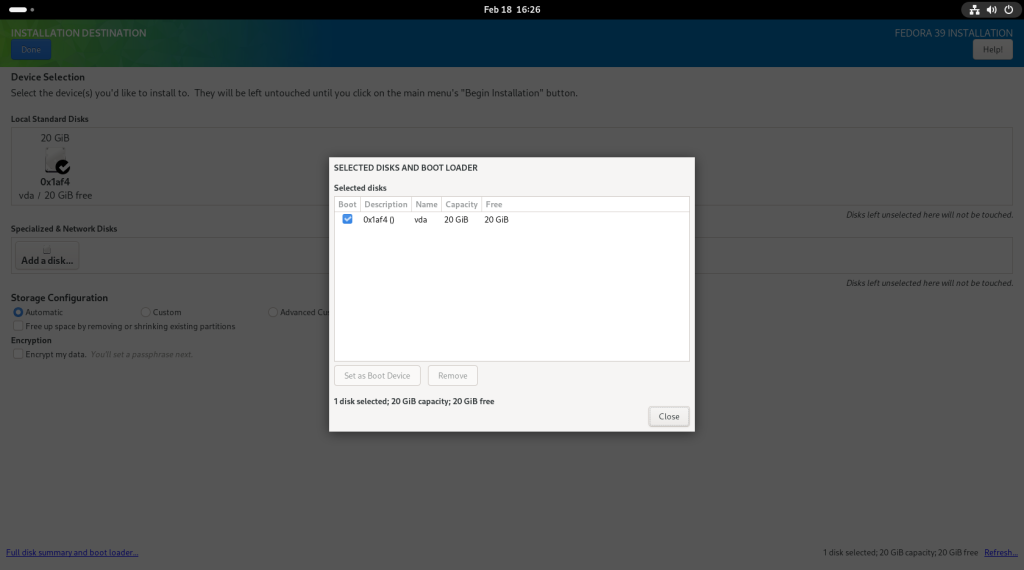
Be certain to reclaim all space by clicking on “Full disk settings and boot loader …”
Click on “Full disk settings and boot loader …”
… Which should confirm that you will be using the whole disk:
Use of all disk space
After closing that screen, back at the main screen, click on “Begin Installation”:
Click on “Begin Installation”
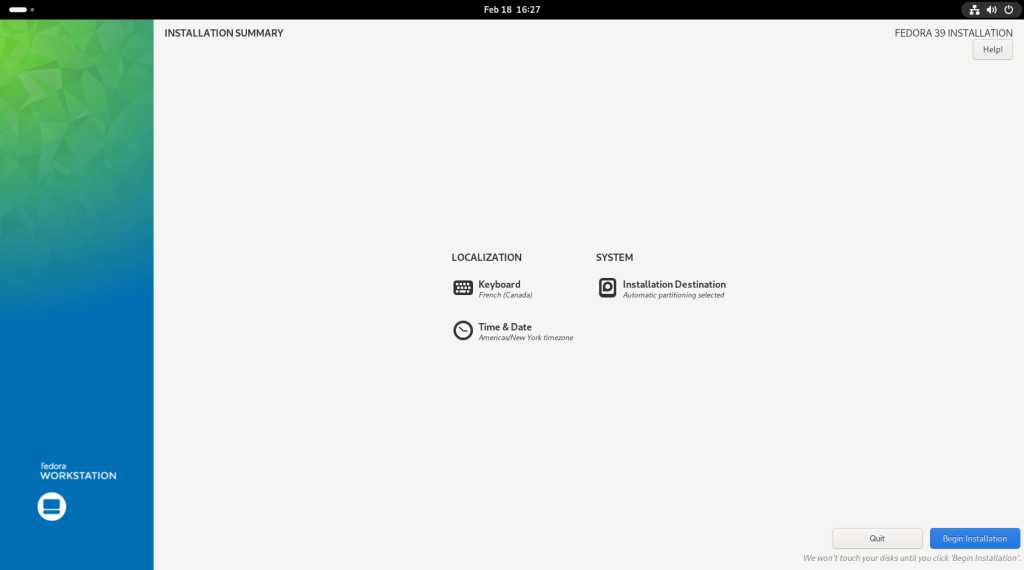
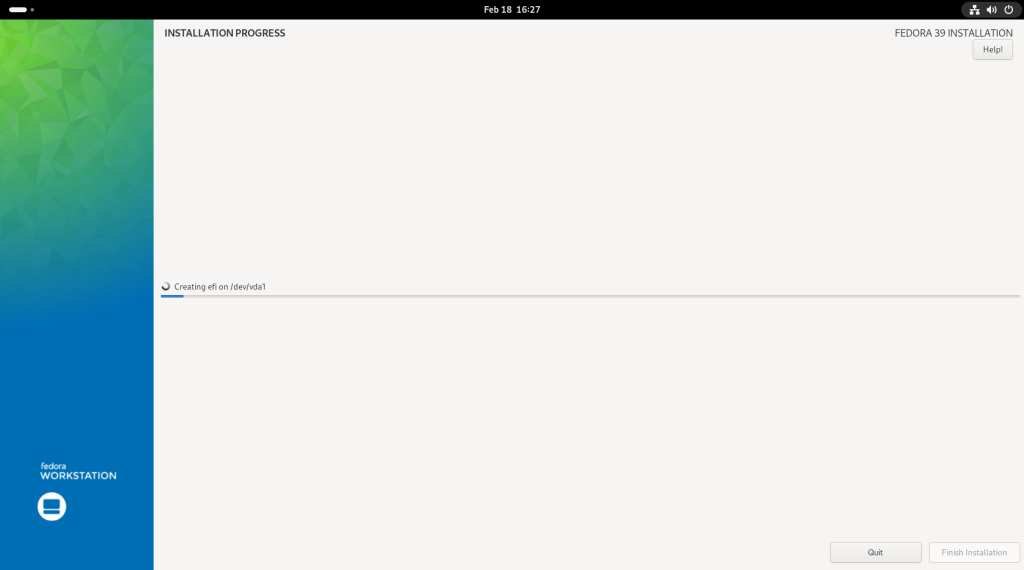
At this point, the installation will begin:
Installation beginning
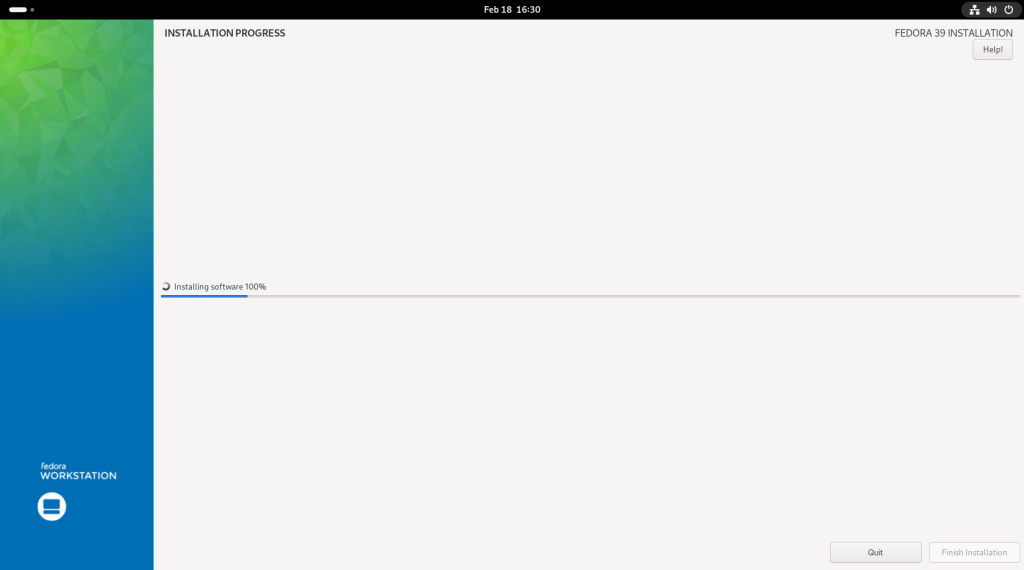
Basic installation complete
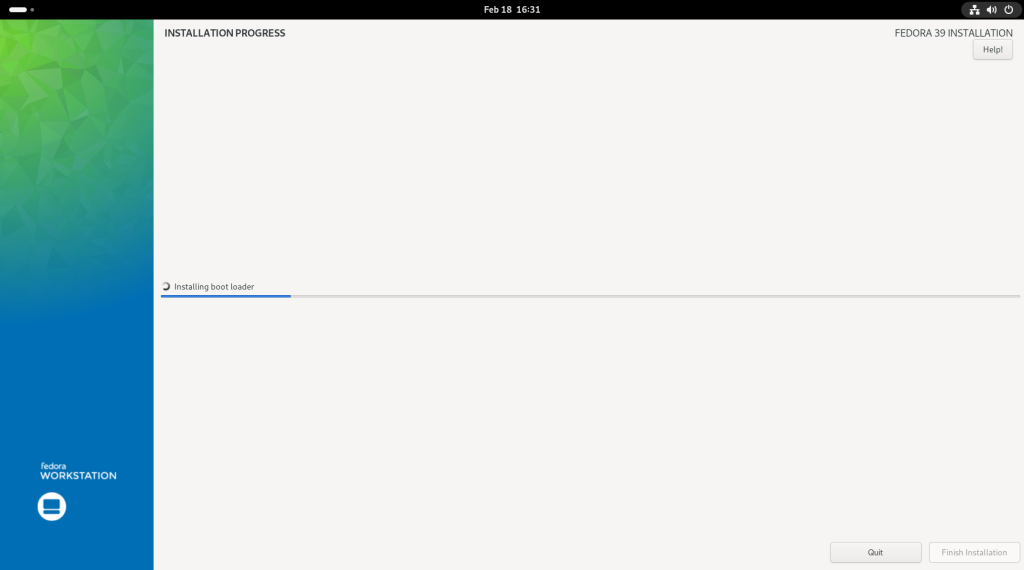
Boot Loader installation
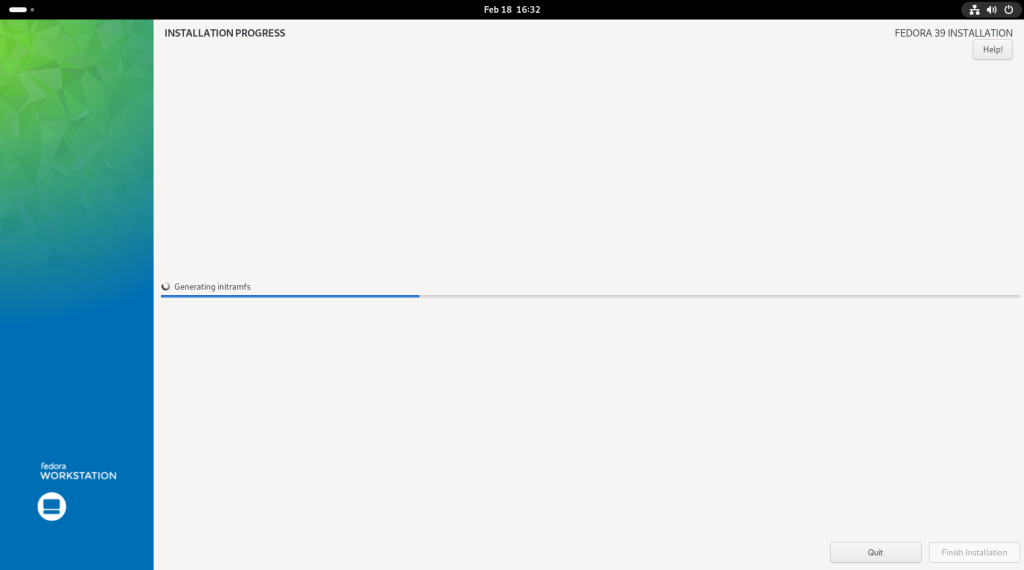
Generating initramfs
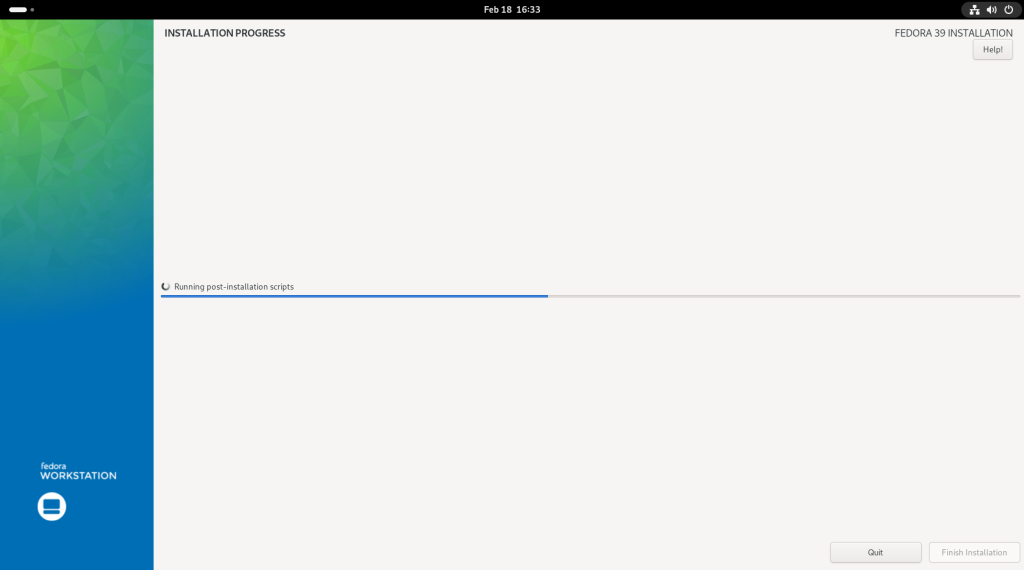
Scripts being run
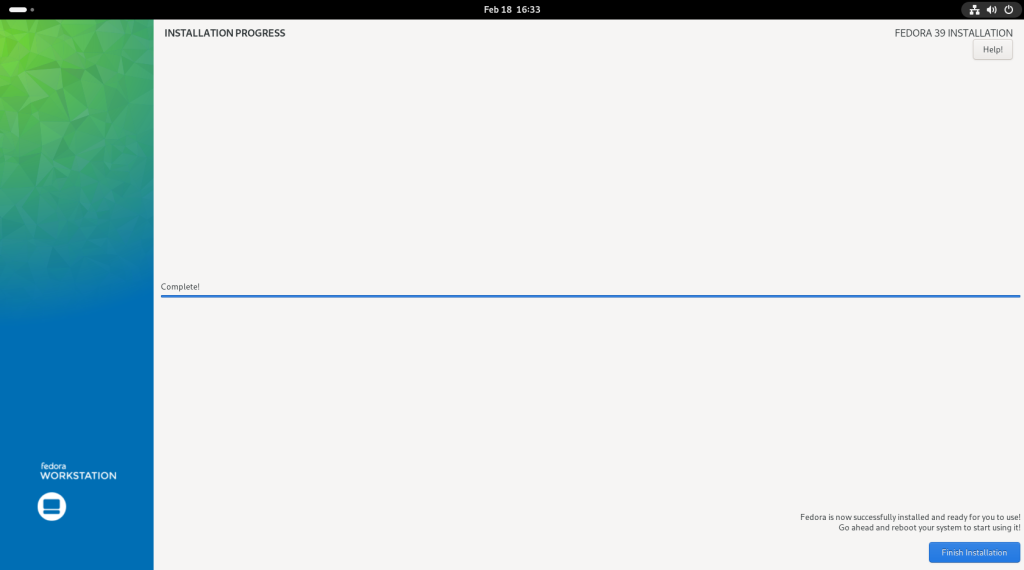
Click on “Finish Installation”
At this point, the installation is complete, and you should click on “Finish Installation”:
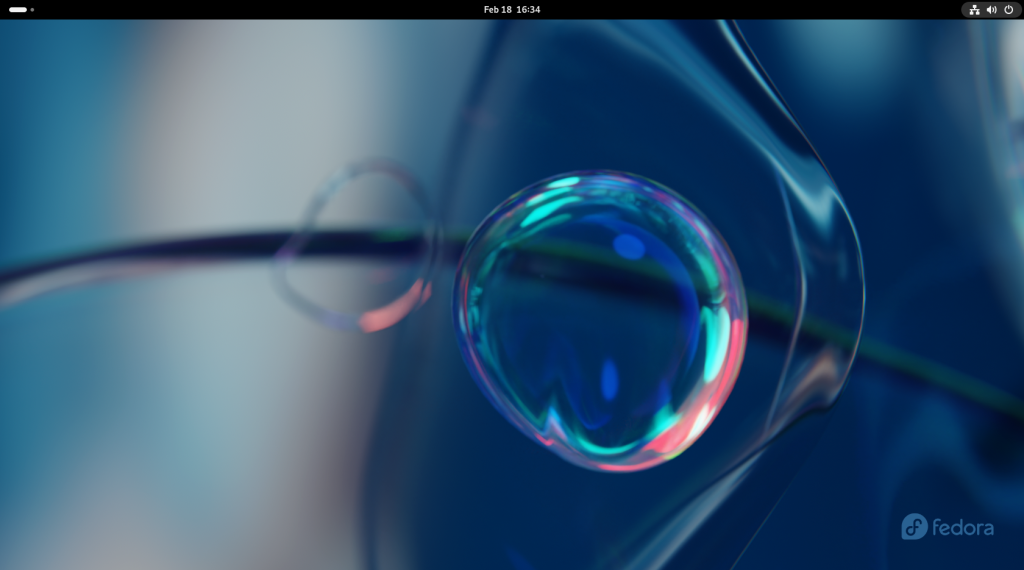
Anaconda will close and return to the main screen:
Return to main screen
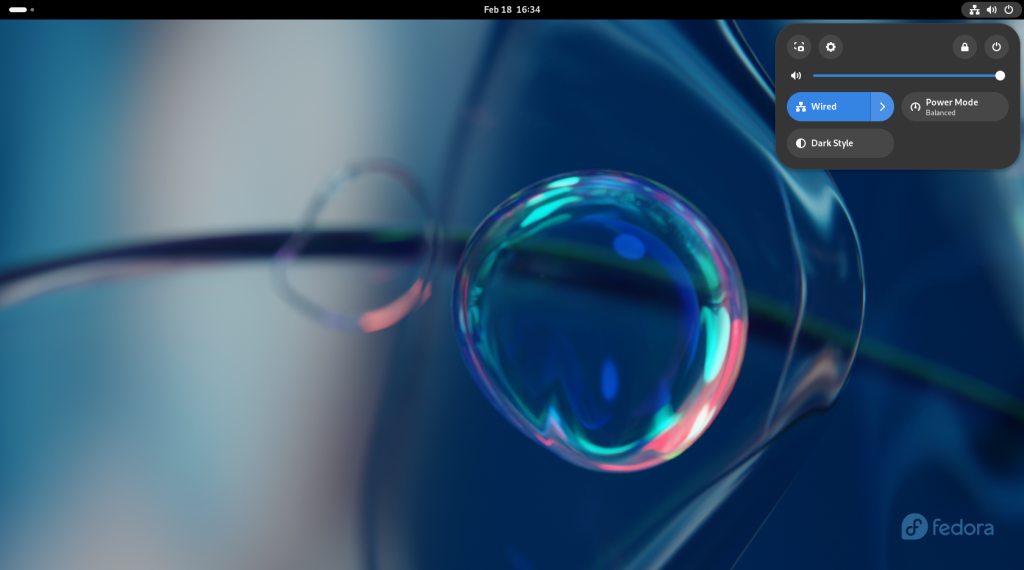
Click on the power button in the upper right hand corner, which will open a little window:
Settings options opened
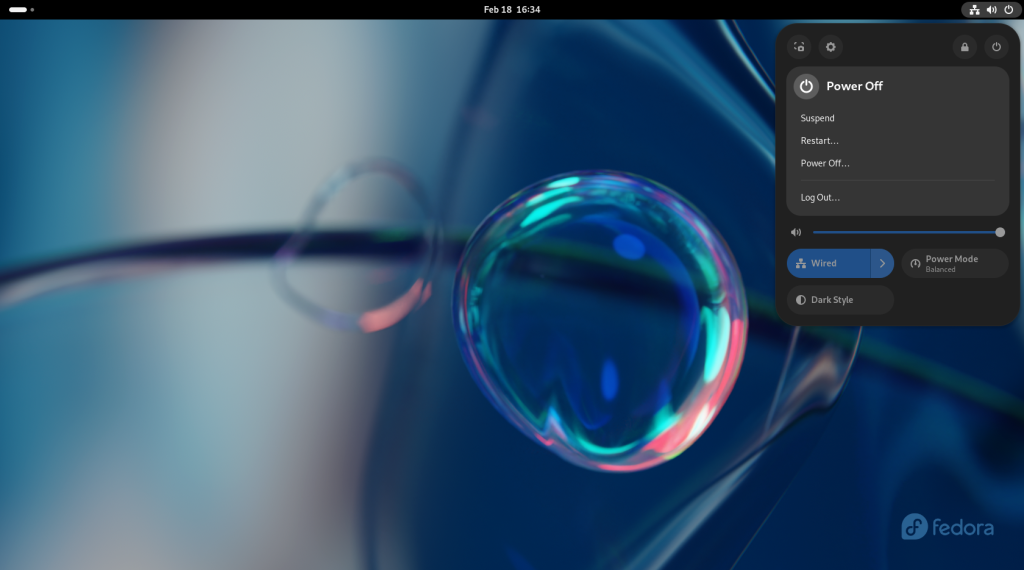
Choose the power options by clicking on the second power button to the right to the right of the lock symbol, opening up power options:
Power options opened
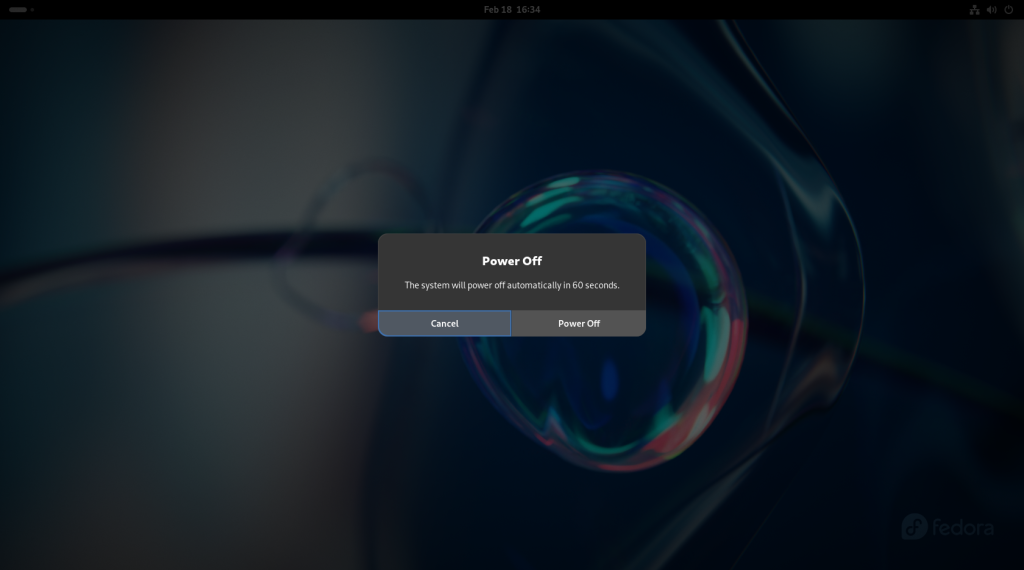
You will be asked whether to power off the machine; click on “Power Off”.
Click on “Power Off”
Your computer will shut down:
Computer shutting down
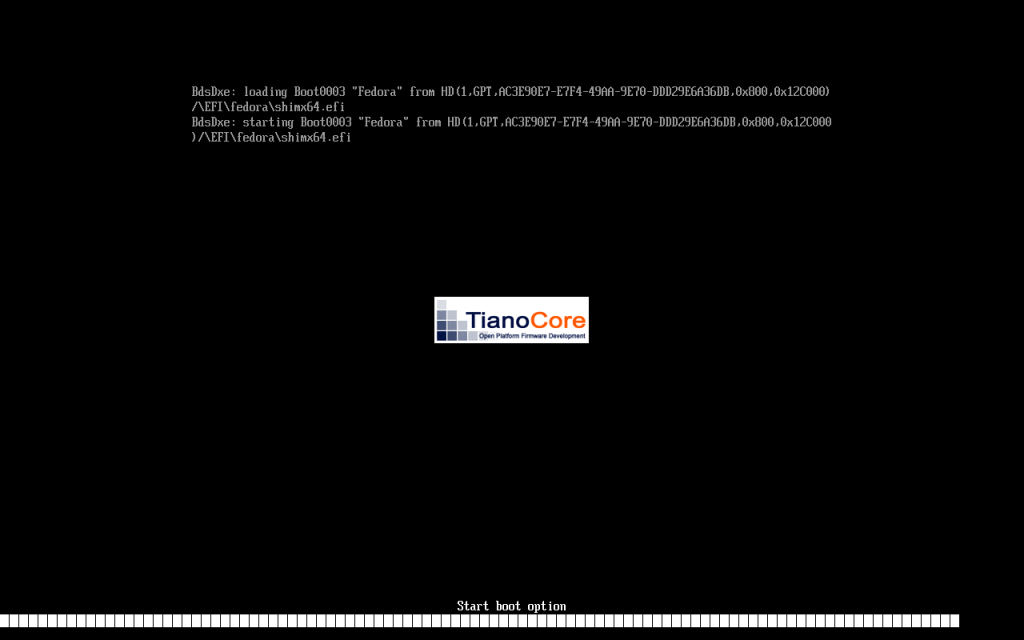
… and reboot:
Computer rebooting
Which will bring you to a “first time” welcome screen, where you should click on “Start Setup”:
Initial welcome screen
Choose whether to allow Location Services, and Automatic Problem Reporting:
Privacy settings
Settings turned off
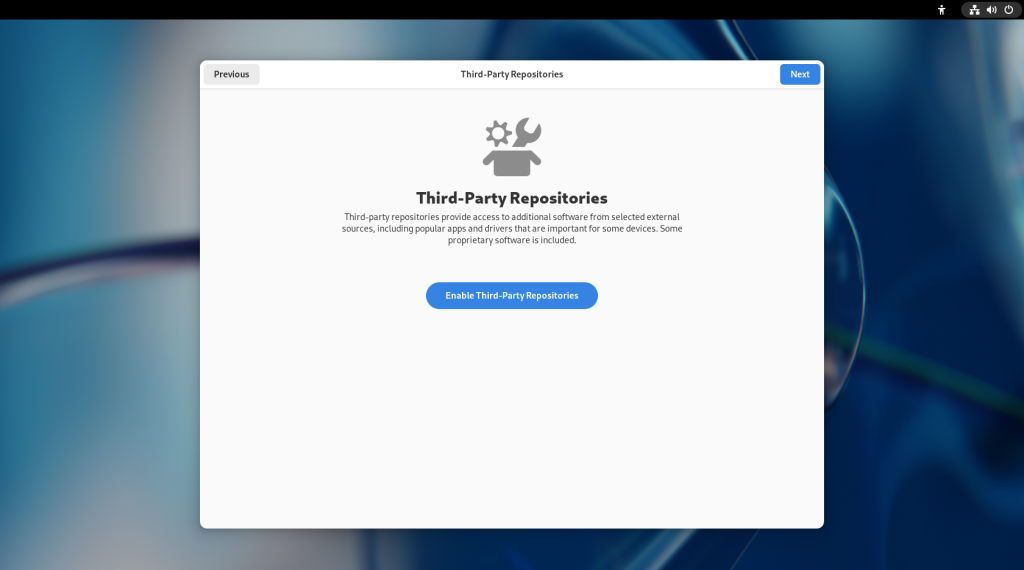
The following screen will allow you to enable Third-Party Repositories — extra “software stores” — beyond those of Fedora itself, which I recommend be enabled:
Enabling Third Party Repositories
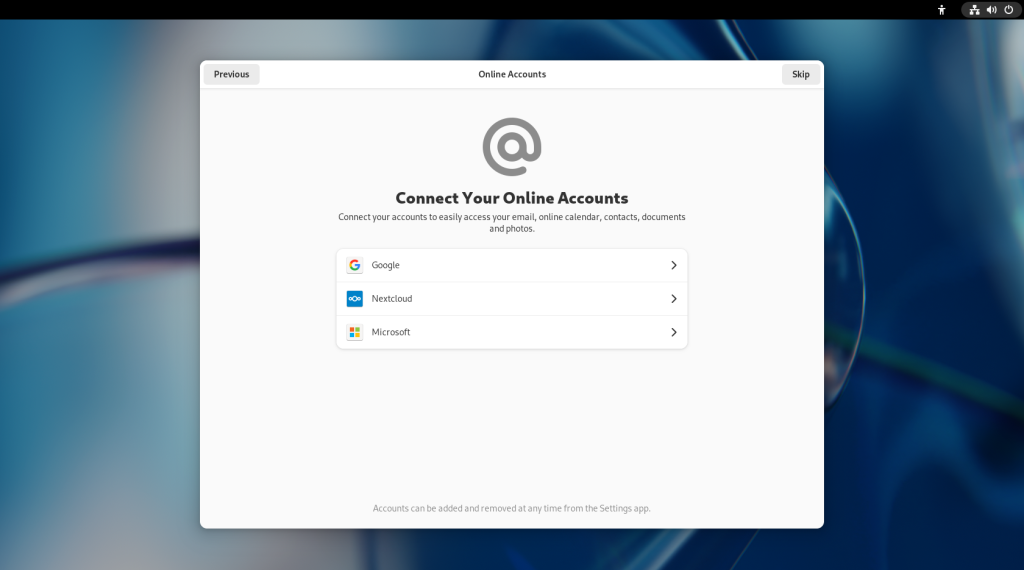
The following screen will allow you to Connect to Your Online Accounts:
Connecting to online accounts
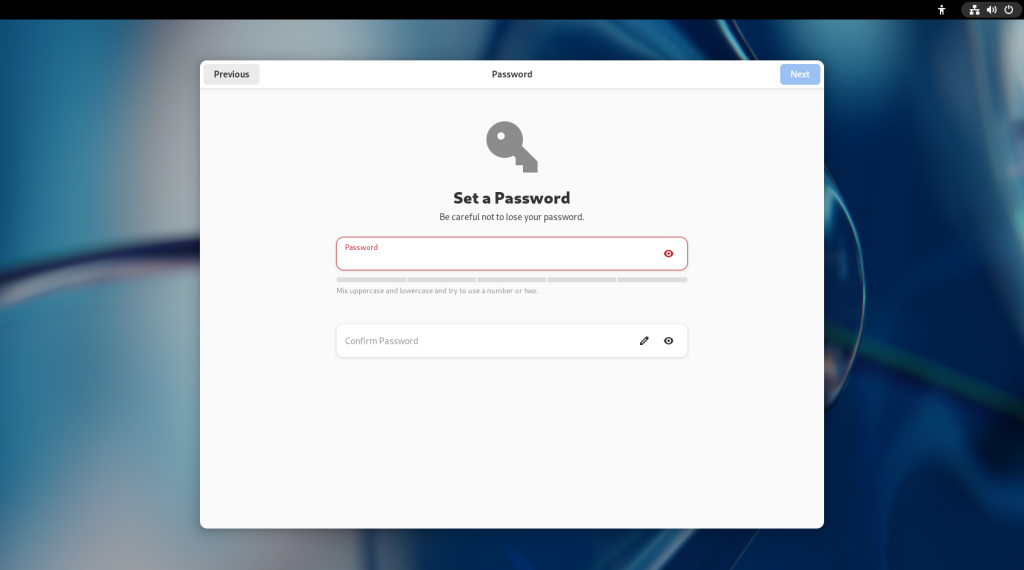
The following screen will ask you to set a password, which should be long enough to be secure (there will be an indicator line), and which will be important to remember:
Setting a password
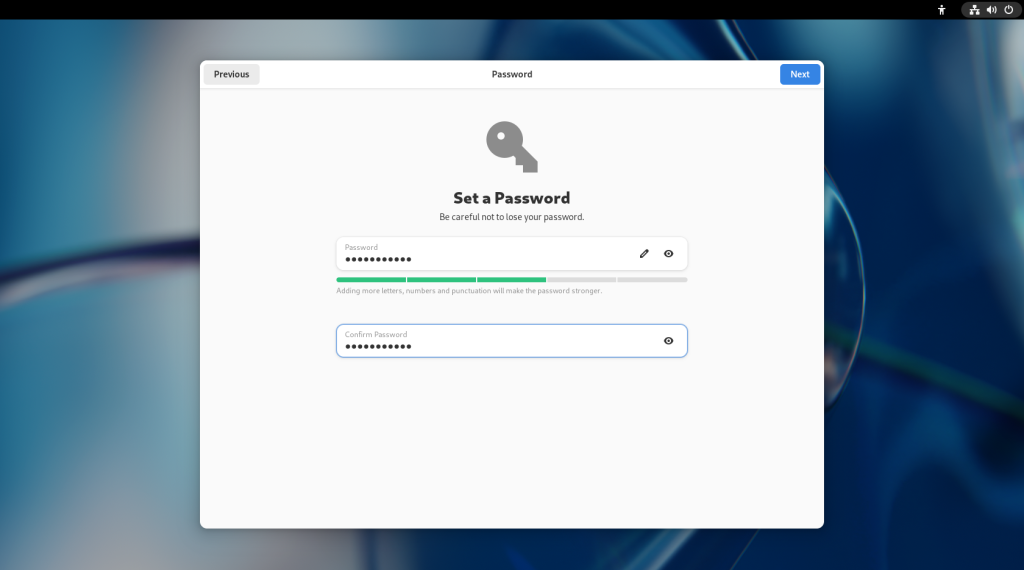
… and enter the password again to confirm you haven’t made a typo:
Setting a password
The following screen will ask you to enter your name and a username:
Entering a name and username
Once you have entered a name and username, the basic setup will be complete:
Basic setup complete
After clicking on “Start Using Fedora Linux”, the computer will offer a guded tour of the Gnome Desktop, which you may do if you wish, otherwise click on “No Thanks”:
Guided tour offered
The activities screen will come up at this point, offering you a dock at the bottom of the screen, as well as a search bar for other installed software:
Activities screen
But wait folks … there’s still plenty more to do! 😃
Click on the upper right hand corner to access the settings, and click on the round gear like button second from the left in the little window that will open:
Click on the upper right hand corner then the gear button
Which will open up the Settings menu:
Settings menu
Scroll down to the “Privacy” menu, and adjust the settings to options to your liking, or choose to keep the defaults:
Choose the Privacy menu
Next, scroll down to the bottom to the “About” menu:
Go to the About menu
The first line will be titled “Device Name” and by default will list the word “fedora”; you should choose a name for your computer that will distinguish it from other computers. It can be as simple as “MyComputer” or “LivingRoom”, or be more fanciful, or according to a personalized system. Warning: Do not choose an offensive name or word, since it may show up in odd places that may prove embarrassing, nor should you use a family member’s name or a pet’s name, since in the future you may end up using colloquial terms in reference to your computer paired with said name which may be very confusing or upsetting to those who may not understand the context.
Computer named
Close the settings menu by clicking on the “x” in the window’s upper right hand corner, and return to the activities screen by clicking on the bar in the upper left hand corner:
Return to Activities screen
Click on the “bag” on the dock at the bottom, a rectangle with two coloured circles and a triangle, to go to the Software Store (don’t worry, you won’t need any money.)
Software Store opened
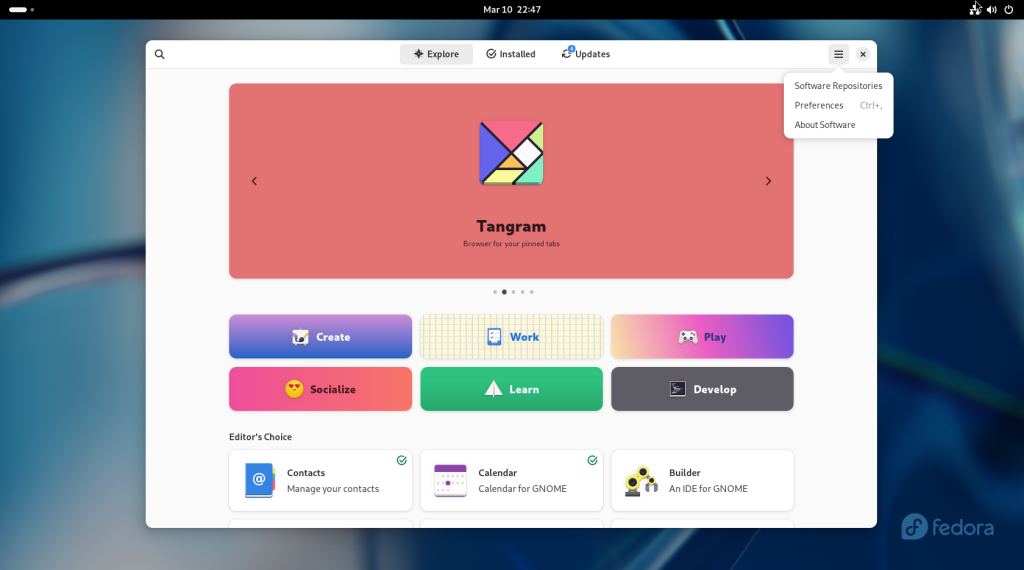
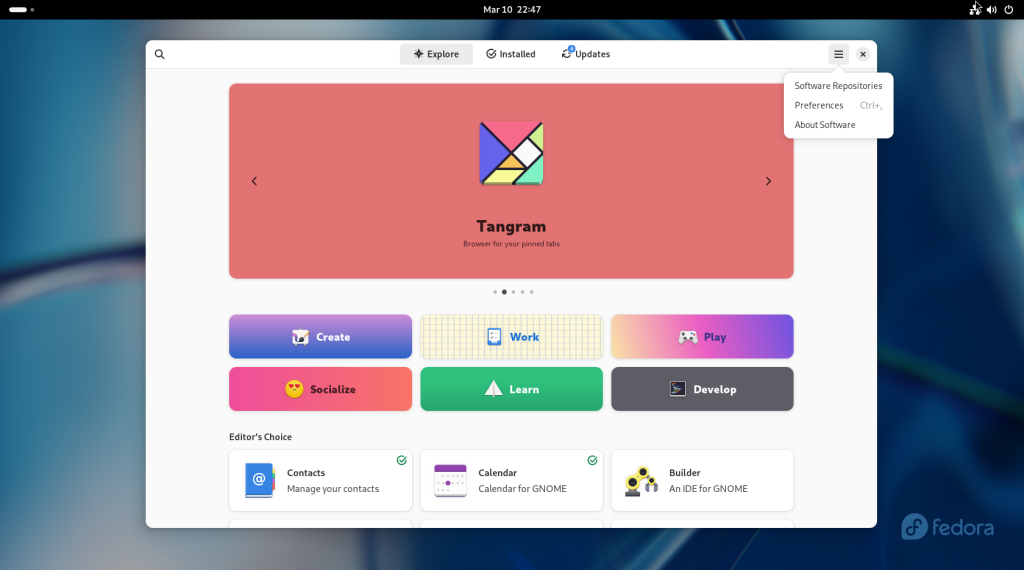
Click on the “hamburger” menu (the three lines that look like a hamburger or a stack of pancakes), which will give a little menu:
Click on the hamburger menu
Click on the “Preferences” option:
Preferences menu
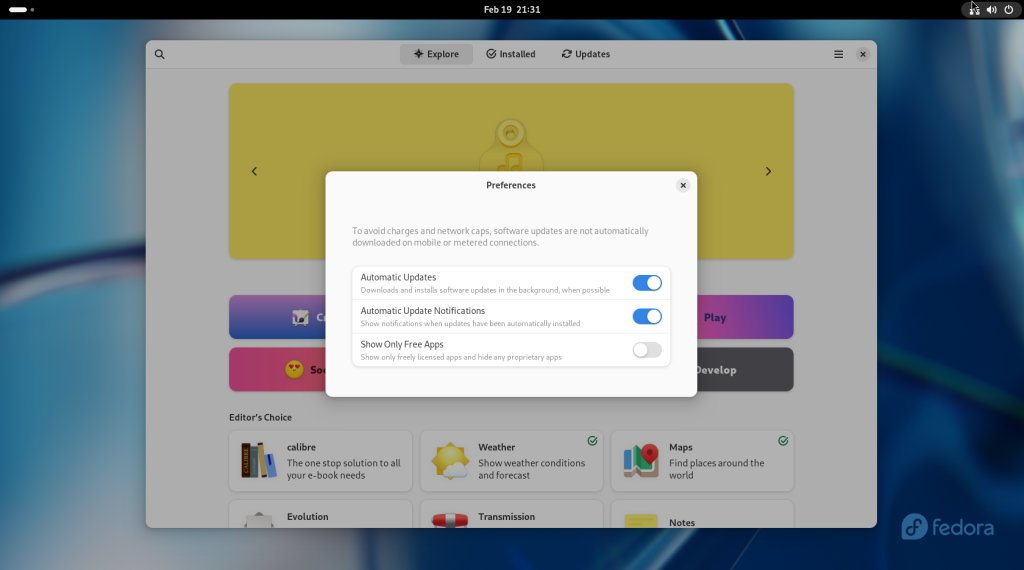
I recommend that you activate Automatic Updates, as well as allowing Automatic Update Notifications.
Next, click on the hamburger menu again, and choose the “Software Repositories” option:
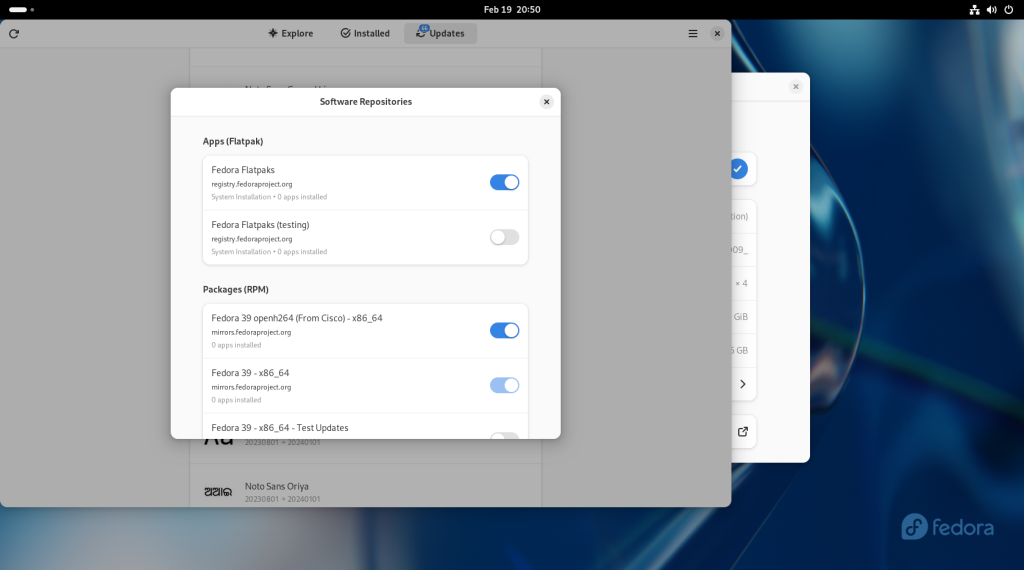
Choose the “Software Repositories” option in the hamburger pull down menu
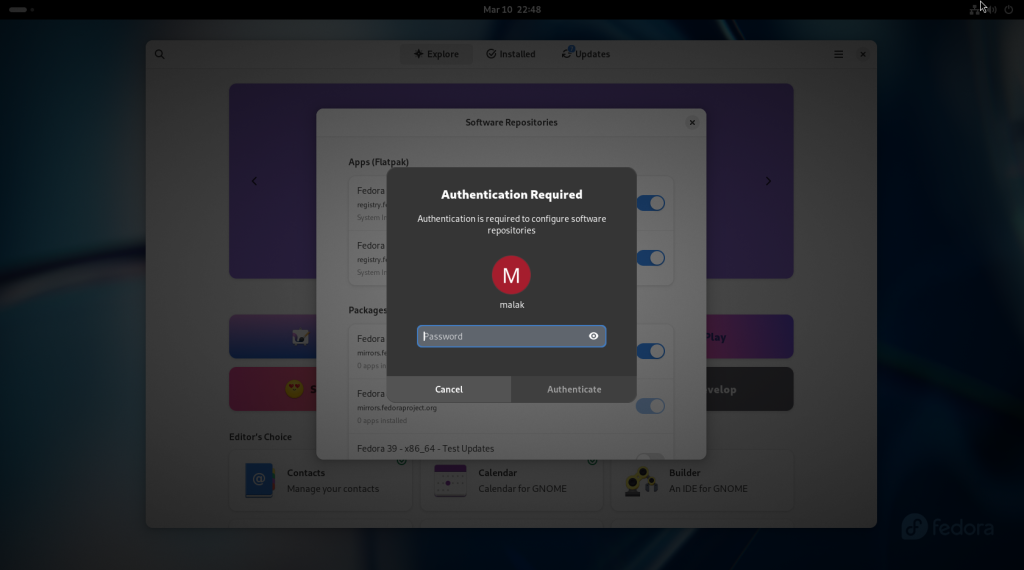
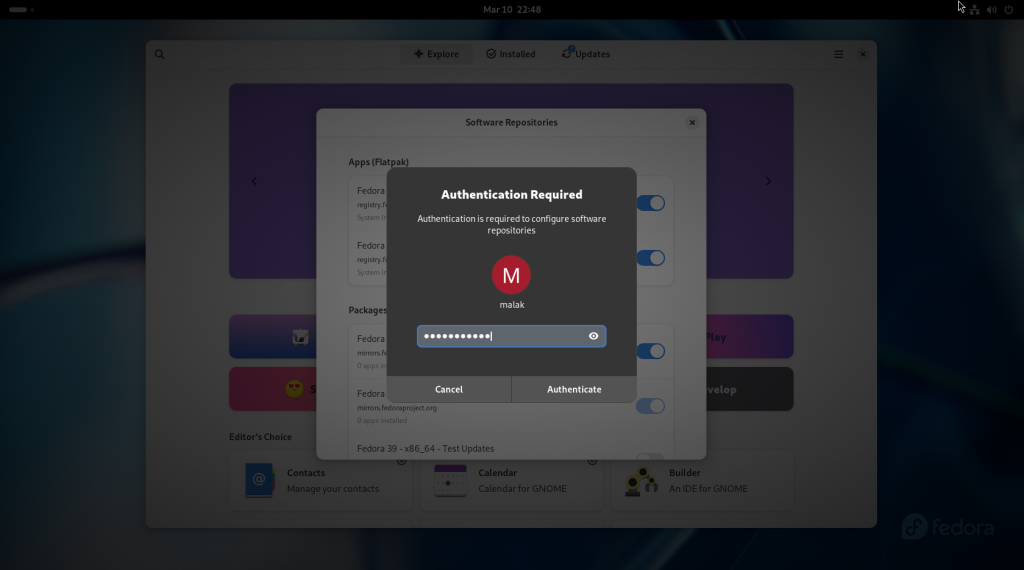
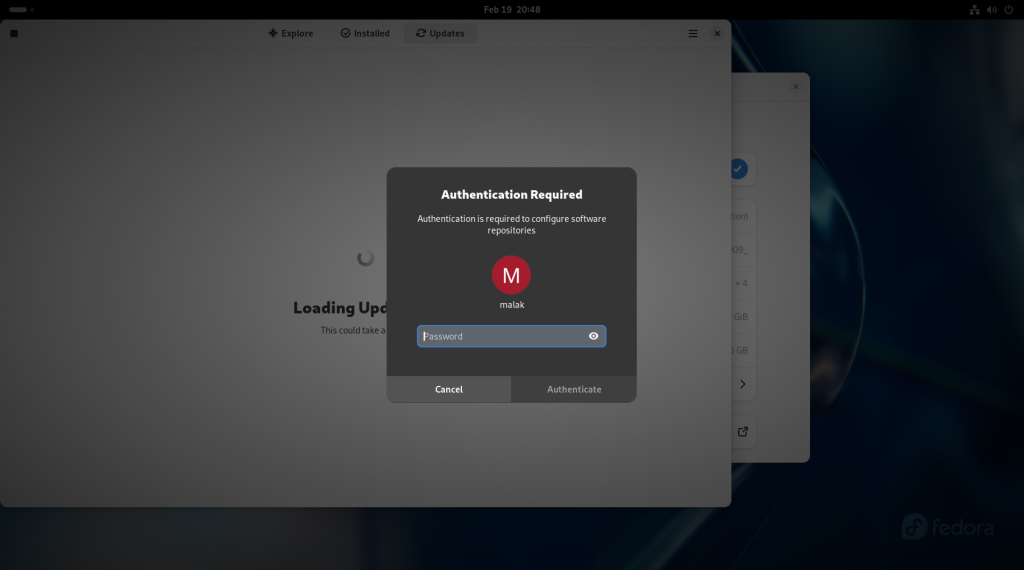
To modify the options in this menu, you will need to enter your password, which you created earlier:
Enter password
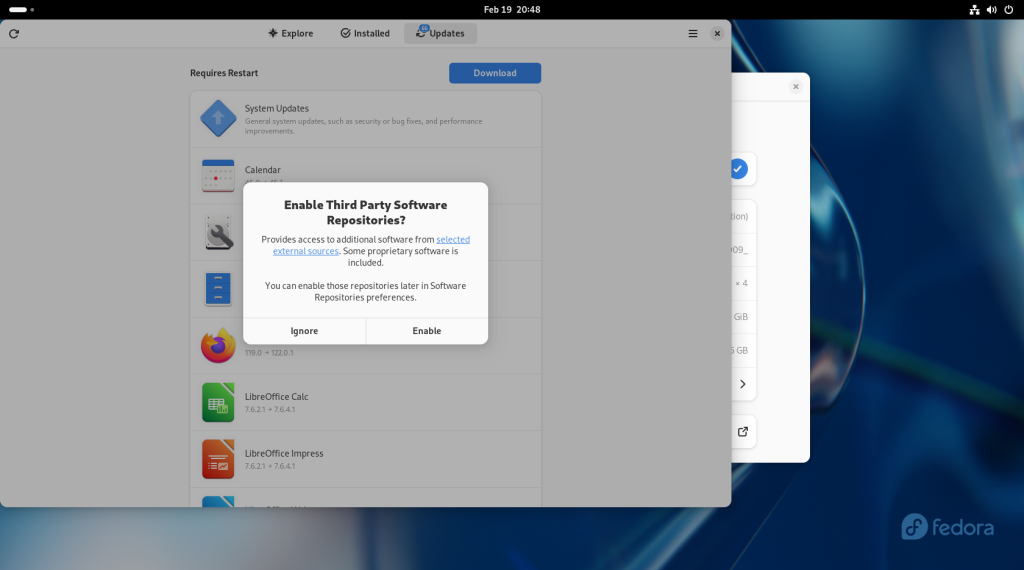
You will be asked whether you wish to enable third party software repositories; click on “Enable”.
Enabling third party software repositories
The default repositories will be enabled already; some others will not be. I recommend that the following repositories be enabled: Apps (Flatpak), openh.264, x86_64 …
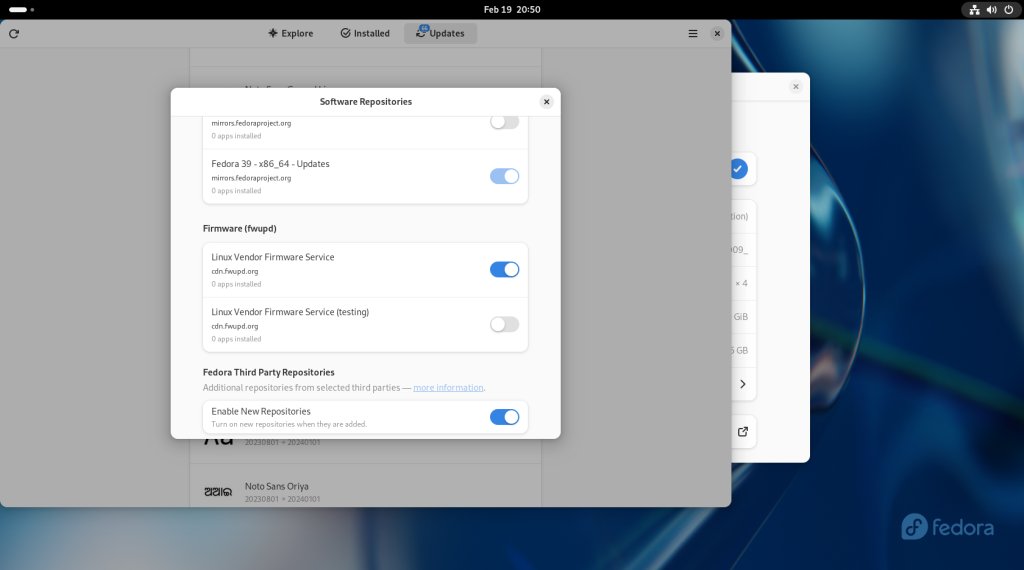
… Firmware (fwupd) (if you are using UEFI), Enable New Repositories …
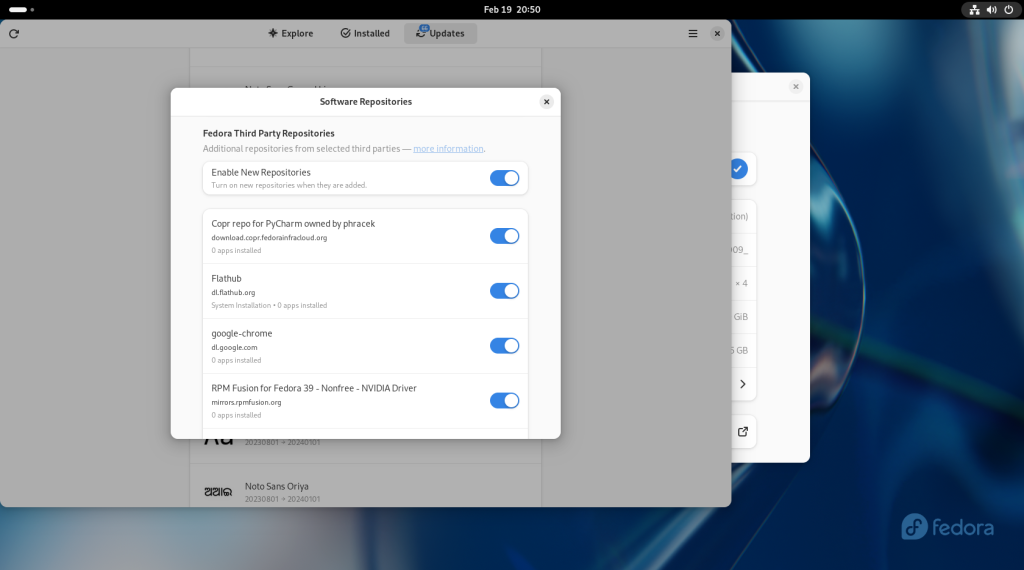
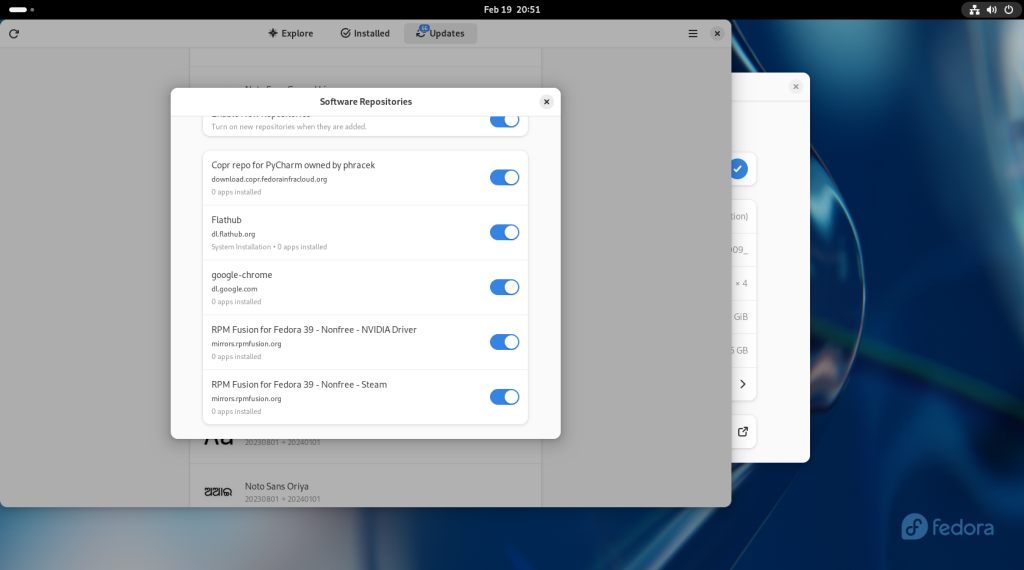
… Copr repo for PyCharm, Flathub, google chrome, RPM Fusion for Fedora 39 Non-Free — NVIDIA Driver (even if the computer doesn’t have an NVIDIA card) …
… and RPM Fusion for Fedora 39 Non-Free — Steam.
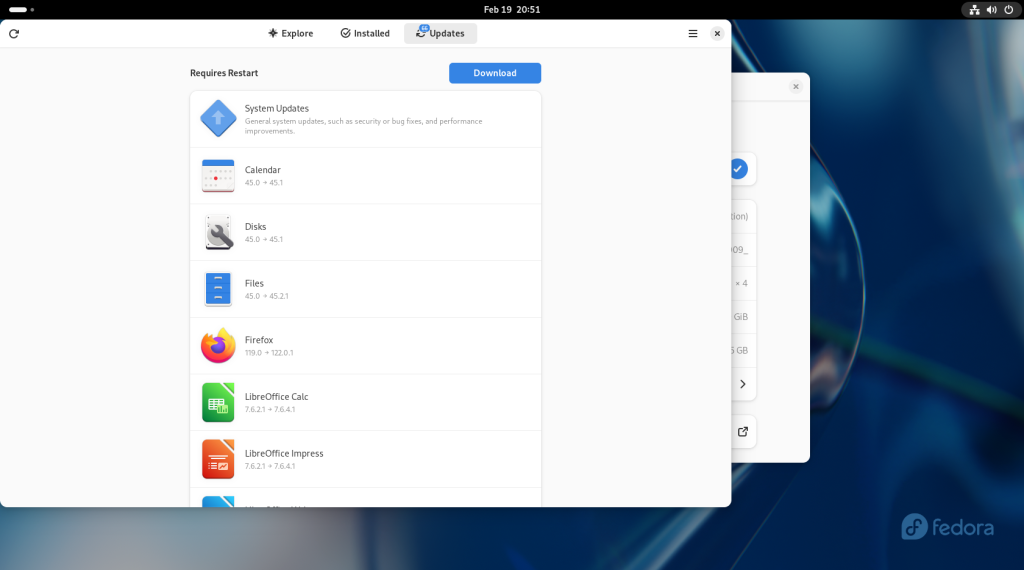
Click on the “x” button. At this point, click on the “Updates” tab up top, and click on the “Download” button.
The computer will determine which updates will be needed …
… and the computer will ask you for your password again:
Enter password
Enter password
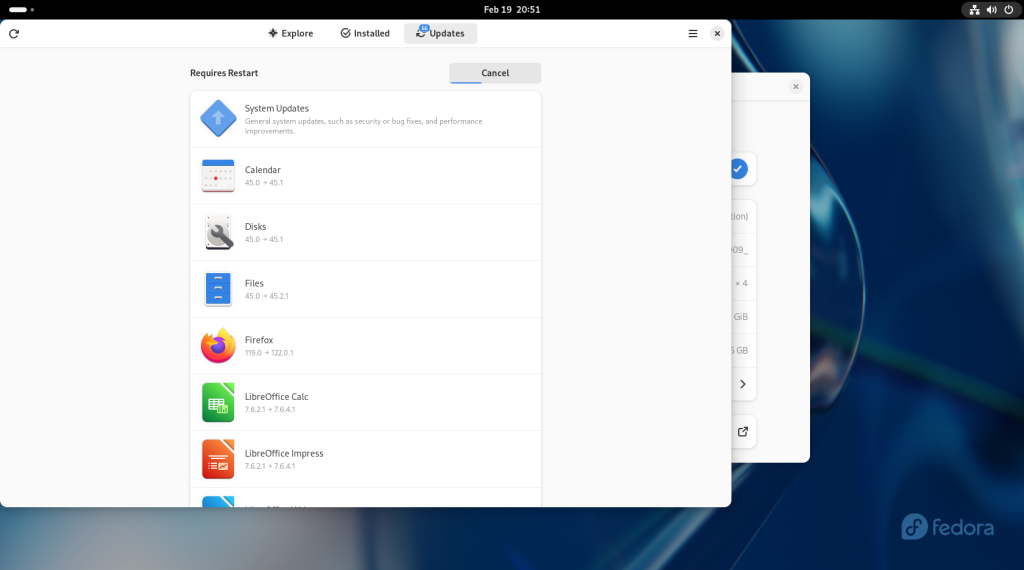
The updates will be downloaded:
Updates downloading
… and then the updates will be listed:
Updates listed
Updates listed
Click on the Restart & Update button:
Click on Restart & Update
Click on “Restart & Install”:
Click on Restart & Install
The computer will shut down:
… and begin to reboot:
The updates will begin installing:
Updates installing
Updates installing
Updates installing
Updates installing
When the updates are complete, the system will reboot automatically:
Computer rebooting
You will now see a sign-in page with your username. You should click on your username.
Sign in page
… At which point, the computer will ask you for your password:
Enter password
… And finally, the Activities page will come up again.
Your computer has now been properly set up for operation.
Next Chapter
Chapter 5 will show some customizations of the Gnome desktop and basic file transfers.
In this post, acquiring a computer on which to install Linux, as well as downloading and writing a Linux distribution on a USB stick, will be shown. Fedora Desktop Edition will be used as an example, although at this point, setting up the installation USB stick can be done with any other distribution — which is most of the common ones — that allows for such an installation.
(Note for future reference, graphical installation with other distributions will be similar, but each may have some nuances and differences between them.)
Hardware — the computer on which Linux is to be installed
First, I recommend that as a newcomer, whichever linux you decide to install, that you decide to do the installation on a separate computer, such as an old computer, on its own. By doing this, you will not reduce space on the hard drive / SSD on which your current OS is installed, especially in taking account the space for data you may to transfer over to the Linux system, nor will you have to deal with the intricacies and occasional perils of dual booting or data loss on your current computer setup, nor will you have deal with the myriad and occasionally confusing issues that may surround virtualisation. Finally, by having a separate computer to “play” with, you will be able to start over again in the event that something goes wrong, or if you decide that you’d like to try a different Linux distribution.
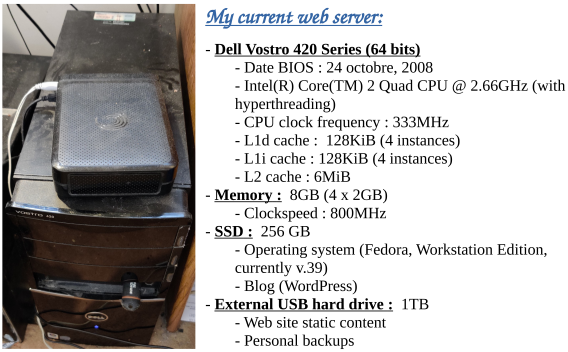
The current (2024) webserver for www.malak.ca
The above photo is taken from a page from a recent (February 2024) presentation the author made about their web server, which hosts https://www.malak.ca (the website hosting this blog), using an old computer with a BIOS creation date of 2008.
Acquiring a computer:
“Old” computers are not unusually difficult to acquire; you may already possess one in storage.
Use an old computer you may be wishing to replace, or already be in the process of replacing, or even a several years-disused computer of which you may not yet have disposed;
Buy, or barter for, a used computer from family or friends;
Buy a used computer from a local computer repair person, who may have a storefront and may sell refurbished computers;
Speak with your employer; depending on their policies, they may be willing to sell you older equipment of which they would like to divest themself(ves);
Check reputable online markets;
Buy a new dedicated computer (only recommended once you become convinced of the cost/benefit regime).
Check the “minimum requirements” page of the distribution you choose; my current bare minimum specs are a Core 2 Duo 64bit processor, 4GB memory, 40GB hard drive (the current, as of late 2023, Fedora Workstation recommendation), and a spare USB 2.0 port (such as after other common USB peripherals you may be using, like a mouse and keyboard), in order to use the installation USB stick (which will be shown lower down in this post). (As desired or required, don’t forget to get a used screen.)
For the purposes of introduction to, and the exploration of, Linux, the old mechanical hard drive with such an old computer is likely adequate; however, SSD cards and extra memory will dramatically increase performance of older equipment. Further, as of posting, SSD cards in the 250GB range are typically very affordable to either add on later, or purchase for immediate use including installation of the system, while memory cards appropriate to the motherboard are usually readily available and inexpensively as per the above list regarding sourcing an old computer.
Downloading and creating a USB installation stick:
A USB stick is required for this step; Fedora’s installation image as of version 39 in late 2023 is approximately 2GB; hence a 4GB USB stick would be recommended going forward.
I am recommending the use of Fedora Media Writer to create the installation media, which can be run on Windows or Mac (as well as Linux, of course!) Should you choose another distribution, you can use a downloaded image from another distribution’s download page (see Desktop Linux: Unveiled Chapter 2: Common Linux Distributions for a few suggestions of other distributions; see below regarding choosing other Fedora desktops, or creating installation media of another distribution).
(Note that the following screenshots may have been created out of order, however are presented in the order required for the narrative.)
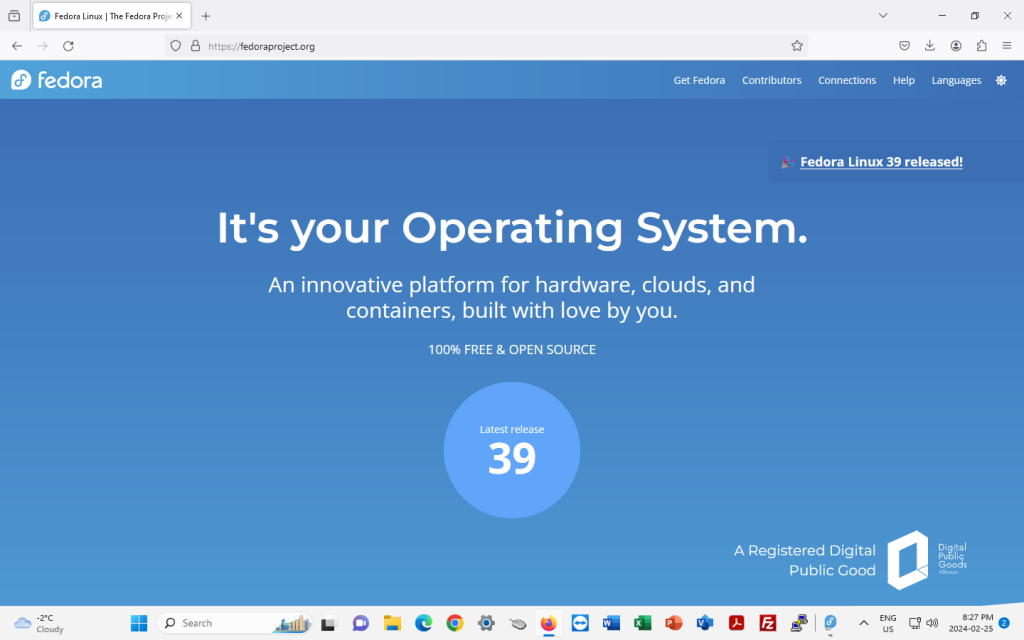
To get the Fedora Media Writer, visit https://getfedora.org (I start off using screenshots from Windows):
Click on the circle indicating the latest release (in the shot above, 39), which will bring you to the following screen.
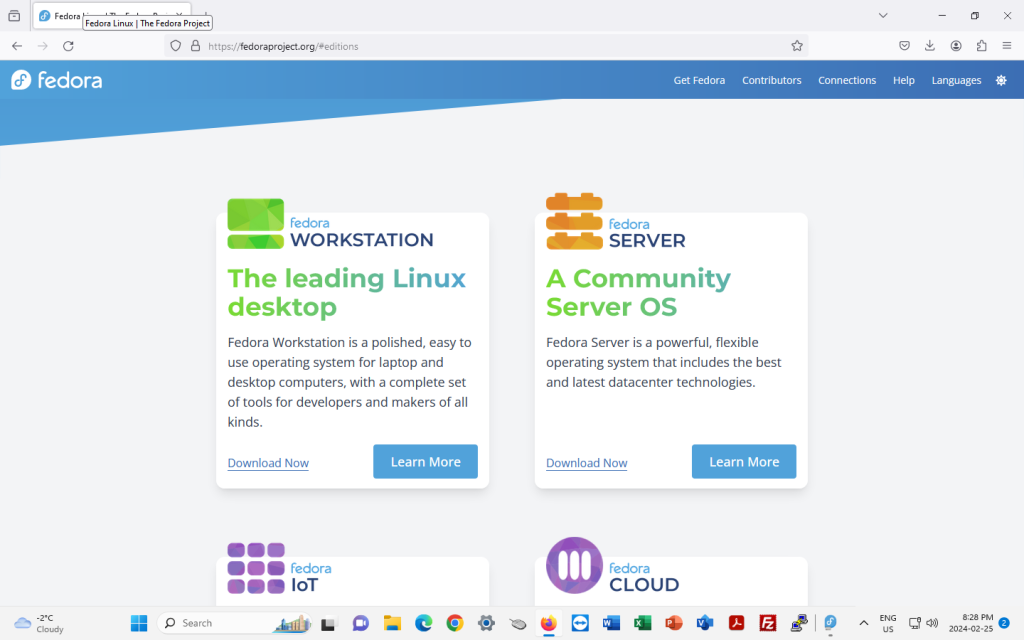
On this screen, click on “Download Now”; don’t worry, you aren’t committing yet.
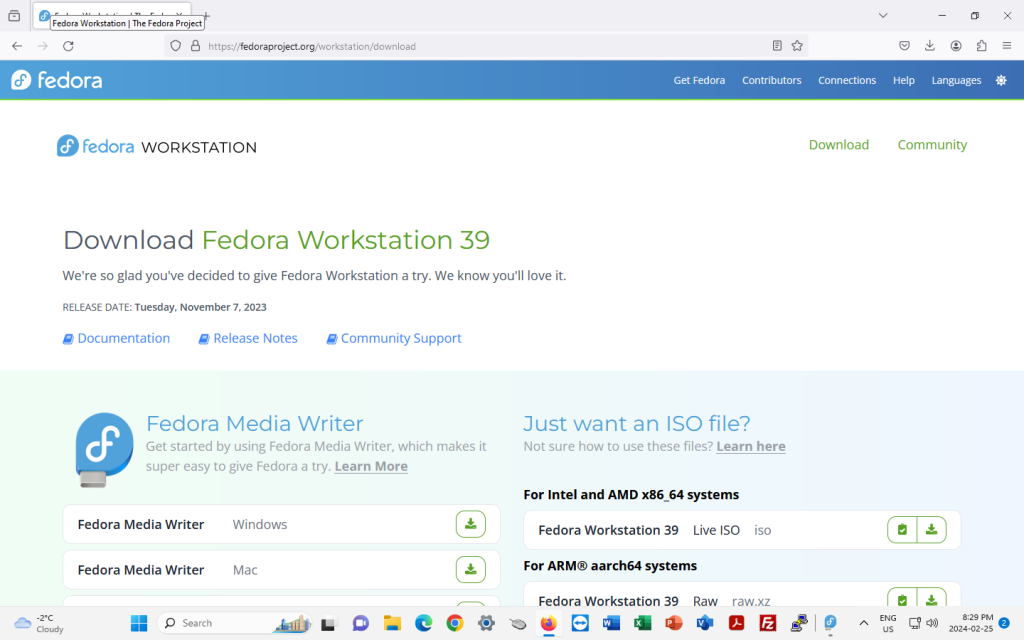
On the following page, click on the green download button for Fedora Media Writer, either for Windows or for Mac:
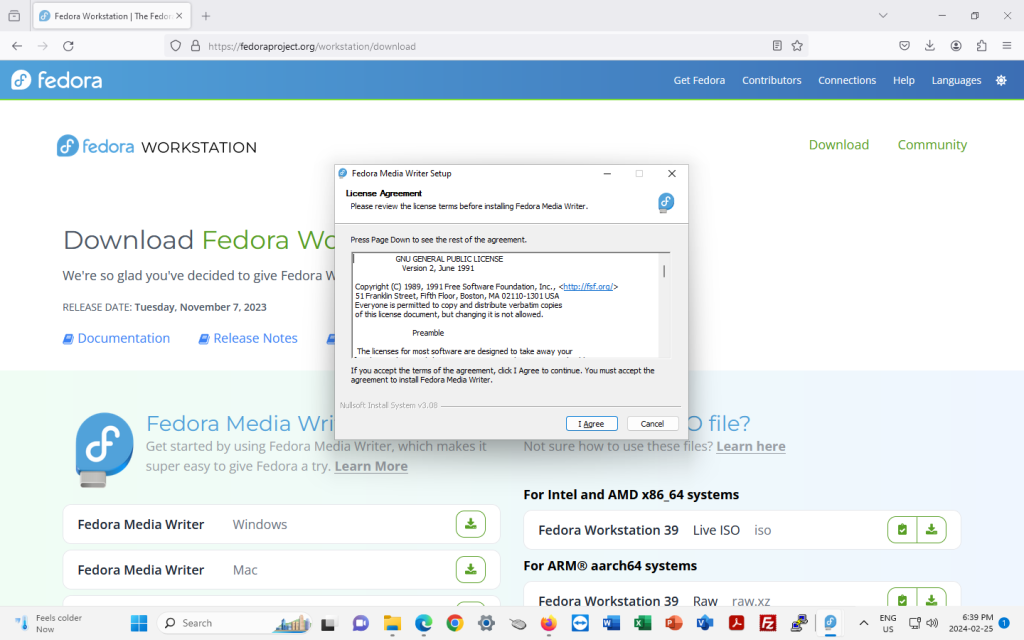
A licence agreement window will pop up. This is for the Gnu Public Licence version 2, the licence under which the Fedora Media Writer is licensed. Click on “I agree”.
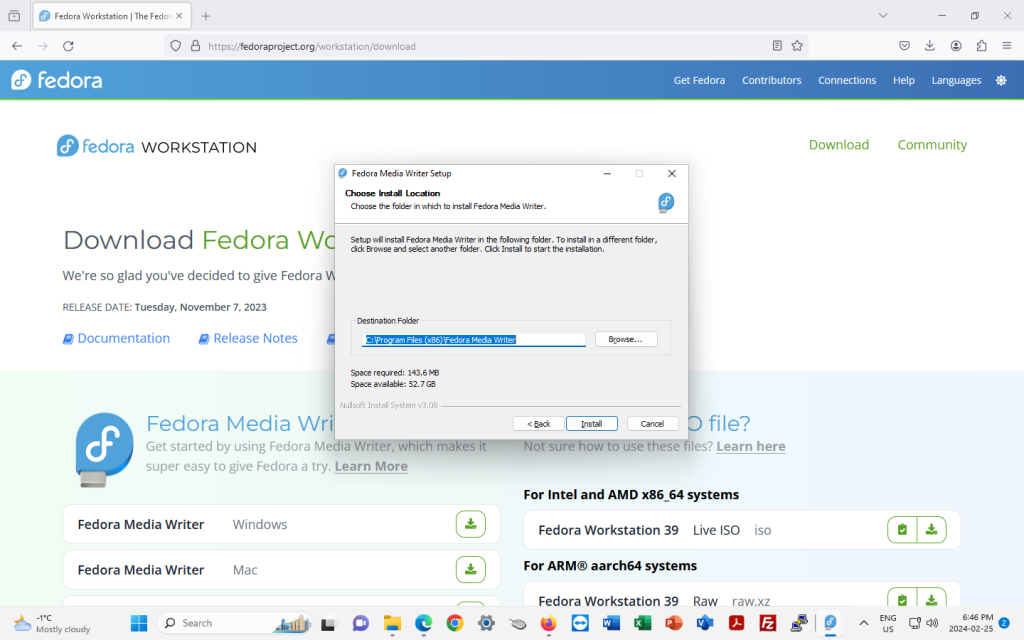
The next screen will ask where to install Fedora Media Writer on your computer, and it will suggest a location to install it on your hard drive. Click “Install”:
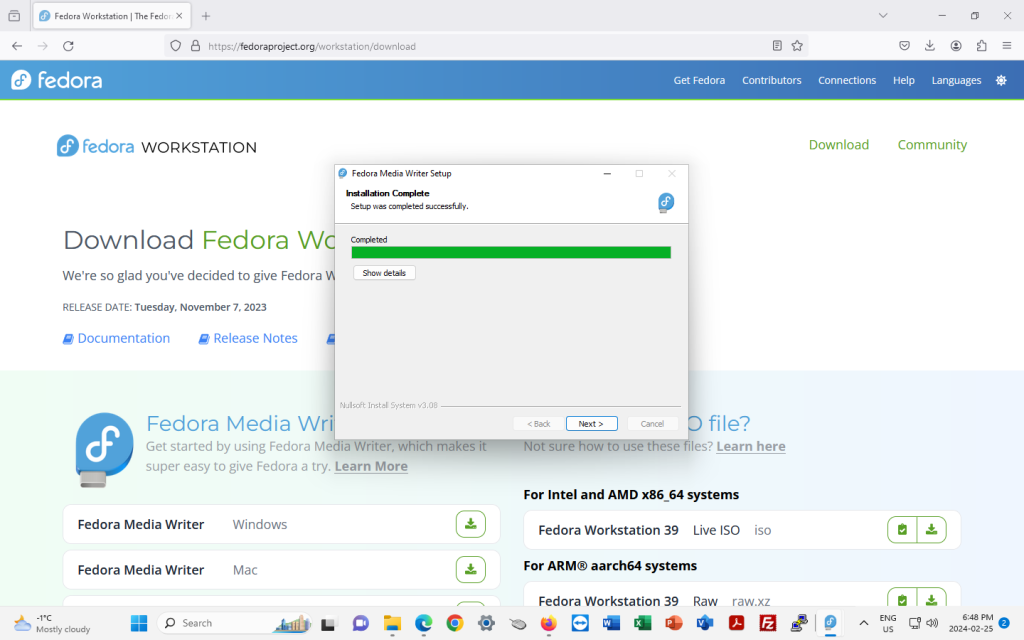
Once Fedora Media Writer is installed, click on “Next”:
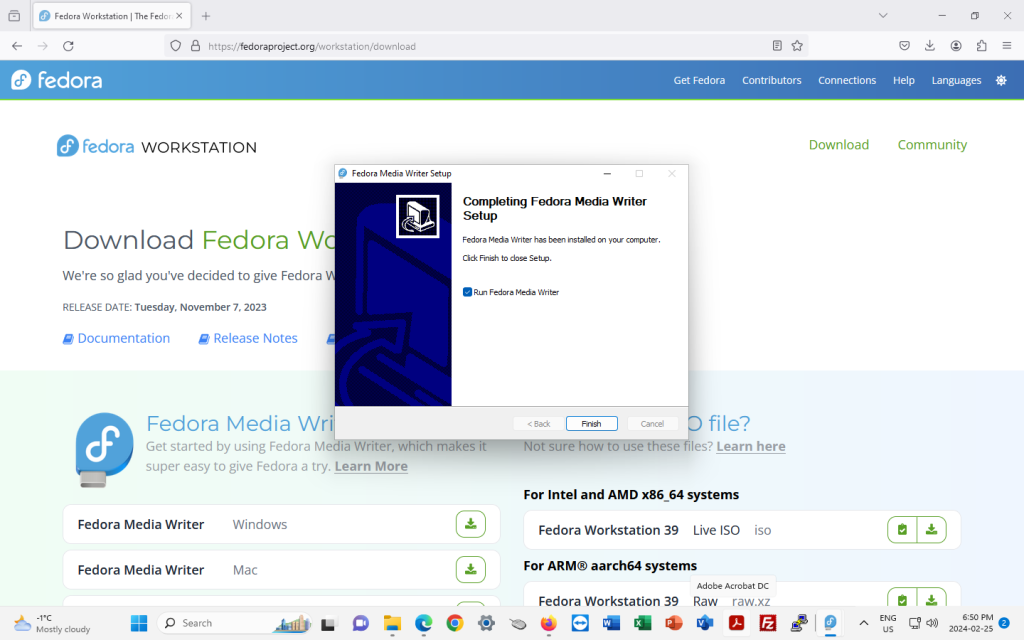
… and click on “Finish”:
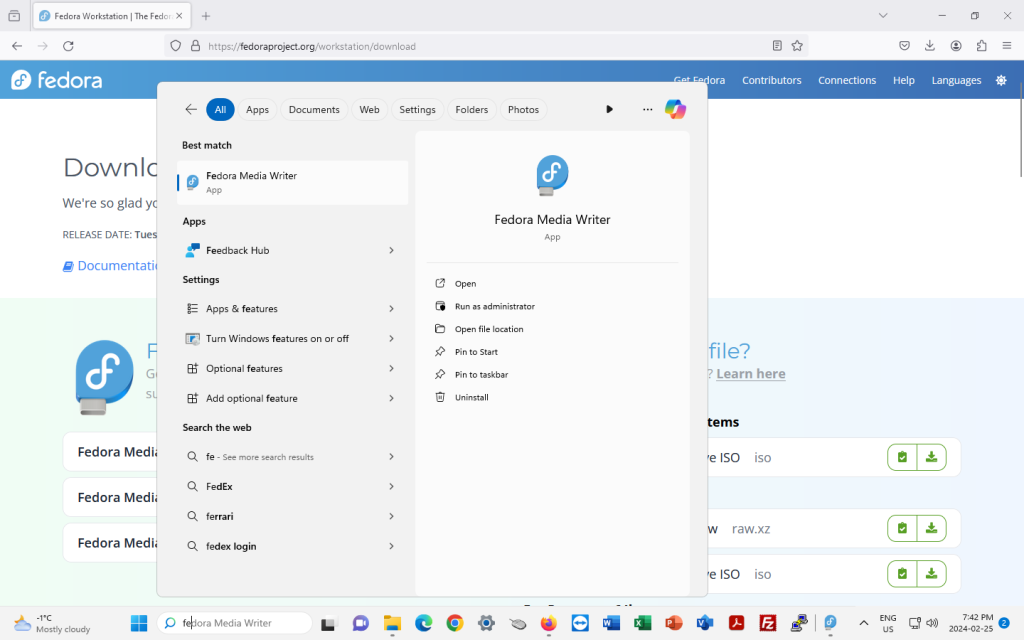
Launch Fedora Media Writer:
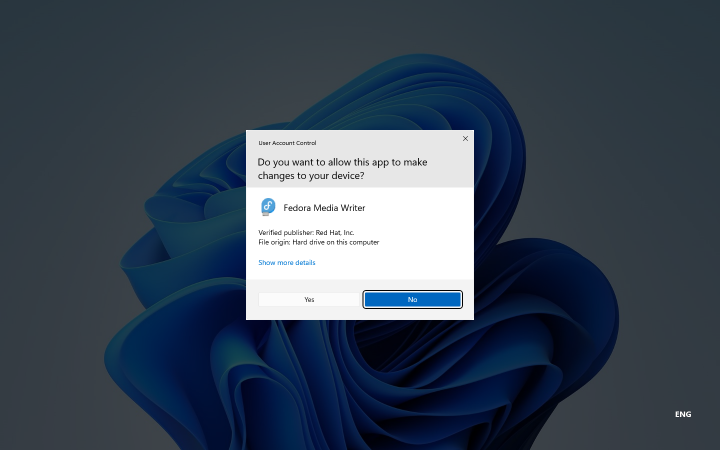
You may be asked to allow the app to make changes to your device. Click “Yes”.
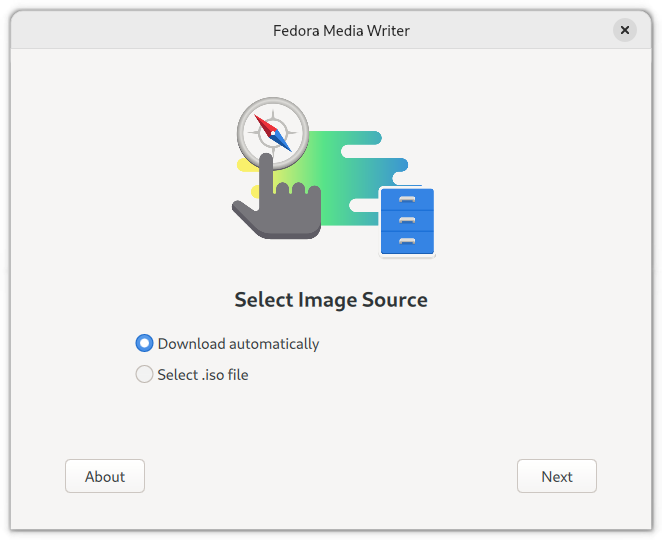
At this point, you can either choose to have the Fedora Media Writer download Fedora automatically, or, you can download a distribution of your choice, and ask Fedora Media Writer to use that distribution instead (the “Select .iso file” option):
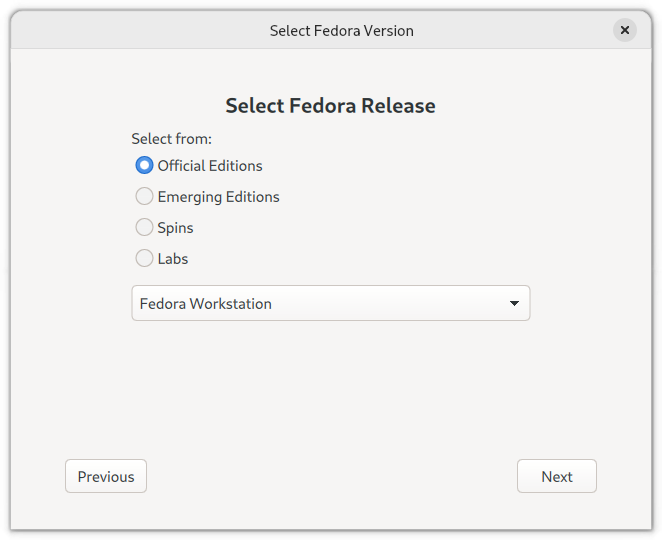
Going with the “Download automatically” option above, which by default chooses a Fedora distribution, on the next page (below), choose “Official Editions”:
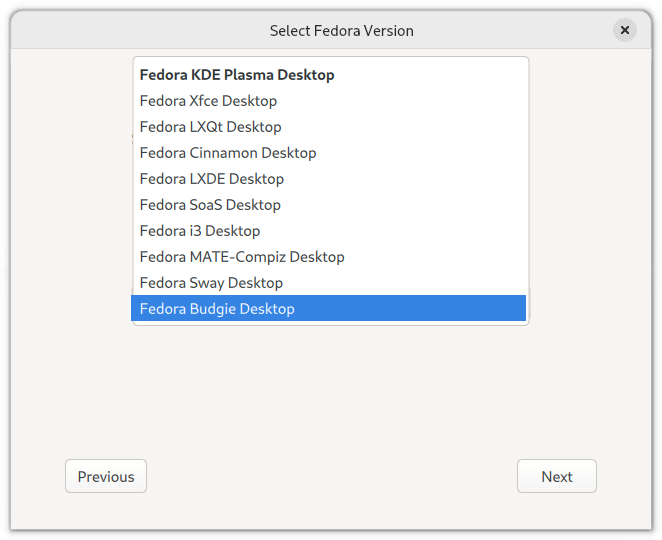
Should you wish to try another desktop instead of the standard Gnome Desktop in Fedora Workstation Edition, you can choose the “Spins” option above, which will list the following drop-down menu:
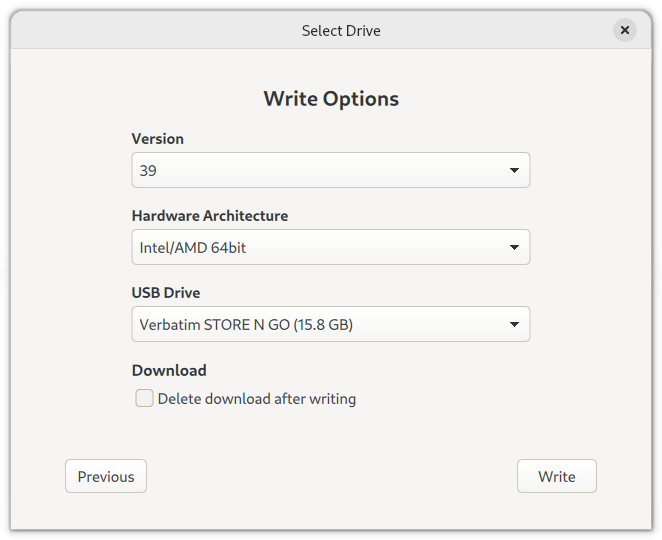
Under the choice taken, the next screen is the “Write Options” for the USB stick, which at this point should be inserted in a USB port. Choose the latest version of Fedora (in this case, 39), the hardware architecture, and the USB stick to which you wish to write the installation media:
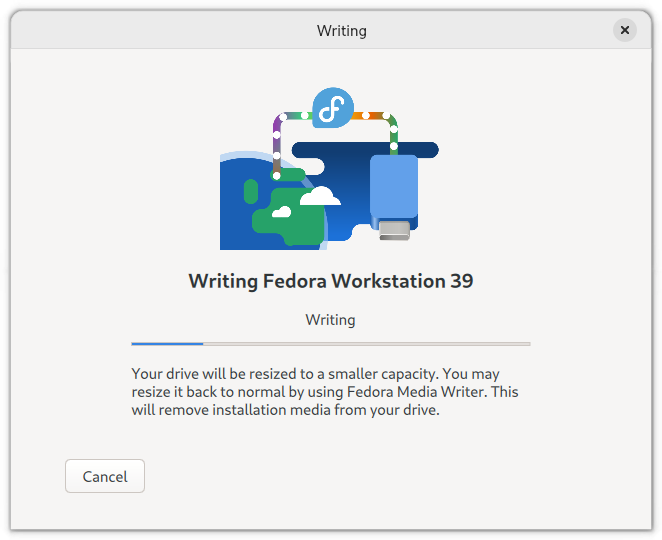
Click “Write” in the above screen, and Fedora Media Writer will begin writing to the USB stick:
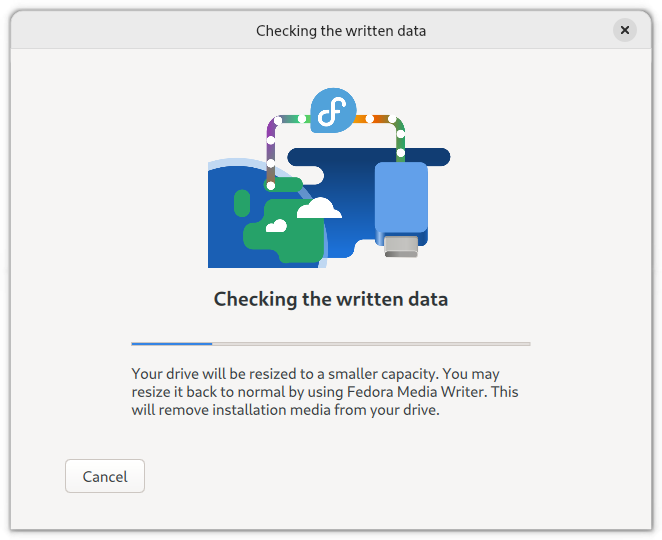
The screen will automatically change to indicate that the written data is being checked:
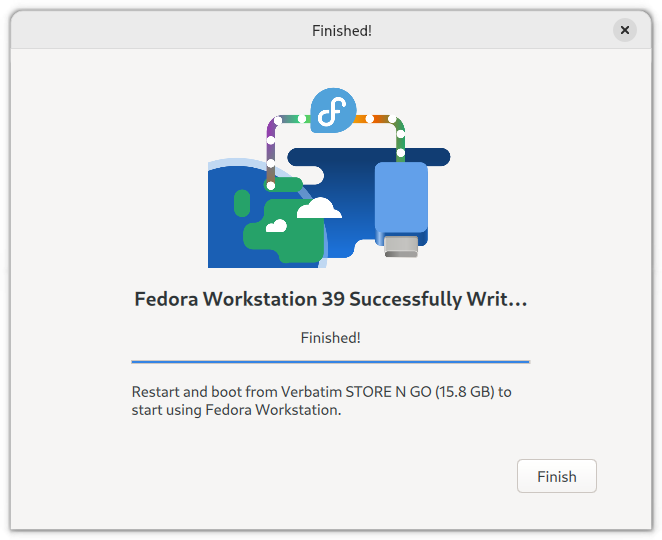
Once finished, you can click on “Finish”.
Should you wish to try out Fedora without installing it on your computer first, you can follow the instructions on the screen to restart the computer and try a live, temporary version of Fedora. This will not affect your hard drive in the least, unless you choose to install … which I am not recommending, since I am recommending that you install on a completely separate computer (see beginning section).
Next Chapter
Chapter 4 will show the installation of Fedora Workstation.
In this post, a few of the more well known linux distributions and desktop environments will be showcased.
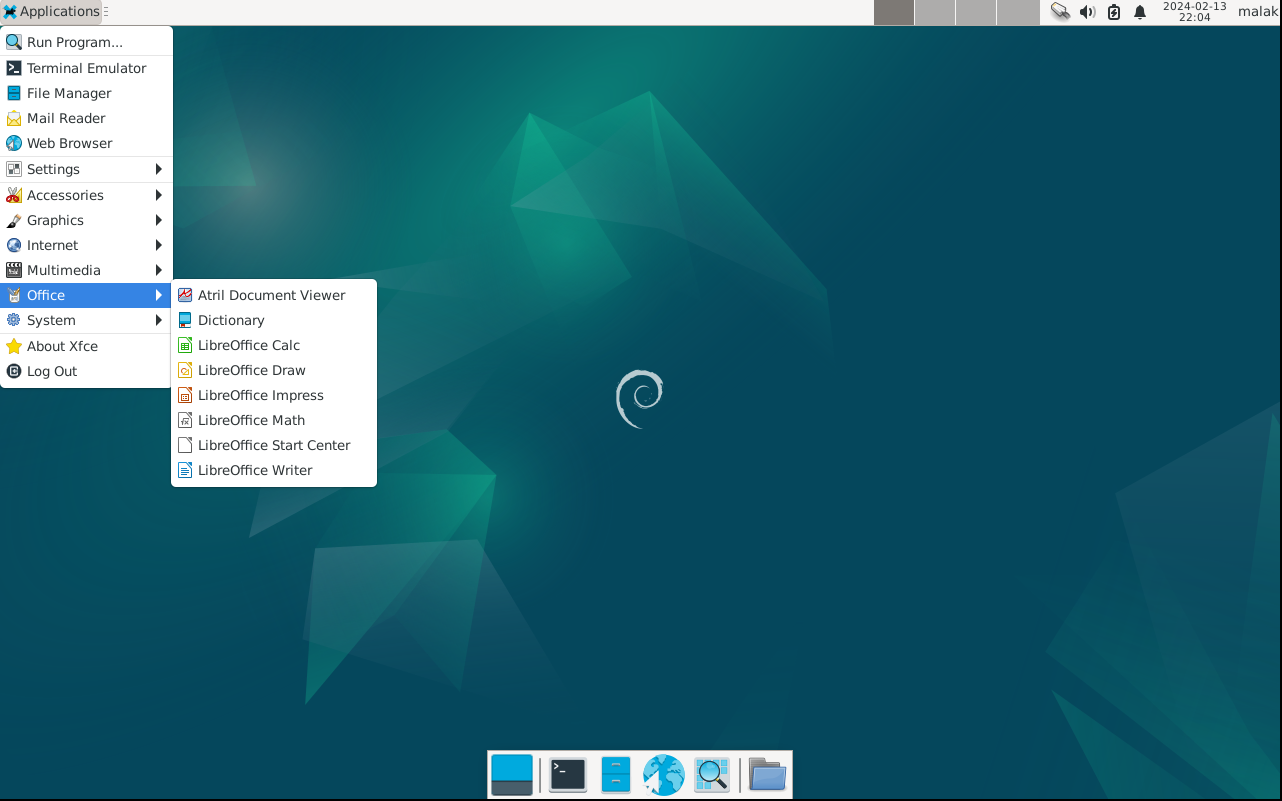
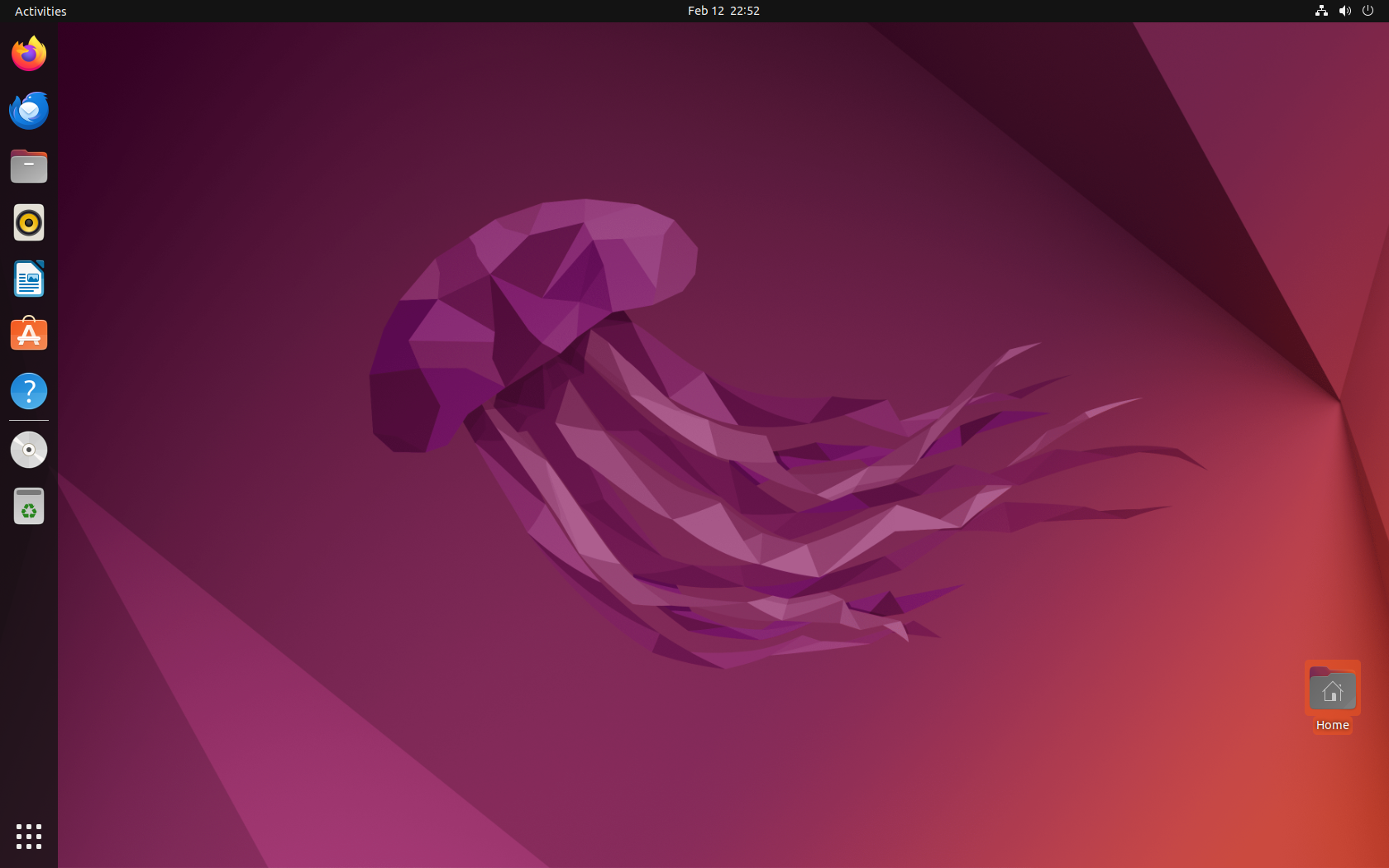
Note: Clicking on the various desktops will show larger versions.
Fedora
Fedora Linux is a general-purpose linux distribution focusing on free software (ie. not containing any proprietary software) and on being on the leading edge of free software development. It can be used by all desktop users. While having many tools that developers find useful, it is can also be used as a general purpose computer desktop.
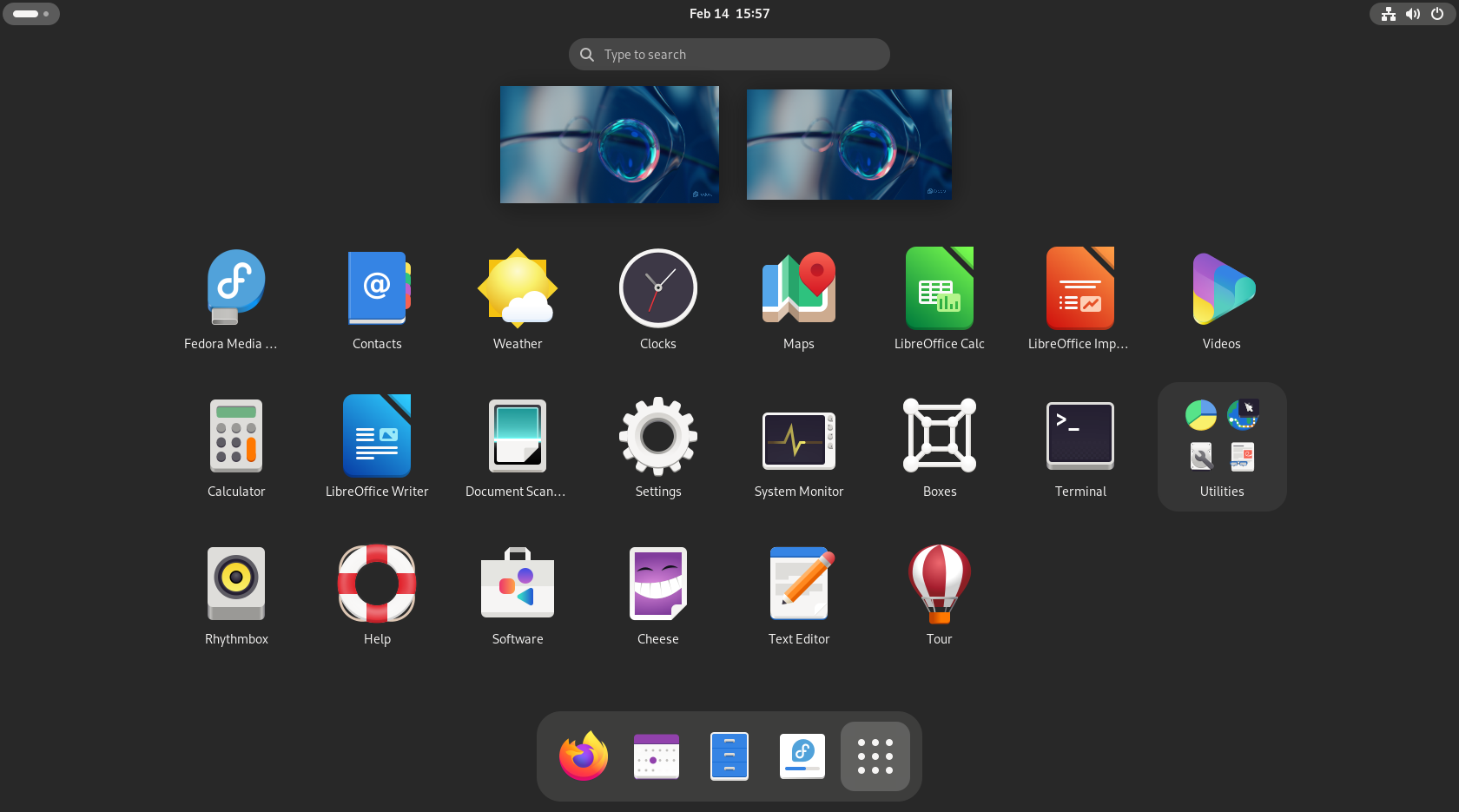
Fedora using the Gnome desktop, with the activities screen opened up
Fedora provides a variety of desktop environments; the Gnome desktop environment is the default desktop environment, although other desktop environments are available in Fedora’s various spins, which cater to varying visual aesthetics, technical requirements, and useability.
Fedora Linux can be downloaded from https://getfedora.org(note: do not add “www”, it will lead to an error page)
Debian
Debian GNU/Linux is a general purpose Linux distribution aiming to be available on a large variety of computer architectures, built on free software, and is known for its stability. The large number of software packages available under Debian and its stability are often highlighted as some of its strengths. Debian is used for a wide variety of purposes including desktops and servers, and is equally capable in both functions. Debian is often used as a base for other Linux Distributions.
Ubuntu is a popular Linux distribution based on Debian. It releases “Long Term Support versions every two years which typically are supported for at least five years, as well as intermediary releases usually every nine months. Ubuntu is often found not to be too difficult to learn to use.
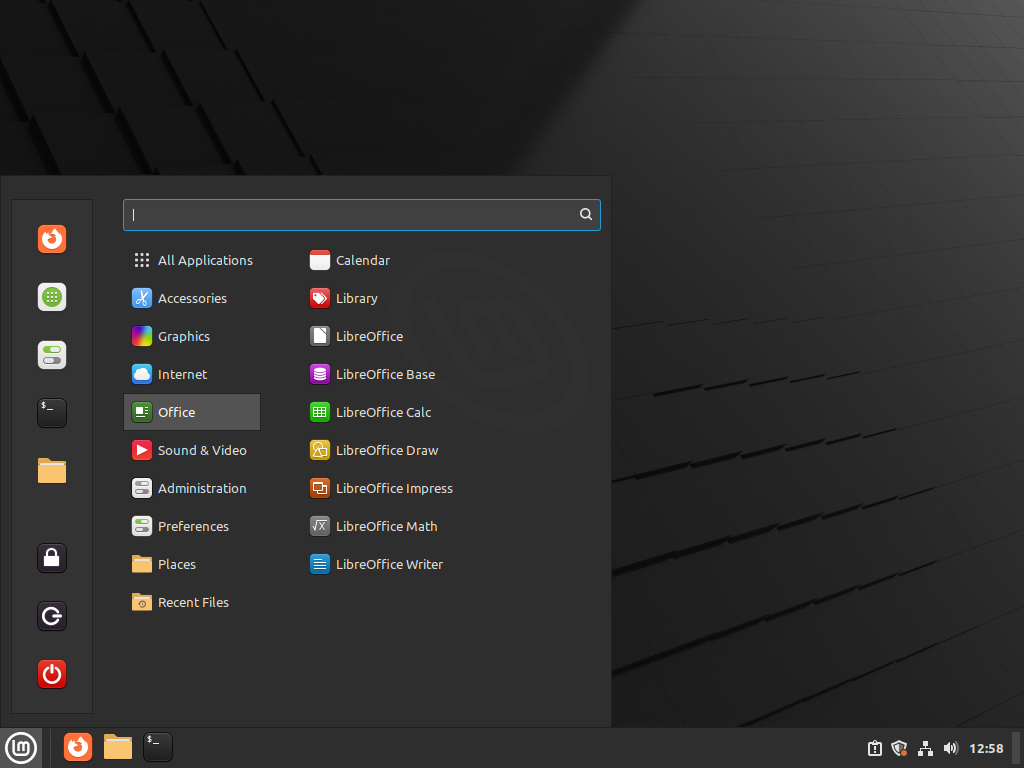
Linux Mint is based on Ubuntu, and is known for its desktop named “Cinnamon”, which was originally based on the Gnome Desktop, but was branched off into its own desktop environment which focuses on a more traditional computer desktop appearance and functionality.
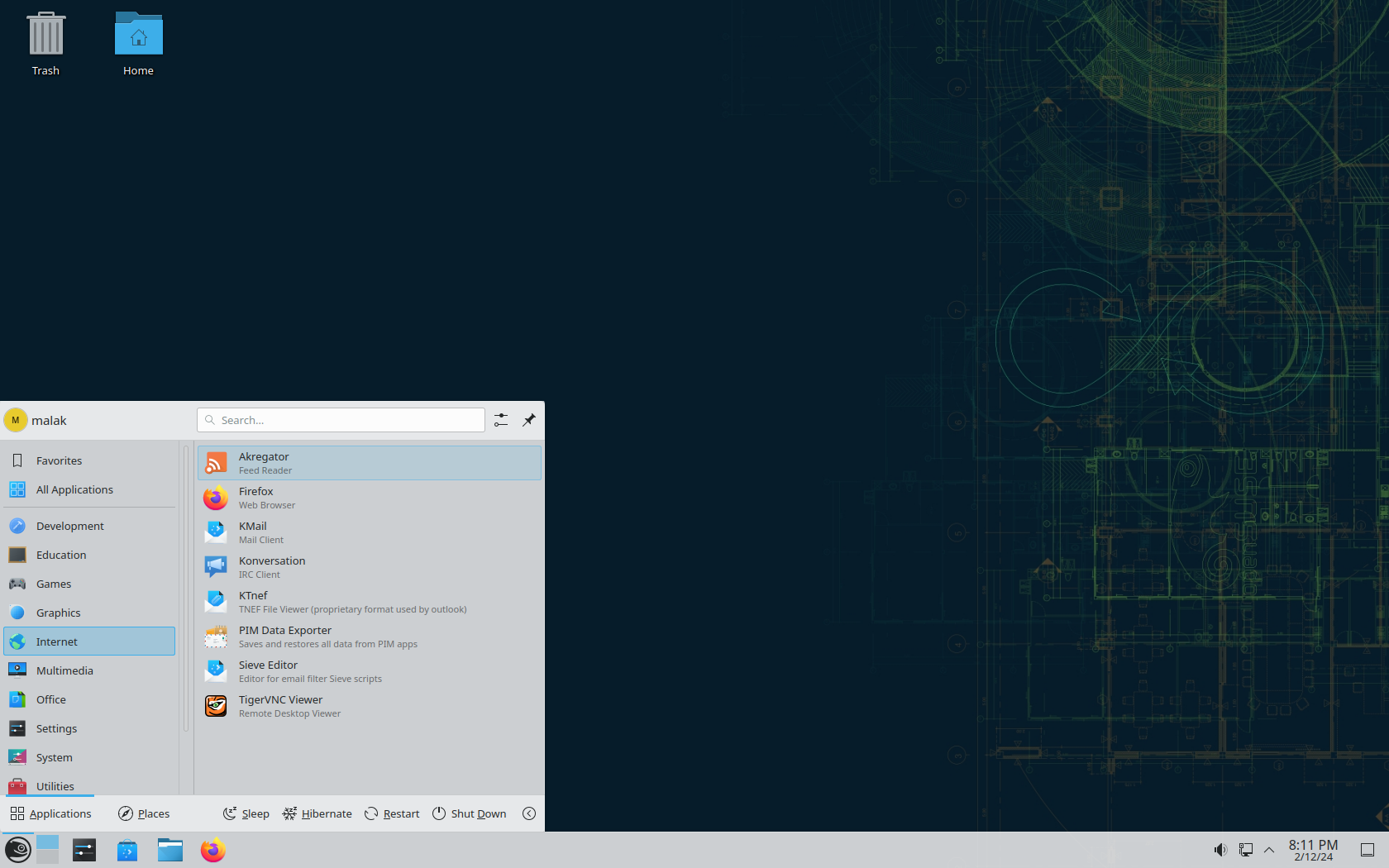
openSUSE is the community version of SUSE Linux, a business and server oriented version of Linux. openSUSE is known for its use of the KDE desktop, but also uses the Gnome desktop.
openSUSE Tumbleweed is a version which updates continuously and does not require reinstallation after a certain period of time; however, it may prove more challenging to newer users, who might find openSUSE Leap more stable.
Desktop Linux: Unveiled is a series of posts that show how to start using Linux.
In this post, Linux will be briefly explained and briefly compared to other common desktop computer operating systems.
First, what is an operating system?
An operating system (OS) is the software that makes a computer run, like Microsoft Windows, or MacOS. It is typically able to provide a way for users to operate the computer, and translate the instructions so the computer can run them. It also coordinates all the computer’s resources such as its CPU (central processing unit), memory, hard drive, and other components of the computer, as well as coordinate the user’s programs and data.
What is Linux?
Most people understand “Linux” to be a complete operating system like Windows or MacOS. However, strictly speaking, “Linux” is in fact just a part of the operating system, the central part called the kernel. Common usage has had “Linux” to informally refer to the whole operating system.
“Distributions”, (usually) complete and integrated collections of software built around the Linux kernel, can be legally built and distributed by anyone with the abilities and inclination because of the way the Linux kernel and the other software usually used with it are licensed, although most people choose to use an established distribution.
Distributions vs. Operating Systems
Linux distributions usually contain full linux-based operating systems, as well as extra software often not traditionally included in operating systems, such as office suites, media players, graphic design software, educational software, games, various apps, as well as other software such as server software. Although not all of the software is installed at the same time, they are typically all easily available in central locations called “repositories”, similar to app stores on MacOS and Windows; much is available free of charge, too!
Free Software vs. Proprietary Software
A lot of software available under Linux — and a growing amount under Windows and MacOS as well — is called Free Software, or sometimes Open Source Software. As a contrast, a substantial amount of Windows and MacOS software is called Proprietary Software.
Many people hear the expression “Free Software” and assume that it means that it is free of monetary charge. Some may even question its quality on the basis of such a lack of price.
Although free software is often (though not always) given away free of charge, and most common free software is of very high quality, the expression “Free Software” in fact refers to “freedom”, specifically various freedoms granted to the users of the software. These freedoms include the freedom to run the software for whatever purpose you wish, the freedom to study how the program works as well as make any changes that you wish, the freedom to share the software with others, and the freedom to share software you’ve modified with others.
Some of these freedoms require that the source code, or “recipes” that people can read and understand, be available to anyone and everyone.
The various licences used to allow this often tend to foster cooperation between various parties, often allowing groups who might sometimes be competitors to also cooperate with each other, creating common software that each group can then package together to present according to their own vision. Within this cooperation, software sometimes is developed quickly, and often many programming bugs are found and corrected quickly.
Some common free software licences are the GPL and the LGPL, which specifically give the recipient of the software the above freedoms, and require the sharing of the source code to the software, and any changes you may have made to it, when distributing the software. Other common free software licences are the BSD licence, the MIT licence, and the Apache licence, which have very few requirements but which permit users to use, modify, and distribute the software, while retaining copyright and some disclaimers notices.
In contrast, proprietary software is usually controlled by very restrictive licenses that keep the source code hidden, doesn’t allow users to distribute the software to whomever they please, doesn’t allow users to modify it or fix bugs even if they are able to were they to have access to the source code, and may even dictate how the software may or may not be used.
Next Chapter
Chapter 2 will list some popular Linux distributions that people use on their computers.
It is titled “Deux frères, deux serveurs” (yes, it’s in French, and means “Two Brothers, Two Servers”), and the presentation represents my part of a double presentation with my brother.