Installing Fedora 21 (Part II), 32 bits at a time

In Part I, I talked about installing Fedora 21 on a new Dell desktop, and promised a Part II, somewhat tongue-in-cheek. But wait folks, I was serious. 🙂

I have an Acer Aspire One which I received new out of the factory sealed box as a birthday present in 2009, and immediately converted it to linux after receiving it – Fedora 11, to be exact. It has used, as I recall, Fedora 11, 12, 14, 15, possibly 16, 17, and 19, all without any trouble. Well, ok, none that can’t be attributed to “whaddya expect out of a notebook vs. a full horsepower machine” and errors stemming from somewhere between the keyboard and the chair. ?

However, time is starting to march on with this machine, and while it was great under roughly 18 months of Fedora 19, it was clearly starting to slow down a bit, but … well, Fedora keeps releasing new versions, and, well, while CentOS 7, which is based on Fedora 19 and which I’d be happy to install on my netbook, unfortunately is only available under 64bit while my netbook is only 32bit. So my options were to either keep Fedora 19 unpatched, upgrade to Fedora 21 workstation, which I wanted to do, upgrade to Fedora 21 with XFCE, which would probably make it peppier, or explore other distros, which I don’t wish to do.

When Fedora 21 Workstation came out in December 2014, I downloaded the 32 bit version, and the fun began. Within a couple of minutes of booting up the live DVD and before the desktop loaded up, the machine went into hibernation. This didn’t feel right, but I hit a key and things came back to life. Then, within about a minute, the machine went into hibernation again. I hit a key again, got a minute of performance, and it hibernated again, ad nauseum, and ad infinitum, literally.

Despite this, I decided to continue with the F21 Workstation installation anyway, and I ended up babysitting the install, hitting a key to wake up the system every minute or so during the installation. On a single core atom processor running at 1.5 GHz, this took a good long while and a lot of keyboard wakeups. Finally, the system was installed, but it kept on hibernating after roughly a minute.

As a reference, I proceeded to install Fedora 21 XFCE Spin, and, except for hibernating once during the initial booting up of the liveDVD, it worked like a charm.

One solution I tried was to do a “yum install fedora-release-workstation” or somesuch from an installed XFCE spin, hoping to then do a “yum groupremove XFCE” and repeat “yum install fedora-release-workstation” just to reinstall any packages which may have gotten removed, but it bricked the install and I had to reinstall XFCE yet again.

For a variety of reasons which are now lost in the winds but which probably included having gone through the following suggestions from ask.fedoraproject.org, I managed to install and re-install the XFCE spin several times again after probably having reinstalled the Workstation a few times in between.

I went to ask.fedoraproject.org to ask for help (here’s my archive), and I got a few interesting responses.

The first response I got was:

“You can do tests and get logs without interference with systemd-inhibit – ie sudo systemd-inhibit bash. The system won’t suspend or hibernate until you end the process invoked with systemd-inhibit.” This didn’t work; hibernation continued as before.

The next response was “I’m just guessing, but it feels like the system thinks that the battery is almost empty and because of that does the right thing in that situation. I’m not sure which software component is handling this situation but anyway, there seems to be a bug that happens to manifest on your particular environment.” This could have been ruled out immediately – mostly – because at the time the battery was physically out of the machine when I tested, and I was running on mains electricity out of the wall. Nonetheless, I did check, with a fully charged battery in, to be sure I wasn’t being a fool; no such luck, under both cases, the machine kept on hibernating every minute or so.

All through this, I learned that at least one user with a Toshiba Satellite Pro without a CD player had this same problem, and worked just fine up till Fedora 20.

My “brother in the know” helped me with some research, and we found something: In the Arch Linux forums, the problem is described, and the user “Scimmia” comes up with the following workaround (here’s my archive):

“Try setting ‘HandleSuspendKey’ and ‘HandleLidSwitch’ to ignore in /etc/systemd/logind.conf” “Scimmia” further claims that this problem appears to be caused by systemd/logind. This all means that somewhere, signals are being sent out, rightly or wrongly or otherwise, that are being interpreted as “the clamshell lid is being closed, so it’s time to hibernate.”

To wit, my brother and I, after I’d installed Fedora 21 Workstation for the probably at least third time, then boot up an XFCE liveDVD (but do not install it), and through some of my brother’s linux kung-foo, he mounts the hard drive, using Thunar in the XFCE spin as a facilitator, and we edited the appropriate file.

… And Bingo was his name-OH. (Translation: Yup, that worked and the machine now works.)

Here are the instructions to correct the problem, at least for an Acer Aspire One, and which are also findable through ask.fedoraproject.org:

1) install F21 32bit workstation, by babysitting the system throughout the whole install to keep waking it up every minute or so (literally!)
2) reboot using a live-dvd that works on the system, such as the F21 XFCE live-DVD
3) mount the hard drive (not really sure specifically how my brother did it but using Thunar seemed to help out a lot)
4)open a terminal session and make sure the hard drive is mounted
5) edit the file /etc/systemd/logind.conf (such as using nano)
6) uncomment the settings for “HandleSuspendKey” and “HandleLidSwitch”
7) set the “HandleSuspendKey” and “HandleLidSwitch” options to “ignore”
8) save the file
9) reboot
10) enjoy

… and, it seems, my instructions, posted on ask.fedoraproject.org, helped at least one other user with an Acer Aspire one. I’m pleased. ?

Now, as for what I think of it … well I like F21 Workstation. On my laptop, it’s a slightly sluggish, but still working well.

Having to find multiple levels of internet access — oh, fun!

Disclaimer: I am musing on the challenges I faced while trying to secure reliable internet I required during a recent set of business trips, and the process of developing various solutions to these challenges. These challenges are, in a general fashion, typical of the routine logistical challenges I face when in-the-field, and no doubt of other field technicians. In no way am I trying to reflect negatively on my employer, who for the purposes of this entry shall remain nameless.

I was recently on a couple of business trips, depending on an iPad as a critical part of the execution of the contract. This trip was to a small city of 25,656 (according to Wikipedia), big enough to have plenty of internet access points, cell phones, and cell phone data. As far as I was concerned, in fact, I was in a mini-mini version of Montreal, home for me, to those who haven’t figured it out yet.

The way the iPad is set up, wifi internet access is required to transfer building plans needed to do the work to the iPad, and transfer back files and data collected from my field work. I have made no bones mentioning to some key people heading the overall project that this is a potential Achilles’ Heel to the execution of the project, since, at least in the overall project’s fringe locations sufficiently beyond population centres, internet access would be a spotty luxury at best. My trips were at least symbolically close enough to the edges, underlining the potential problem.

One of the first challenges I found was that the iPad didn’t seem to play well with the internet supplied in the motel (DataValet); although I did manage to get it to work once, it proved a bit too frustrating to get working reliably. A colleague confirmed that he’d had similar problems getting Apple products to connect to DataValet. I had no trouble getting my personal computer running Fedora 21 Workstation to work with DataValet: In fact, besides not recalling having trouble over the years connecting to wifi that wasn’t specific to Linux or Fedora, I would actually say that the experience was even easier than in the past, since the daily leases seemed to automatically renew, although it seemed to insinuate itself by a “convenient” automatic popup window. In parallel, my work Windows-based machine also worked flawlessly throughout with DataValet, although if I remember correctly, I may have had to occasionally open up a browser in order to renew the leases.

Add to this challenge, my employer’s local office didn’t seem to have wifi, or at least, assuming that it *was* there as a hidden network, my work computer didn’t automatically connect to the corporate wifi when not plugged in to the corporate network, which it normally does at my home office.

My first solution was to fulfill a purpose of my having asked for a company smart phone in 2014: Create a hot spot using the data plan on my work phone to do data transfers when not in a wifi zone that works well for the iPad. However, it seemed, between the picture-heavy data and the fact that the iPad seems to do automatic background backups when hooked up to internet — a feature to which I initially had a (negative) knee-jerk reaction that nonetheless actually was useful at one point and since — my phone appeared to run out of my data plan for the month, as evidenced by the sudden stop of internet connection through the phone while still operating just fine as a phone. Having quickly checked the phone’s data usage logs and determining that I’d certainly gotten to the neighbourhood of the limit I believed I had (2 gigs), I assumed that the phone’s contract had a limit set by my employer to turn off the data plans until the month rolls over in order to avoid overage charges. I later learned, upon my return home and standing in front of the IT tech responsible for the corporate cell phones, that the problem was presumed to be an unusual set of settings probably set by some esoteric app (of which I have have very few, esoteric or otherwise, on my work phone), or possibly a SIM card problem, which turned on off the phone’s data capabilities, and that in any case the company has no such policy to ask the cell service provider to turn off a phone’s data access when it reaches the limit of “included data” in the plan, until the rollover date. The lack of internet on the phone is “solved” by resetting the phone to factory settings; I should get instructions on how to do it in the future should I be faced with the problem again. 🙂

This led to a second solution: I used my personal phone to create a hotspot and consumed a bit of my personal data plan, which didn’t bother me too much, at least until it were to involve overage charges. Not that I checked, but based on the little amount of time I used it, I’m sure I never got into that area.

The next solution also created another challenge due to a flub on my part: My client finally gave wifi access to the iPad at her various locations; however, I should have requested that she also enable my work computer, since I had a secondary need for internet given that I developed a need to produce or modify extra plans several times once arriving at some sites, and as such a need to transfer the plans off the computer and onto the iPad.

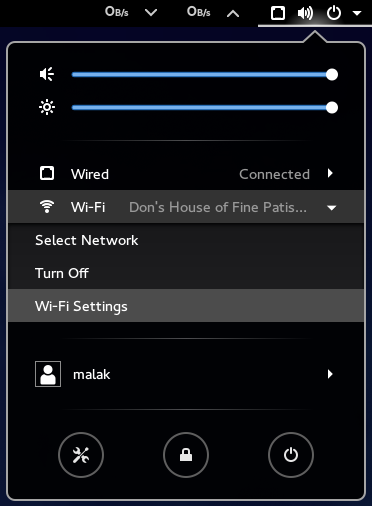
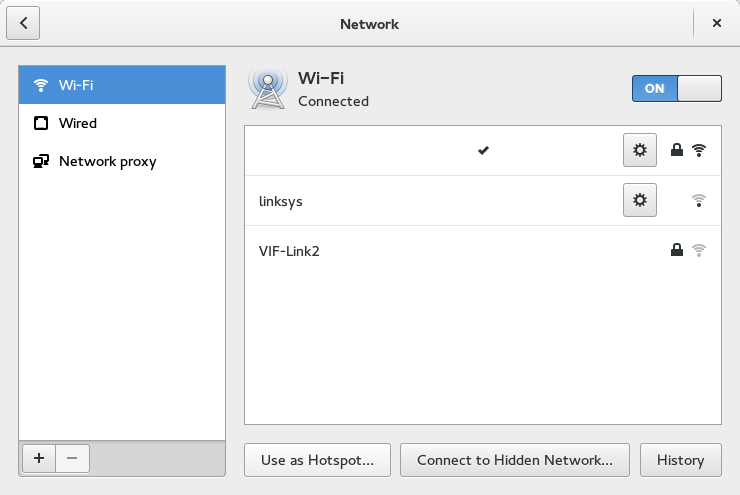
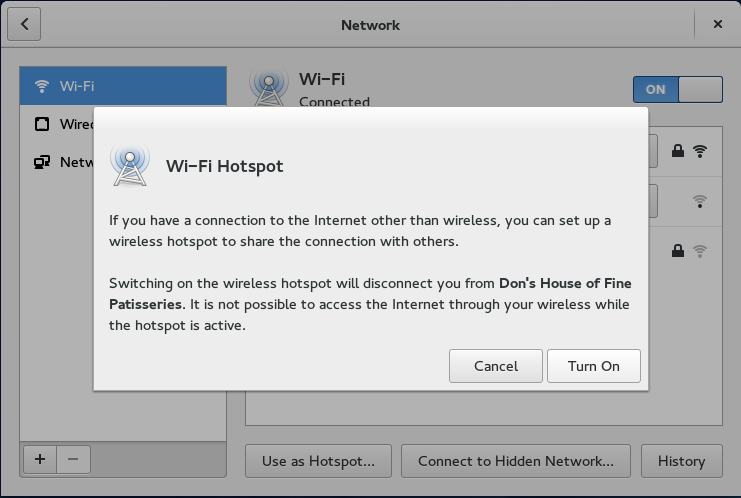
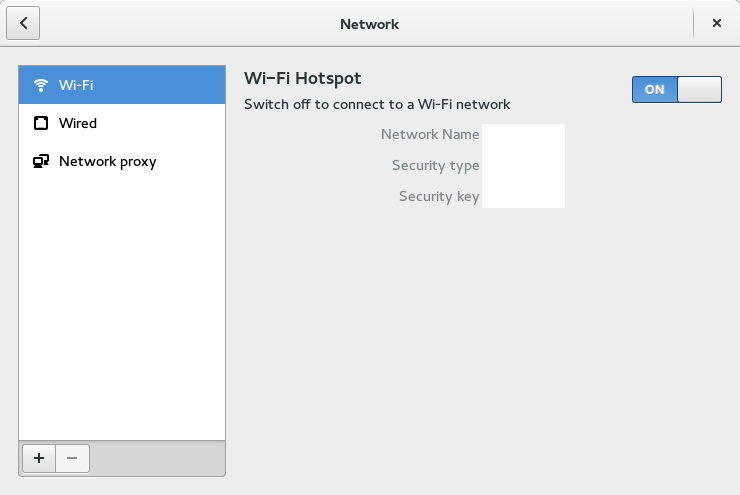
Finally, I realized that when I have wired access, I had yet another solution available to me: I could set up my linux laptop to create a wifi hotspot. This was rather easy, at least under the current gnome version in Fedora 21 and I believe has been for quite a while under the gnome 3.0 series, and probably before too. Unfortunately, this was wasn’t a solution at the motel since it only had wifi and no wired access, and I didn’t have an external wifi receiver with a cord to provide the wired internet and free up the wifi card.

Here are some screenshots of how easy it is to setup a wifi hotspot under Gnome 3:
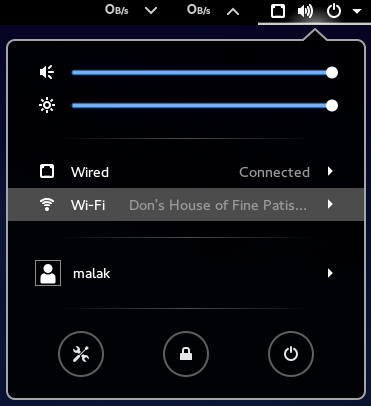
step 1

step 2

step 3

step 4

step 5

Feeling a bit curious along the lines of “shouldn’t this be relatively easy under Windows, too?”, I checked on my work computer, and while it seemed possible, and indeed my brother once did it for me with his Windows computer, it was not obvious at all; in fact, I gave up after about four or five click-throughs with little end in sight.

Hence, at the local office and having set up my laptop to create a local wifi hotspot, I’d created a mildly-amusing-to-me setup on my temporary desk, plugging in my personal laptop to the corporate network, running a hotspot using its wifi card, and using my work computer normally over wifi as well as doing data transfers from the iPad.

Back at home and at my home office, I mention my difficulties in getting internet access to my supervisor (who isn’t a computer techie type), who thought that creating a hotspot under Windows couldn’t be done, or at least he didn’t realize it could be.

Further discussing this with him, I explained the situation saying “I don’t mind trying to find other solutions — that *is* my job — but after not having two A Plans (the motel internet not working for the iPad, nor having wifi at the office), then suddenly not having a plan B (the company cell phone internet not working), having to depend on my personal phone’s data plan, then having to depend on the client’s internet access but not having enough access for all devices, and finally coming up with a part-time solution to replace one of the A-plans — using a second of my personal resources in the form of my personal laptop — there’s a problem here,” to which he agreed.

Jovially, he did however suggest that “in the next leg of your travels, I happen to know that if you can go to the local library, they have free wifi”. This made me realize that if necessary and if possible, I could also try the free wifi at the local Tim Hortons (a popular Canadian chain of coffee and doughnut shops), assuming that there is one in the remote town where I’ll be visiting next.

Which has me really thinking about the problem:

– not all the field techs in the company have smart phones with data plans, and as such not able to create a needed hotspot in order to enable the execution of a project;
– not all the field techs have personal smart phones with a data plan, nor should field techs in general be required to use their personal data plans, let alone go into overage charges, in order to enable the execution of a project;
– at least at first glance, it doesn’t seem to be a quick and easy thing to turn a windows machine into a hotspot in order to enable such work — and I don’t want to hear from the peanut gallery on this one, since I *know* that it *can* be done; my point is that at first glance, even a moderately savvy user such as myself shouldn’t have to say “It’s easy under Gnome 3, why isn’t it about as easy under Windows? Boy it’s a good thing that I had my personal laptop with me!” (On a side note, usually the stereotype is that “Windows is easy, and Mac easier, but isn’t Linux hard?” 🙂 )
– and, only a limited number of computer users are using Gnome 3, where it is easy to set up a hotspot if you either have a wired connection to the internet, or two wifi cards on your computer. (I’ll have to check with my brother, who uses XFCE on one of his laptops, which is on a technical level identical to mine, to see how easy it is under that desktop; obviously, it’s technically possible; I imagine it’s just a question of how easily different desktops enable the functionality.)

Which leads me back to the above-mentioned problem of “what do you do in remote, small villages where you don’t have a corporate office with wifi, motel / B&B internet access is spotty at best, there’s no cell phone coverage, and there are few if any public wifi spots like a restaurant or a public library?”

I just hope that the library’s free wifi isn’t provided by DataValet. 🙂

I’d say that Fedora has arrived!

Almost five years ago in March 2010, I stated “Ubuntu and Fedora LiveCDs — Ubuntu a clear winner!”

I’d burned two live CD’s — one of the current Fedora of the day, and one of the current Ubuntu of the day. I had wanted a group I belonged to to use one to reformat a virus-infected computer to use it again. Incidentally, they declined the honour, however that’s beyond my point: I didn’t want to give them (or anyone) the Fedora CD, while I thought that the Ubuntu CD was great out of the box, specifically including OpenOffice.org (now LibreOffice) and a cute little directory including a short video, a sample mortgage calculator, and two or three other little gems which really put the CD over the top for its immediate usefulness.

Well, I haven’t really used Live CD’s much since I’m not all that worried about having linux on the run, but at this point Fedora 21 seems to only be available by Live CD’s. But to wit, the experience with Fedora 21 seems to be quite the improvement in experience, according to at least two of my somewhere between the stated and implicit standards of comparison: The inclusion of (now) LibreOffice, what I considered a killer omission, and the ability to quickly and easily install many “productive” pieces of software through the new software installer. To be fair, at the time Fedora limited itself to CD’s and in its efforts to include as wide a base as possible for supposed widest mass appeal, Fedora was unable to include OpenOffice.org (or, as possible, any usable subset thereof) due to space restrictions, although it was able to include AbiWord.

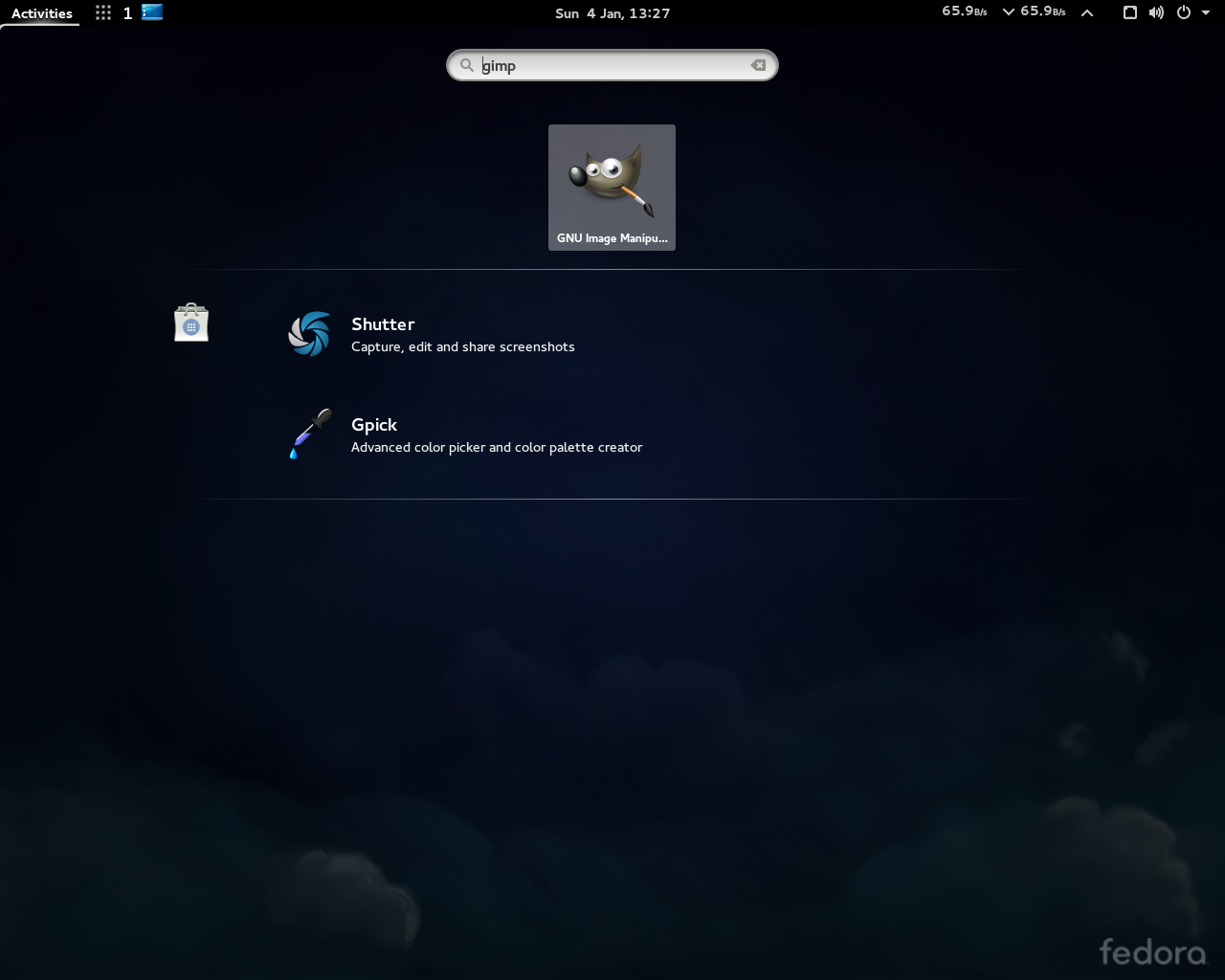
Now, Fedora Workstation includes LibreOffice, and by typing into the search box in the “Activities Overview” (click on “Activities” on the upper left hand corner of the screen, or invoke it using the “hot corner” by bringing your cursor up there), the installed software that may help you, as well as a number of other pieces of software in the repositories which may help you, as indicated by a little shopping bag to the left of the proposed piece of software.

screenshot of proposed software

Well, I guess now I just need to find someone who needs to have their computer saved from viruses and spyware. 🙂

Installing Fedora 21 — Part I

Well, well, Fedora 21 Workstation came out in early December, 2014 to (at least my) great anticipation. It works great, and it’s a nice evolution in the Fedora desktop.

Initially, one of the biggest things that had me confused about it was wrapping my head around the hoopla: What’s the improvement? What’s the big deal? What has really come about to fill up the time between the release of Fedora 20 in December, 2013, and the release of Fedora 21 in December, 2014? Ok, tell me. “Uhhhh …” And so on.

Eventually I understood, or at least presumed, rightly or wrongly, that the biggest improvements for me would be under the hood and I wouldn’t really notice much, although I’d see the better and more intuitive software installation manager on the gui, and the polish, which I have. Apparently — for (one of) the main (now) Products, the Workstation — improvements would show up in the clearing of many bugs, general issues, and polish issues, and as well as choosing “best of breed” components (and in some cases, working with or even creating some upstream projects expressly to make desired components into the “best of their breed”, at least toward Fedora’s new vision). This would be instead of Fedora giving the impression (again, rightly or wrongly) of just “throwing together a bunch of packages and compiling them into a distribution” (admittedly, that worked rather well, and by working with upstream projects directly to fix bugs and contribute desired new functionality.) And finally, the dimensions of the windows have been changed such that in many places, the gray space and borders are smaller and thinner.

So after downloading and burning the 64-bit ISO (and concurrently, the 32-bit iso, the subject of Part II), and doing a full backup of my /home directory (including the hidden directories), I dived into the installation.

I had no trouble at all installing F21 on my NEW NEW NEW Dell Inspiron Dell i3847-5387BK PC (Intel Core i5-4460 / 1TB HDD / 8GB RAM / Intel HD Graphics / Windows 8.1). Firstly, nuking the Windows install was a great pleasure after having been pestered into first installing the Windows 8.1 which came with the computer. And that’s not including all the really annoying and really invasive questions the install asks, like full names, areas, and connecting to your (or signing up for) Windows Live or whatever account (which of course I don’t have).

The install was fairly easy (I suppose I’m not saying much given the several, several dozen linux installs I’ve done over the past eight plus years). In fact, the liveDVD — only because Fedora gave up on the size restrictions of CD’s for the live versions a few years ago, the image size was the order of 1.4 gigs (ok almost twice the size of a regular CD) — booted up rather quickly (faster than I’m accustomed to with the usually low-powered P4 single cores), and the first thing I saw was an option to either try out F21 Workstation or go directly to installation, all on top of Gnome Shell. I of course hotly jumped onto the install option, egged on by the annoying Windows install I’d just done (which, BTW, went flawlessly beyond the nuisances mentioned above, and fairly quickly.)

The biggest thing that was a bit confusing was discerning in Anaconda the checkbox that allowed me to free up all space on the hard drive, given that it seemed to be slightly below the screen and I needed to scroll down to it.

In the part of Anaconda that asks for location in order to set the time zone (and possibly / probably) set other regional default settings, Montreal — where I live — isn’t available. To me this is “a (minor) thing” since Montreal *used* to be available in the Anaconda locations list. The main cities in my time zone and “nearby” were Toronto and New York. I suppose that setting “New York” is generic enough, but in the presence of a long list of city names around the world spanning multiple time zones and with multiple redundancies per time zone, requiring someone from Montreal to indicate that their location is Toronto is downright near insulting — no Maple Laughs here! 🙂 Heck, I couldn’t even choose Ottawa had I wanted to, or choose to be equally insulted to indicate Quebec City — Go Habs Go! 🙂

Once the basic information was input, the installation was great and quick; so quick, in fact, I neglected to enter a computer name — easily fixed with a “hostname (addnamehere)” and “nano /etc/sysconfig/network” as root and editing things appropriately.

Interestingly, UEFI was not even a non-issue (ok so I do think that tin-foil hats are a legitimate fashion statement. 🙂 ) A quick check afterwards of the pre-boot menu options listed the following:

Boot Mode is to: UEFI
Secure Boot: ON
UEFI Boot: Fedora UEFI OS

How pleasing to see that Windows *isn’t* listed.

Now, beyond assuming that most linux distros pay the UEFI tax, err, registration fee, I wonder if Oracle pays it for Solaris, IBM for z/OS — I assume as much based on a cursory search for “IBM zos uefi” — or just about any other os developer working on intel architecture.

After that, the computer ran (and of course still runs) great. I even described it as “frighteningly fast”. The new software installer in F21 is quite helpful in suggesting software I want if it’s not already installed, and installs it quickly. The best part is that it’s seamlessly integrated with the activities screen where I can enter software I want to use in the search line, and most of the uninstalled software that I’d want is listed.

A few other command line installs were necessary though, to install (what my brother calls “your linux kung-fu”) some things like DenyHosts, some codecs, and so on.

However a there was one little problem with the settings. For one of the settings surrounding locations, I entered the likes of GB or UK for Great Britain / United Kingdom, so as to get settings with British spellings (again, Canadian English settings weren’t available). This had the result of setting the calendar applet at the top center of the screen to start weeks on Mondays. Now, I know that around the world this is gaining a certain traction for a variety of reasons, including ISO reasons, but this is incredibly confusing to one who is accustomed to calendars using Sundays as the first day of the week. (Yes, I know that this same argument, appropriately centred on Mondays, applies to those who use Mondays as the first day of the week.) This was finally fixed by setting the locales setting in /etc/default/locale to:

ANG=”en_CA.UTF-8″
LC_TIME=”en_CA.UTF-8″
LC_PAPER=”en_CA.UTF-8″
LC_MEASUREMENT=”en_CA.UTF-8″

Well this solution didn’t seem to be persistent, even if the file is. I ended up going into the “settings” / “region and language” option of the gui and setting both the language and region to, surprise, surprise, Canada.

Well this system is up and running, and works just like Fedora, surprise, surprise. My /home directory was restored with no trouble at all. And, while I was happy to have used Fedora 19 for a year and a half (as far as I’m concerned, Fedora heaven for me, getting an extra six months of system stability) I’m also glad to have updated to Fedora 21.

Upcoming: Part II — Installing Fedora 21, 32-bits at a time

I now have a Fedora Friend Finder!

In early 2011, I decided to go to a FudCon in Tempe, Arizona (here’s my archive). And here’s my blog summarizing my participation.

One of the things in the list of items to bring was a Fedora Friend Finder (archive, since the link disappeared), in other words an extension cord with multiple outlets / a power bar. This of course makes sense when you have a bunch of computer people gathering together, face to face: We still bring computers and as such we want to plug them in.

As you can see if you followed the link or checked my archive, the page featured a long power bar with 12 outlets, like the following:

12 outlet power strip

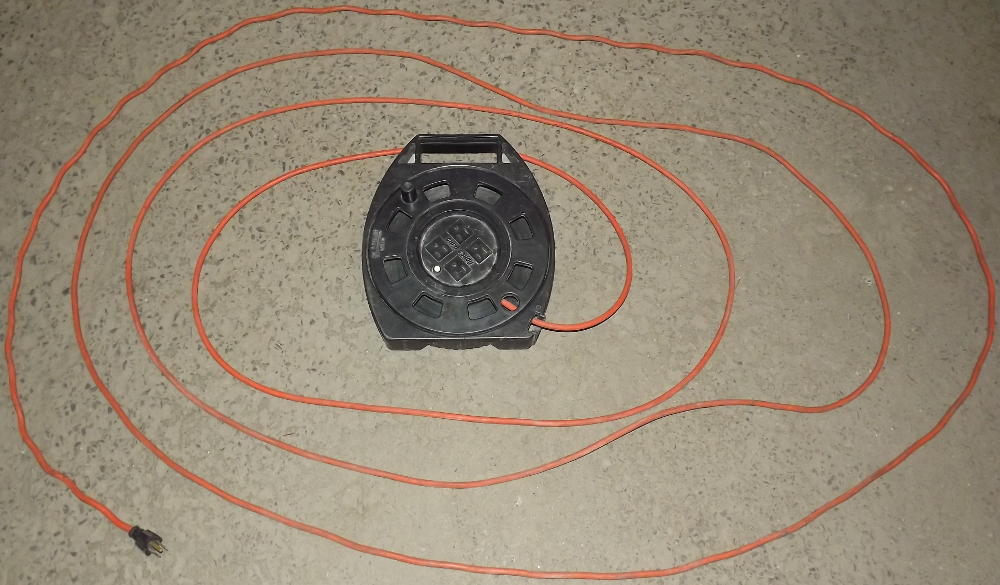
I of course had considered the power bar shown to be quite fanciful and even comical to the point of farce, and as such I assumed that someone had played around with The GIMP to produce the image.  However, the message was clear: I brought a four outlet power bar with a roll-up extension cord to FudCon Tempe, like the following:

cord caddy

During FudCon Tempe, I was mildly popular during the various “unconference” sessions and certainly made friends as a result of my power bar. In fact, during the “Lightning Talks” at the end of the “unconference” part, I was so popular that I had to turn people away who wanted to plug in, even after several other power bars had been plugged into mine.

Fast forward to this past week in 2014, and I’m shopping for supplies at a Canadian Tire for a job site I’m starting up, including electrical extension cords and power bars. What do I find? To my amazement, a 12 outlet power bar just like I’d seen on the Fedora Friend Finder web page. The person I was with was a bit bewildered by my fascination with it; to him, it was just a big power bar. It may have been odd, but it was just another power bar.

I wasn’t just fascinated; I was practically beside myself. Here I was in front of a real live example of the farcical prop I’d seen on a web page. Of course, I had to buy one.

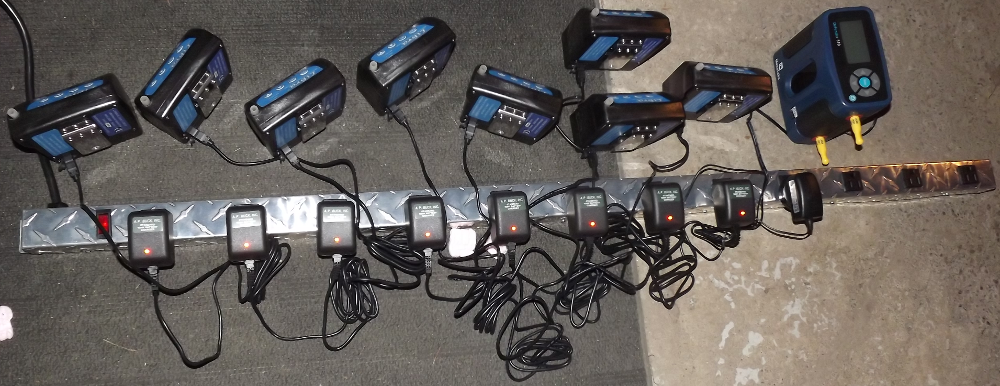
Here’s a pic of it with eight personal pumps and one DryCal calibrator hooked up, charging the internal batteries:

my Fedora Friend Finder

I think it’s cool. It will probably eventually be used at home where I have my multiple computers and a big wide screen TV and PVR, where things are currently lit up like a Christmas tree, so to speak, with multiple power bars which are nonetheless underused given the multiple oversized adapters.

However, the temptation will be there to bring it out to any events at which not only would such a power bar be useful, but also to just brag on an “over the top” level and get incredulous looks along with a “may I plug in ?!?!?”

Installing Fedora 18

This past week I installed Fedora 18 on a Frankenputer for my brother, yes, *that* brother who is my linux expert, because, well, I’ve been exclusively using a linux desktop since 2006 at home and at the same time he had gravitated away from using a linux desktop back to “another” system.

After having swiftly changed my own Gnome 3 desktop to Mate this past week in order to work out the kinks, I was ready to install his system. I expected or at least hoped that this setup would be a bit easier than my experiences under Fedora 17 since at least under F18 Mate is an officially supported desktop, while under Fedora 17, Mate is merely fully available (and functional) from the Fedora repositories. Interestingly, it was an identical experience — besides the parts about doing a “yum groupinstall mate-desktop” on my system and installing it under anaconda under F18; I still had to add a bunch of packages, tweak here, adjust there, etc. in the same ways. A quick look at versions numbers between the two systems suggests that many of the packages are the same version number, just recompilations for each version of Fedora.

So after his having spent hours going through four junkers, interestingly all having come from me over time, including one on which we had installed Fedora 14 a couple of years ago, and not being able to get any of them to work, we managed at the last minute to secure two more junkers — essentially, stripped carcasses which were cast offs from a local guy who does a lot of business doing virus & spyware removals, “reinstalls”, selling good-quality used laptops, and dealing in spare parts both to locals (such as myself and my brother) and over the internet through the likes of eBay, we start working on the install. Spare parts from other junkers as well as a new 2T drive are inserted into “Door #1”.

“Door #1” appears to be an Intel Core 2 Duo or some such, so this is so far the most advanced processor with which I’ve ever knowing worked at least up close. To me it seems clear that it’s a 64bit machine; I’ve caught the 64-bit religion, which is pretty gratuitous under linux, since just about *everything* is available under 64 bit. A 64bit Fedora Net Install ISO is downloaded and burned.

Frustratingly, “door #1” proves to be a doorstop: it powers up, rather loudly, but being able to do little else beyond turn on and make a lot of noise in the process, and not even boot through the BIOS. At this first glance it seems to be little wonder that our local tinkerer had stripped out the parts he thought he could sell on eBay or otherwise use to build his own Frankenputers in a reverse “2 for 1” deal. Time is running out on closing time for the local stores, so we move on to “Door #2”.

“Door #2” again appears to be a dual core or some such, so this is so far the most advanced processor with which I’ve ever knowing worked at least up close. To me it seems clear that it’s a 64bit machine; I’ve caught the 64-bit religion, which is pretty gratuitous under linux, since just about *everything* is available under 64 bit. The aforementioned CD is thrown in and things boot up until it hangs a few times at the point that the graphical part of Anaconda is supposed to kick in. After a few stalled attempts, we download and burn the 32-bit version, and everything works. Phew, just under the wire.

The visual changes in Anaconda made things seem more direct. Setup goes through cleanly.

Then I go through my list of things to install and remove, some of which date back to my install of Fedora 12 — yes, I still have some notes from then (paper works!) — while others dating back to the past week or so when I installed Mate on my machine and learned about what I wanted, needed, didn’t want, and so on.

The whole process took about 6 to 7 hours.

And, apparently, my brother, the master surpassed by his student, tries things out and loves it, after a few years of not having a linux desktop. Maybe there’s a renewed hope for him.

Go figure.

Fedora Life Spans

As a quick post, I am presenting my table here of typical Fedora lifespans.

Surprise, surprise — or, if you prefer, surprisingly — over the years, on average Fedora has actually been doing a good job of keeping to what is colloquially described as a 13 month lifespan, despite fairly variable lifespans of almost +/- 20% compared to average as of Fedora 16, often being delayed by a week or two or more, and in the case of Fedora 18, by two months! In fact, it has been keeping to this average rather closely — as of Fedora 16, the cumulative averages have kept to less than 2% from the overall average since Fedora 5. Well we’ll see how that affects things, as it is right now I’ve estimated the lifespan of Fedora 16, which I’ll correct when the official number comes out. We’ll see how the two month delay has/will affect(ed) the scheduled release of Fedora 19, and as the case may be Fedora 20 and so on.

Each of Fedora’s End of Life (EOL) is scheduled at a month after the release of the second version of Fedora after, eg. Fedora 12’s end of life was one month after the release of Fedora 14, and so on.

So, while I’m making this up, if the lifespans of Fedora 1 and Fedora 2 are any indication, Fedora presumably only started with the “every six months or so release dates” and/or defining the EOL as one month after the release of the second version following a given release, somewhere around Fedora 3, or possibly Fedora 4. (Although apparently Red Hat Linux, as mentioned here, had a release schedule of about every 6 months, too — and an erratic lifespan of 18 months or 3 years or 5 years, depending on what appears to have been whim though what probably was more along the lines of support contracts tied to specific releases, public reception to a given release, or a given release’s perceived technical excellence and value, etc.)

So enjoy the Table.

How to put XFCE on CentOS 6

This post is following my having replaced the gnome desktop from my centos-6 home server with XFCE, due to:

– the machine is probably over 11 years old and only has 256megs of memory
– the machine is not really likely to be easily upgraded, nor replaced
– the change is worth it anyway given the light load I put on it
– because it was so slow, and even seemed to progressively grind to a halt in a short period of time (a week or less, it seemed)
– questions online about how to replace gnome to XFCE under centos were inconclusive regarding how to make XFCE the default desktop on CentOS.

No, I don’t know how to make them co-exist, I tried a bit and decided after a three or four commands that since I didn’t need Gnome anyway, that replacing it completely with XFCE was the best way to go in my case.

Required:

– an installed and working CentOS 6 setup on the “target machine”
– an internet connection
– an operating ssh server on the target machine — including, if you’re controlling things through the internet, appropriate settings to receive the connection through the internet (another topic)
– root priveleges on the target machine

Optional, but likely to be highly useful (as it was for me given the “cart-before the horse” approach I used):

– a second computer, “the head”, with an ssh client, able to connect to the target machine via ssh either locally on the same network, or through the internet.

This process can be dangerous, will probably require at least one reboot, and ideally should require having physical access to the machine in case of requiring a hard power-down and repowering of the machine. All critical processes should become less critical (ie. user announcement for downtime, transfer to another server, etc.) and a backup should be performed beforhand.

I am presuming that on the target machine, root login has been disabled and that you will be logging in via “mere mortal” accounts and then elevating to root. Should you be using sudo on the target machine, the account into which you will be logging should have appropriate sudo priveleges, and you should adjust the instructions accordingly (that much I won’t do for you, I don’t like sudo; “Don’t be afraid of root. Respect it, but don’t be afraid” as my brother says.) I am also presuming that you are controlling the target machine using the head.

– using the head, ssh into the target computer — make sure that you are logged into an account on the head which also exists on the target. If you are on the same network, on the target machine itself, determine the IP address using “ifconfig” at the command line, and look for the number with a “192.168.***.***” format in the second grouping after the “inet addr” tag.
– Elevate to root (“su” )
– Install the Fedora epel repository on the target computer.
– visit http://fedoraproject.org/wiki/EPEL/FAQ#How_can_I_install_the_packages_from_the_EPEL_software_repository.3F
– enter the following if you are running Red Hat Enterprise Linux 6 / CentOS 6 / Scientific Linux 6:
“rpm -Uvh http://download.fedora.redhat.com/pub/epel/6/i386/epel-release-6-5.noarch.rpm”
– enter the following if you are running Red Hat Enterprise Linux 5 / CentOS 5 / Scientific Linux 5:
“rpm -Uvh http://download.fedora.redhat.com/pub/epel/5/i386/epel-release-5-4.noarch.rpm”
– Uninstall the gnome desktop.
– “yum remove groupremove gnome-desktop”
– Install the xfce desktop.
– “yum –enablerepo=epel-testing groupinstall xfce-desktop”
– add a line about changing the desktop type
– “nano /etc/sysconfig/desktop”
– add the following lines:
” DESKTOP=XFCE”
” DISPLAYMANAGER=XDM”

– Reboot the target machine with “reboot now”. The head will lose its connection to the target machine. The machine should now reboot and the xfce desktop should appear on the target machine.

Problems:

In my case, I had installed the XFCE desktop environment first, and some dependencies were removed when I uninstalled the gnome environment; I figured this out after a reboot and the screen came up blank after a reboot. I therefore ssh’ed using the head into the target and reinstalled the xfce desktop as above, which installed the necessary missing dependencies. I also installed the evince reader (“yum install evince”) which has nautilus as a dependency (and as such installs it, although so far the only real difference between it and Thunar is that the latter doesn’t support dual panes.) Both seem to work nicely with XFCE because it uses the same libraries as Gnome.

My desktop is now a doorstop, and Fedora 15

Back in July, I thought it was time to upgrade my computers to F15. So, I took two computers over to my brother’s and we did backups, and proceeded to reformat my desktop.

First, there were a couple of problems, and we had to reinstall a few times.

Then, disaster struck: as we were trying to restore the backup, the hard drive with the backups died.

In the meantime, I ended up eventually updating my laptop using another backup medium. F15 is interesting with Gnome 3: To say the least, it’s different, and changes the paradigm. There are a bunch of things I haven’t gotten around to figuring out. However, the most curious thing about it is … in its differences to Gnome 2, it’s still intuitive and generally easy to get around. It’s a curious feeling that my only real “complaint” is that it’s different. Six of one, half a dozen of the other applies here.

So when I finally got my desktop back after about five reinstalls, of course the first thing I noticed from my beloved box was that it can only use Gnome 3’s Fallback Mode. Then I started noticing a funny thing: everything would freeze when the screen saver when on. I think it may be a video card issue, or a memory stick issue; as long as the screen is active, it’s the same old computer. However, when the screen saver is activated — not the screen lock, but rather when the signal to the screen stops, everything locks up; having to reboot it every time I wanted to use it made it useless.

After months of using my laptop only, and eventually reformatting my server since CentOS 6 finally came out, I decided to take my server box and switch out the 500 gig HD and switch in the desktop HD. Funny consequence is that the server box can handle Gnome 3. However the bells are tolling for the 80 Gig HD; the system monitors are saying that there are too many errors on it. I’ll eventually have to add it to my pile of hard drives with the word “evil” written on it, and have to either find another old hard drive to put in it, or buy another one. As it is, it appears that the 1TB drive I bought as a second backup medium is an external-only device, although I’ve been known to be wrong on many occasions. 🙂

The 500 gig HD is now in an even older Celeron 1.1GHz box I found on the street; the server has been renamed to reflect where I found it. And the old desktop … I guess I’ll either have to diagnose it or just get it recycled.

Gnome 3 in Fedora 15 Freezes up in Fallback Mode

I have been going through some reformats over the past month or so: About five times on my then F14 desktop — three times until I finally ditched the hard drive which was obviously dying, and the fourth time on the “new” hard drive, and the fifth to explore the following problem as well as remove a poor choice of keyboard selection. The French in France must really be confused when using computers in North America (I was in Paris back in 2005), their keyboard layout is so weird. You have to realize that a French Canadian keyboard is not so different from a standard US keyboard, certainly compared to the French from France keyboard.

I have what would be considered an older computer; I’ve seen a date of about 2003 on the mother board. As such, the video card on it is too old to use Gnome Shell in Fedora 15 and uses the Fallback Mode. So I figured that when the computer appeared to freeze after a couple of hourse — no response to the keyboard or mouse and the like — that I might have a memory card problem causing the freeze, something I’ve seen before. However, two things are nagging at me:

1) During the install process, the computer would be sitting around idle while I either slept or was at work all day, the computer wouldn’t freeze up, and I just picked up where I would have were I to have babysitting the computer during the install;
2) After it froze up yesterday evening at what appeared to be a normal screensaver cycle, I did a hard reboot using the power button, and on a whim I turned the “lock” (the desktop) option in the screensaver settings screen to OFF. This morning after the computer was on the whole night, all I did was turn on the screen, and what do you know, I can use the computer like normal, with no freeze up.

As a control, my laptop, sitting beside my desktop — the former of which is recent enough to take advantage of Gnome Shell — does not lock up with the “lock” option to “on”.

I wonder what the deal is? A bad video card? Bad code? An incompatibility with the code — presumably the screensaver code, but I suppose any other — and my particular hardware?

I was doing some looking around last night on the subject, before I saw the results of the little “off” switch. Now that I’ve done an experiment and have some results, I can perhaps do one or two more and determine whether a bug report is warranted.